
Overview

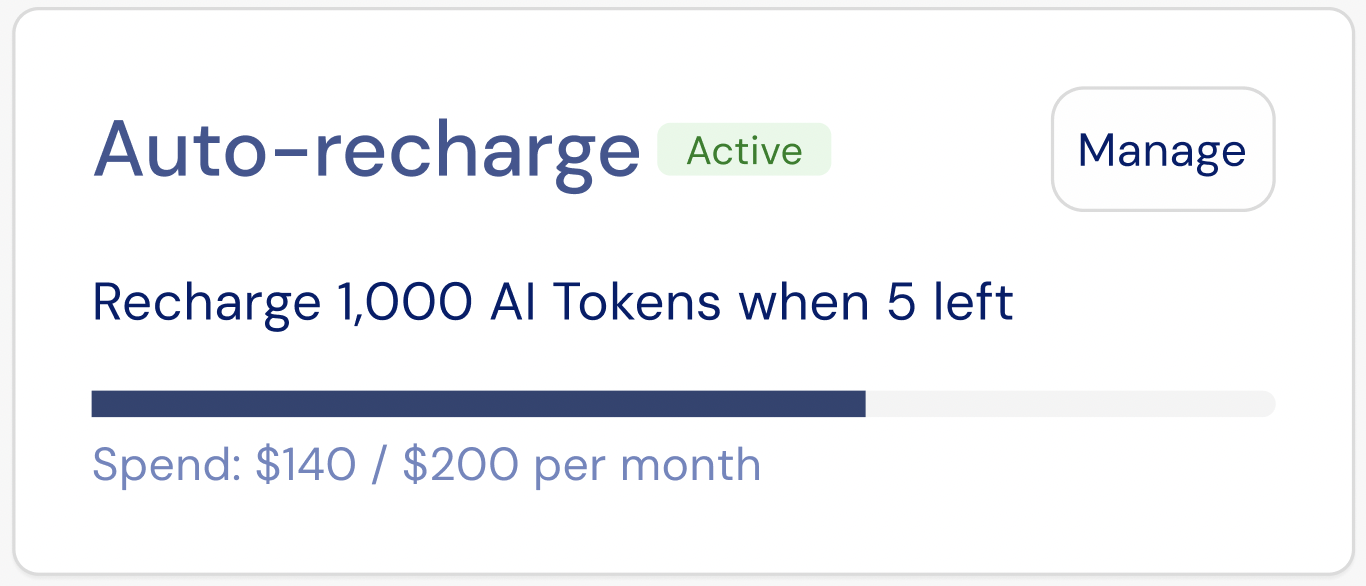
The Auto-recharge status widget displays the customer’s current auto-recharge configuration and monthly spend status. It provides a read-only summary of when auto-recharge is triggered, the target balance after recharge, and how much of the monthly spending limit has been used. The Auto-recharge status widget is designed to be used together with the Auto-recharge configuration widget.

Layout

Auto-recharge status includes a compact summary card that shows whether auto-recharge is currently enabled and what rules are in effect. The status layout includes the following elements:
  • Indicates whether auto-recharge is active or inactive.
  • Shows the configured recharge rule (for example, recharge to 50 coins when the balance drops below 31).
  • Displays the current monthly spend relative to the configured monthly limit.
  • Includes a Manage action that opens the auto-recharge configuration widget.
Customization

No-code widget designer

The Stigg app offers a no-code widget designer, which allows you to control the widget colors, typography and layout.

Custom CSS

For more advanced customization, custom CSS can be applied using the widget designer of the Stigg app. Alternatively, custom CSS can also be applied using code. Below you can find a list of the supported CSS classes:

Main container classes

Class nameDescription
stigg-auto-recharge-status-containerOuter container for the Auto-recharge widget

Status widget classes

Class nameDescription
stigg-auto-recharge-statusMain status card container
stigg-auto-recharge-status-errorError state variant of the status card
stigg-auto-recharge-titleWidget title text
stigg-auto-recharge-status-chipStatus indicator chip (Active / Inactive)
stigg-auto-recharge-manage-buttonManage auto-recharge button
stigg-auto-recharge-descriptionDescription or helper text
stigg-auto-recharge-progressProgress bar for spend tracking
stigg-auto-recharge-spendSpend amount text
stigg-auto-recharge-emptyEmpty state container
stigg-auto-recharge-empty-textEmpty state message text

Snippet

import { AutoRechargeStatus } from '@Stigg/react-sdk';

  // Basic usage
  <AutoRechargeStatus
    customerId="customer-id"
    currencyId="currency-id"
    currencyUnit="Credits"
    billingCurrency="$"
    onManageClick={() => console.log('Manage clicked')}
  />

Props

  • customerId (required) — Customer identifier used to fetch auto-recharge status
  • currencyId (required) — Currency or credit type identifier
  • currencyUnit (optional) — Display name for the currency (for example, "Credits" or "Stigg Coins")
  • billingCurrency (optional) — Billing currency symbol (for example, "$")
  • onManageClick (optional) — Callback triggered when the Manage button is clicked
  • className (optional) — Additional CSS class applied to the root container
  • localization (optional) — Text overrides for customizing widget labels and messages

Texts

The default widget texts can currently be overridden using code:
import { AutoRechargeStatus } from "@stigg/react-sdk";

export function CreditsAutoRechargeStatus() {
  return (
    <AutoRechargeStatus
      customerId="<CUSTOMER_ID>"
      currencyId="<CURRENCY_ID>"
      currencyUnit="AI Tokens"
      billingCurrency="$"
      localization={{
        title: "Auto-recharge",
        activeLabel: "Active",
        descriptionTemplate: "Recharge {{target}} {{currencyUnit}} when {{threshold}} left",
        spendTemplate: "Spend: {{spent}} / {{limit}} per month",
        unlimitedSpendLimit: "Unlimited",
        manageButton: "Manage",
        emptyStateMessage: "Auto-recharge is not enabled",
      }}
      onManageClick={() => {
        // Handle manage click
      }}
    />
  );
}

You can find additional text override options here

Additional resources

Auto recharge configuration