

- What happened?
- When did it happen?
- Who (or what) triggered the event?
The Activity Log provides accurate information for all events that took place on May 22nd, 2024 or later.
Event information
Every event includes the following properties:- Event name - indicates what happened
- Timestamp - the timestamp that the event occurred on
- Trace ID - a unique ID of the event
- Entity - the Stigg entity that the event is associated with, for example: a plan, customer or subscription
- Actor - the entity that triggered the event, including: actor type, name and email address of the user that triggered the event (when relevant) and IP from which the event was triggered
- Event payload - the event data
Actor types
Access via the Stigg app
General log
The general log provides visibility for all of the events that took place on the selected Stigg environment and is accessible via the Activity item on the left navigation pane.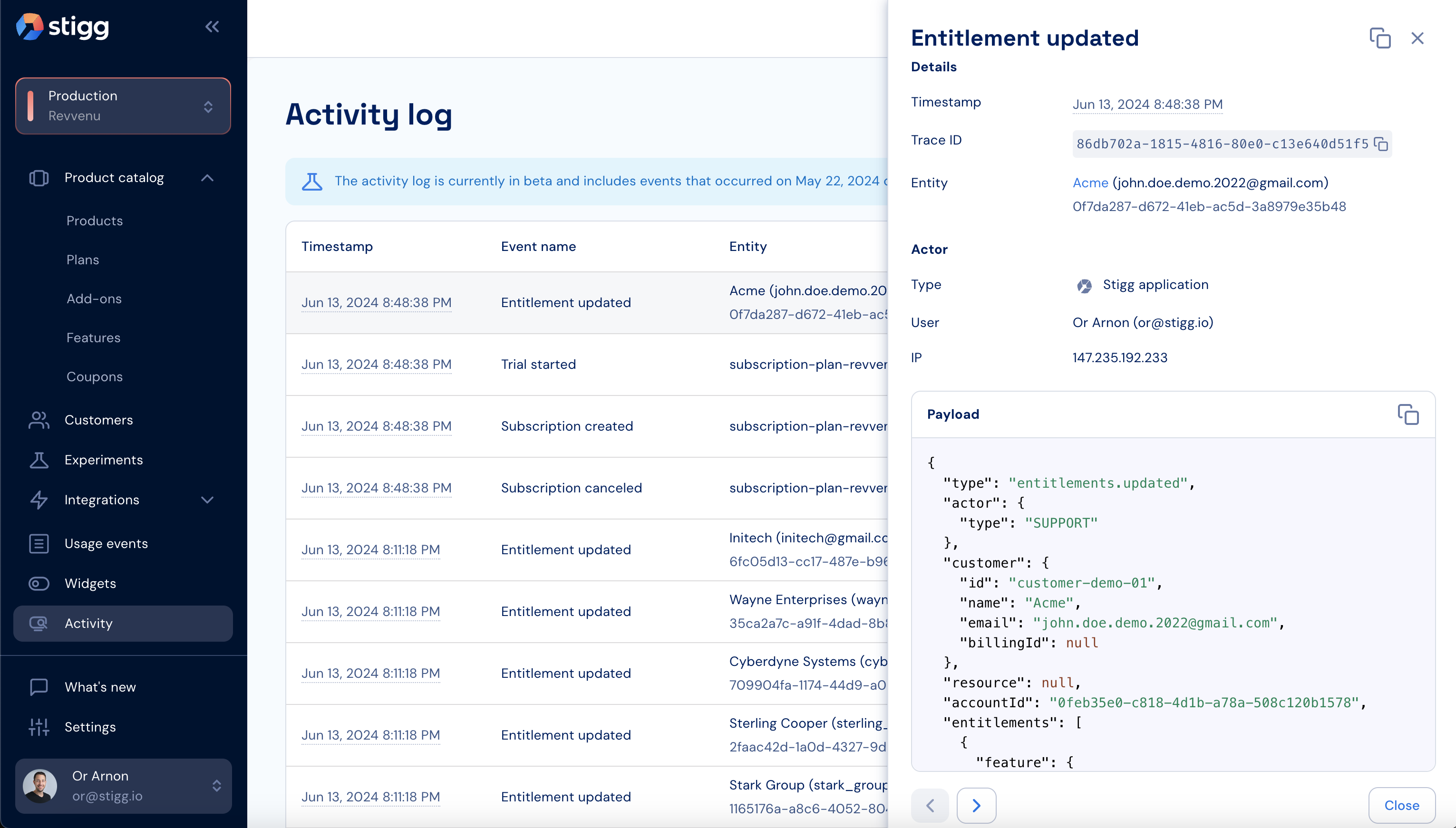
Entity-specific log
An entity-specific activity log is accessible via the Activity tab of the customer, subscription plan and add-on entities. The entity-specific log includes only events that are relevant for the specific entity; thus, making troubleshooting easier.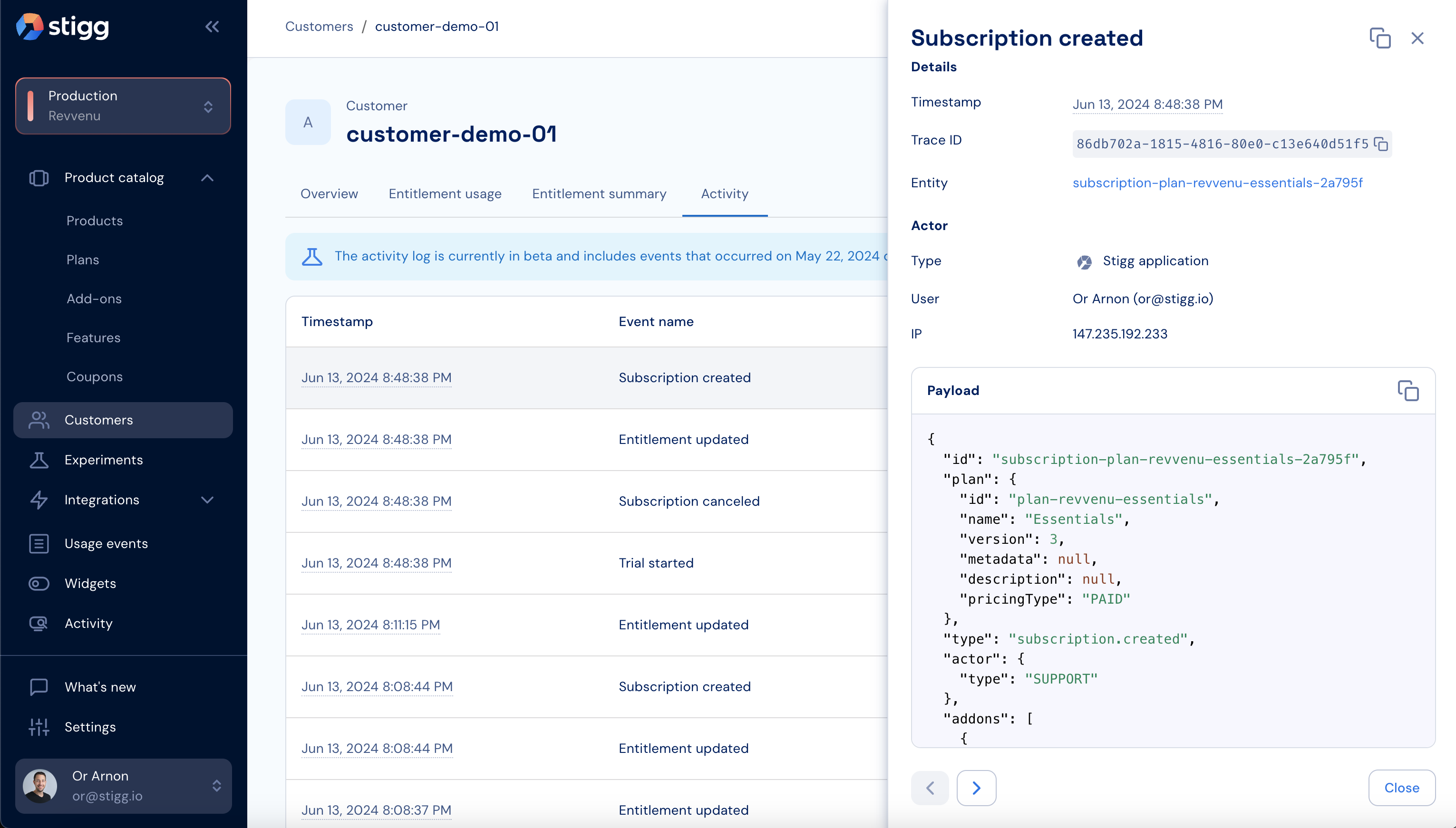
Copying event links
Users can copy links to specific events by clicking on the Copy event link button in the header of a specific event. Event links can be shared with other users that have access to the Stigg app, which can also assist with troubleshooting.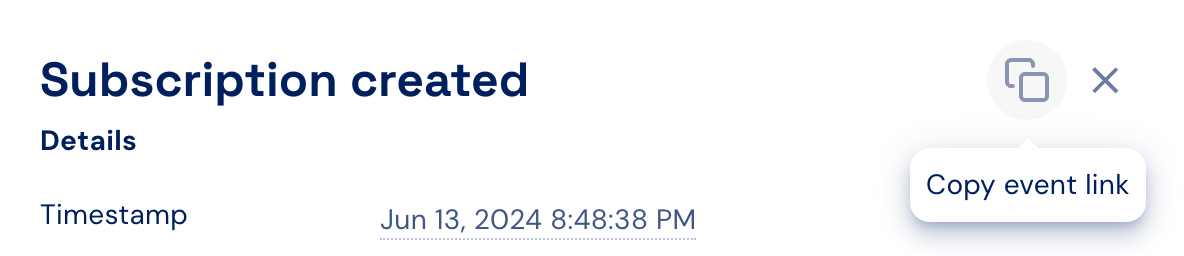
Navigating between events
Stigg allows you to easily navigate between different events by either selecting the relevant event from the Activity Log table, or via the arrows at the footer of a specific events.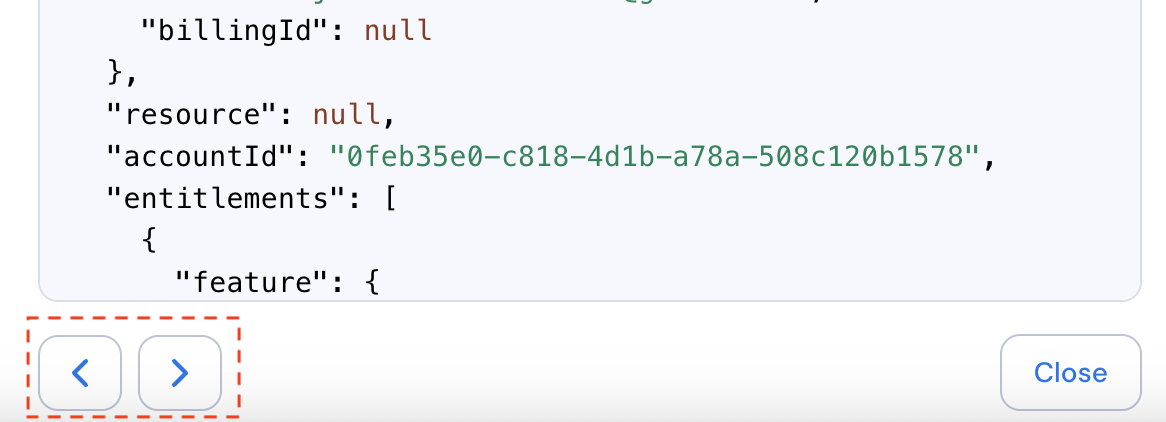
Advanced filtering
The activity log includes multi-condition filtering that allows you to pinpoint specific events without scrolling through large volumes of data.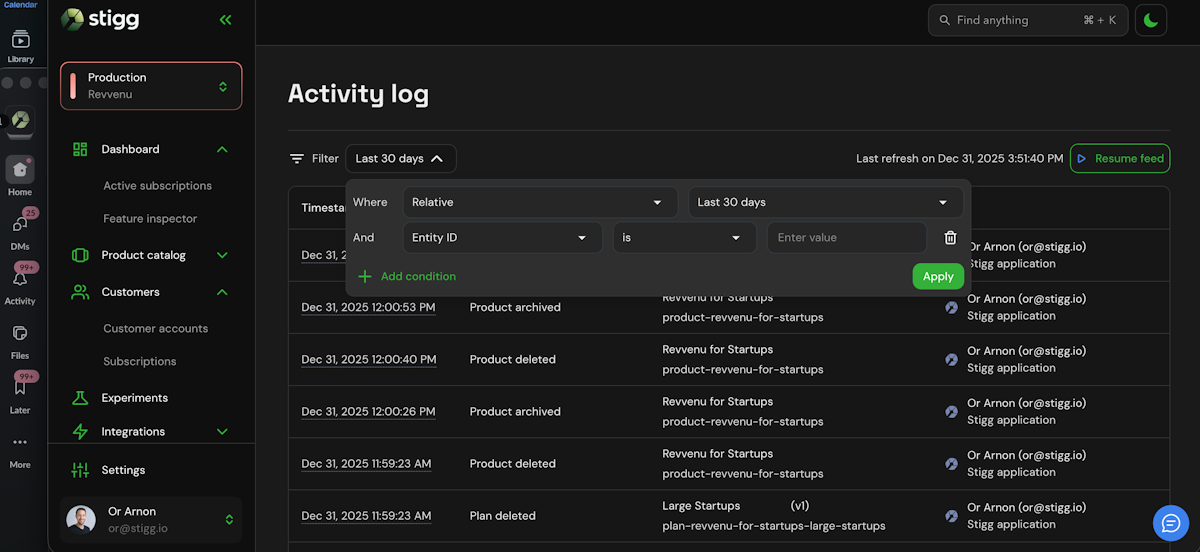
-
Timestamp
Filter events by relative time ranges (for example: last 15 minutes, last 24 hours, last 30 days) or by a custom date and time range.
By default, the Activity Log displays events from the last 30 days. -
Entity ID
Jump directly to the full history of a specific entity (such as a customer, subscription, or plan) by filtering on its unique ID. -
Entity Type
Limit results to a specific category, such as Plan, Subscription, Customer, Add-on, or Coupon.
This is especially useful when auditing changes within a specific part of your pricing or entitlement model. -
Event Name
Isolate specific actions across the platform, such as Customer created, Subscription updated, Product archived, or Entitlements updated. -
Trace ID
Filter by Trace ID to view all events related to a single request. This is particularly useful for debugging and for correlating Stigg events with logs from your own systems. -
Multiple conditions
Multiple filters can be combined using AND logic, allowing for highly targeted queries.