Prerequisites
- A Salesforce organization with Enterprise edition or higher
- A Salesforce user with System Administrator (or equivalent) permissions for the initial one-time setup: installing the managed package, creating custom fields, editing page layouts, and assigning permission sets
Why Enterprise edition or higher? The Stigg package contains custom Apex classes (server-side code). Salesforce Professional and Essentials editions do not support custom Apex, so attempting to install the package on those editions will result in a Missing feature: Apex Classes error.If you’re just testing the integration, sign up for a free Salesforce Developer Edition org. Developer Edition fully supports custom Apex classes and works identically to Enterprise for integration purposes.
Connect your Salesforce domain
1
Open the Salesforce integration in Stigg
In the Stigg app, go to the Integrations section and click on the Salesforce tile.
2
Enter your Salesforce domain
Enter the domain of the Salesforce instance you want to integrate with Stigg.
3
Continue with the setup
Click Continue to proceed with the integration flow.
Install the Stigg app
1
Open the installation link
Click on the Stigg app for Salesforce installation link:
2
Install the app
In the Salesforce installation screen, select Install for Admins Only.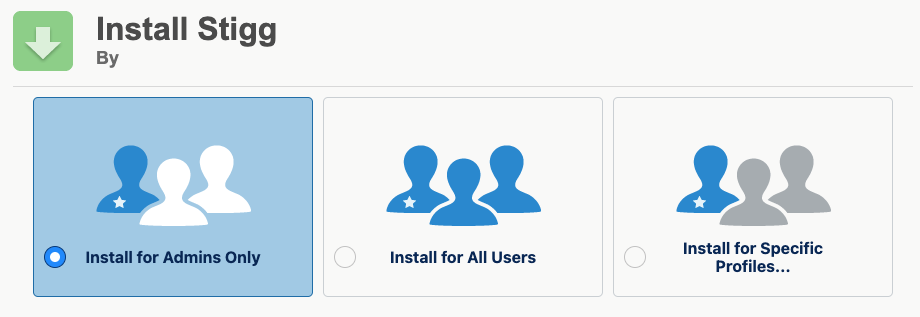
Configure API key
1
Copy your API key from Stigg
In the Stigg app, copy the generated Integration API key.
2
Open the Stigg app in Salesforce
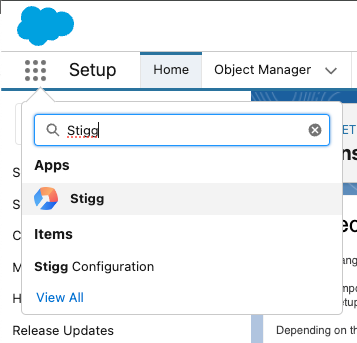
Go to Salesforce and open the App Launcher.
- Search for Stigg
-
Select the Stigg app from the results
3
Configure the integration key
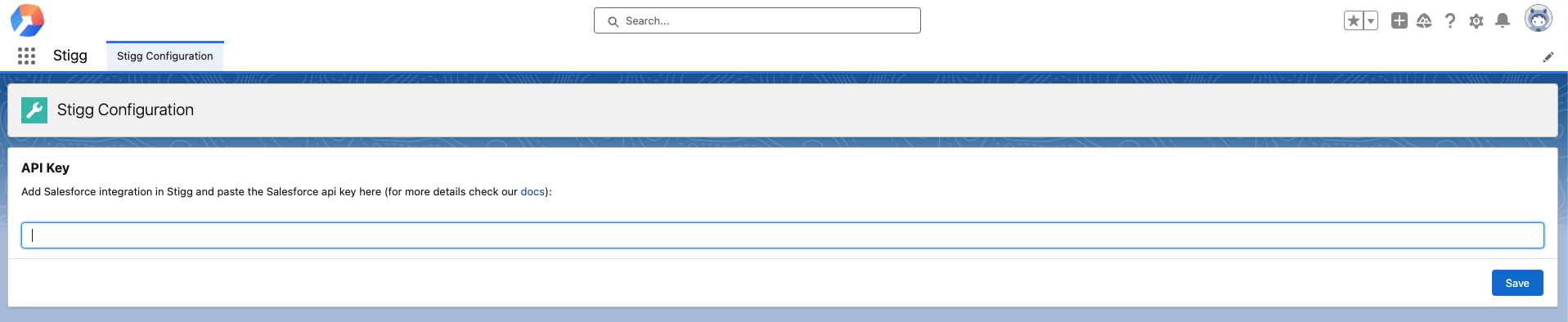
In the Stigg app, go to the Stigg Configuration tab.
- Paste the API key you copied from the Stigg app
-
Click Save to apply the configuration
Assign the Stigg permission set
After installing the package, assign the Stigg permission set to the user that will run the integration. This grants the user access to the Stigg custom objects and Apex classes included in the package.1
Open Permission Sets in Salesforce Setup
In Salesforce, click the Setup gear icon and select Setup.
In the Quick Find search box, type
In the Quick Find search box, type
Permission Sets and select it from the results.2
Open the Stigg permission set
In the list of permission sets, find and click Stigg.
3
Manage assignments
Click Manage Assignments, then click Add Assignments.
Select the user(s) you want to assign the permission set to and click Assign.
Select the user(s) you want to assign the permission set to and click Assign.
Minimum required permissions for the integration user
For production setups, we recommend running the integration as a dedicated non-admin user with minimal permissions, rather than a system administrator. The Salesforce Flow runs in the context of the user who triggers it. That user needs the following standard object access:
Access to Stigg’s custom objects and Apex classes is covered entirely by the Stigg permission set assigned above.
The integration user’s profile must also include API Enabled - this is required for the Flow to make outbound HTTP callouts to Stigg.
The integration user does not need:
- Manage Flows - only required to build or edit flows, not to run them
- Customize Application, Manage Users, or any other admin or setup permissions
- System Administrator profile
Standard object access can be granted via a custom permission set or a lightweight Salesforce profile (e.g., based on the Minimum Access - Salesforce platform profile). Combine this with the Stigg permission set and API Enabled to cover everything the integration needs.
Map Salesforce and Stigg entities
1
Understand the purpose of entity mapping
Provisioning entities in Stigg based on Salesforce data requires a mapping between the two systems.
This mapping is defined within Salesforce using custom fields that connect Salesforce entities (like Products) to their counterparts in Stigg.
This mapping is defined within Salesforce using custom fields that connect Salesforce entities (like Products) to their counterparts in Stigg.
2
Add Stigg mapping fields in Salesforce
In Salesforce, go to the entity type you want to map to Stigg (e.g., Product).
Add the following custom fields:
Add the following custom fields:
-
Stigg Type (Picklist/Enum):
Indicates what kind of Stigg entity this is. Supported values:
"Plan": maps to a custom plan in Stigg"Add-on": maps to an add-on in Stigg"Entitlement": maps to a custom entitlement in Stigg"Credit entitlement": maps to a recurring credit grant entitlement in Stigg. Use this when the product represents a variable credit allocation (e.g., AI credits) that should be provisioned as part of the subscription. The credit amount is passed dynamically via the Subscription Credit Entitlements parameter in the provisioning flow.
-
Stigg ID (Text):
The unique identifier of the matching entity in Stigg
- Example prefixes:
plan-for plansaddon-for add-onsfeature-for entitlementscred-type-for credit entitlements
- Example prefixes:
- Stigg Unlimited Usage (Checkbox): Relevant only for products with Stigg Type = “Entitlement” on custom plans (Credit Entitlement products are not affected). When checked, Stigg provisions the entitlement with unlimited usage and ignores the product’s quantity.
3
Add the fields to the page layout
To make the new custom fields editable in the UI: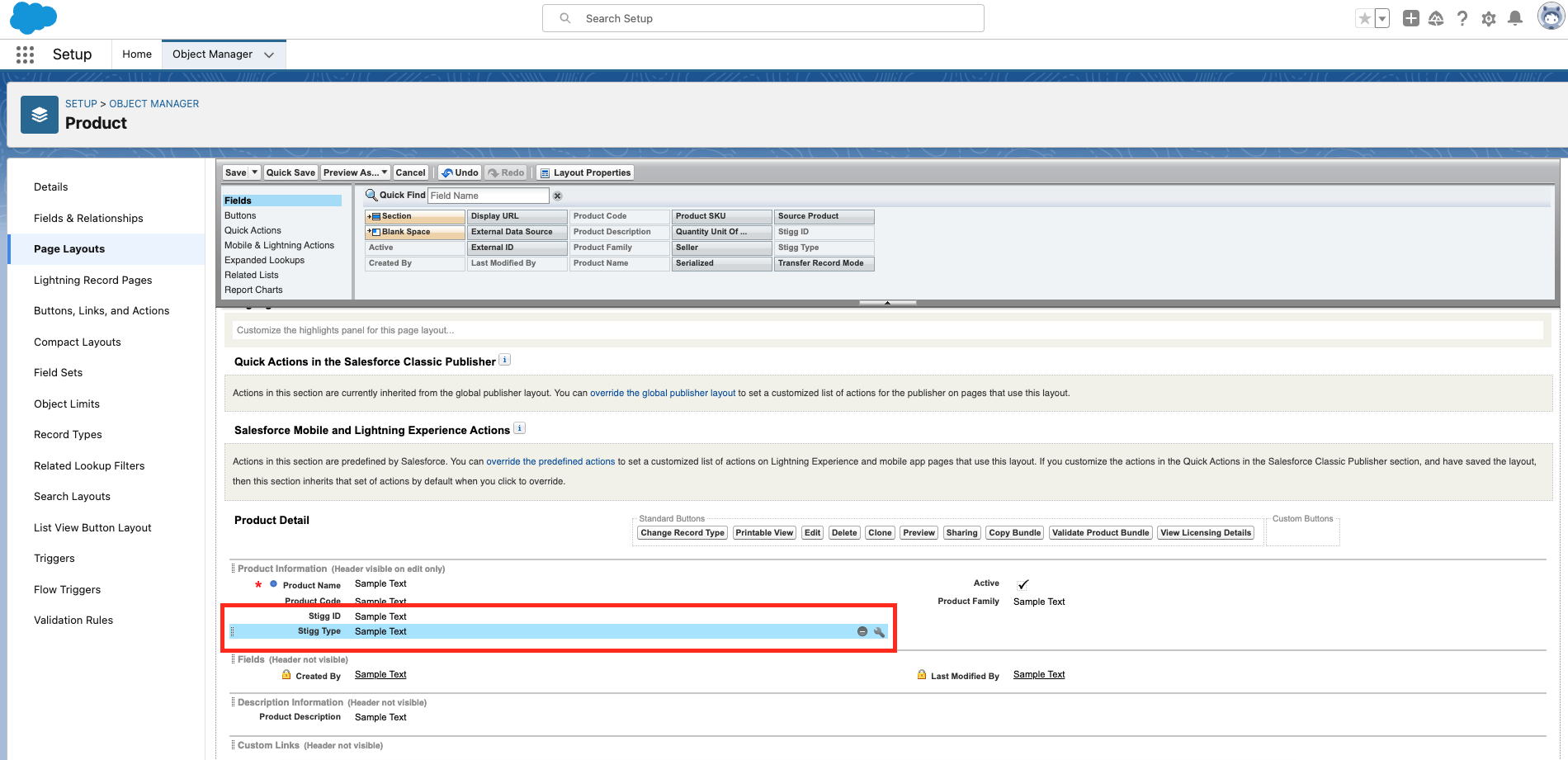
- Add them to the entity’s default page layout
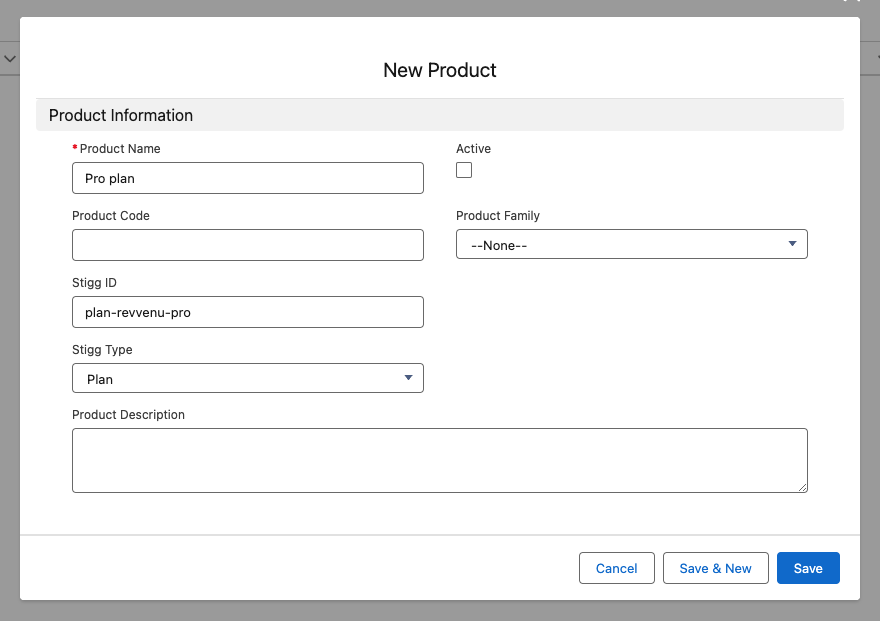
💡 If you’re using Salesforce price books, products, or CPQ, it’s highly recommended to add the fields to the Product entity, as shown below:
Troubleshooting field visibility - fields added but not appearing?If you’ve added the Stigg ID and Stigg Type fields to the page layout but they remain hidden or uneditable, the issue is likely Field-Level Security (FLS):
- In Setup, go to Object Manager → Product → Fields & Relationships
- Click on the Stigg ID (or Stigg Type) field
- Click Set Field-Level Security
- Ensure the field is marked as Visible for the System Administrator profile (and any other profiles that need access)
No formula fields needed. When the Stigg Type and Stigg ID fields are on the Product object (recommended), the Salesforce Flow handles the Opportunity → OpportunityLineItem → Product traversal natively. You only need formula fields or additional Flow logic if you place the mapping fields on a non-standard object that the Flow does not already traverse.
4
Set field values when creating or editing entities
When creating or editing the relevant Salesforce entities:
- Set the Stigg Type to match the type of entity in Stigg
-
Enter the corresponding Stigg ID from your Stigg app