

Creating your own flow
The Stigg flow actions can be used in any Salesforce Flow — you are not limited to triggering from an Opportunity. You can start your flow from any standard or custom Salesforce object (Accounts, Contacts, Cases, custom objects, etc.) and include the Stigg actions wherever provisioning or credit granting is needed.Use the default template as a base
- Open the Opportunity - Stigg Subscription Template flow to begin customizing it.
Insert your provisioning logic
-
Use this action to send an API request to your application to provision entities such as accounts, organizations, or workspaces.
Pass generated IDs to Stigg actions
- Use the resource IDs returned by your application’s API
- These IDs should be passed to Stigg when creating the corresponding customer and subscription
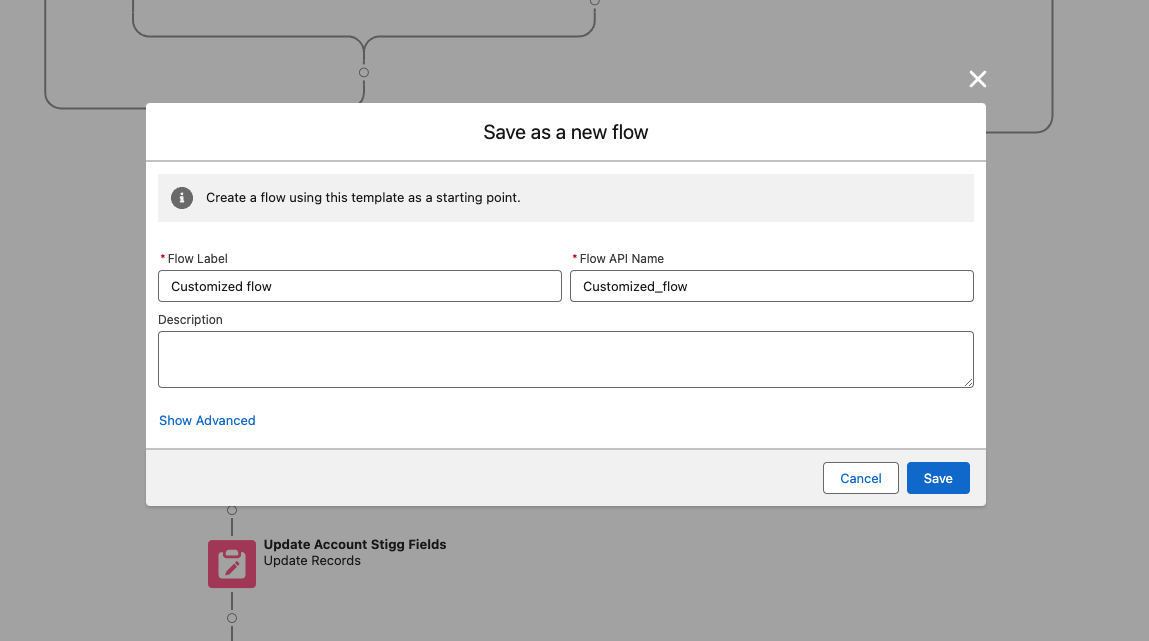
Save your customized flow
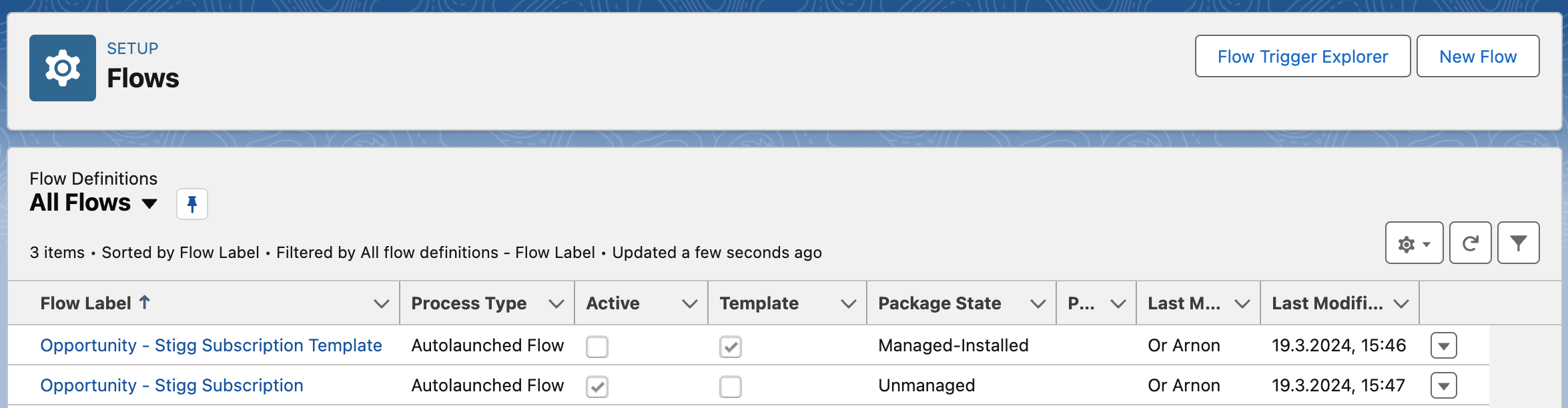
Activate your flow
- Make sure the default template flow is deactivated
-
Activate your newly saved, customized flow to ensure it is used going forward
Provisioning custom subscriptions with entitlements
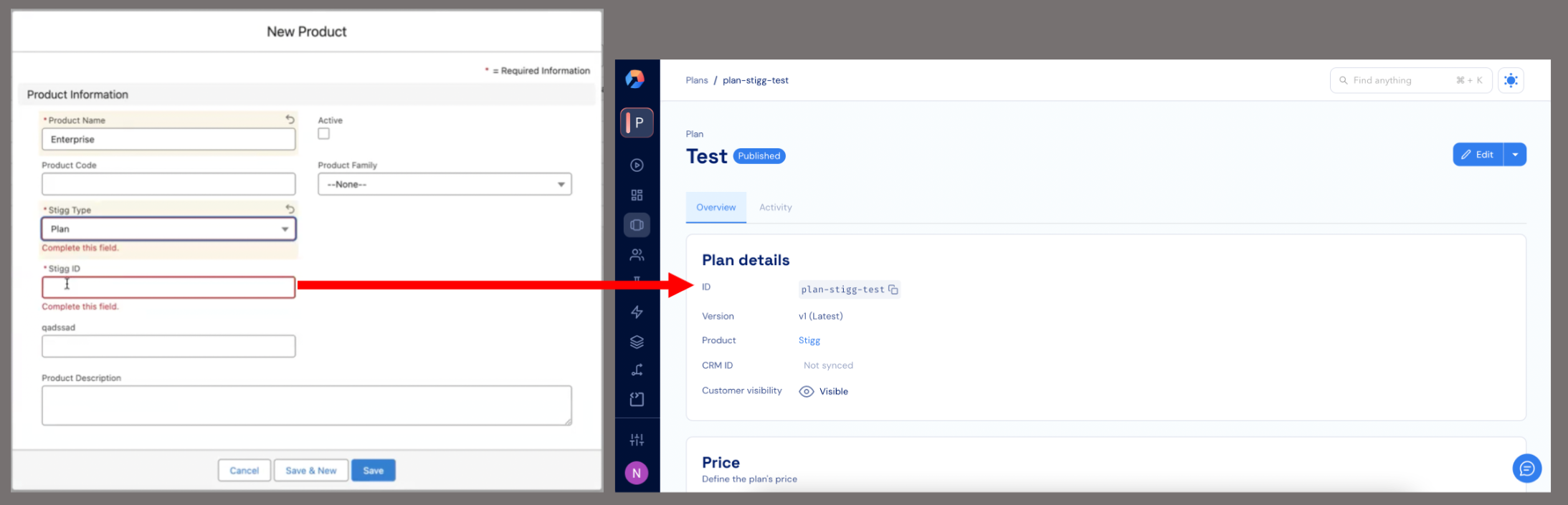
In this configuration, Stigg is responsible only for provisioning and fulfillment of entitlements - billing is handled separately through your existing Salesforce processes. To set it up:Create products in Salesforce
- Set the Stigg Type to
Plan - Set the Stigg ID to the corresponding plan ID in your Stigg app
-
For each entitlement product, set the Stigg Type to
Entitlement -
Set the Stigg ID to the corresponding entitlement ID in Stigg
Create an account and opportunity
- Open the opportunity
- Navigate to Products → Add Products
- Add both the plan product and the entitlement products
- The Product must be Active - open the product record and confirm the Active checkbox is checked.
- The Product must have an Active Standard Price - go to the product’s Related tab and confirm a standard price exists in the Price Books related list. If it’s missing, click Add Standard Price to add one.
- The Opportunity must use the same Price Book - the Opportunity’s Price Book must match the Price Book the product is assigned to. Open the Opportunity, check the Price Book field, and ensure it matches.
Set quantities and close the deal
- Assign quantities for each product according to your desired subscription configuration
- Move the opportunity to Closed/Won to trigger the provisioning process
Verify subscription in Stigg
- A corresponding customer will be created in Stigg
- Their subscription, including associated entitlements, will appear in the Customers section of your Stigg app
Provisioning paid subscriptions, price overrides, and invoices
Stigg’s Salesforce integration supports provisioning of paid subscriptions with price overrides and invoice-based billing, enabling SaaS companies to implement complete Order-to-Cash (O2C) flows directly from Salesforce. This allows Salesforce to act as the quoting and opportunity management layer, while Stigg handles subscription fulfillment and billing orchestration, including automated invoice generation.
Edit the Salesforce provisioning flow
- Set the Payment Collection Method to
INVOICE: this instructs Stigg to generate an invoice instead of attempting automatic payment.
- Ensure the customer receiving the subscription has a valid billing email address associated with their profile.
- This email will be used for invoice delivery.
- The same email address should also exist in the Contacts section of the corresponding Salesforce account.
Activate the updated flow
Create the opportunity and add products
- Create a new Opportunity in Salesforce
- Add the Salesforce product that refers to the paid plan in Stigg
- Add any entitlement products included in the plan
- Assign appropriate quantities based on the desired configuration
Apply price overrides
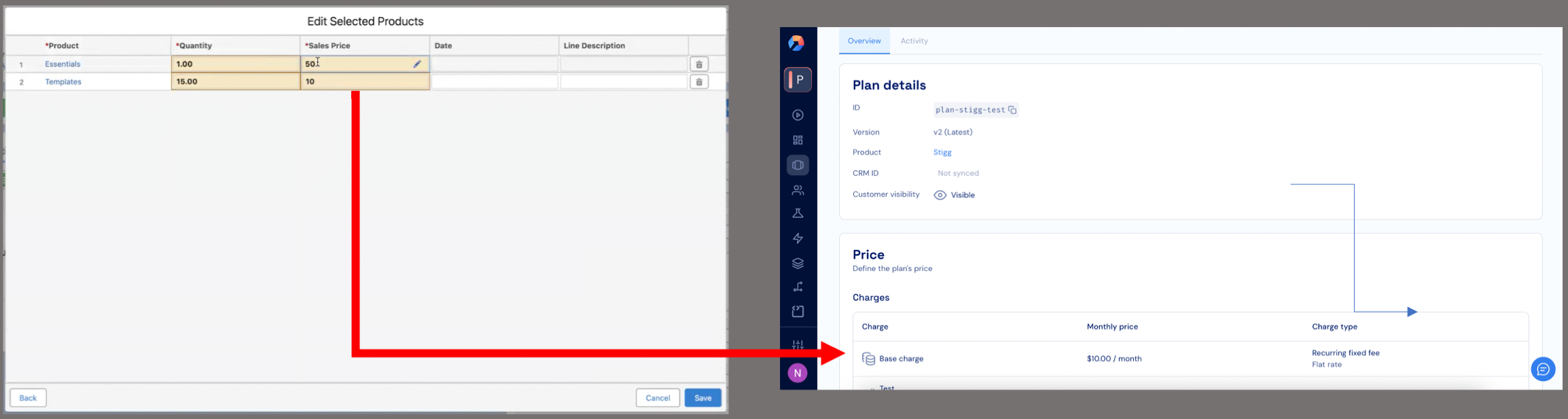
Trigger provisioning and invoicing
- This triggers the provisioning flow
- A new customer and subscription are created in Stigg
- An invoice is generated through your connected billing provider
- Once the invoice is paid, the subscription is activated in Stigg
Provisioning paid subscriptions with credit charges
When a paid plan includes credit entitlements (e.g., a monthly allocation of API credits billed at a set price), you can pass those alongside feature entitlements in the Create Stigg Subscription node.Create credit entitlement products in Salesforce
- Set the Stigg Type to
Entitlement - Set the Stigg ID to the corresponding custom currency ID in Stigg (e.g.,
currency-api-credits)
Configure the Create Stigg Subscription node
- Set Payment Collection Method to the desired billing method (
PAYMENT_METHOD_ON_FILEorINVOICE) - In the Subscription Credit Entitlements field, provide a collection with one entry per credit entitlement:
customCurrencyId- the ID of the custom currency in Stiggamount- the number of credits includedcadence-MONTHorYEARprice- (optional) price override for this credit entitlement on the invoice
Add products to the opportunity
- Add the plan product and any feature entitlement products
- Add the credit entitlement products
- Assign quantities and sales prices as needed
Trigger provisioning
- The subscription is created in Stigg with both feature and credit entitlements
- An invoice is generated if
INVOICEwas selected as the payment collection method
Provisioning custom plans with credit entitlements
For custom plans where billing is handled outside of Stigg (nopaymentCollectionMethod), you can provision mixed feature and credit entitlements together.
Create products in Salesforce
- For feature entitlements: set Stigg Type to
Entitlementand Stigg ID to the feature ID (e.g.,feature-seats) - For credit entitlements: set Stigg Type to
Entitlementand Stigg ID to the custom currency ID (e.g.,currency-api-credits)
Plan.Configure the Create Stigg Subscription node
- Leave Payment Collection Method unset (this is a custom plan - billing is external)
- In the Subscription Credit Entitlements field, provide credit entitlement entries with:
customCurrencyId,amount, andcadence(MONTHorYEAR)
- Feature entitlements continue to be passed as usual via mapped entitlement products
Add products to the opportunity
- Add the plan product
- Add feature entitlement products with their usage limits as quantities
- Add credit entitlement products with their credit amounts as quantities
Trigger provisioning
- A customer and subscription are created in Stigg
- The subscription includes both feature and credit entitlements
Granting credits (credit top-up)
Use the Create Stigg Credit Grant flow action to grant credits to a customer outside of a subscription. This is useful for one-off top-ups, promotional grants, or paid credit purchases.Add the Create Stigg Credit Grant action to your flow
- Stigg Customer ID - the ID of the customer receiving the credits
- Grant Type -
PROMOTIONALfor free credits, orPAIDfor credits tied to a charge - Currency ID - the ID of the custom currency in Stigg to grant (e.g.
cred-type-test) - Display Name - a label for the credit grant
- Amount - the number of credits to grant
Configure optional fields
Save and activate the flow
- When the flow runs, the credit grant is created in Stigg for the specified customer
Provisioning trial subscriptions
Configure the flow for trial provisioning
- Toggle Trial to on
- Set the Trial field to
True - Enable the Trial End Date toggle and set your desired trial end date
Define the opportunity
- Add the relevant plan and entitlement products from your Salesforce price book
- These products should already be mapped to Stigg entities as part of the integration setup
- Set the appropriate quantity and price for each product to match your desired trial configuration
Trigger the trial provisioning
- This triggers the flow and provisions the trial subscription in Stigg
- A corresponding customer will appear in the Customers section of your Stigg app