Entity mapping
By default, Stigg uses the following mapping:- Stigg plan → Zuora product
- Stigg price → Zuora rate plan and charge
Entity sync eligibility
These are the default rules. Customers and subscriptions can still be forced to sync in special cases. For example, if a Billing ID is set to link with an existing Zuora record or if metadata with the
ZUORA__ prefix is provided.Syncing customer usage to Zuora
When customers are subscribed to plans with pay-as-you-go pricing, feature usage that’s reported to Stigg is synced to Zuora every hour. When the integration is enabled, it’s possible to manually trigger this sync from the Stigg app by using the Sync usage to Zuora action in details screen of the relevant subscription.Setting up the integration
Create an API user in Zuora
In Zuora, under the Settings section click on Administration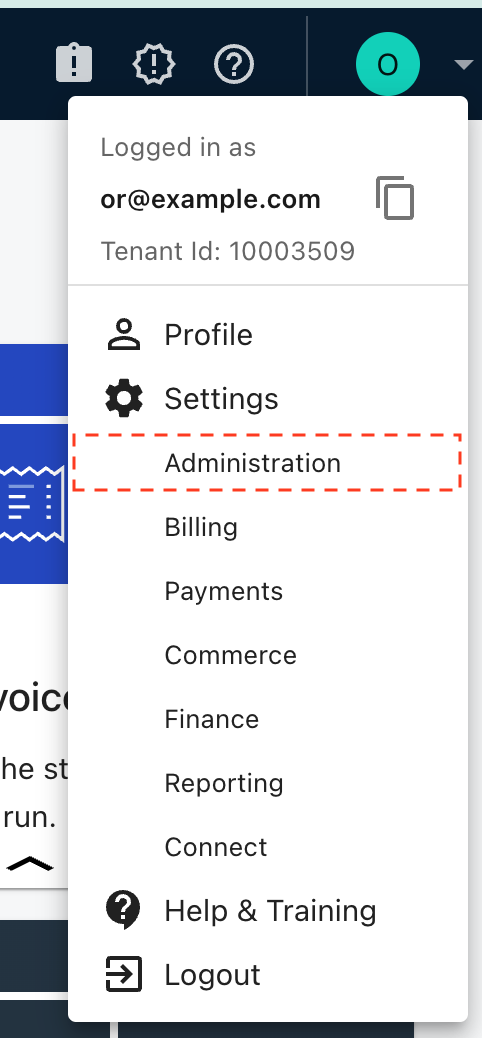
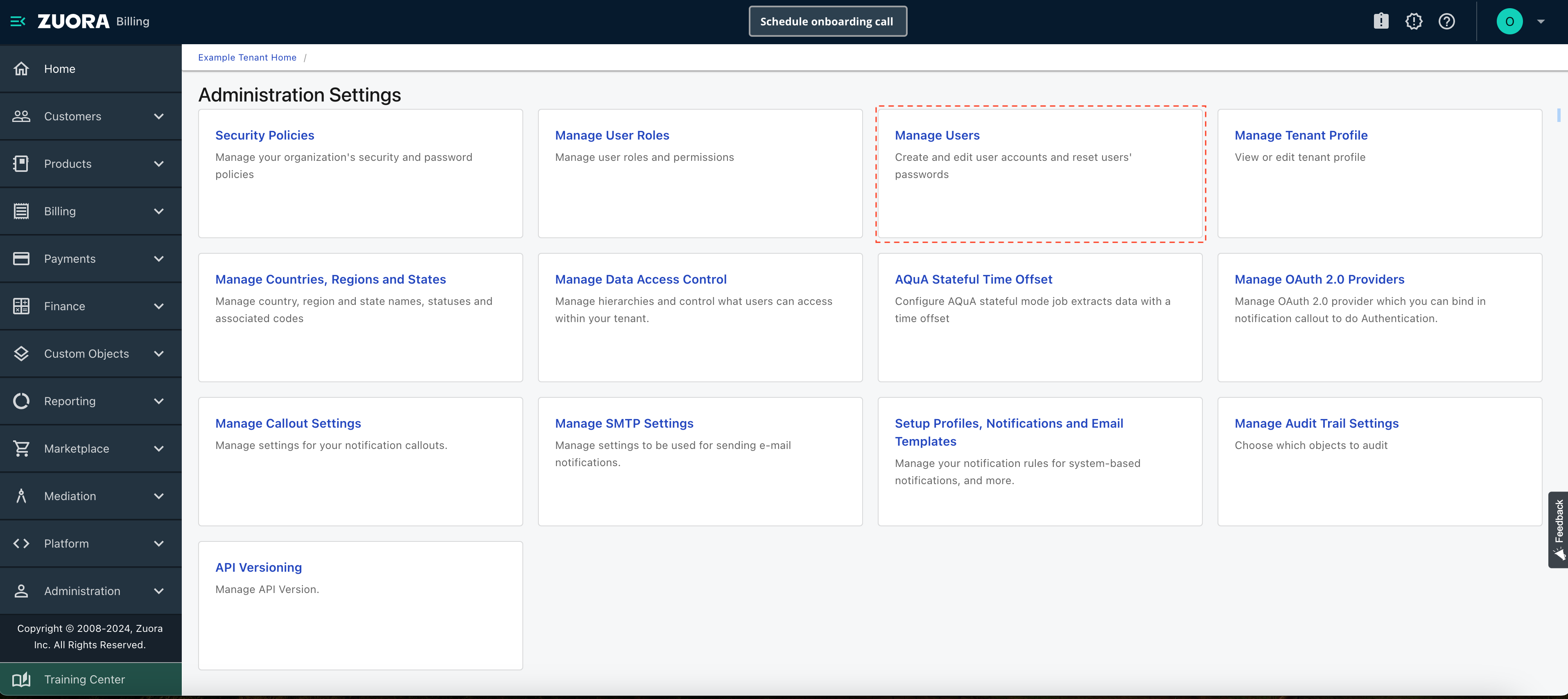

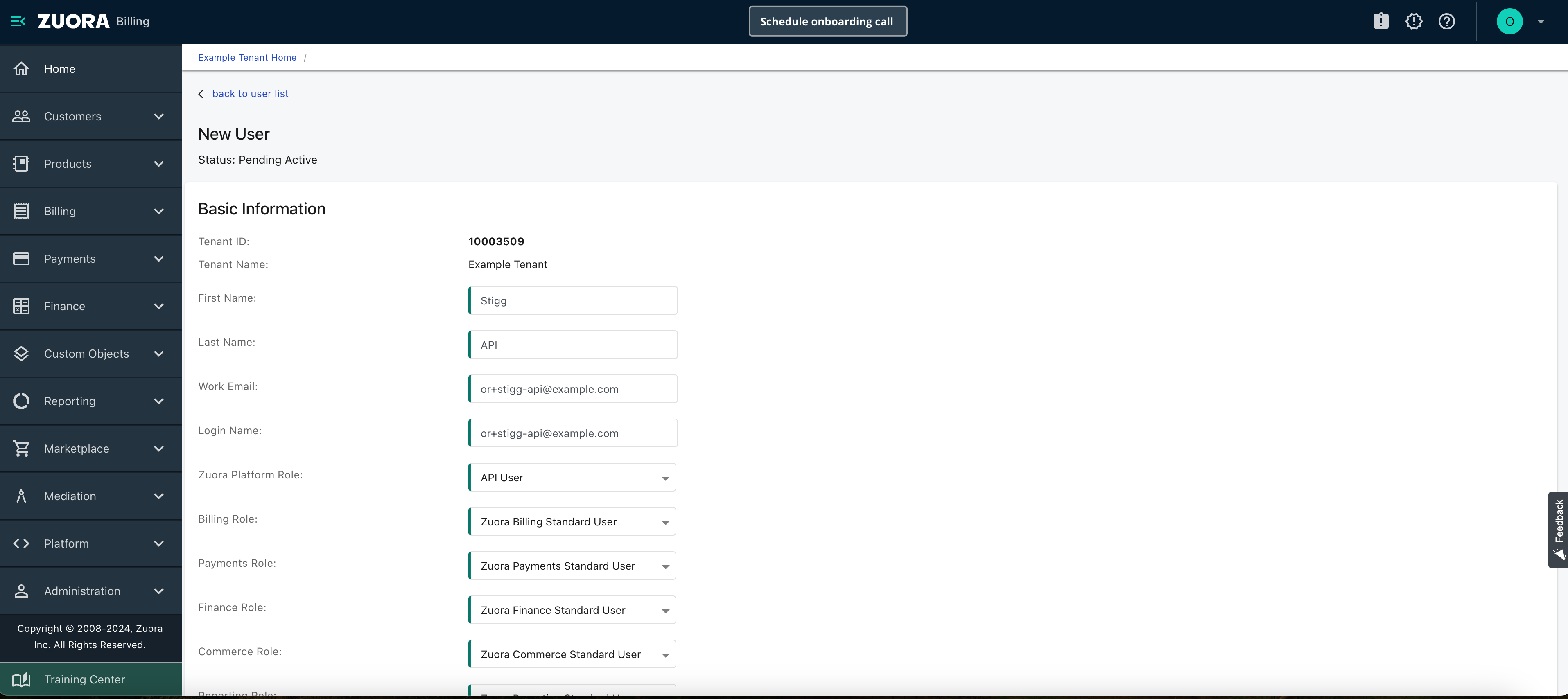
- Zuora Platform Role - API User
- Billing Role - Zuora Billing Standard User
- Payments Role - Zuora Payments Standard User
- Finance Role - Zuora Finance Standard User
- Commerce Role - Zuora Commerce Standard User
- Reporting Role - Zuora Reporting Standard User
Required permissions
When the integration is connected, Stigg automatically configures the following in your Zuora tenant. The API user must have permissions to create and manage each of them:
In Zuora, these permissions are managed per-role under Administration > Manage Roles. Verify that the roles assigned to the API user include the following permissions:
- View Custom Objects
- Edit Custom Objects
- Events & Notifications View Access
- Events & Notifications Manage Access
Create an OAuth client in Zuora
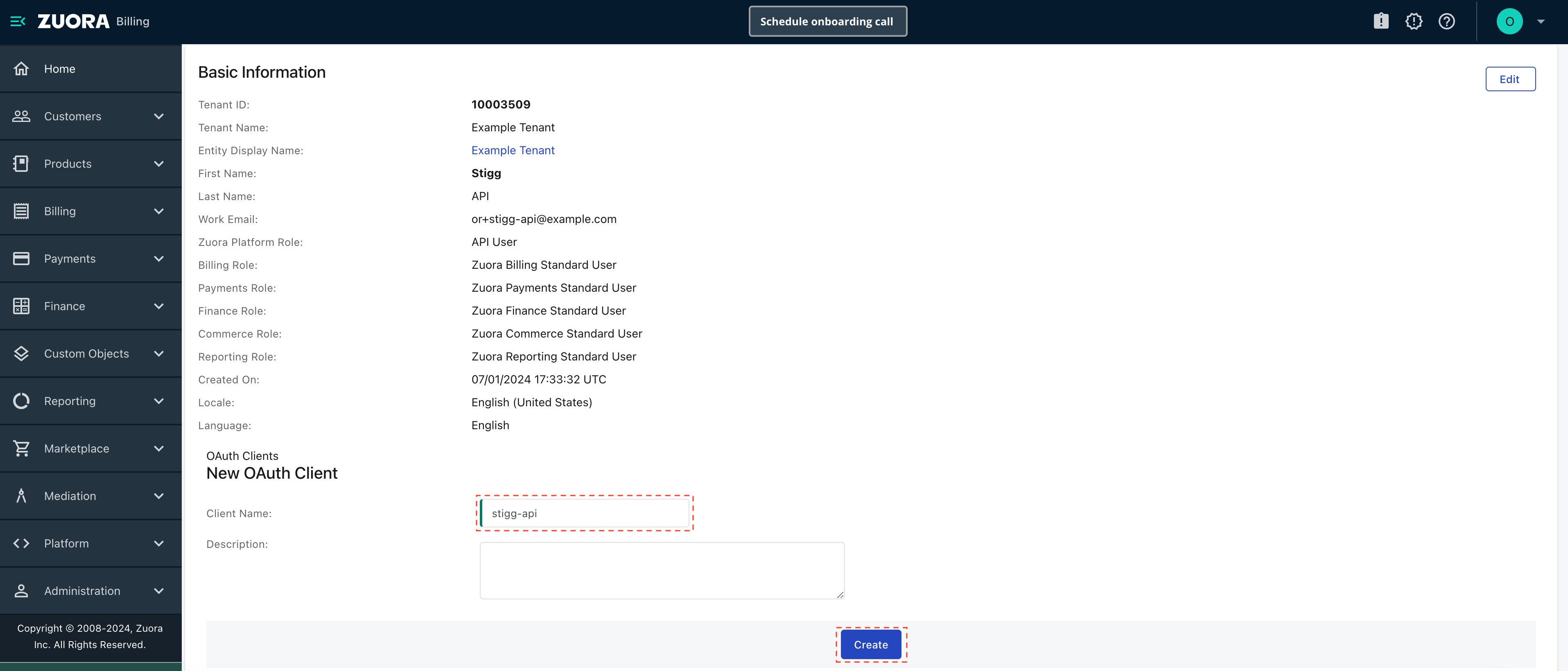
In Zuora, open the user that was created and activated in the previous step. Under the OAuth Clients section, create a new client calledstigg-api.

Map Stigg metadata to Zuora custom fields
The following custom fields are automatically created in your Zuora tenant when the Stigg integration is set up.You can add up to 10 indexed custom and 40 non-indexed fields in Zuora. Indexed fields are recommended for performance but are not required for the integration to work.
Zuora automatically adds a ‘__c’ suffix to all API names, for example: stiggEntityUrl__c
Metadata synchronization
Stigg metadata set on plans, add-ons, customers, and subscriptions can be synced to corresponding Zuora entities using reserved metadata key prefixes.Custom fields - ZUORA__ prefix
Metadata keys prefixed with ZUORA__ are mapped to custom fields on the corresponding Zuora entity.
The prefix is stripped and a
__c suffix is appended automatically to form the Zuora custom field name:
ZUORA__SalesRegion → SalesRegion__c on the Zuora Product, Account, or Subscription.
If the key already ends with __c, it is used as is and no additional suffix is appended.
Some ZUORA__ keys are reserved and map to standard Zuora fields instead of custom fields. See Customer account fields, Termed subscriptions, and the skip-update flag below.
The target custom field must already exist in Zuora before syncing. Custom fields are not created automatically.
Customer account fields
The following reserved keys can be set on a customer’s metadata to control standard fields on the corresponding Zuora Account. They are not synced as custom fields.
Parent account -
ZUORA__parentId
Use ZUORA__parentId to place the customer’s Zuora Account under a parent account in a Zuora customer account hierarchy. Stigg applies the value when the account is created and on every subsequent customer sync, so changing the metadata value moves the account to a different parent.
The parent account must already exist in Zuora, and customer account hierarchy must be enabled on your Zuora tenant.
ZUORA__ACCOUNT_NUMBER_SOURCE
By default, Stigg sets the Zuora account number based on the Stigg environment and customer ID. Set ZUORA__ACCOUNT_NUMBER_SOURCE to zuora to let Zuora generate the account number instead, for example when your tenant uses its own account numbering rules. This key only takes effect when the Zuora Account is first created.
Invoice owner
Stigg creates each Zuora subscription under the customer’s own Zuora Account, which also acts as the subscription’s invoice owner. Setting a different invoice owner account through Stigg metadata is not supported.
Charge-level fields - ZUORA_CHARGE__ prefix
Metadata keys prefixed with ZUORA_CHARGE__ are applied to the Zuora Product Rate Plan Charge that corresponds to the plan or add-on. This prefix supports both standard accounting code fields and custom charge fields.
This prefix applies only to plan and add-on metadata.
Accounting code fields
The following keys map to built-in Zuora charge fields:
If
ZUORA_CHARGE__DeferredRevenueAccount or ZUORA_CHARGE__RecognizedRevenueAccount is not set, Stigg falls back to the default accounting codes configured on the Zuora integration, if any.
Tax fields
Setting
ZUORA_CHARGE__TaxCode also marks the charge as taxable.
Custom charge fields
Any other ZUORA_CHARGE__<FieldName> key is set as a custom field on the charge (with __c appended), following the same convention as the ZUORA__ prefix.
Skip-update flag - ZUORA__SYNC_SKIP_UPDATE
Setting ZUORA__SYNC_SKIP_UPDATE to true on a plan or add-on prevents Stigg from pushing updates to the corresponding Zuora product during sync. The entity will still be created on first sync, but subsequent changes in Stigg will not overwrite the Zuora product.
This is useful when the Zuora product is managed manually or by another system.
Connect Stigg with Zuora
In the Stigg app, navigate to the Settings > Integrations > Apps section. Select the Zuora integration app. In the opened form, enter the following information:- Zuora tenant - the URL of your Zuora tenant
- Client ID - the ID of the OAuth client that you created in the previous step
- Client secret - the secret of the OAuth client that you created in the previous step
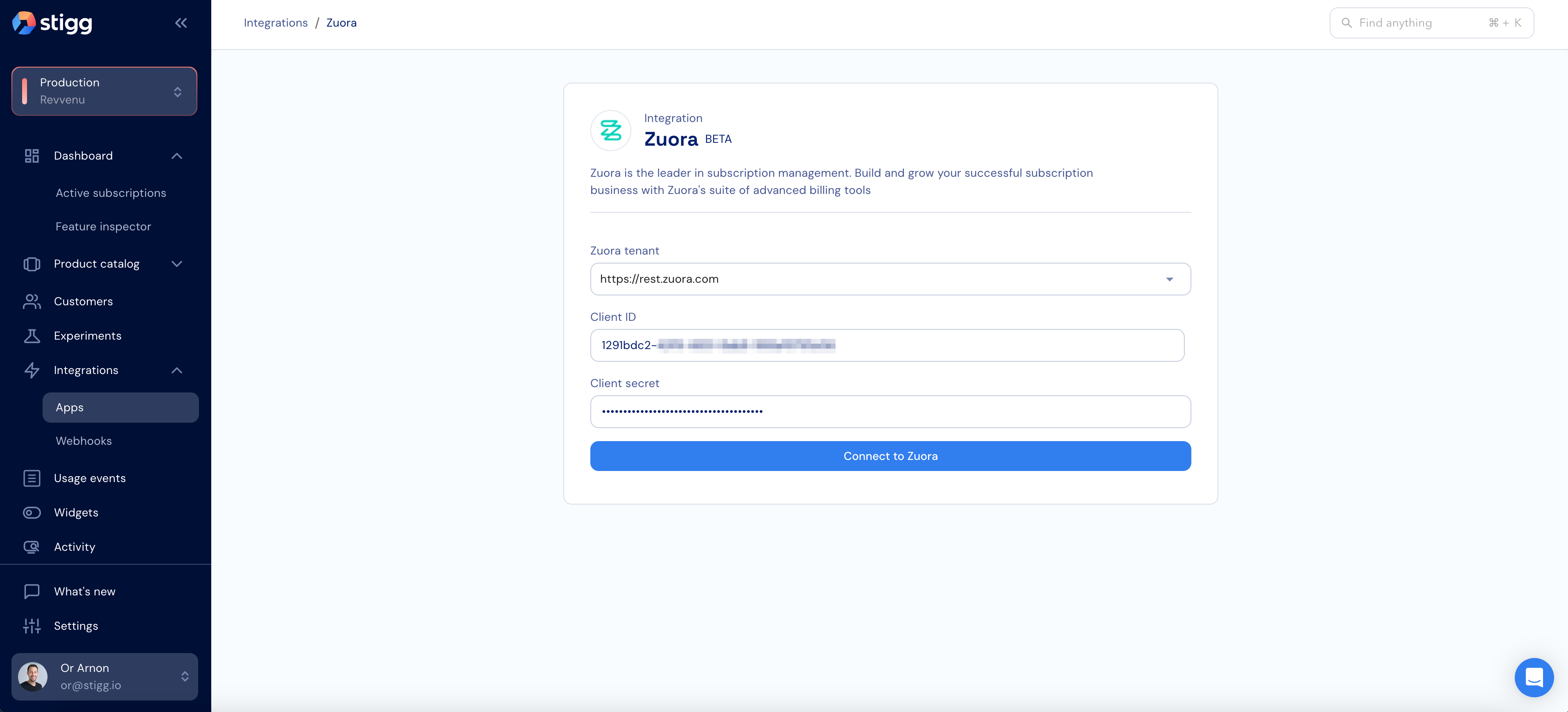
- Integration details - update your tenant credentials or toggle Invoice item settlement to enable item-level payment settlement through Zuora.
- Additional settings - optionally enable the Use Stigg Checkout widget toggle to allow customers to add payment methods via the Stigg Checkout widget. See Integration with Zuora payment form for details.
Indication for synced entities
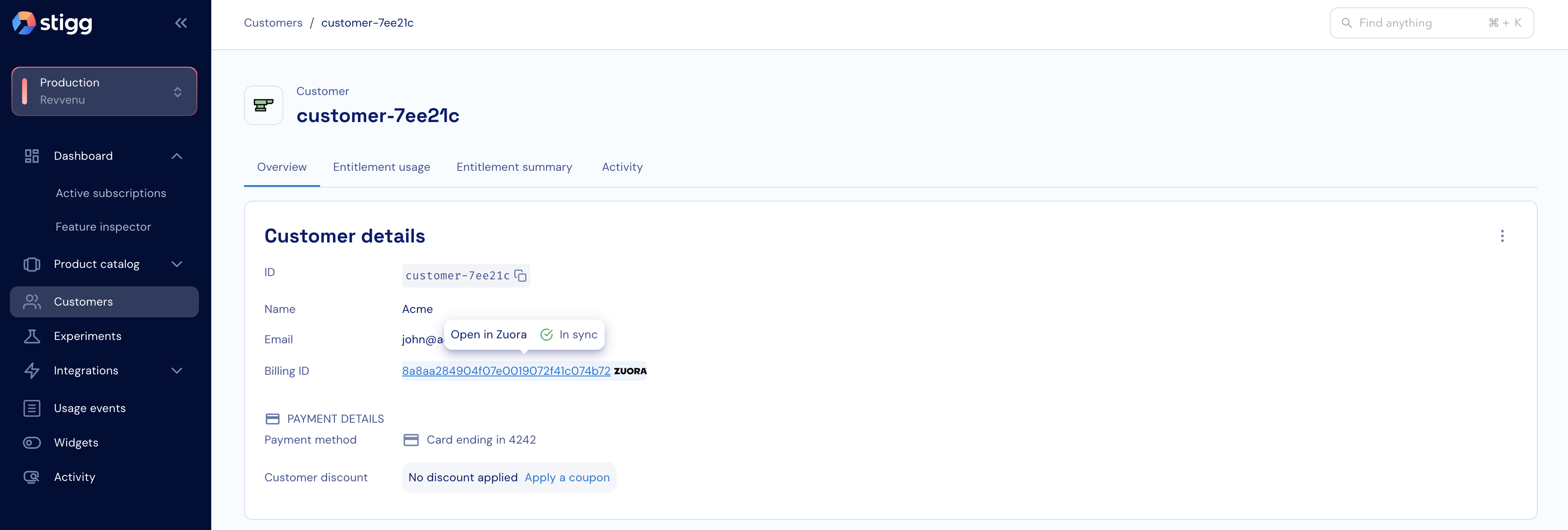
Entities that are synced from Stigg to Zuora have a clickable “billing ID” property with a Zuora logo next to it and indication of their sync status (successful, failed, will not be synced).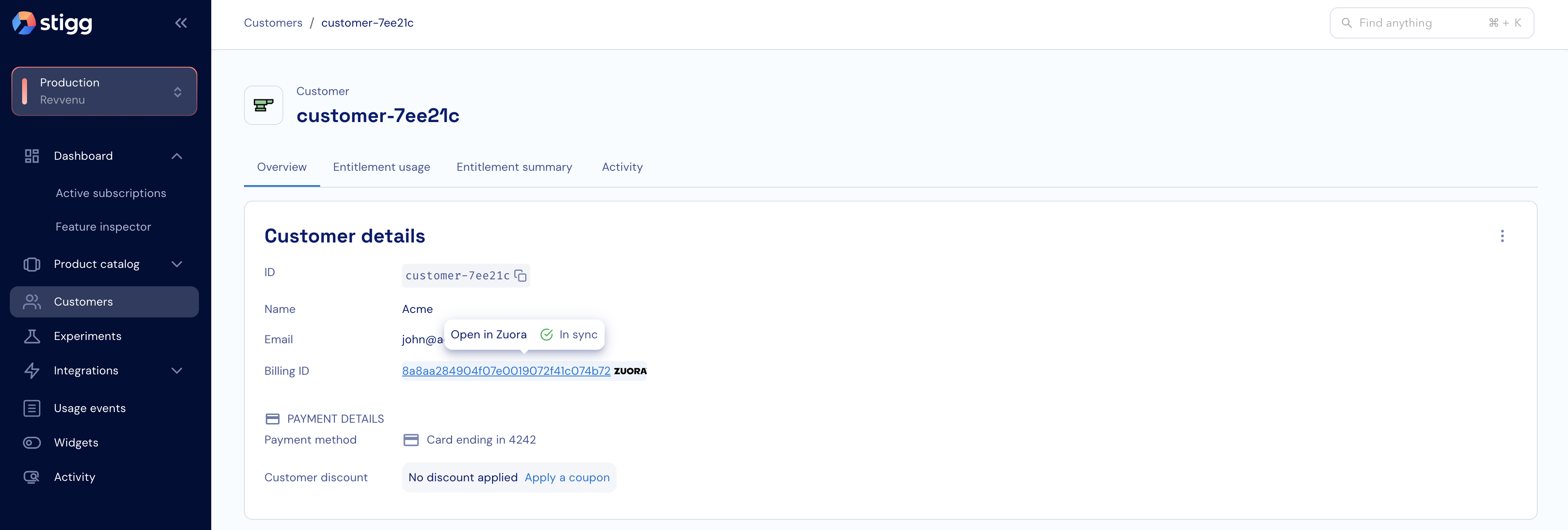
Accessing Zuora entities from Stigg
In the Stigg app, clicking on the link of the “billing ID” property will open the relevant entity in Zuora.