

Credit usage per customer
- Go to Customers.
- Select a customer.
- Go to the Credits tab.
Credits can be granted to and consumed by customers regardless of whether they have an active subscription - the balance updates immediately even if no plan is currently assigned. This makes it possible to run the credits system fully decoupled from Stigg subscription management, for example when subscriptions are managed elsewhere or credits are the only Stigg capability in use.
Resource ID filter
When a customer has resource-specific credit pools, a Resource ID dropdown appears at the top of the Credits tab. Use it to switch between the global credit pool and any resource-scoped pools (e.g., individual workspaces or team members). Selecting a resource scopes all views on the tab — usage overview, usage chart, and ledger — to that resource’s isolated wallet.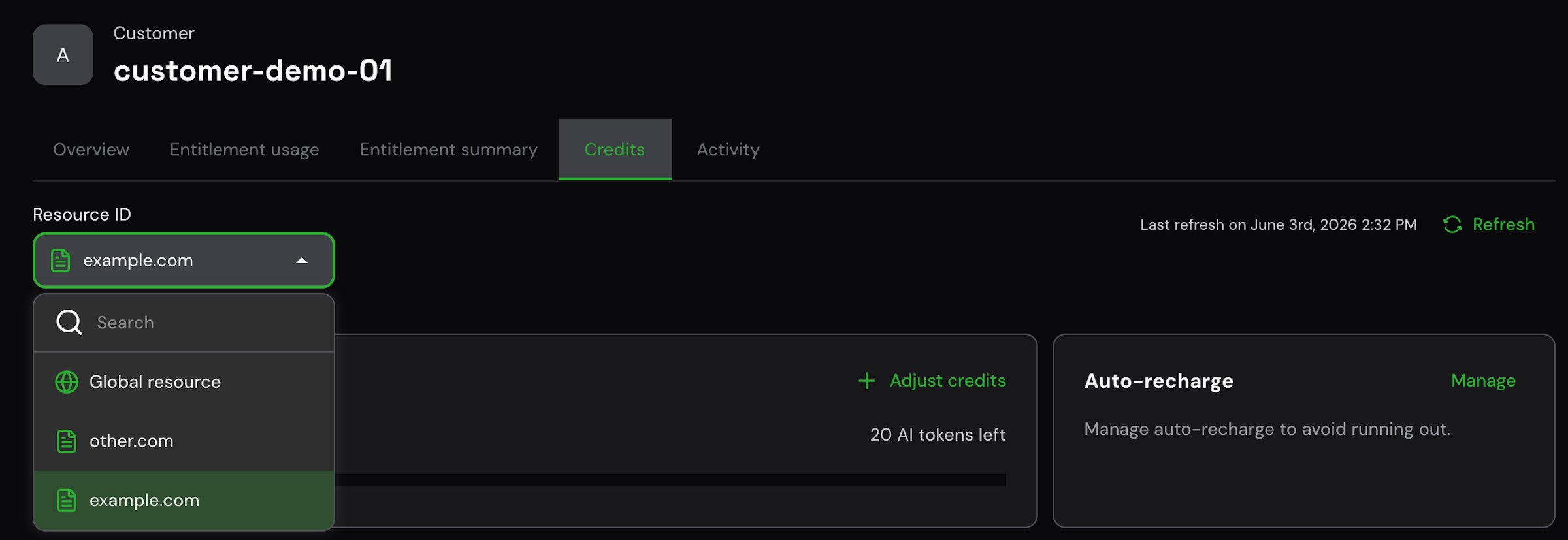
Resource ID filter in the Credits tab
Usage overview
The Usage overview card provides an at-a-glance summary of a customer’s credit balance for the current billing period.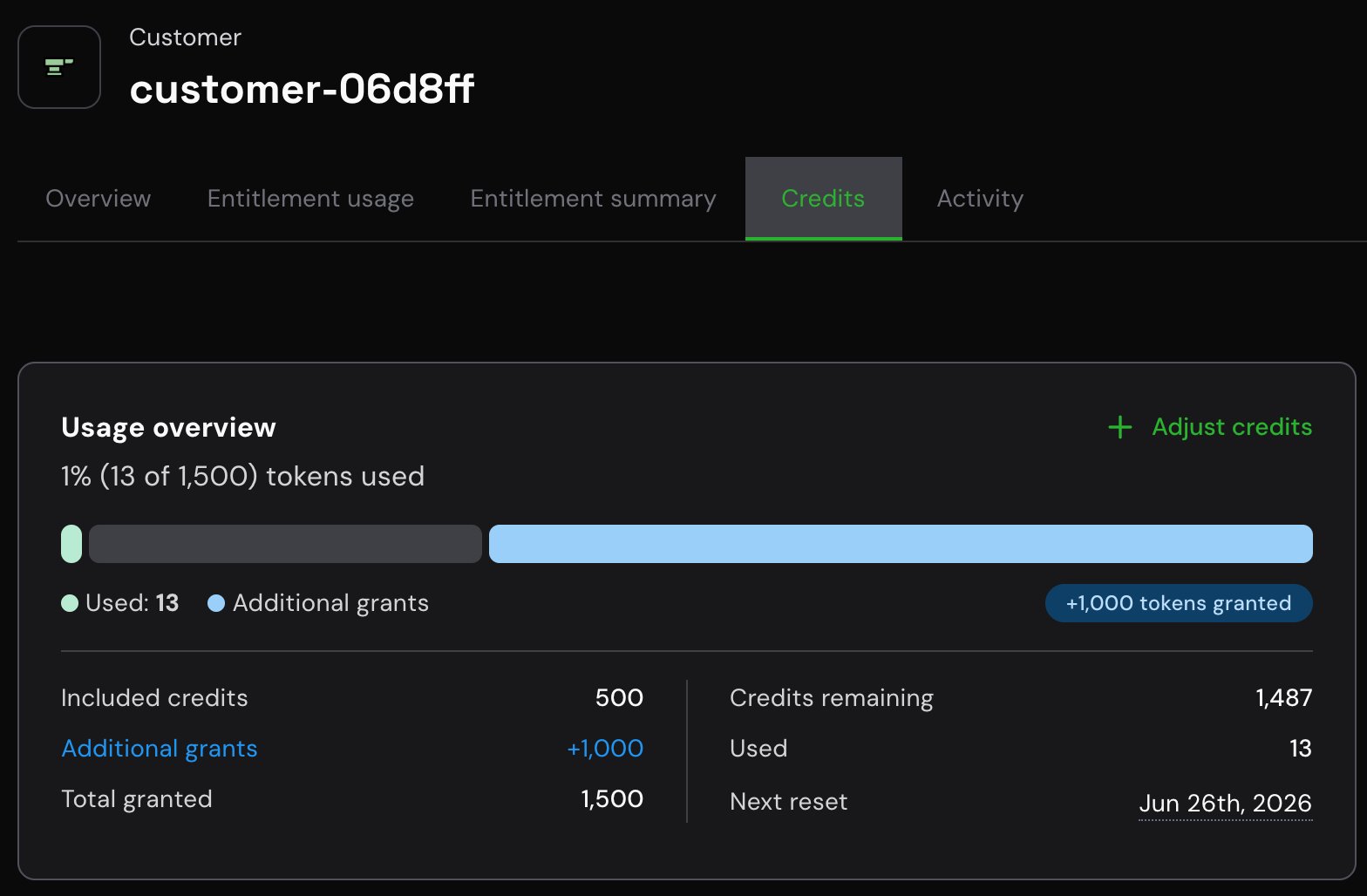
Usage overview showing included credits, additional grants, and balance details
Right column — balance status
The progress bar visualizes consumption, with a separate segment for additional grants when present.
Adjust credit balance
Click Adjust credits balance, then in Adjustment type, choose Grant credits or Subtract credits. Grant credits- Choose the Resource (credit currency).
- In Credit amount, enter the number of credits and verify the credit type.
- (Optional) In Schedule, set an Effective date and/or Expiry date.
- Under Grant method, choose:
- Purchase credits → set Per unit cost basis, select a Payment method, and (optionally) add a Reason.
- Promo/Free granted → (optionally) add a Reason.
- Review the Summary panel (credits, total, previous/new balance).
- Click Grant Credits to apply.
- Choose the Resource (credit currency).
- Under Subtract details, enter the Credit amount to deduct.
- Review the Summary panel (previous balance, credit amount, new balance).
- Click Subtract credits to apply.
consumeCredits / consumeCreditsAsync).
Credit usage
The credit usage chart shows how a customer’s credits were consumed over time. Top controls- Group by: break down the chart and top-sources list by feature and up to three dimensions attached to your reported usage events (e.g.,
userId,siteId,model,region) at the same time. Type to search across all available dimensions. - Time range: choose a preset (Last 7 days, Last 30 days, Last 3 months, Last 12 months) or select Custom range to specify exact start and end dates. Custom ranges are capped at 12 months and cannot extend into the future.
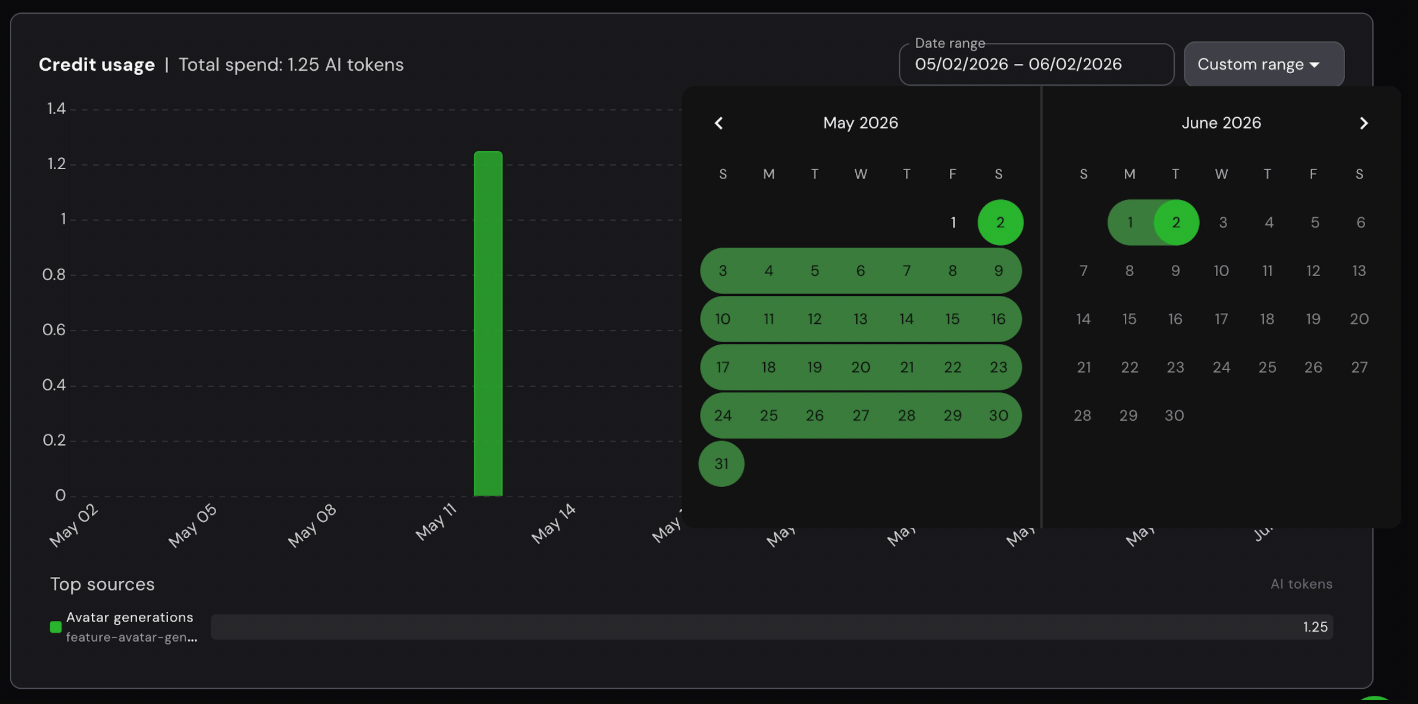
Credit usage chart with dimension-based group-by and custom date range
Chart
- A stacked bar chart with one bar per date in the selected range.
- Each color segment represents a distinct value of the selected dimension.
- The breakdown list below the chart shows the top sources, ranked by total credits consumed, with the total count per source.
Group by dimensions
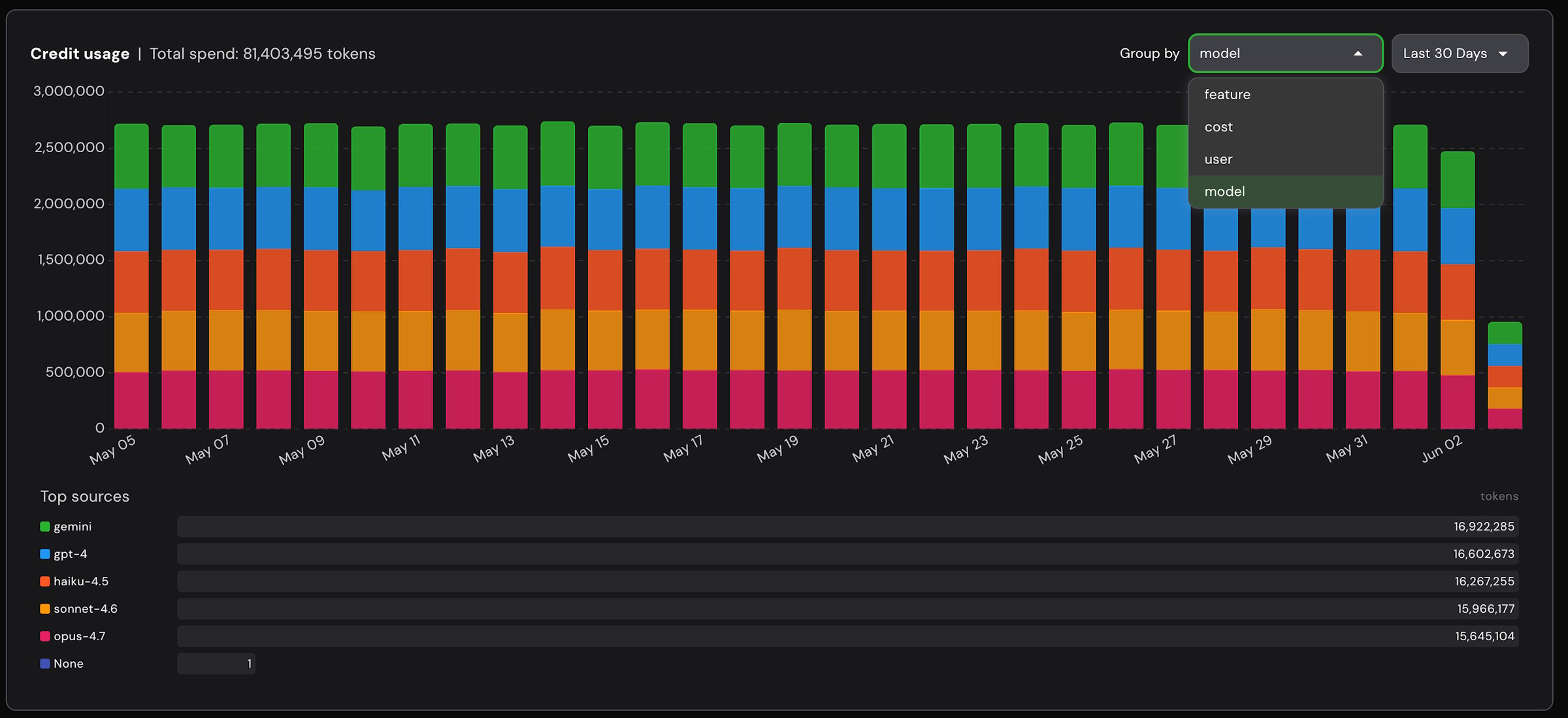
Grouping credit usage by the 'model' dimension
userId, siteId, model, region) to see, for example, which features drive the most credit usage for each user or site.
- Feature: which metered feature drove the consumption. Feature grouping works on existing usage data too, so you don’t need to change how events are reported or add
featureIdas a custom dimension. - Dimensions: any custom dimensions you attach to usage events. Select up to three at a time.
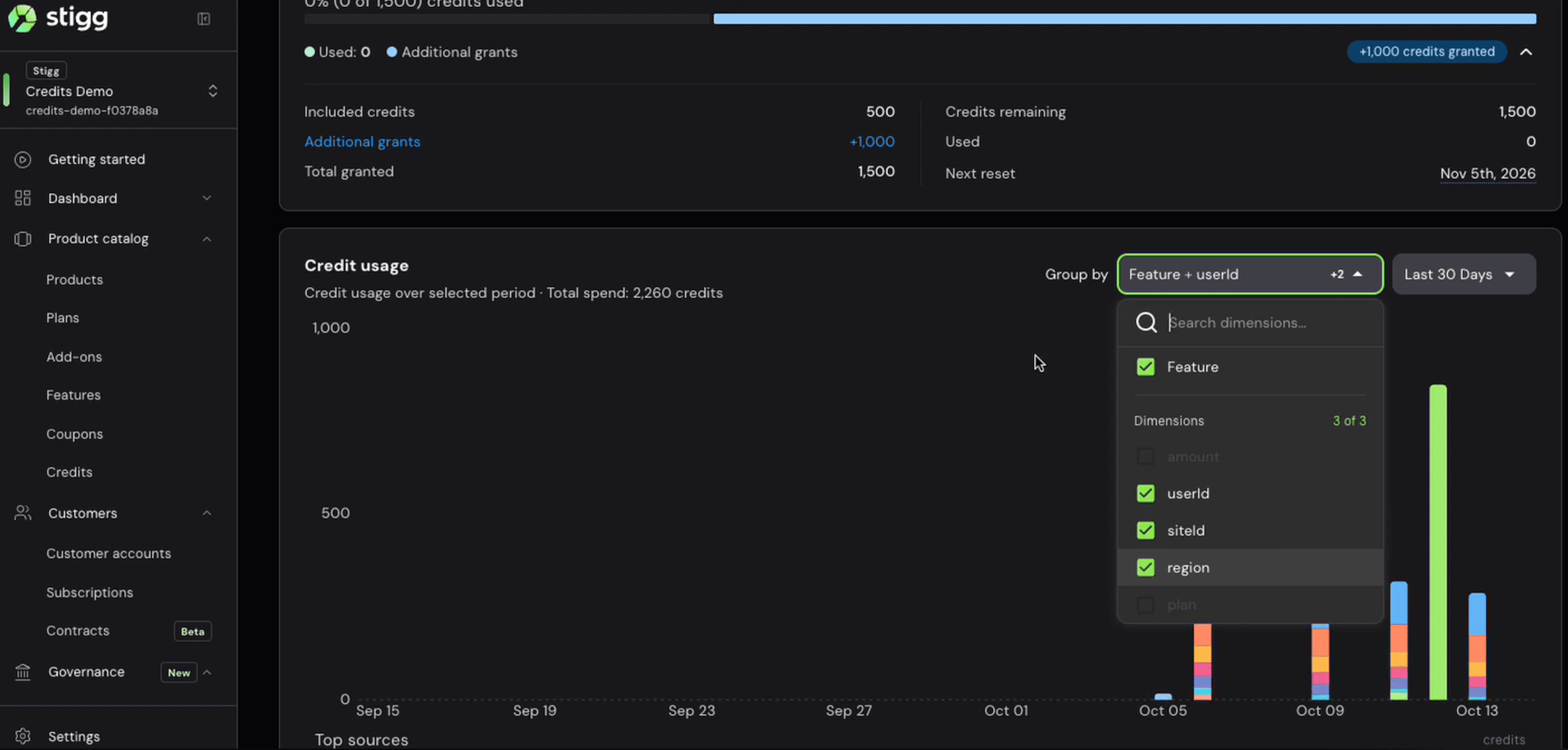
Grouping credit usage by feature and three custom dimensions
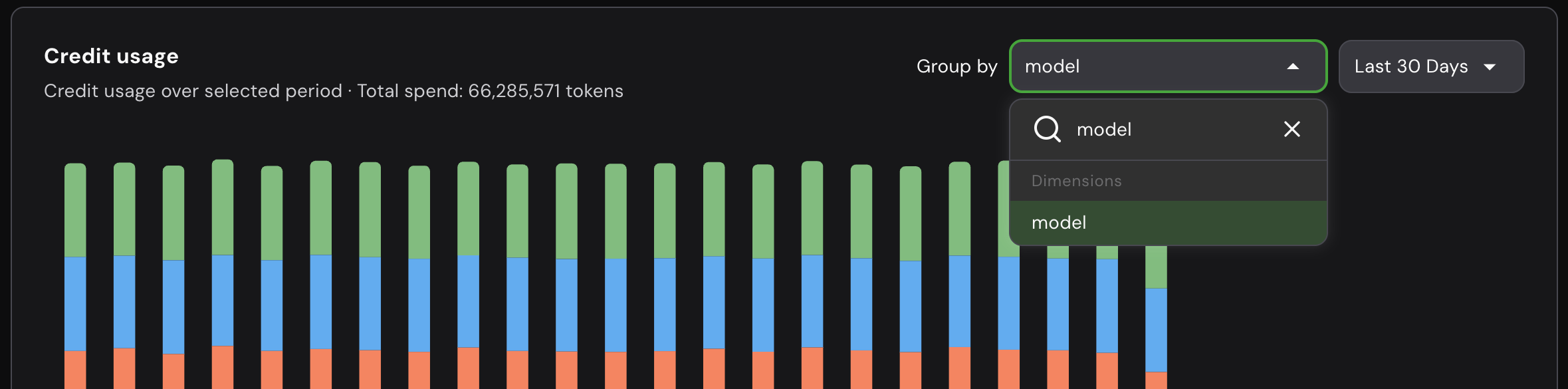
Searchable group-by dropdown for credit usage dimensions
Credit ledger and grants
This screen provides a forensic history of a customer’s credits. It has two coordinated tables:Ledger
A chronological, append-only list of all balance-impacting events. Filters & controls- Date range: e.g., May 27, 2025 - Jul 27, 2025
- Group by: aggregate view options
- Source filter: e.g., All source
- Pagination: page numbers and rows per page (e.g., 12 rows)
- Timestamp: when the event occurred
- Type: Grant, Consumed, Expired (badges)
- Source ID: identifier of the originating grant/feature
- Source: e.g., Promotional grant, Credit purchase, Image Upscale
- AI Tokens: delta for the event
- Positive = credits added (e.g.,
1,000) - Negative = credits removed (e.g.,
-3.0,-1,000)
- Positive = credits added (e.g.,
- End balance: pool balance after this event (e.g.,
1,697) - Actor: System, API, Admin
- Row actions: three dots (⋯)
Grants
A ledger of individual credit blocks (grants) with their lifecycle and remaining amounts. Filters & controls- Audit trail link
- Date range: e.g., May 27, 2025 - Jul 27, 2025
- Group by
- Actors filter: e.g., All actors
- Grant ID: unique identifier
- Timestamp: when the grant was created
- Status: Active, Expired, Voided, Scheduled (badges)
- AI Tokens Balance: remaining vs. original (e.g.,
600 / 1,000) - Expiry date: e.g., Jul 31, 2025
- Effective date: when the grant becomes usable
- Actor: who created/changed it (System/Admin)
- Reason: e.g., Onboarding, Promo ended, Payment failed, Renewal bonus
- Row actions: three dots (⋯)
Grant types
Grants in the table are categorized by type:- Recurring - Credits from a subscription plan, issued each billing cycle.
- Prepaid - Credits purchased up front.
- Promotional - Free credits granted for adoption or incentive.
- Manual - Credits added or removed by an admin.
- Overdraft - System-generated grants that track negative credit balances. Created automatically when usage exceeds the available balance; settled automatically when new credits arrive.
Overdraft grants
Overdraft grants appear in the credit grants table with grant type Overdraft. They show:- Amount: 0 (overdraft grants don’t provide credits)
- Consumed: the deficit amount (how much the customer owes)
- Status: Active (until fully settled) or Voided (after full settlement)
Overdraft grants cannot be voided or edited from the grants table - the void and edit actions are disabled for overdraft grants. They are settled and voided automatically when new credits are granted.