

Viewing which packages use a feature
To view which plans and add-ons a feature is included in:- Open the left navigation pane.
- Select Product Catalog, then choose Features.
- Select the relevant row from the feature list to open the feature details.
- Click on the Used by tab.
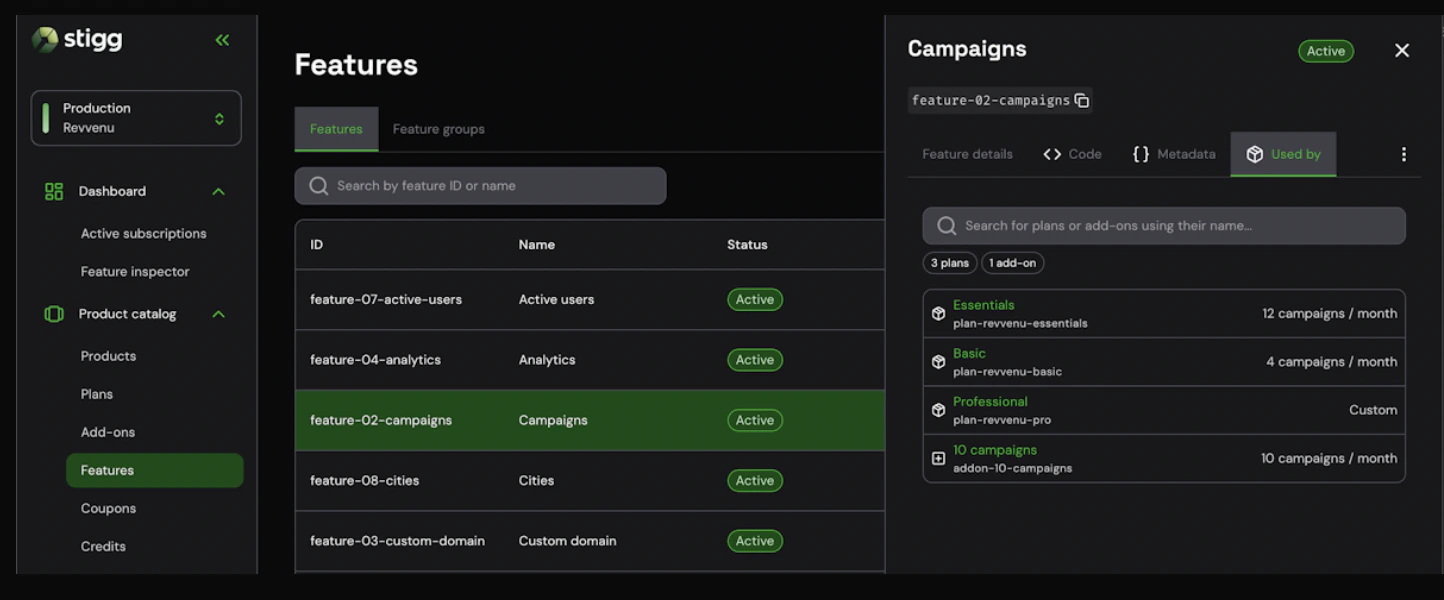
Feature used by plans and add-ons
Understanding the Used by tab
Package count summary
At the top of the tab, a summary shows the total number of packages that include the feature, broken down by type - for example: 3 plans | 1 add-on.Package list
Each row in the list represents a plan or add-on that includes the feature and shows:- Package name and ID - the display name and unique identifier of the plan or add-on.
- Entitlement value - the value configured for the feature in that package (e.g., 12 campaigns / month, unlimited, Custom).
Filtering the list
You can filter the list to focus on specific packages:- Use the search bar to find packages by name.
- Use the Charge / Entitlement filter buttons to distinguish between packages where the feature is configured as a billable charge versus a standard entitlement.