

Archiving a product
Prerequisite
You cannot archive a product that has active customer subscriptions. Remove all active subscriptions first.Steps
- Go to Product Catalog → Products.
- Locate the product you want to archive.
-
Click the three-dot menu in the top-right corner of the product card.
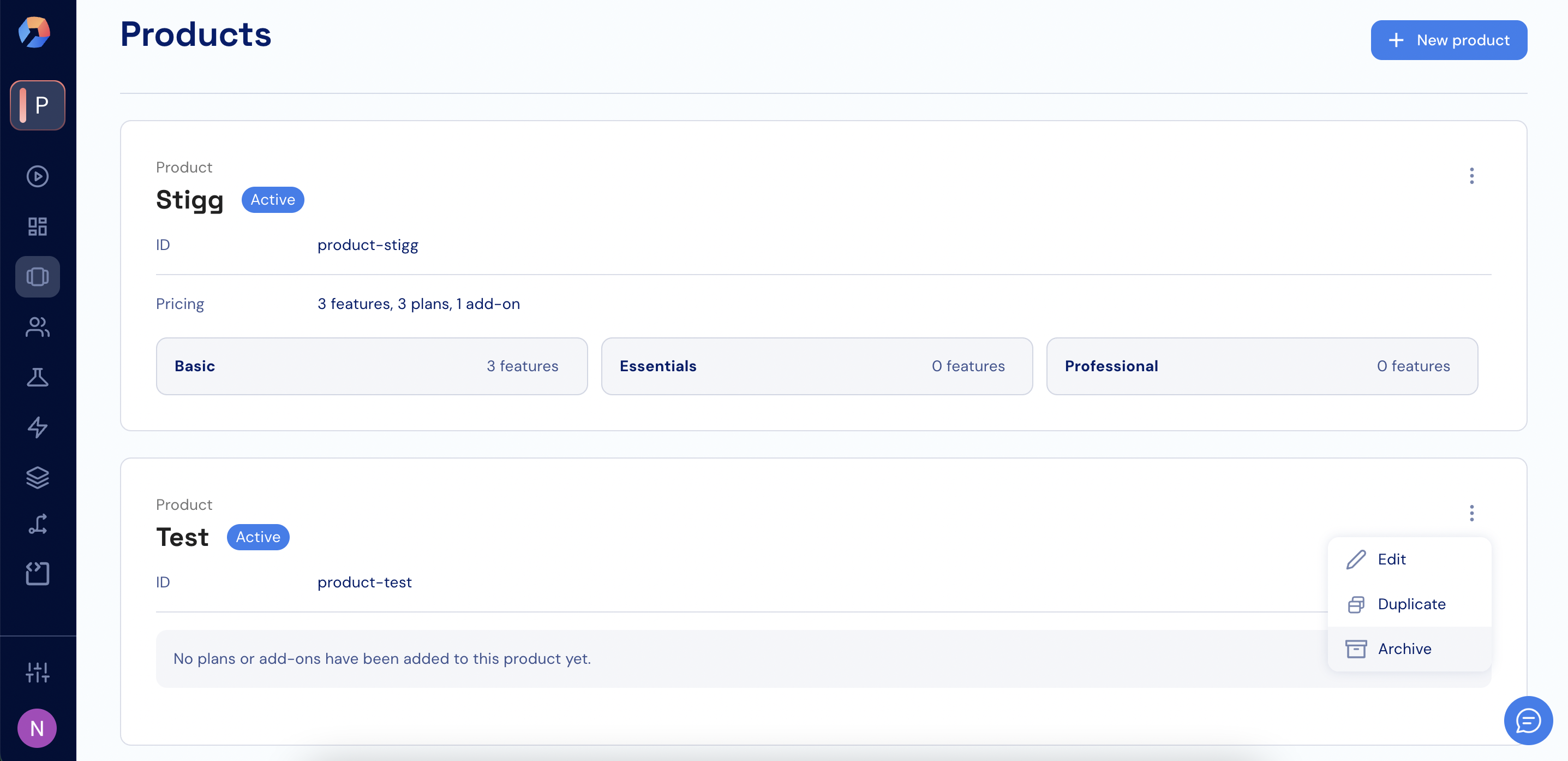
- Select Archive.
- To confirm, type the product’s name and click Confirm.
What happens after archiving
- All plans and add-ons associated with the product are archived.
- New subscriptions to this product are no longer allowed.
- Existing customer subscriptions are not affected.
- Once completed, the product is marked as Archived.
Restoring (unarchiving) a product
- Go to Product Catalog → Products.
- Use the filter at the top to show archived products.
-
Locate the archived product and click the three-dot menu.
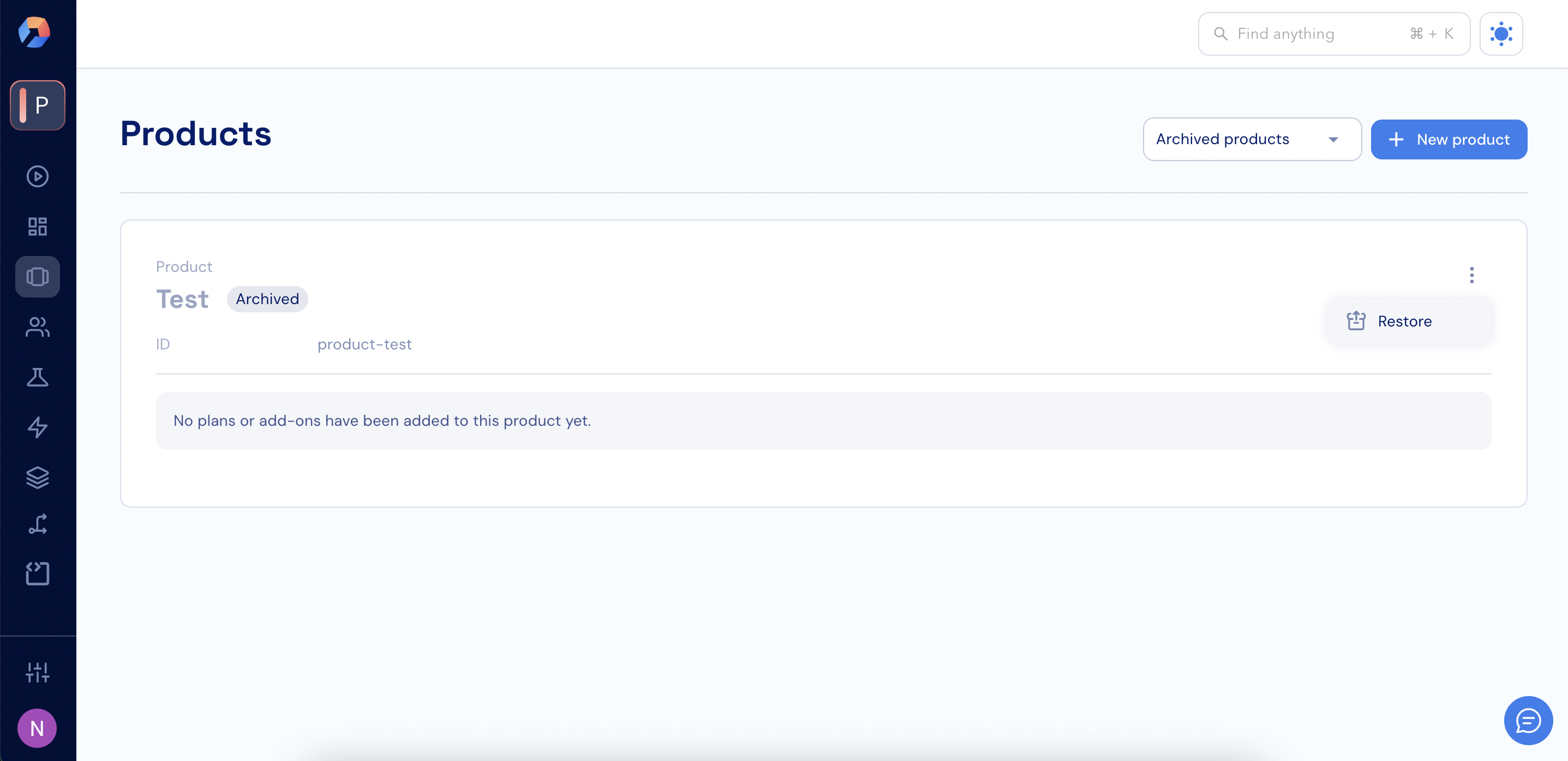
- Select Restore and confirm the action.
Using the API
To restore a product programmatically:Important note
Restoring a product does not automatically restore its plans, packages, or add-ons. You must manually unarchive the relevant packages and propagate them back to the plans.Visibility of archived products
- Go to Product Catalog → Products.
-
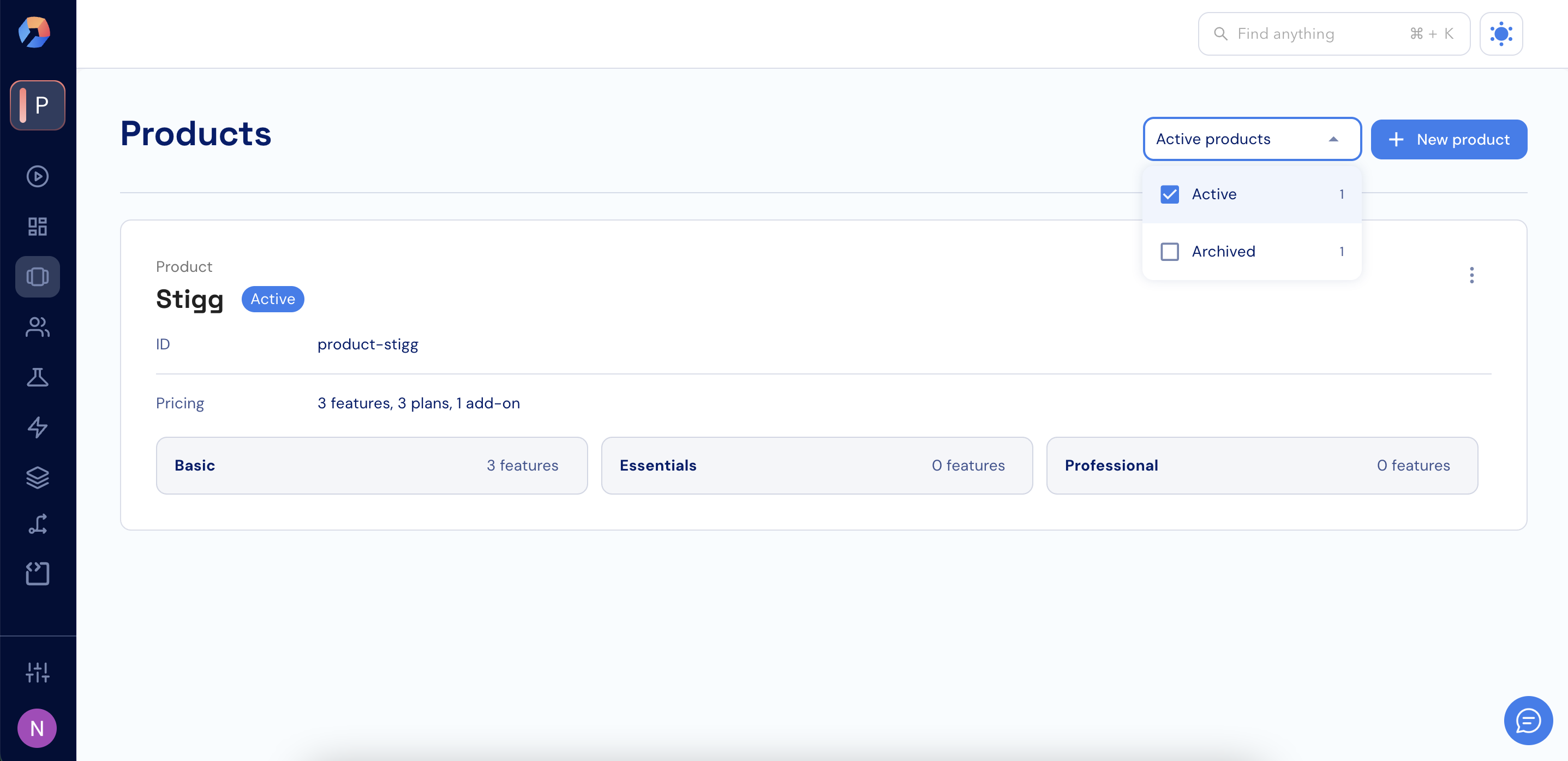
Open the status filter at the top of the page (for example, Active products).
-
Select which products to display:
- Active to show only active products
- Archived to show only archived products
- Active + Archived to show both
- If you select both, archived products appear in the list with an Archived label.
Archived products are not visible when viewing:
- Specific subscriptions
- Plans
- Add-ons