This page covers the catalog setup you make as the vendor in the Stigg app. To automate the same setup, use the SDK or the REST API.Prerequisites: a metered feature in a plan the customer is subscribed to, or a credit currency the customer has credits in. A feature check for a customer with no active subscription is denied with NoActiveSubscription.
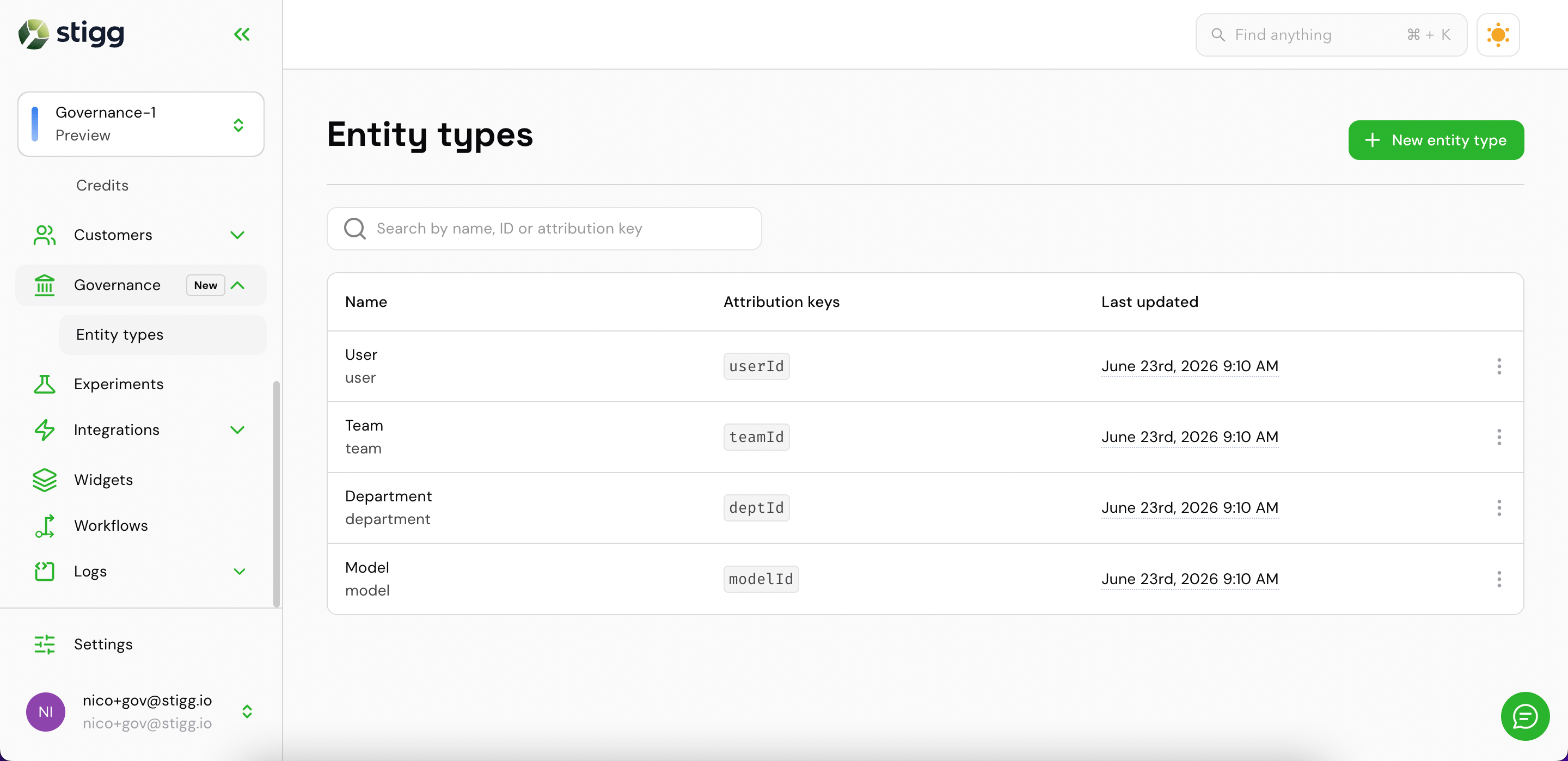
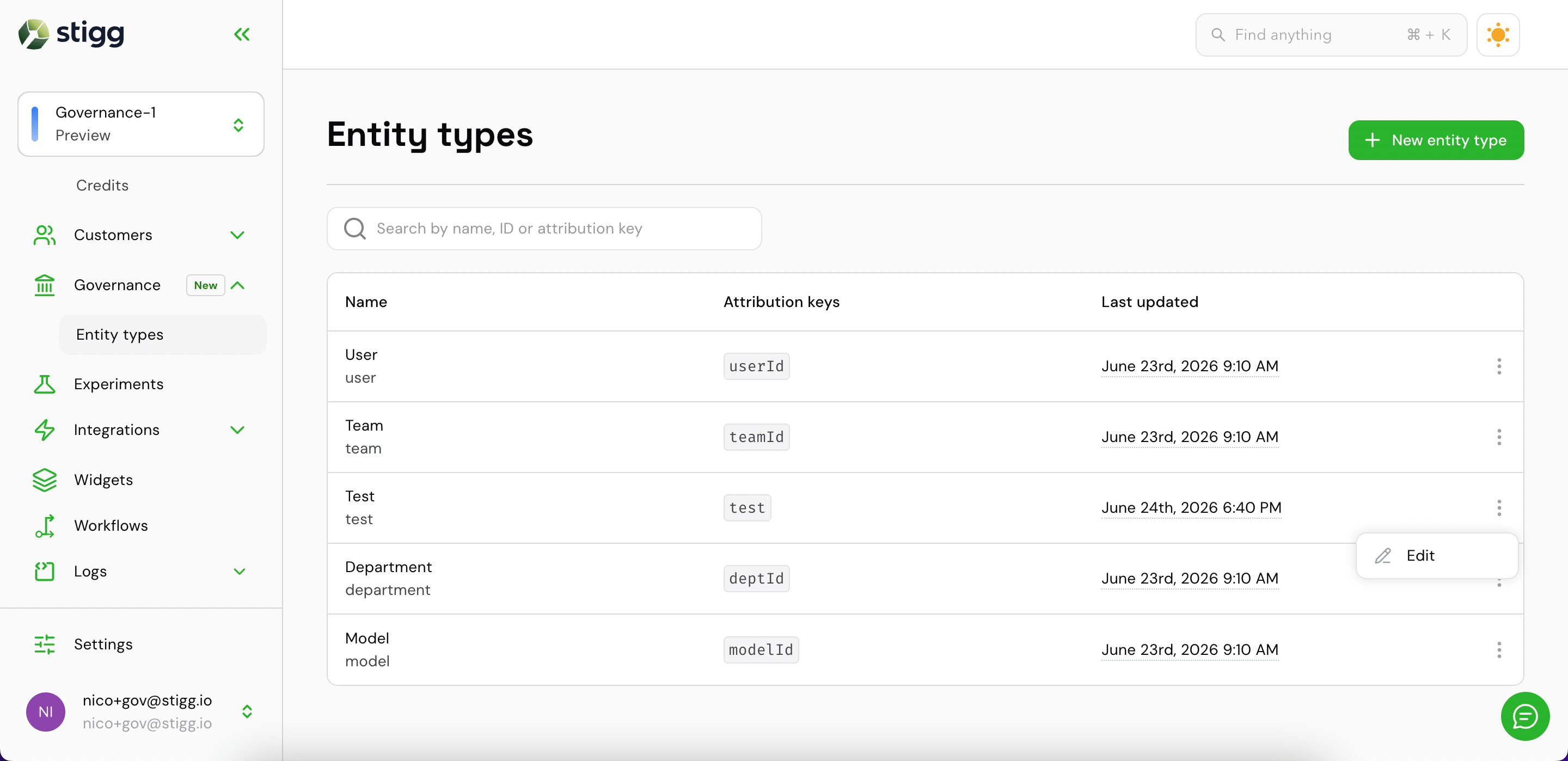
In the Stigg app, go to Catalog → Entities. The list shows every entity type in the environment, with its description, attribution keys, and when it was last updated.
Catalog → Entities
2
Start a new entity type
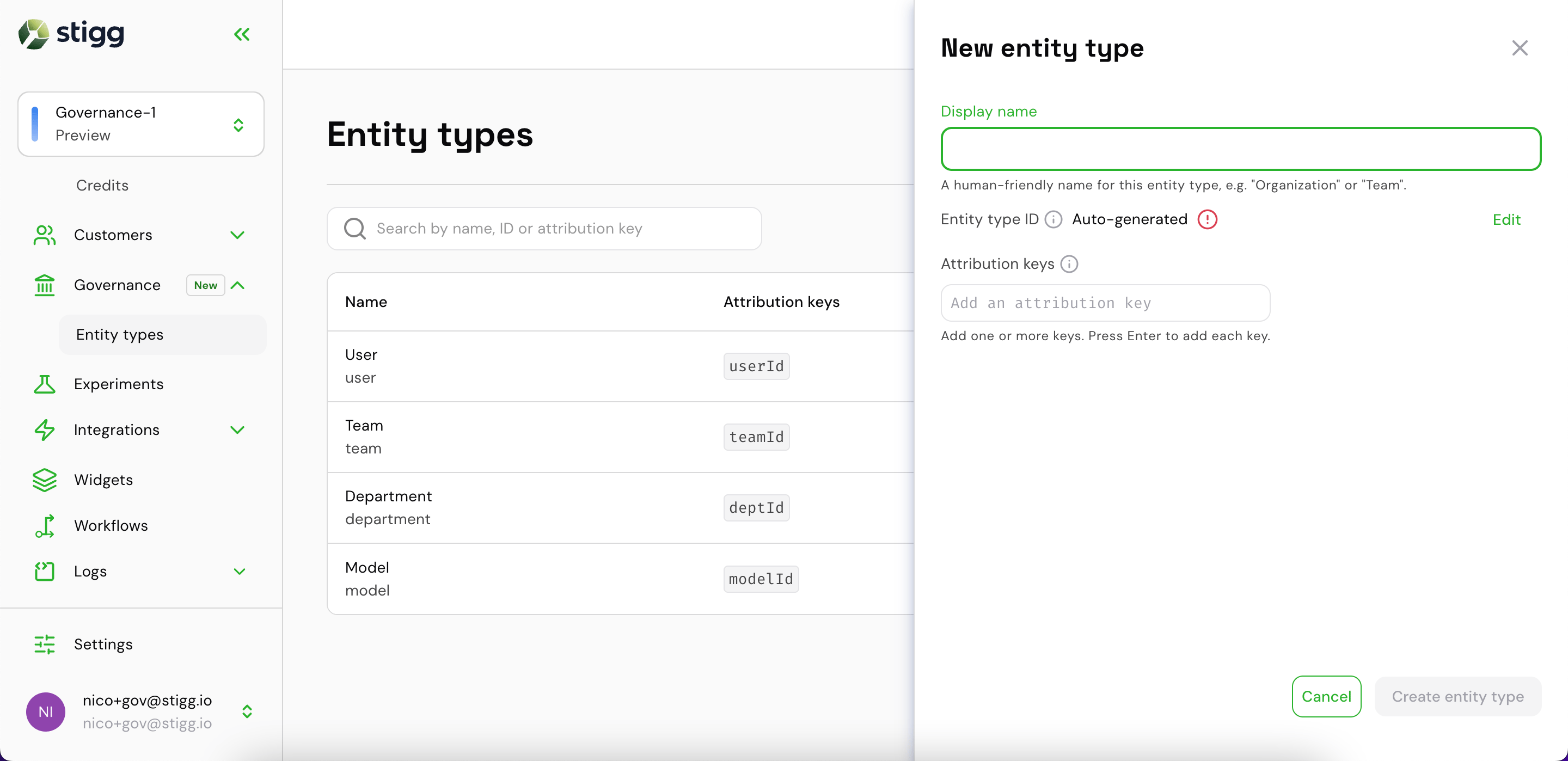
Click + New entity type to open the creation drawer.
New entity type drawer
3
Fill in the details
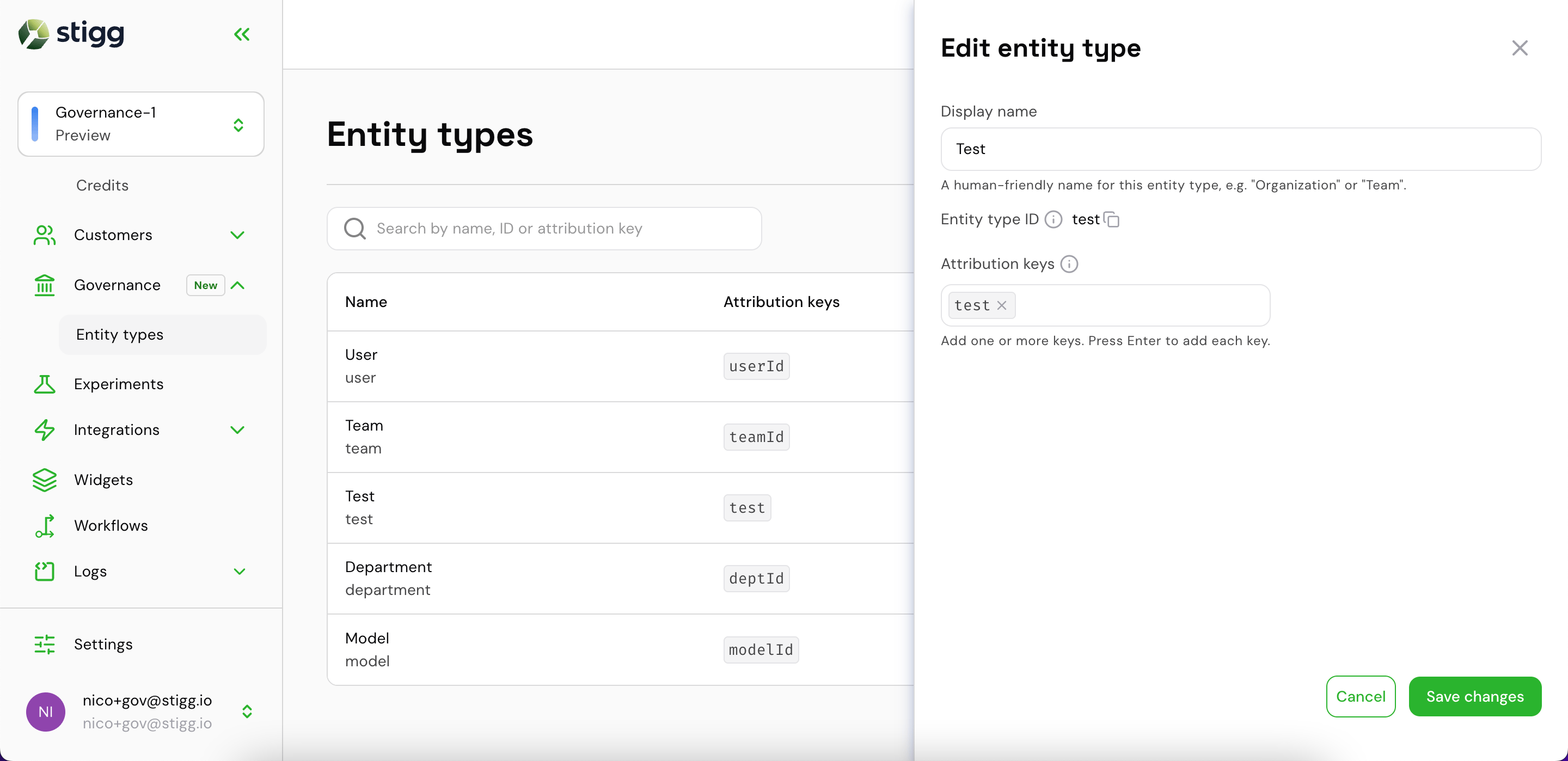
Display name: a readable label, such as Department. Stigg generates the entity type ID from it, and you can edit the ID.
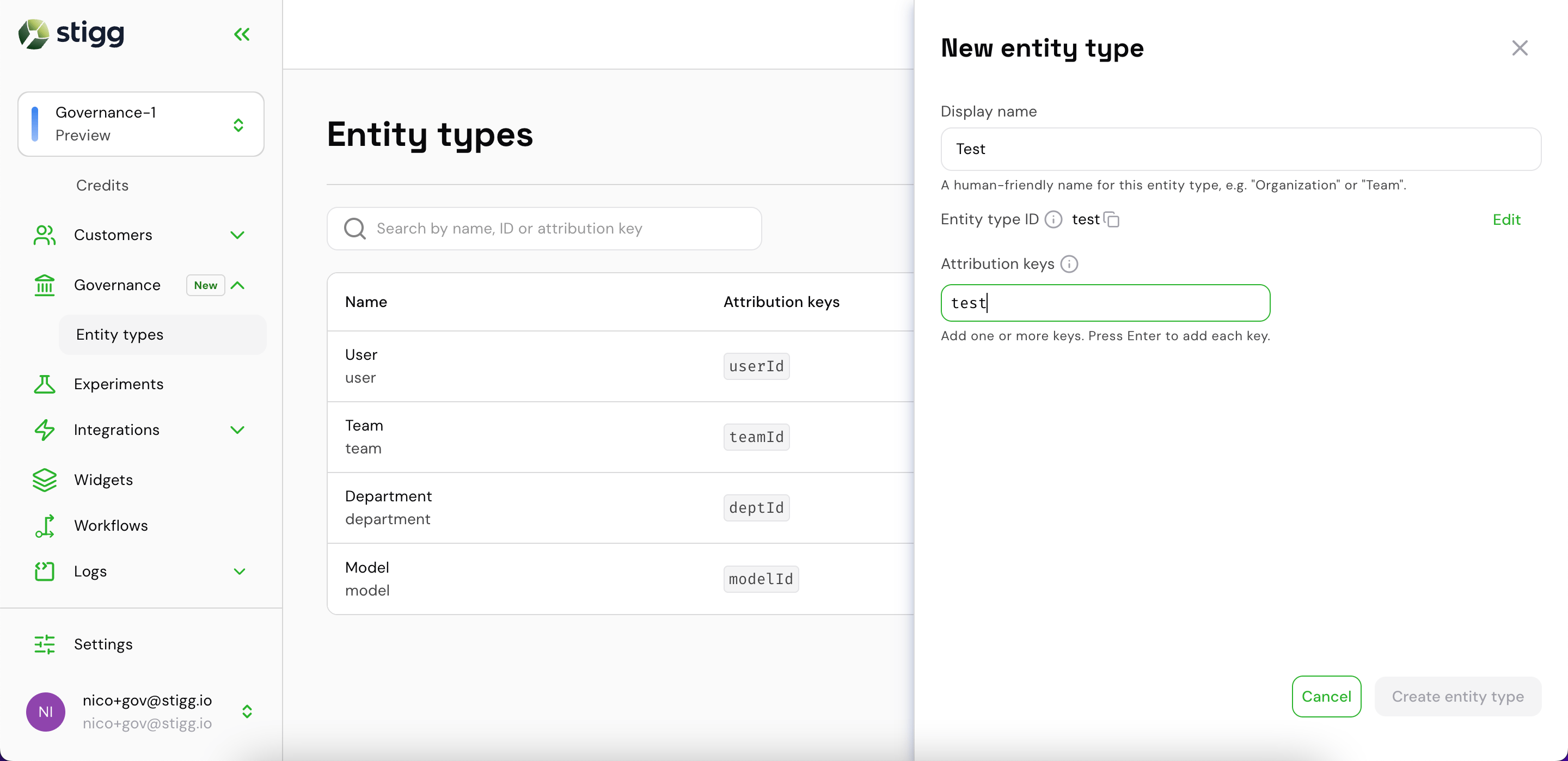
Attribution keys: the dimension keys your usage events carry to identify instances of this type, such as departmentId. Type a key and press Enter to add it. You can add several.
Filling in name and attribution key
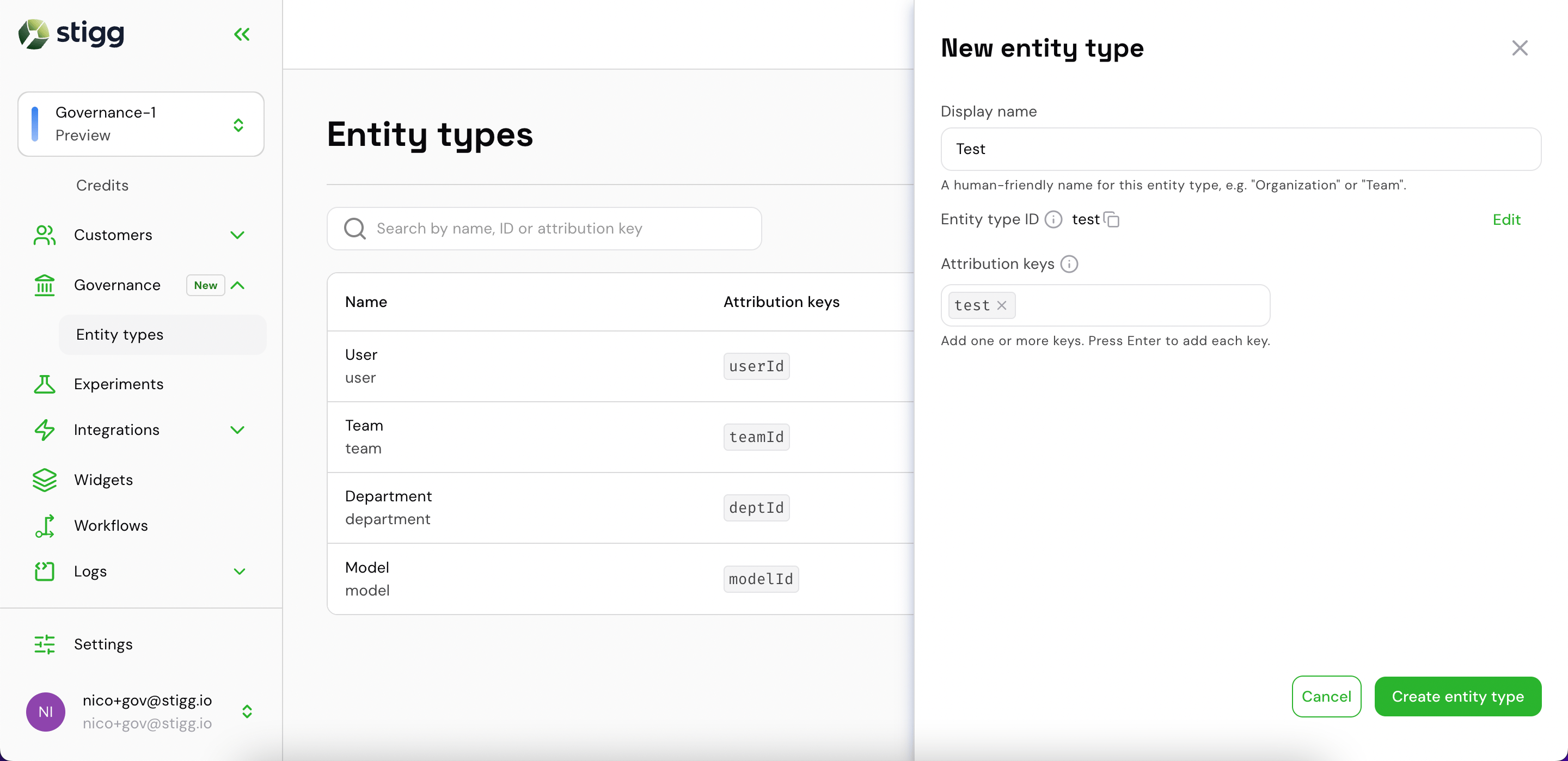
Attribution key added and ready to create
4
Create the entity type
Create the entity type, and it appears in the list.
Newly created entity type with edit option
To change an entity type later, hover its row, click the ⋮ menu, and choose Edit.
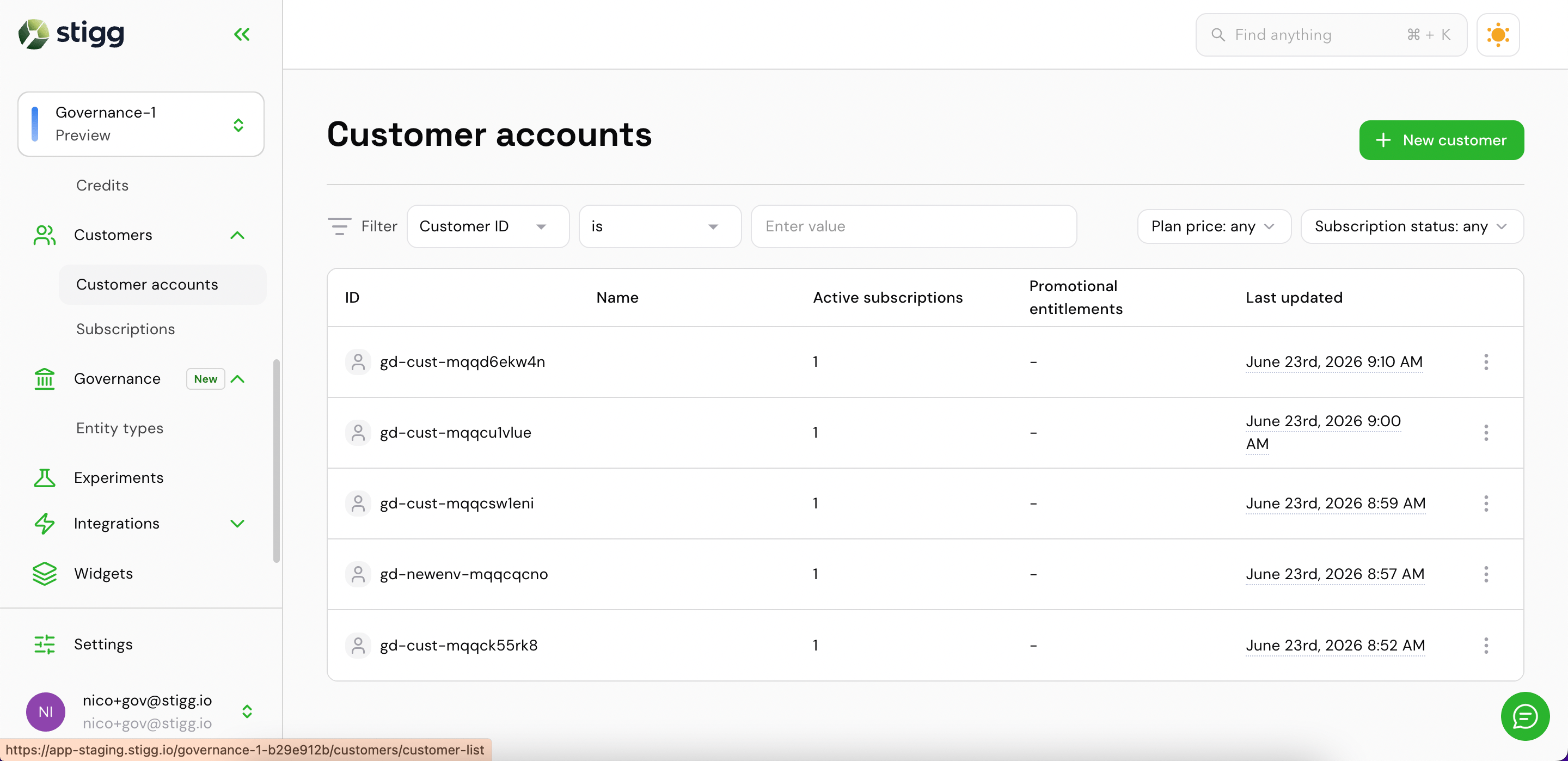
Go to Management → Customers and open the customer record.
Management → Customers
2
Open the Governance tab
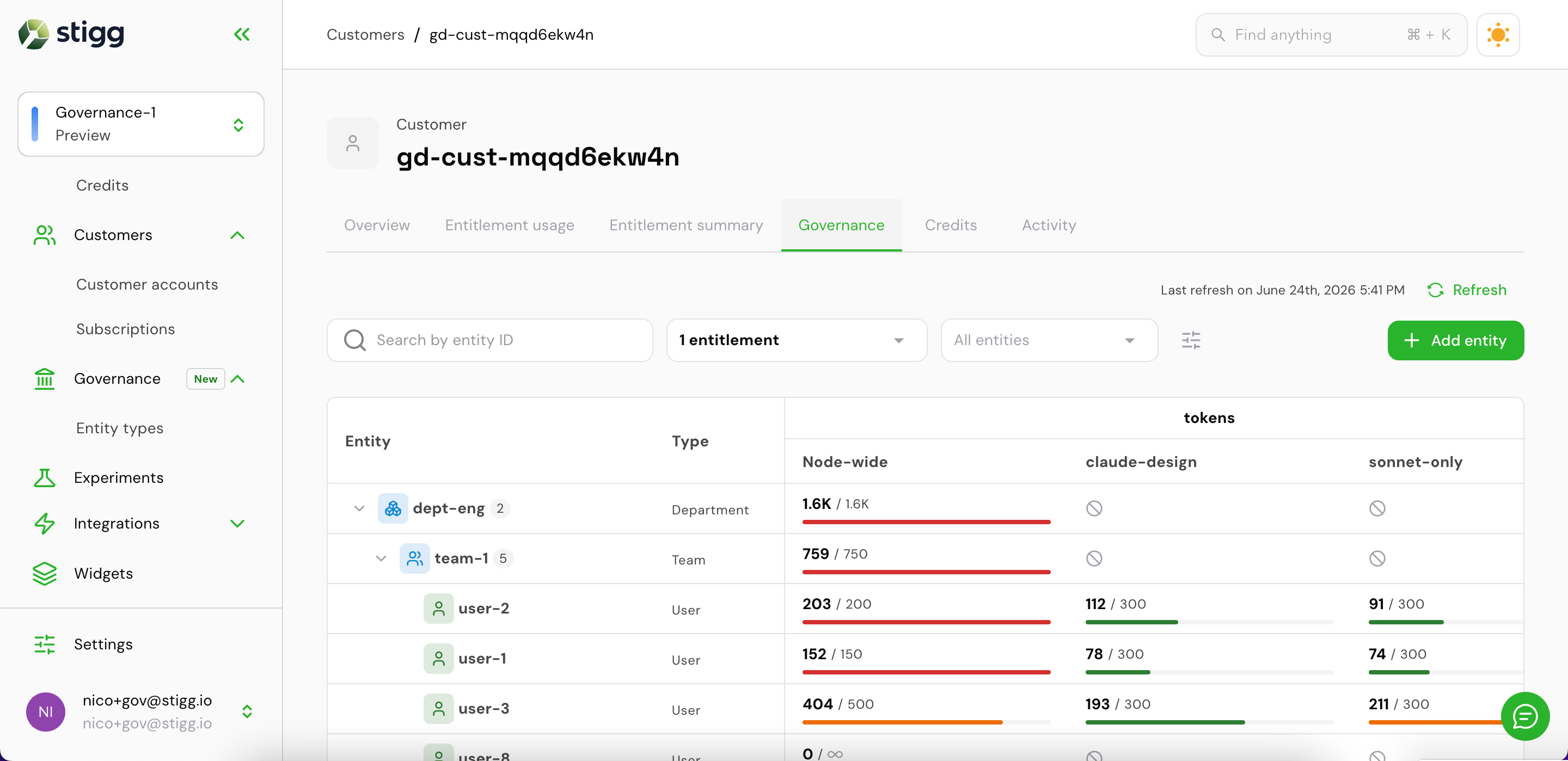
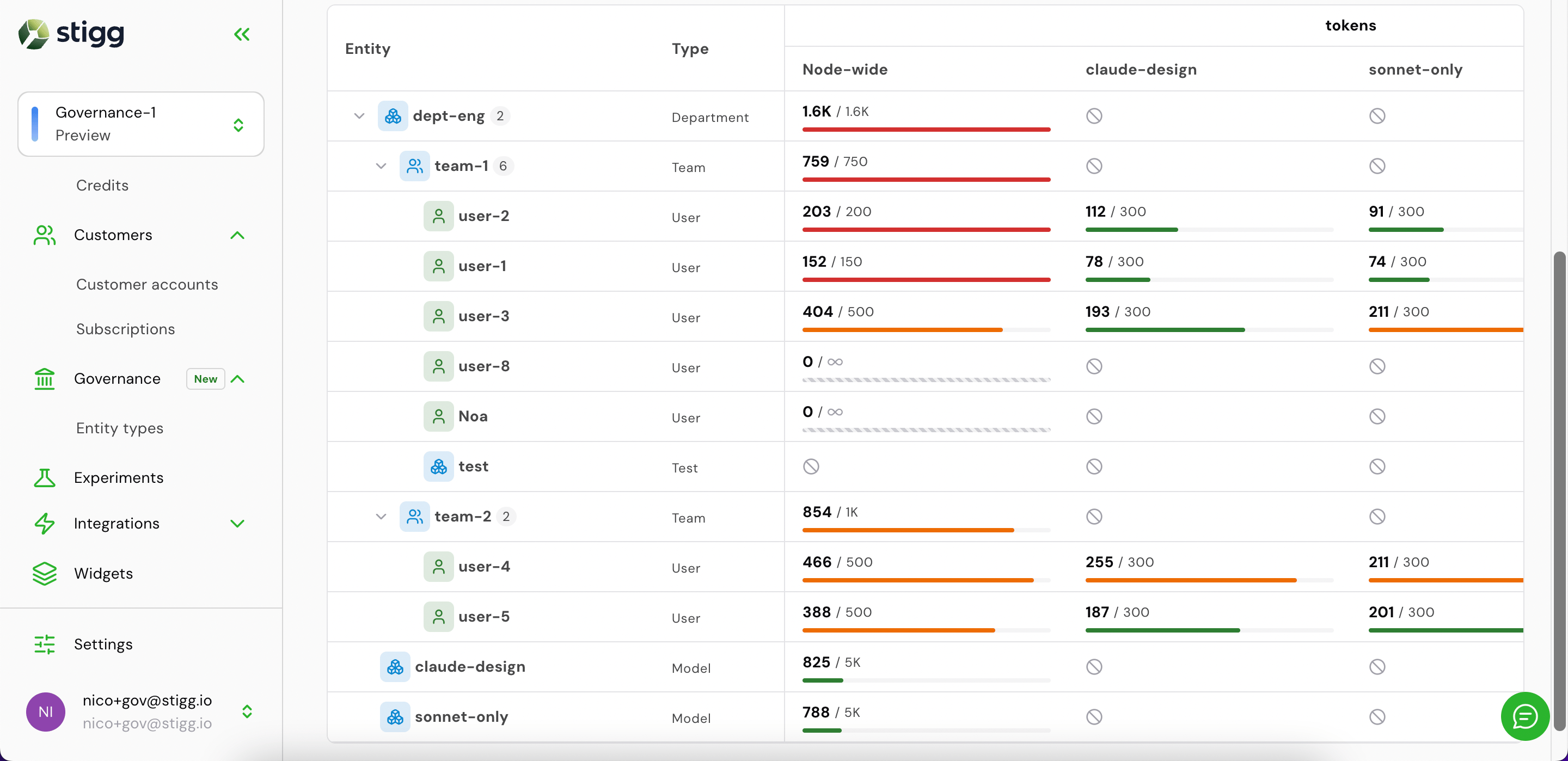
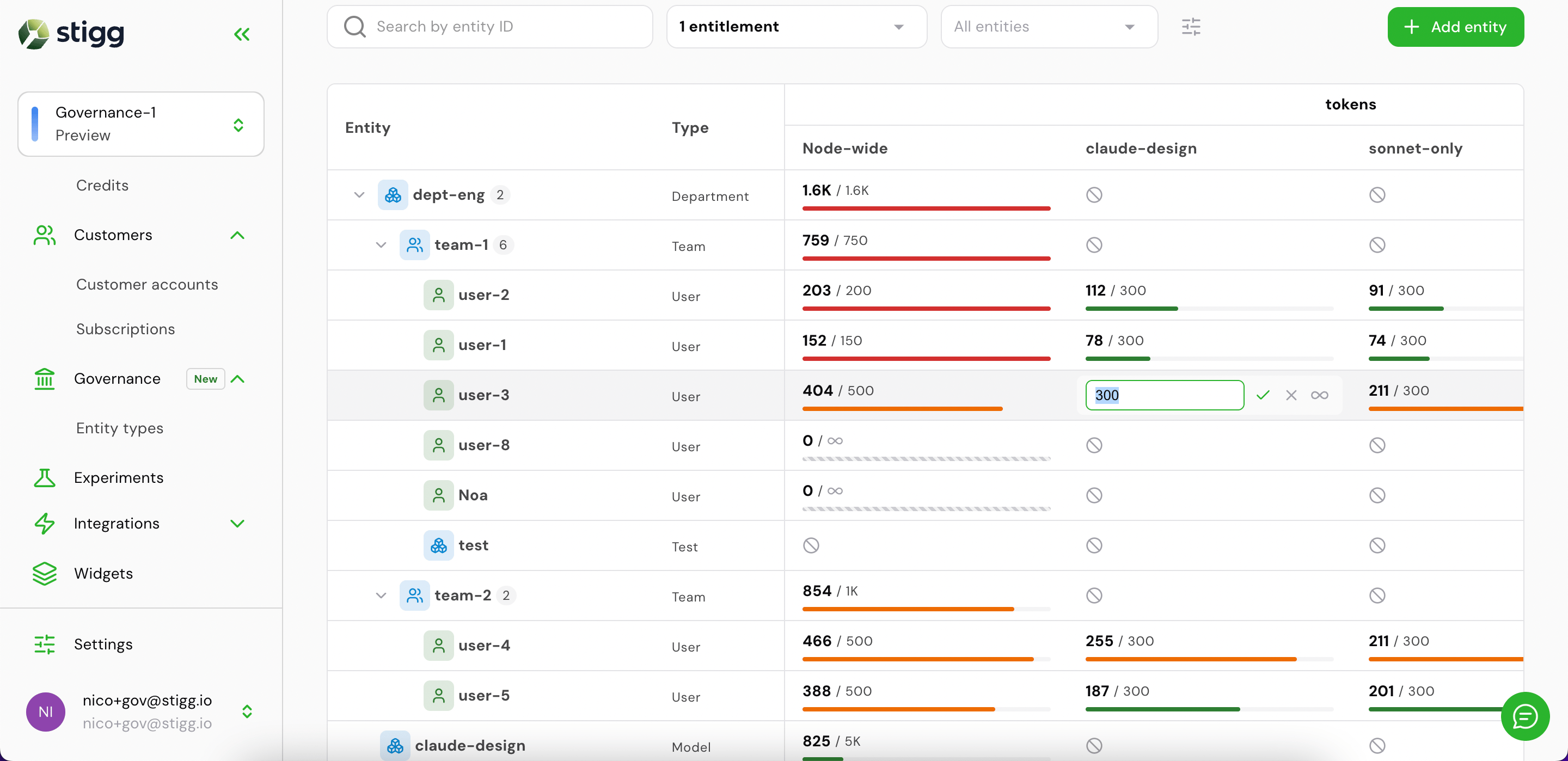
Click the Governance tab. The entity hierarchy appears on the left, with each entity’s type in the Type column. Each entitlement column shows current usage against the limit, broken out by scope: node-wide, and per model or other dimension.
Customer Governance tab, entity hierarchy with usage
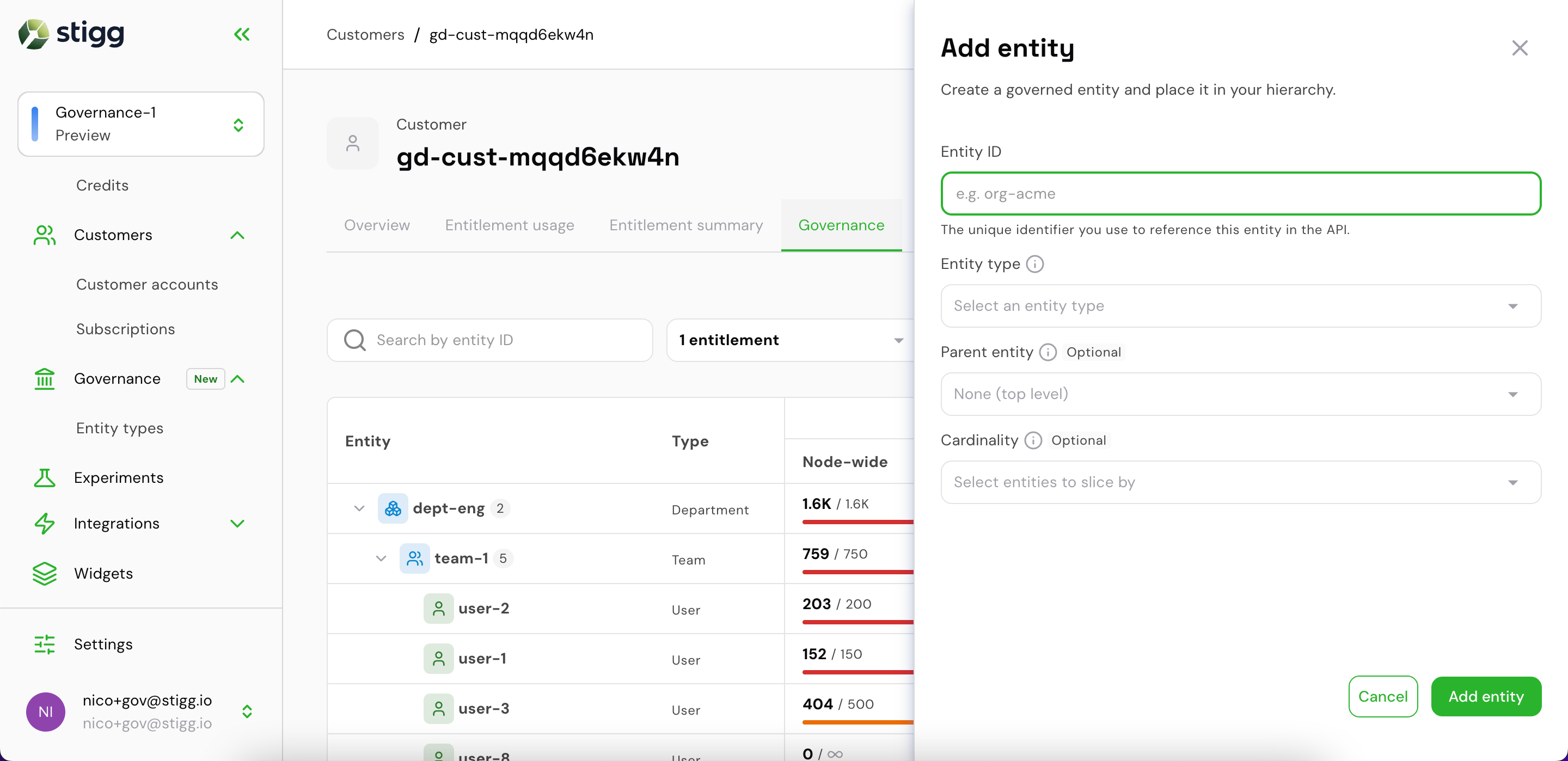
Display name(optional): a readable label, such as Engineering. Stigg generates the entity ID used in API calls from it.
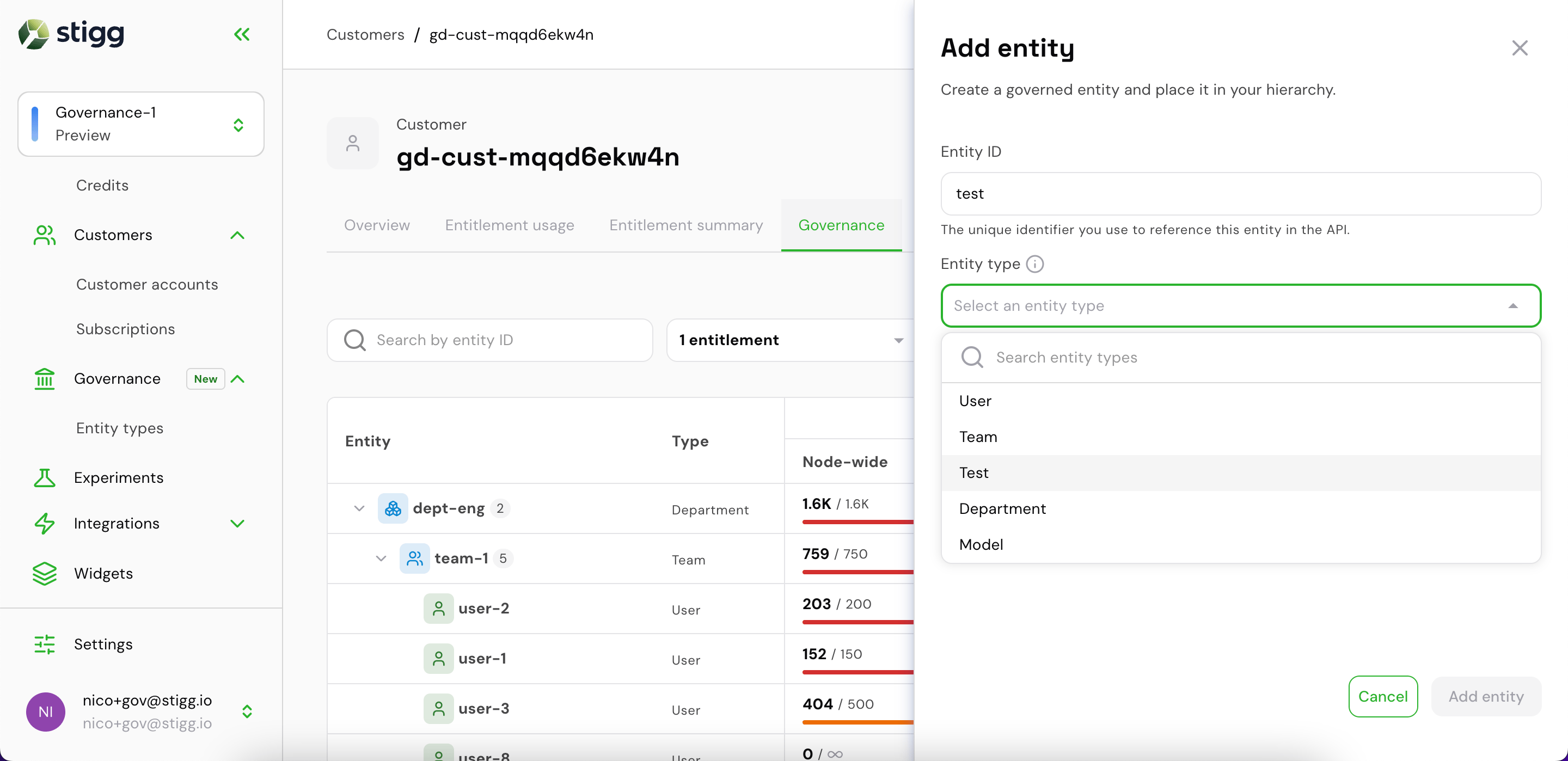
Entity type: one of the entity types defined for this environment.
Selecting an entity type
3
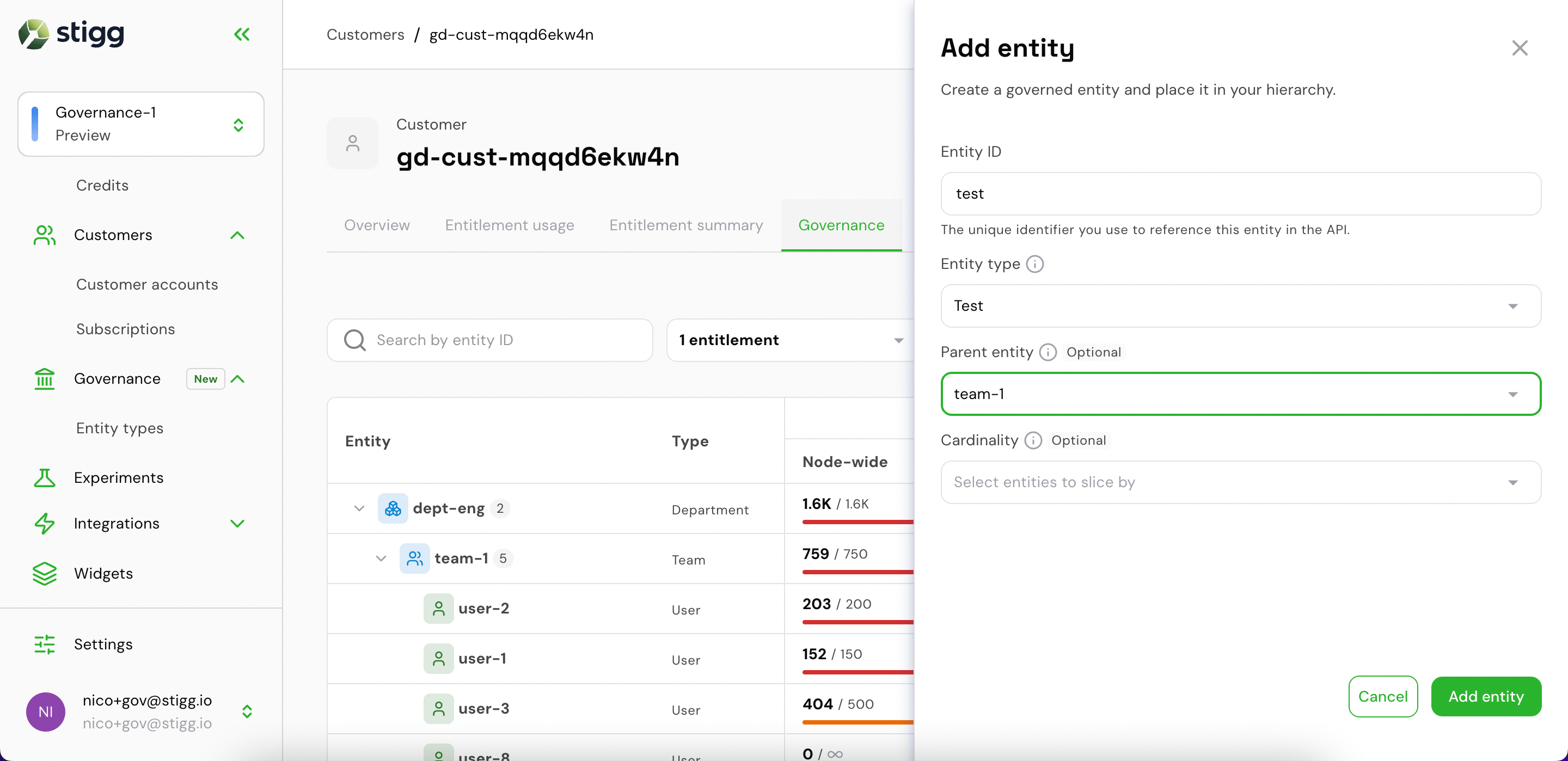
Choose a parent (optional)
Select a Parent entity to place this entity in the hierarchy, such as nesting a user under a team.
Selecting a parent entity
An entity’s place in the hierarchy is set through its entity entitlements. If the entity has none yet, choosing a parent creates an unlimited one (usageLimit: null, cadence P1M) to place it. Set its limit afterwards in the Governance tab.New entities appear in the hierarchy, with all entitlement columns.
Full governance hierarchy with all entities and entitlement columns
Gate access before consumption and record usage after
Query the governance tree
Fetch usage and budget data for dashboards and admin UIs
{"docsConfig":{"theme":"mint","$schema":"https://mintlify.com/docs.json","name":"Stigg","description":"Stigg is a subscription and entitlement management platform for SaaS companies. Model pricing with plans, add-ons, credits, and usage-based billing; provision customers and subscriptions; enforce feature access; render pricing tables, paywalls, and customer portals; and integrate with Stripe, Zuora, HubSpot, Salesforce, and AWS Marketplace. Available as backend SDKs (Node.js, Python, Ruby, Go, Java, .NET), frontend SDKs (React, Vue, Next.js), GraphQL API, and REST API.","colors":{"primary":"#436633","light":"#92E759","dark":"#92E759"},"logo":{"light":"https://mintcdn.com/stigg/HmCBL4eVQuHwqjnY/logo/light.svg?fit=max\u0026auto=format\u0026n=HmCBL4eVQuHwqjnY\u0026q=85\u0026s=8579b37d1f3d11f4198506c9e602caa3","dark":"https://mintcdn.com/stigg/VJsr65Ru_PpGBlIr/logo/dark.svg?fit=max\u0026auto=format\u0026n=VJsr65Ru_PpGBlIr\u0026q=85\u0026s=1015fd0f2902e88f82cfc983376de8a1"},"favicon":"https://mintcdn.com/stigg/RB-JAyGY2_V2sWZw/favicon.png?fit=max\u0026auto=format\u0026n=RB-JAyGY2_V2sWZw\u0026q=85\u0026s=1c445af29076b2cb99bb12013aa66883","api":{"playground":{"proxy":false}},"appearance":{"default":"dark","strict":false},"background":{"color":{"light":"#FFFFFF","dark":"#131512"}},"navbar":{"links":[{"href":"https://status.stigg.io/","label":"Status"}],"primary":{"type":"button","label":"Go to Stigg","href":"https://app.stigg.io/"}},"footer":{"socials":{"website":"https://www.stigg.io/","twitter":"https://twitter.com/GetStigg","linkedin":"https://www.linkedin.com/company/getstigg"}},"seo":{"indexing":"navigable"},"icons":{"library":"fontawesome"},"integrations":{"ga4":{"measurementId":"G-W4NT0H7LD8"},"gtm":{"tagId":"GTM-W7B4F9H8"},"segment":{"key":"EAinkIzT3atuAztLrDyktKzfMsEk42bI"}},"styling":{"latex":true},"navigation":{"pages":[]}},"deployment":{"deploymentMetadataValue":{"subdomain":"stigg","hasAudioNarration":false,"actualSubdomain":"stigg","customDomains":["docs.stigg.io"],"gitSource":{"type":"github","owner":"stiggio","repo":"docs","deployBranch":"master","contentDirectory":"","isPrivate":false,"mountPath":"","label":""},"chroma":{"liveDeploymentHistoryId":"6ae759b2b03e174242bb5763","collectionId":"b6a69f73-68db-4cb4-9eed-c607a8664336","schemaVersion":"v3","latestBuiltDeploymentHistoryId":"6ae759b2b03e174242bb5763"},"feedback":{"thumbs":false},"entitlements":{"AI_CHAT":{"status":"ENABLED"},"WEB_MCP":{"status":"ENABLED"},"NARRATION":{"status":"ENABLED"}},"buildId":"6ae766741da8d7d6e778652f","clientVersion":"0.0.4044","searchFilterCounts":[{"language":"default","tag":"Documentation","count":282},{"language":"default","tag":"API Reference","count":261},{"language":"default","tag":"REST","count":176},{"language":"default","tag":"Pricing and packaging","count":99},{"language":"default","tag":"Integrations","count":65},{"language":"default","tag":"Webhooks","count":61},{"language":"default","tag":"Subscriptions","count":41},{"language":"default","tag":"Plans","count":41},{"language":"default","tag":"Customers, subscriptions and contracts","count":38},{"language":"default","tag":"GraphQL","count":36}]},"assistantConfig":{},"basePath":"","hasChatPermissions":true,"hasWebMcpPermissions":true,"toggles":[{"name":"kill-isr","enabled":true,"variant":{"name":"disabled","enabled":false,"feature_enabled":true},"impressionData":false},{"name":"agent-mintlify-slack","enabled":true,"variant":{"name":"disabled","enabled":false,"feature_enabled":true},"impressionData":false},{"name":"agent-integrations-settings","enabled":true,"variant":{"name":"disabled","enabled":false,"feature_enabled":true},"impressionData":false},{"name":"automations-pr-grouping","enabled":true,"variant":{"name":"disabled","enabled":false,"feature_enabled":true},"impressionData":false},{"name":"custom-prefix","enabled":true,"variant":{"name":"disabled","enabled":false,"feature_enabled":true},"impressionData":false},{"name":"analytics-v7","enabled":true,"variant":{"name":"disabled","enabled":false,"feature_enabled":true},"impressionData":false},{"name":"user-flows-analytics","enabled":true,"variant":{"name":"disabled","enabled":false,"feature_enabled":true},"impressionData":false},{"name":"no-publish-flow","enabled":true,"variant":{"name":"disabled","enabled":false,"feature_enabled":true},"impressionData":false},{"name":"workos-onboarding","enabled":true,"variant":{"name":"disabled","enabled":false,"feature_enabled":true},"impressionData":false},{"name":"llms-txt-v2","enabled":true,"variant":{"name":"disabled","enabled":false,"feature_enabled":true},"impressionData":false},{"name":"snapshot-serving-live","enabled":true,"variant":{"name":"disabled","enabled":false,"feature_enabled":true},"impressionData":false},{"name":"stripTemperatureMiddleware","enabled":true,"variant":{"name":"disabled","enabled":false,"feature_enabled":true},"impressionData":false},{"name":"support-platform-pylon-zendesk","enabled":true,"variant":{"name":"disabled","enabled":false,"feature_enabled":true},"impressionData":false},{"name":"snapshot-serving","enabled":true,"variant":{"name":"disabled","enabled":false,"feature_enabled":true},"impressionData":false},{"name":"instant-rollback","enabled":true,"variant":{"name":"disabled","enabled":false,"feature_enabled":true},"impressionData":false},{"name":"granular-notifications-server","enabled":true,"variant":{"name":"disabled","enabled":false,"feature_enabled":true},"impressionData":false},{"name":"granular-notifications","enabled":true,"variant":{"name":"disabled","enabled":false,"feature_enabled":true},"impressionData":false},{"name":"automations-fable","enabled":true,"variant":{"name":"disabled","enabled":false,"feature_enabled":true},"impressionData":false},{"name":"fixed-ai-action-pricing","enabled":true,"variant":{"name":"disabled","enabled":false,"feature_enabled":true},"impressionData":false},{"name":"automation-resolve-merge-conflict","enabled":true,"variant":{"name":"disabled","enabled":false,"feature_enabled":true},"impressionData":false},{"name":"scoped-publishing","enabled":true,"variant":{"name":"disabled","enabled":false,"feature_enabled":true},"impressionData":false},{"name":"mintql","enabled":true,"variant":{"name":"disabled","enabled":false,"feature_enabled":true},"impressionData":false},{"name":"page-level-analytics","enabled":true,"variant":{"name":"disabled","enabled":false,"feature_enabled":true},"impressionData":false},{"name":"editor-version-history-v2","enabled":true,"variant":{"name":"disabled","enabled":false,"feature_enabled":true},"impressionData":false},{"name":"billing-page-v2","enabled":true,"variant":{"name":"disabled","enabled":false,"feature_enabled":true},"impressionData":false},{"name":"full-page-search","enabled":true,"variant":{"name":"disabled","enabled":false,"feature_enabled":true},"impressionData":false},{"name":"workspace-projects","enabled":true,"variant":{"name":"disabled","enabled":false,"feature_enabled":true},"impressionData":false},{"name":"assistant-v5","enabled":true,"variant":{"name":"disabled","enabled":false,"feature_enabled":true},"impressionData":false},{"name":"byok-sep-25","enabled":true,"variant":{"name":"disabled","enabled":false,"feature_enabled":true},"impressionData":false},{"name":"fork-pr-previews","enabled":true,"variant":{"name":"disabled","enabled":false,"feature_enabled":true},"impressionData":false},{"name":"revalidation-jwt","enabled":true,"variant":{"name":"disabled","enabled":false,"feature_enabled":true},"impressionData":false},{"name":"vite-origin","enabled":true,"variant":{"name":"disabled","enabled":false,"feature_enabled":true},"impressionData":false},{"name":"billing-updated-9-15","enabled":true,"variant":{"name":"disabled","enabled":false,"feature_enabled":true},"impressionData":false},{"name":"workos-sso-scim","enabled":true,"variant":{"name":"disabled","enabled":false,"feature_enabled":true},"impressionData":false},{"name":"hobby-abuse-scan","enabled":true,"variant":{"name":"disabled","enabled":false,"feature_enabled":true},"impressionData":false},{"name":"dashboard-inbox","enabled":true,"variant":{"name":"disabled","enabled":false,"feature_enabled":true},"impressionData":false},{"name":"workos-signup","enabled":true,"variant":{"name":"disabled","enabled":false,"feature_enabled":true},"impressionData":false},{"name":"turbopuffer-dual-write","enabled":true,"variant":{"name":"disabled","enabled":false,"feature_enabled":true},"impressionData":false},{"name":"workos-enabled","enabled":true,"variant":{"name":"disabled","enabled":false,"feature_enabled":true},"impressionData":false},{"name":"approve-review-flow","enabled":true,"variant":{"name":"disabled","enabled":false,"feature_enabled":true},"impressionData":false},{"name":"sso-setup-deadline-banner","enabled":true,"variant":{"name":"disabled","enabled":false,"feature_enabled":true},"impressionData":false}],"googleFontsInlined":false},"customCss":[{"filePath":"content/custom.css","content":"@keyframes welcome-dash{to{background-position:0 10px}}@keyframes welcome-dash-h{to{background-position:10px 0}}@font-face{font-family:\"Söhne\";src:url(/fonts/soehne-buch.woff2) format(\"woff2\");font-weight:400;font-style:normal;font-display:swap}@font-face{font-family:\"Söhne\";src:url(/fonts/soehne-leicht.woff2) format(\"woff2\");font-weight:300;font-style:normal;font-display:swap}@font-face{font-family:\"Söhne Mono\";src:url(/fonts/soehne-mono-buch.woff2) format(\"woff2\");font-weight:400;font-style:normal;font-display:swap}:root{--font-inter:\"Söhne\", -apple-system, BlinkMacSystemFont, \"Segoe UI\",\n system-ui, sans-serif!important;--font-paper-mono:\"Söhne Mono\", ui-monospace, SFMono-Regular, Menlo,\n Monaco, Consolas, \"Liberation Mono\", \"Courier New\", monospace!important;--gray-50:255 255 255!important;--gray-100:255 255 255!important;--gray-200:234 234 234!important;--gray-300:213 213 213!important;--gray-400:181 181 181!important;--gray-500:149 149 149!important;--gray-600:128 128 128!important;--gray-700:104 104 104!important;--gray-800:81 81 81!important;--gray-900:57 57 57!important;--gray-950:19 19 19!important}#page-title{font-size:34px;font-weight:400;line-height:1.2}#page-title,.mdx-content,.prose{font-family:\"Söhne\",sans-serif}.mdx-content :where(p, [data-as=\"p\"]):not(:where(.card *, [data-component-part=\"tab-content\"] *, [data-component-part=\"callout-content\"] *, blockquote *, [class~=\"not-prose\"] *)){font-size:16px;font-weight:400;margin-top:0;margin-bottom:24px}.mdx-content :where(h1):not(:where(.card *, [data-component-part=\"tab-content\"] *, [data-component-part=\"callout-content\"] *, blockquote *, [class~=\"not-prose\"] *)){font-size:34px;font-weight:400;line-height:1.2;margin-top:48px;margin-bottom:24px}.mdx-content :where(h2):not(:where(.card *, [data-component-part=\"tab-content\"] *, [data-component-part=\"callout-content\"] *, blockquote *, [class~=\"not-prose\"] *)){font-size:28px;font-weight:400;line-height:1.3;margin-top:48px;margin-bottom:24px}.mdx-content :where(h3):not(:where(.card *, [data-component-part=\"tab-content\"] *, [data-component-part=\"callout-content\"] *, blockquote *, [class~=\"not-prose\"] *)){font-size:24px;font-weight:400;line-height:1.35;margin-top:32px;margin-bottom:16px}.mdx-content :where(h4):not(:where(.card *, [data-component-part=\"tab-content\"] *, [data-component-part=\"callout-content\"] *, blockquote *, [class~=\"not-prose\"] *)){font-size:18px;font-weight:400;line-height:1.4;margin-top:32px;margin-bottom:16px}.mdx-content :where(h5):not(:where(.card *, [data-component-part=\"tab-content\"] *, [data-component-part=\"callout-content\"] *, blockquote *, [class~=\"not-prose\"] *)){font-size:22px;font-weight:400;line-height:1.4;margin-top:24px;margin-bottom:12px}.mdx-content :where(h6):not(:where(.card *, [data-component-part=\"tab-content\"] *, [data-component-part=\"callout-content\"] *, blockquote *, [class~=\"not-prose\"] *)){font-size:20px;font-weight:400;line-height:1.4;margin-top:24px;margin-bottom:12px}.mdx-content :where(ol):not(:where(.card *, [data-component-part=\"tab-content\"] *, [data-component-part=\"callout-content\"] *, blockquote *, [class~=\"not-prose\"] *)),.mdx-content :where(ul):not(:where(.card *, [data-component-part=\"tab-content\"] *, [data-component-part=\"callout-content\"] *, blockquote *, [class~=\"not-prose\"] *)){font-size:16px;font-weight:400}.mdx-content :where(blockquote):not(:where(.card *, [data-component-part=\"tab-content\"] *, [data-component-part=\"callout-content\"] *, blockquote *, [class~=\"not-prose\"] *)){font-size:16px;font-weight:400;line-height:1.5;padding:12px 16px;margin-top:16px;margin-bottom:16px}.mdx-content :where(blockquote cite):not(:where(.card *, [data-component-part=\"tab-content\"] *, [data-component-part=\"callout-content\"] *, [class~=\"not-prose\"] *)){display:block;font-family:\"Söhne Mono\",monospace;font-size:14px;text-transform:uppercase;font-style:normal}.mdx-content :where(img):not(:where(.card *, [data-component-part=\"tab-content\"] *, [data-component-part=\"callout-content\"] *, blockquote *, [class~=\"not-prose\"] *)){border-radius:8px;margin-top:80px;margin-bottom:80px;max-width:min(850px,100%)}.mdx-content :where(figcaption):not(:where(.card *, [data-component-part=\"tab-content\"] *, [data-component-part=\"callout-content\"] *, blockquote *, [class~=\"not-prose\"] *)){font-size:14px;margin-top:20px}.eyebrow{font-family:\"Söhne Mono\",monospace;font-size:14px;font-weight:400;text-transform:uppercase;letter-spacing:.04em}@media (max-width:768px){#page-title{font-size:28px}.mdx-content :where(p, [data-as=\"p\"]):not(:where(.card *, [data-component-part=\"tab-content\"] *, [data-component-part=\"callout-content\"] *, blockquote *, [class~=\"not-prose\"] *)){font-size:16px;margin-bottom:20px}.mdx-content :where(h1):not(:where(.card *, [data-component-part=\"tab-content\"] *, [data-component-part=\"callout-content\"] *, blockquote *, [class~=\"not-prose\"] *)){font-size:28px;margin-bottom:20px}.mdx-content :where(h2):not(:where(.card *, [data-component-part=\"tab-content\"] *, [data-component-part=\"callout-content\"] *, blockquote *, [class~=\"not-prose\"] *)){font-size:24px;margin-top:36px;margin-bottom:20px}.mdx-content :where(h3):not(:where(.card *, [data-component-part=\"tab-content\"] *, [data-component-part=\"callout-content\"] *, blockquote *, [class~=\"not-prose\"] *)){font-size:20px;margin-top:24px;margin-bottom:12px}.mdx-content :where(h4):not(:where(.card *, [data-component-part=\"tab-content\"] *, [data-component-part=\"callout-content\"] *, blockquote *, [class~=\"not-prose\"] *)){font-size:18px;margin-top:24px;margin-bottom:12px}.mdx-content :where(h5):not(:where(.card *, [data-component-part=\"tab-content\"] *, [data-component-part=\"callout-content\"] *, blockquote *, [class~=\"not-prose\"] *)),.mdx-content :where(h6):not(:where(.card *, [data-component-part=\"tab-content\"] *, [data-component-part=\"callout-content\"] *, blockquote *, [class~=\"not-prose\"] *)){font-size:18px}.mdx-content :where(ol):not(:where(.card *, [data-component-part=\"tab-content\"] *, [data-component-part=\"callout-content\"] *, blockquote *, [class~=\"not-prose\"] *)),.mdx-content :where(ul):not(:where(.card *, [data-component-part=\"tab-content\"] *, [data-component-part=\"callout-content\"] *, blockquote *, [class~=\"not-prose\"] *)){font-size:16px}.mdx-content :where(blockquote):not(:where(.card *, [data-component-part=\"tab-content\"] *, [data-component-part=\"callout-content\"] *, blockquote *, [class~=\"not-prose\"] *)){font-size:16px;padding:12px 16px;margin-top:12px;margin-bottom:12px}.mdx-content :where(img):not(:where(.card *, [data-component-part=\"tab-content\"] *, [data-component-part=\"callout-content\"] *, blockquote *, [class~=\"not-prose\"] *)){margin-top:60px;margin-bottom:60px;max-width:100%}.mdx-content :where(figcaption):not(:where(.card *, [data-component-part=\"tab-content\"] *, [data-component-part=\"callout-content\"] *, blockquote *, [class~=\"not-prose\"] *)){margin-top:16px}.eyebrow{font-size:12px}}#topbar-cta-button a>span:first-child{background-color:#fff;border-radius:4px;opacity:1;transition:background-color .15s ease}#topbar-cta-button a:hover>span:first-child{background-color:#92e759;opacity:1}#topbar-cta-button a .z-10,#topbar-cta-button a .z-10 span,#topbar-cta-button a .z-10 svg{color:#131512!important}.navbar-link a:hover,.navbar-link a:hover span{color:#436633!important}.dark .navbar-link a:hover,.dark .navbar-link a:hover span{color:#92e759!important}.mdx-content,.prose{--tw-prose-links:#436633;--tw-prose-invert-links:#92e759}.mdx-content :where(a):not(:where([class~=\"not-prose\"] *)),.prose :where(a){text-decoration-color:#92e759}.mdx-content :where(a):not(:where([class~=\"not-prose\"] *)):hover,.prose :where(a):hover{color:#28382b}.dark .mdx-content :where(a):not(:where([class~=\"not-prose\"] *)):hover,.dark .prose :where(a):hover{color:#436633}:root{--welcome-accent:#436633;--welcome-accent-fg:#ffffff;--welcome-subtle:#f2f7f3;--welcome-subtle-border:#dfe8d6;--welcome-surface:#ffffff;--welcome-panel:#fafafa;--welcome-border:#e4e4e7;--welcome-text:#18181b;--welcome-text-2:#52525b;--welcome-text-3:#8a8a93}.dark{--welcome-accent:#92e759;--welcome-accent-fg:#131512;--welcome-subtle:rgba(146, 231, 89, 0.08);--welcome-subtle-border:rgba(146, 231, 89, 0.22);--welcome-surface:#131512;--welcome-panel:#1a1d19;--welcome-border:rgba(255, 255, 255, 0.1);--welcome-text:#f4f4f5;--welcome-text-2:#b5b5b5;--welcome-text-3:#8a8a8a}.welcome-featured{margin:32px 0 16px;padding:16px;border:1px solid var(--welcome-subtle-border);border-radius:12px;background:linear-gradient(180deg,var(--welcome-subtle),var(--welcome-surface))}.welcome-featured-head{display:flex;align-items:flex-start;gap:12px;color:var(--welcome-text);text-decoration:none}.welcome-featured-head:hover .welcome-arrow,.welcome-featured-head:hover .welcome-featured-title,.welcome-icon{color:var(--welcome-accent)}.welcome-icon{flex:none;width:34px;height:34px;border-radius:8px;background:var(--welcome-subtle);display:flex;align-items:center;justify-content:center}.welcome-arrow svg,.welcome-flow-arrow svg,.welcome-flow-outcome svg,.welcome-icon svg{background-color:currentColor!important}.welcome-featured-text{display:flex;flex-direction:column;gap:4px}.welcome-featured-title{font-size:16px;font-weight:500}.welcome-featured-desc{font-size:14px;line-height:1.6;color:var(--welcome-text-2)}.welcome-arrow{margin-left:auto;align-self:center;color:var(--welcome-text-3)}.welcome-featured [class*=code-block],.welcome-featured pre{margin-bottom:0!important}.welcome-flow,.welcome-step{border:1px solid var(--welcome-border)}.welcome-flow{margin:24px 0 8px;padding:20px;border-radius:12px;background:var(--welcome-panel)}.welcome-step{display:flex;flex-direction:column;align-items:center;gap:6px;padding:14px;border-radius:8px;background:var(--welcome-surface);color:var(--welcome-text);text-align:center}.welcome-step strong{font-size:14px;font-weight:500}.welcome-step-key{border:1.5px solid var(--welcome-accent);background:var(--welcome-subtle)}.welcome-label{font-size:11px;font-weight:600;letter-spacing:.04em;text-transform:uppercase;color:var(--welcome-text-3)}.welcome-muted{font-size:12px;color:var(--welcome-text-3)}.welcome-pills{display:flex;flex-wrap:wrap;justify-content:center;gap:6px;margin-top:4px}.welcome-pill{padding:3px 9px;border:1px solid var(--welcome-subtle-border);border-radius:9999px;background:var(--welcome-surface);color:var(--welcome-accent);font-size:11px;font-weight:600}.welcome-flow-steps{display:flex;align-items:stretch}.welcome-step{flex:1;min-width:0;justify-content:flex-start}.welcome-flow-arrow,.welcome-step-n{display:flex;align-items:center;justify-content:center}.welcome-step-n{width:22px;height:22px;border:1px solid var(--welcome-border);border-radius:9999px;background:var(--welcome-panel);color:var(--welcome-text-2);font-size:11px;font-weight:600}.welcome-step-key .welcome-step-n{border-color:var(--welcome-accent);background:var(--welcome-accent);color:var(--welcome-accent-fg)}.welcome-flow-arrow{flex:0 0 26px;color:var(--welcome-text-3)}.welcome-flow-outcomes{display:flex;flex-direction:column;align-items:center;gap:6px;margin-top:14px}.welcome-flow-outcome{display:flex;align-items:center;gap:8px;font-size:13px;color:var(--welcome-text-2)}.welcome-flow-pass svg,.welcome-runtime>.welcome-label{color:var(--welcome-accent)}.welcome-flow-fail svg{color:#dc2626}.welcome-flow-outcome strong{font-weight:600;color:var(--welcome-text)}@media (max-width:768px){.welcome-flow-steps{flex-direction:column}.welcome-flow-arrow{height:26px;transform:rotate(90deg)}}.welcome-runtime,.welcome-stack{display:flex;flex-direction:column}.welcome-stack{margin:24px 0 8px;padding:20px;align-items:center;border:1px solid var(--welcome-border);border-radius:12px;background:var(--welcome-panel)}.welcome-runtime{width:100%;padding:16px;gap:12px;border:1.5px solid var(--welcome-accent);border-radius:10px;background:var(--welcome-subtle)}.welcome-caps{display:grid;grid-template-columns:repeat(2,minmax(0,1fr));gap:10px}.welcome-cap,.welcome-deploy-opts span,.welcome-downstream{border:1px solid var(--welcome-border);background:var(--welcome-surface)}.welcome-cap,.welcome-downstream{display:flex;flex-direction:column;gap:8px;padding:14px;border-radius:8px;color:var(--welcome-text);text-decoration:none;transition:border-color .15s ease}.welcome-cap:hover,.welcome-downstream:hover{border-color:var(--welcome-accent)}.welcome-cap-head{display:flex;align-items:center;gap:10px}.welcome-cap-head .welcome-icon{width:28px;height:28px}.welcome-cap-head strong{font-size:15px;font-weight:500}.welcome-cap-desc{font-size:13px;line-height:1.55;color:var(--welcome-text-2)}.welcome-cap-link{margin-top:auto;display:inline-flex;align-items:center;gap:6px;font-size:12px;font-weight:600;color:var(--welcome-accent)}.welcome-cap-link svg,.welcome-stack-arrow svg{background-color:currentColor!important}.welcome-stack-arrow{height:32px;display:flex;align-items:center;color:var(--welcome-text-3)}.welcome-downstream{width:min(100%,360px)}.welcome-icon-neutral{background:var(--welcome-panel);color:var(--welcome-text-2)}.welcome-deploy-strip{width:100%;margin-top:16px;padding:10px 14px;display:flex;align-items:center;justify-content:center;gap:12px;border:1px dashed var(--welcome-border);border-radius:8px}.welcome-deploy-opts{display:flex;gap:8px}.welcome-deploy-opts span{padding:2px 10px;border-radius:9999px;color:var(--welcome-text-2);font-size:12px;font-weight:600}@media (max-width:768px){.welcome-caps{grid-template-columns:1fr}.welcome-deploy-strip{flex-direction:column;gap:8px}}.welcome-sys,.welcome-zone{border:1px solid var(--welcome-border)}.welcome-sys{margin:24px 0 8px;padding:28px 20px 20px;display:flex;flex-direction:column;border-radius:12px;background-color:var(--welcome-panel);background-image:radial-gradient(var(--welcome-border) 1px,transparent 1px);background-size:16px 16px}.welcome-zone{position:relative;border-radius:10px;background:var(--welcome-surface)}.welcome-zone-key{border:1.5px solid var(--welcome-accent)}.welcome-zone-tab{position:absolute;top:-11px;left:12px;padding:2px 8px;border:1px solid var(--welcome-border);border-radius:9999px;background:var(--welcome-surface);color:var(--welcome-text-2);font-size:11px;font-weight:600;white-space:nowrap}.welcome-zone-key .welcome-zone-tab{border-color:var(--welcome-accent);background:var(--welcome-accent);color:var(--welcome-accent-fg)}.welcome-zone-body{padding:20px 12px 12px;display:flex;flex-direction:column;gap:8px}.welcome-zone-key .welcome-zone-body{border-radius:9px;background:var(--welcome-subtle)}.welcome-zone-body>.welcome-label:not(:first-child){margin-top:4px}.welcome-row{display:grid;grid-template-columns:repeat(auto-fit,minmax(140px,1fr));gap:8px}.welcome-box{display:flex;align-items:center;gap:10px;padding:8px 10px;border:1px solid var(--welcome-border);border-radius:8px;background:var(--welcome-surface);color:var(--welcome-text)}.welcome-box>span:last-child:not(.welcome-icon){display:flex;flex-direction:column;min-width:0}.welcome-box strong{font-size:13px;font-weight:500;line-height:1.3}.welcome-box .welcome-muted{font-size:11px;line-height:1.3}.welcome-box .welcome-icon{width:26px;height:26px;border-radius:6px}.welcome-box .welcome-icon svg{width:13px;height:13px}.welcome-wires{display:flex;justify-content:center;gap:48px;padding:2px 0}.welcome-wire-row{display:flex;align-items:center;gap:10px}.welcome-wire-label{font-size:11px;line-height:1.3;color:var(--welcome-text-2)}.welcome-wire{position:relative;display:block;width:2px;height:40px;margin:8px 0;background-image:repeating-linear-gradient(180deg,var(--welcome-accent) 0 5px,transparent 5px 10px);background-size:2px 10px;animation:welcome-dash .9s linear infinite}.welcome-wire-both::before,.welcome-wire::after{content:\"\";position:absolute;left:-4px;border:5px solid transparent}.welcome-wire::after{bottom:-8px;border-top-color:var(--welcome-accent)}.welcome-wire-both::before,.welcome-wire-up::after{top:-8px;border-bottom-color:var(--welcome-accent)}.welcome-wire-up{animation-direction:reverse}.welcome-wire-up::after{bottom:auto;border-top-color:transparent}@media (prefers-reduced-motion:reduce){.welcome-wire{animation:none}}@media (max-width:768px){.welcome-row{grid-template-columns:1fr}.welcome-wires{gap:16px}.welcome-wire-label{max-width:110px}}.welcome-split{display:grid;grid-template-columns:minmax(0,1fr) 120px minmax(0,1fr);align-items:center}.welcome-split-wide{grid-template-columns:minmax(0,1.7fr) 120px minmax(0,1fr)}.welcome-link,.welcome-links{display:flex;flex-direction:column}.welcome-links{gap:18px;padding:0 4px}.welcome-link{gap:6px}.welcome-link .welcome-wire-label{font-size:10.5px;text-align:center}.welcome-wire-h{width:auto;height:2px;margin:0 8px;background-image:repeating-linear-gradient(90deg,var(--welcome-accent) 0 5px,transparent 5px 10px);background-size:10px 2px;animation-name:welcome-dash-h}.welcome-wire-h::after{top:-4px;bottom:auto;left:auto;right:-8px;border-color:transparent;border-left-color:var(--welcome-accent)}.welcome-wire-h.welcome-wire-rev{animation-direction:reverse}.welcome-wire-h.welcome-wire-rev::after{right:auto;left:-8px;border-left-color:transparent;border-right-color:var(--welcome-accent)}.welcome-wire-h.welcome-wire-both::before{top:-4px;left:-8px;border-color:transparent;border-right-color:var(--welcome-accent)}.welcome-group,.welcome-lock{display:flex;flex-direction:column}.welcome-lock{align-items:center;gap:6px;font-size:10.5px;line-height:1.3;text-align:center;color:var(--welcome-text-3)}.welcome-lock svg{width:14px;height:14px;background-color:currentColor!important}.welcome-group{gap:8px;padding:10px;border:1px dashed var(--welcome-border);border-radius:8px}.welcome-group-managed{border-color:var(--welcome-accent);background:var(--welcome-subtle)}.welcome-group-managed>.welcome-label{color:var(--welcome-accent)}.welcome-pipe{display:flex;flex-direction:column;align-items:flex-start;gap:2px}.welcome-chip{padding:4px 9px;border:1px solid var(--welcome-border);border-radius:6px;background:var(--welcome-surface);color:var(--welcome-text);font-size:12px;line-height:1.3}.welcome-pipe-arrow{padding-left:14px;color:var(--welcome-accent);font-size:12px;line-height:1.2}.welcome-inline-wire{display:flex;align-items:center;gap:10px;padding-left:24px}@media (max-width:768px){.welcome-split,.welcome-split-wide{grid-template-columns:1fr}.welcome-links{flex-direction:row;flex-wrap:wrap;justify-content:center;gap:8px 16px;padding:8px 0 18px}.welcome-link{flex-direction:row-reverse;align-items:center;gap:10px}.welcome-link .welcome-wire-label{max-width:110px;text-align:left}.welcome-wire-h{width:2px;height:36px;margin:8px 0;background-image:repeating-linear-gradient(180deg,var(--welcome-accent) 0 5px,transparent 5px 10px);background-size:2px 10px;animation-name:welcome-dash}.welcome-wire-h::after{top:auto;bottom:-8px;left:-4px;right:auto;border-color:transparent;border-top-color:var(--welcome-accent)}.welcome-wire-h.welcome-wire-rev::after{bottom:auto}.welcome-wire-h.welcome-wire-both::before,.welcome-wire-h.welcome-wire-rev::after{top:-8px;left:-4px;border-color:transparent;border-bottom-color:var(--welcome-accent)}}"}],"page":{"pagePath":"documentation/governance/setting-up/stigg-app","slug":"/documentation/governance/setting-up/stigg-app","pageMetadata":{"title":"Set up governance via the Stigg app","sidebarTitle":"Via the Stigg app","og:title":"Set up governance via the Stigg app - Stigg Documentation","twitter:title":"Set up governance via the Stigg app - Stigg Documentation","description":null,"href":"/documentation/governance/setting-up/stigg-app"},"pageType":"default","mdx":{"mdxSource":{"compiledSource":"\"use strict\";const{Fragment:_Fragment,jsx:_jsx,jsxs:_jsxs}=arguments[0];const{useMDXComponents:_provideComponents}=arguments[0];function _createMdxContent(props){const _components={a:`a`,code:`code`,em:`em`,li:`li`,p:`p`,strong:`strong`,ul:`ul`,..._provideComponents(),...props.components},{Card,CardGroup,Frame,Heading,OptimizedImage,Step,Steps}=_components;if(!Card)_missingMdxReference(`Card`,true);if(!CardGroup)_missingMdxReference(`CardGroup`,true);if(!Frame)_missingMdxReference(`Frame`,true);if(!Heading)_missingMdxReference(`Heading`,true);if(!OptimizedImage)_missingMdxReference(`OptimizedImage`,true);if(!Step)_missingMdxReference(`Step`,true);if(!Steps)_missingMdxReference(`Steps`,true);return _jsxs(_Fragment,{children:[_jsxs(_components.p,{children:[`This page covers the catalog setup you make as the vendor in the Stigg app. To automate the same setup, use the `,_jsx(_components.a,{href:`/documentation/governance/setting-up/sdk`,children:`SDK`}),` or the `,_jsx(_components.a,{href:`/documentation/governance/setting-up/rest-api`,children:`REST API`}),`.`]}),`\n`,_jsxs(_components.p,{children:[_jsx(_components.strong,{children:`Prerequisites:`}),` a metered feature in a plan the customer is subscribed to, or a credit currency the customer has credits in. A feature check for a customer with no active subscription is denied with `,_jsx(_components.code,{children:`NoActiveSubscription`}),`.`]}),`\n`,_jsx(Heading,{level:`2`,id:`define-entity-types`,children:`Define entity types`}),`\n`,_jsxs(Steps,{children:[_jsxs(Step,{title:`Open entity types`,children:[_jsxs(_components.p,{children:[`In the Stigg app, go to `,_jsx(_components.strong,{children:`Catalog → Entities`}),`. The list shows every entity type in the environment, with its description, attribution keys, and when it was last updated.`]}),_jsx(Frame,{caption:`Catalog → Entities`,children:_jsx(OptimizedImage,{src:`https://mintcdn.com/stigg/_TNIA08bS1sdXVQ5/images/docs/governance-entity-types-list.png?fit=max\u0026auto=format\u0026n=_TNIA08bS1sdXVQ5\u0026q=85\u0026s=d1fdea99bbbde074d5977e6959f47428`,alt:`Catalog → Entities: entity types list`,\"data-og-width\":`2880`,width:`2880`,\"data-og-height\":`1398`,height:`1398`,\"data-path\":`images/docs/governance-entity-types-list.png`,\"data-optimize\":`true`,\"data-opv\":`3`,srcset:`https://mintcdn.com/stigg/_TNIA08bS1sdXVQ5/images/docs/governance-entity-types-list.png?w=280\u0026fit=max\u0026auto=format\u0026n=_TNIA08bS1sdXVQ5\u0026q=85\u0026s=4ef1cbb998ba2e240f0b7f0afb420170 280w, https://mintcdn.com/stigg/_TNIA08bS1sdXVQ5/images/docs/governance-entity-types-list.png?w=560\u0026fit=max\u0026auto=format\u0026n=_TNIA08bS1sdXVQ5\u0026q=85\u0026s=97912ce888e7469a36cfeb1bc7529c20 560w, https://mintcdn.com/stigg/_TNIA08bS1sdXVQ5/images/docs/governance-entity-types-list.png?w=840\u0026fit=max\u0026auto=format\u0026n=_TNIA08bS1sdXVQ5\u0026q=85\u0026s=b027c6b3548881a1148ad9de37b74c71 840w, https://mintcdn.com/stigg/_TNIA08bS1sdXVQ5/images/docs/governance-entity-types-list.png?w=1100\u0026fit=max\u0026auto=format\u0026n=_TNIA08bS1sdXVQ5\u0026q=85\u0026s=788c9febcd813cb53e67fb76e7a5308c 1100w, https://mintcdn.com/stigg/_TNIA08bS1sdXVQ5/images/docs/governance-entity-types-list.png?w=1650\u0026fit=max\u0026auto=format\u0026n=_TNIA08bS1sdXVQ5\u0026q=85\u0026s=1ec7053c10afb26527370f6b2231a2a4 1650w, https://mintcdn.com/stigg/_TNIA08bS1sdXVQ5/images/docs/governance-entity-types-list.png?w=2500\u0026fit=max\u0026auto=format\u0026n=_TNIA08bS1sdXVQ5\u0026q=85\u0026s=a8cebd3b7ede0a2bf0017b881e69b688 2500w`})})]}),_jsxs(Step,{title:`Start a new entity type`,children:[_jsxs(_components.p,{children:[`Click `,_jsx(_components.strong,{children:`+ New entity type`}),` to open the creation drawer.`]}),_jsx(Frame,{caption:`New entity type drawer`,children:_jsx(OptimizedImage,{src:`https://mintcdn.com/stigg/_TNIA08bS1sdXVQ5/images/docs/governance-entity-type-new-empty.png?fit=max\u0026auto=format\u0026n=_TNIA08bS1sdXVQ5\u0026q=85\u0026s=e8930b209469a8d0307fbe83163fc3d1`,alt:`New entity type, empty`,\"data-og-width\":`2880`,width:`2880`,\"data-og-height\":`1398`,height:`1398`,\"data-path\":`images/docs/governance-entity-type-new-empty.png`,\"data-optimize\":`true`,\"data-opv\":`3`,srcset:`https://mintcdn.com/stigg/_TNIA08bS1sdXVQ5/images/docs/governance-entity-type-new-empty.png?w=280\u0026fit=max\u0026auto=format\u0026n=_TNIA08bS1sdXVQ5\u0026q=85\u0026s=2f7c379007865dc48f8eb52b3dd4002f 280w, https://mintcdn.com/stigg/_TNIA08bS1sdXVQ5/images/docs/governance-entity-type-new-empty.png?w=560\u0026fit=max\u0026auto=format\u0026n=_TNIA08bS1sdXVQ5\u0026q=85\u0026s=0a271c31301dad38daa676a7dca6c5c2 560w, https://mintcdn.com/stigg/_TNIA08bS1sdXVQ5/images/docs/governance-entity-type-new-empty.png?w=840\u0026fit=max\u0026auto=format\u0026n=_TNIA08bS1sdXVQ5\u0026q=85\u0026s=423279da0483b09f842af4a9b32c3e3e 840w, https://mintcdn.com/stigg/_TNIA08bS1sdXVQ5/images/docs/governance-entity-type-new-empty.png?w=1100\u0026fit=max\u0026auto=format\u0026n=_TNIA08bS1sdXVQ5\u0026q=85\u0026s=f11ea77db47790bd34a91c24c7ff6da7 1100w, https://mintcdn.com/stigg/_TNIA08bS1sdXVQ5/images/docs/governance-entity-type-new-empty.png?w=1650\u0026fit=max\u0026auto=format\u0026n=_TNIA08bS1sdXVQ5\u0026q=85\u0026s=0ca87bace59f74541b46073b4e32d3de 1650w, https://mintcdn.com/stigg/_TNIA08bS1sdXVQ5/images/docs/governance-entity-type-new-empty.png?w=2500\u0026fit=max\u0026auto=format\u0026n=_TNIA08bS1sdXVQ5\u0026q=85\u0026s=275f3dac21bccd3bae3b038416242111 2500w`})})]}),_jsxs(Step,{title:`Fill in the details`,children:[_jsxs(_components.ul,{children:[`\n`,_jsxs(_components.li,{children:[_jsx(_components.strong,{children:`Display name`}),`: a readable label, such as `,_jsx(_components.code,{children:`Department`}),`. Stigg generates the entity type ID from it, and you can edit the ID.`]}),`\n`,_jsxs(_components.li,{children:[_jsx(_components.strong,{children:`Attribution keys`}),`: the dimension keys your usage events carry to identify instances of this type, such as `,_jsx(_components.code,{children:`departmentId`}),`. Type a key and press Enter to add it. You can add several.`]}),`\n`]}),_jsx(Frame,{caption:`Filling in name and attribution key`,children:_jsx(OptimizedImage,{src:`https://mintcdn.com/stigg/_TNIA08bS1sdXVQ5/images/docs/governance-entity-type-new-fill.png?fit=max\u0026auto=format\u0026n=_TNIA08bS1sdXVQ5\u0026q=85\u0026s=7b481204a308adbe07581b146fd7d4a7`,alt:`New entity type, filling in`,\"data-og-width\":`2880`,width:`2880`,\"data-og-height\":`1398`,height:`1398`,\"data-path\":`images/docs/governance-entity-type-new-fill.png`,\"data-optimize\":`true`,\"data-opv\":`3`,srcset:`https://mintcdn.com/stigg/_TNIA08bS1sdXVQ5/images/docs/governance-entity-type-new-fill.png?w=280\u0026fit=max\u0026auto=format\u0026n=_TNIA08bS1sdXVQ5\u0026q=85\u0026s=e19a93e246a11302f3ad4dc2118bef30 280w, https://mintcdn.com/stigg/_TNIA08bS1sdXVQ5/images/docs/governance-entity-type-new-fill.png?w=560\u0026fit=max\u0026auto=format\u0026n=_TNIA08bS1sdXVQ5\u0026q=85\u0026s=1bcb3aa40c266c6027a78c501a6f8e9e 560w, https://mintcdn.com/stigg/_TNIA08bS1sdXVQ5/images/docs/governance-entity-type-new-fill.png?w=840\u0026fit=max\u0026auto=format\u0026n=_TNIA08bS1sdXVQ5\u0026q=85\u0026s=a0f525b0b5cf1bc003545de6b2d742a3 840w, https://mintcdn.com/stigg/_TNIA08bS1sdXVQ5/images/docs/governance-entity-type-new-fill.png?w=1100\u0026fit=max\u0026auto=format\u0026n=_TNIA08bS1sdXVQ5\u0026q=85\u0026s=5d7be09f39050ecfd102fb7d330d1887 1100w, https://mintcdn.com/stigg/_TNIA08bS1sdXVQ5/images/docs/governance-entity-type-new-fill.png?w=1650\u0026fit=max\u0026auto=format\u0026n=_TNIA08bS1sdXVQ5\u0026q=85\u0026s=5cc359ba72a195c061ddc3708bcd1490 1650w, https://mintcdn.com/stigg/_TNIA08bS1sdXVQ5/images/docs/governance-entity-type-new-fill.png?w=2500\u0026fit=max\u0026auto=format\u0026n=_TNIA08bS1sdXVQ5\u0026q=85\u0026s=22b37b3b0743127b3de8f218f261f2dc 2500w`})}),_jsx(Frame,{caption:`Attribution key added and ready to create`,children:_jsx(OptimizedImage,{src:`https://mintcdn.com/stigg/_TNIA08bS1sdXVQ5/images/docs/governance-entity-type-new-ready.png?fit=max\u0026auto=format\u0026n=_TNIA08bS1sdXVQ5\u0026q=85\u0026s=323b0073cfddb1feb7b6998aa308e962`,alt:`New entity type, ready to create`,\"data-og-width\":`2880`,width:`2880`,\"data-og-height\":`1398`,height:`1398`,\"data-path\":`images/docs/governance-entity-type-new-ready.png`,\"data-optimize\":`true`,\"data-opv\":`3`,srcset:`https://mintcdn.com/stigg/_TNIA08bS1sdXVQ5/images/docs/governance-entity-type-new-ready.png?w=280\u0026fit=max\u0026auto=format\u0026n=_TNIA08bS1sdXVQ5\u0026q=85\u0026s=57037697d6556f43dc4198ba89f333ff 280w, https://mintcdn.com/stigg/_TNIA08bS1sdXVQ5/images/docs/governance-entity-type-new-ready.png?w=560\u0026fit=max\u0026auto=format\u0026n=_TNIA08bS1sdXVQ5\u0026q=85\u0026s=63173563794635e1fb3e89b155d5f5ad 560w, https://mintcdn.com/stigg/_TNIA08bS1sdXVQ5/images/docs/governance-entity-type-new-ready.png?w=840\u0026fit=max\u0026auto=format\u0026n=_TNIA08bS1sdXVQ5\u0026q=85\u0026s=566b44c7be3844f5a429adc1b5fd37a4 840w, https://mintcdn.com/stigg/_TNIA08bS1sdXVQ5/images/docs/governance-entity-type-new-ready.png?w=1100\u0026fit=max\u0026auto=format\u0026n=_TNIA08bS1sdXVQ5\u0026q=85\u0026s=444dbaa28d92390607247364ab7ead8c 1100w, https://mintcdn.com/stigg/_TNIA08bS1sdXVQ5/images/docs/governance-entity-type-new-ready.png?w=1650\u0026fit=max\u0026auto=format\u0026n=_TNIA08bS1sdXVQ5\u0026q=85\u0026s=d6811dd44a8d508750e81d76048f6527 1650w, https://mintcdn.com/stigg/_TNIA08bS1sdXVQ5/images/docs/governance-entity-type-new-ready.png?w=2500\u0026fit=max\u0026auto=format\u0026n=_TNIA08bS1sdXVQ5\u0026q=85\u0026s=36758e3ba0149fc18a129dd463fab678 2500w`})})]}),_jsxs(Step,{title:`Create the entity type`,children:[_jsx(_components.p,{children:`Create the entity type, and it appears in the list.`}),_jsx(Frame,{caption:`Newly created entity type with edit option`,children:_jsx(OptimizedImage,{src:`https://mintcdn.com/stigg/_TNIA08bS1sdXVQ5/images/docs/governance-entity-type-created.png?fit=max\u0026auto=format\u0026n=_TNIA08bS1sdXVQ5\u0026q=85\u0026s=b4df12f58f58ff3bded1df1d6797fa47`,alt:`Entity type created`,\"data-og-width\":`2880`,width:`2880`,\"data-og-height\":`1398`,height:`1398`,\"data-path\":`images/docs/governance-entity-type-created.png`,\"data-optimize\":`true`,\"data-opv\":`3`,srcset:`https://mintcdn.com/stigg/_TNIA08bS1sdXVQ5/images/docs/governance-entity-type-created.png?w=280\u0026fit=max\u0026auto=format\u0026n=_TNIA08bS1sdXVQ5\u0026q=85\u0026s=fde1833d0e6d90f5763089dcebf31f4f 280w, https://mintcdn.com/stigg/_TNIA08bS1sdXVQ5/images/docs/governance-entity-type-created.png?w=560\u0026fit=max\u0026auto=format\u0026n=_TNIA08bS1sdXVQ5\u0026q=85\u0026s=d327980d6825195cc270c583bdf5ad7c 560w, https://mintcdn.com/stigg/_TNIA08bS1sdXVQ5/images/docs/governance-entity-type-created.png?w=840\u0026fit=max\u0026auto=format\u0026n=_TNIA08bS1sdXVQ5\u0026q=85\u0026s=cce33ec062b260045b7d5ba9efc9d230 840w, https://mintcdn.com/stigg/_TNIA08bS1sdXVQ5/images/docs/governance-entity-type-created.png?w=1100\u0026fit=max\u0026auto=format\u0026n=_TNIA08bS1sdXVQ5\u0026q=85\u0026s=95160d52d43598f5a94a85b92c6c5037 1100w, https://mintcdn.com/stigg/_TNIA08bS1sdXVQ5/images/docs/governance-entity-type-created.png?w=1650\u0026fit=max\u0026auto=format\u0026n=_TNIA08bS1sdXVQ5\u0026q=85\u0026s=c259f79d6d6927e51a851a90fdaa8530 1650w, https://mintcdn.com/stigg/_TNIA08bS1sdXVQ5/images/docs/governance-entity-type-created.png?w=2500\u0026fit=max\u0026auto=format\u0026n=_TNIA08bS1sdXVQ5\u0026q=85\u0026s=310f712c07e187aeb9f8f289dedd1271 2500w`})})]})]}),`\n`,_jsxs(_components.p,{children:[`To change an entity type later, hover its row, click the `,_jsx(_components.strong,{children:`⋮`}),` menu, and choose `,_jsx(_components.strong,{children:`Edit`}),`.`]}),`\n`,_jsx(Frame,{caption:`Edit entity type drawer`,children:_jsx(OptimizedImage,{src:`https://mintcdn.com/stigg/_TNIA08bS1sdXVQ5/images/docs/governance-entity-type-edit.png?fit=max\u0026auto=format\u0026n=_TNIA08bS1sdXVQ5\u0026q=85\u0026s=d938fe53d1171e5d2b55bfa9fb802848`,alt:`Edit entity type`,\"data-og-width\":`2880`,width:`2880`,\"data-og-height\":`1398`,height:`1398`,\"data-path\":`images/docs/governance-entity-type-edit.png`,\"data-optimize\":`true`,\"data-opv\":`3`,srcset:`https://mintcdn.com/stigg/_TNIA08bS1sdXVQ5/images/docs/governance-entity-type-edit.png?w=280\u0026fit=max\u0026auto=format\u0026n=_TNIA08bS1sdXVQ5\u0026q=85\u0026s=8279ed17fcb50743b6c91dc40c79fb9a 280w, https://mintcdn.com/stigg/_TNIA08bS1sdXVQ5/images/docs/governance-entity-type-edit.png?w=560\u0026fit=max\u0026auto=format\u0026n=_TNIA08bS1sdXVQ5\u0026q=85\u0026s=686b1cff55444845e9e01140ca21d383 560w, https://mintcdn.com/stigg/_TNIA08bS1sdXVQ5/images/docs/governance-entity-type-edit.png?w=840\u0026fit=max\u0026auto=format\u0026n=_TNIA08bS1sdXVQ5\u0026q=85\u0026s=f6ccf5bdf2739103ccea2060f9334cbb 840w, https://mintcdn.com/stigg/_TNIA08bS1sdXVQ5/images/docs/governance-entity-type-edit.png?w=1100\u0026fit=max\u0026auto=format\u0026n=_TNIA08bS1sdXVQ5\u0026q=85\u0026s=7e5623aed06f2866073700d416fef28e 1100w, https://mintcdn.com/stigg/_TNIA08bS1sdXVQ5/images/docs/governance-entity-type-edit.png?w=1650\u0026fit=max\u0026auto=format\u0026n=_TNIA08bS1sdXVQ5\u0026q=85\u0026s=14d6334ac1df96075b92e8402f09a4ba 1650w, https://mintcdn.com/stigg/_TNIA08bS1sdXVQ5/images/docs/governance-entity-type-edit.png?w=2500\u0026fit=max\u0026auto=format\u0026n=_TNIA08bS1sdXVQ5\u0026q=85\u0026s=3652d40aad1944aec5de7b9cfc9aa42f 2500w`})}),`\n`,_jsx(Heading,{level:`2`,id:`view-and-manage-entities-for-a-customer`,children:`View and manage entities for a customer`}),`\n`,_jsxs(Steps,{children:[_jsxs(Step,{title:`Open the customer`,children:[_jsxs(_components.p,{children:[`Go to `,_jsx(_components.strong,{children:`Management → Customers`}),` and open the customer record.`]}),_jsx(Frame,{caption:`Management → Customers`,children:_jsx(OptimizedImage,{src:`https://mintcdn.com/stigg/RjVKlcnBc3TW7R6e/images/docs/governance-customer-accounts-list.png?fit=max\u0026auto=format\u0026n=RjVKlcnBc3TW7R6e\u0026q=85\u0026s=e42d0ed509242c9cda4deebdc0abaf97`,alt:`Management → Customers: customers list`,\"data-og-width\":`2880`,width:`2880`,\"data-og-height\":`1398`,height:`1398`,\"data-path\":`images/docs/governance-customer-accounts-list.png`,\"data-optimize\":`true`,\"data-opv\":`3`,srcset:`https://mintcdn.com/stigg/RjVKlcnBc3TW7R6e/images/docs/governance-customer-accounts-list.png?w=280\u0026fit=max\u0026auto=format\u0026n=RjVKlcnBc3TW7R6e\u0026q=85\u0026s=feb1fb204f756f5c03befa9d6e3d3ec8 280w, https://mintcdn.com/stigg/RjVKlcnBc3TW7R6e/images/docs/governance-customer-accounts-list.png?w=560\u0026fit=max\u0026auto=format\u0026n=RjVKlcnBc3TW7R6e\u0026q=85\u0026s=52c960e919843047170199bf77176d68 560w, https://mintcdn.com/stigg/RjVKlcnBc3TW7R6e/images/docs/governance-customer-accounts-list.png?w=840\u0026fit=max\u0026auto=format\u0026n=RjVKlcnBc3TW7R6e\u0026q=85\u0026s=93472c2e329e4b19f2c699a23f6d7f2e 840w, https://mintcdn.com/stigg/RjVKlcnBc3TW7R6e/images/docs/governance-customer-accounts-list.png?w=1100\u0026fit=max\u0026auto=format\u0026n=RjVKlcnBc3TW7R6e\u0026q=85\u0026s=c78978a83838d4557931db0c9b8d7c11 1100w, https://mintcdn.com/stigg/RjVKlcnBc3TW7R6e/images/docs/governance-customer-accounts-list.png?w=1650\u0026fit=max\u0026auto=format\u0026n=RjVKlcnBc3TW7R6e\u0026q=85\u0026s=e5fa0f1c1945e530f4ab28fa6d0f8a71 1650w, https://mintcdn.com/stigg/RjVKlcnBc3TW7R6e/images/docs/governance-customer-accounts-list.png?w=2500\u0026fit=max\u0026auto=format\u0026n=RjVKlcnBc3TW7R6e\u0026q=85\u0026s=02b7346d770feb2a3d2a36af3ee5814c 2500w`})})]}),_jsxs(Step,{title:`Open the Governance tab`,children:[_jsxs(_components.p,{children:[`Click the `,_jsx(_components.strong,{children:`Governance`}),` tab. The entity hierarchy appears on the left, with each entity’s type in the `,_jsx(_components.strong,{children:`Type`}),` column. Each entitlement column shows current usage against the limit, broken out by scope: node-wide, and per model or other dimension.`]}),_jsx(Frame,{caption:`Customer Governance tab, entity hierarchy with usage`,children:_jsx(OptimizedImage,{src:`https://mintcdn.com/stigg/_TNIA08bS1sdXVQ5/images/docs/governance-customer-tab-overview.png?fit=max\u0026auto=format\u0026n=_TNIA08bS1sdXVQ5\u0026q=85\u0026s=f4a54aa7e6ec6830f6552c3b7fff5169`,alt:`Customer Governance tab overview`,\"data-og-width\":`2880`,width:`2880`,\"data-og-height\":`1398`,height:`1398`,\"data-path\":`images/docs/governance-customer-tab-overview.png`,\"data-optimize\":`true`,\"data-opv\":`3`,srcset:`https://mintcdn.com/stigg/_TNIA08bS1sdXVQ5/images/docs/governance-customer-tab-overview.png?w=280\u0026fit=max\u0026auto=format\u0026n=_TNIA08bS1sdXVQ5\u0026q=85\u0026s=2e98c620eae9d0fe79035afe3b18fd1c 280w, https://mintcdn.com/stigg/_TNIA08bS1sdXVQ5/images/docs/governance-customer-tab-overview.png?w=560\u0026fit=max\u0026auto=format\u0026n=_TNIA08bS1sdXVQ5\u0026q=85\u0026s=835cef2c1d48b3dc5152fc5da46c7b80 560w, https://mintcdn.com/stigg/_TNIA08bS1sdXVQ5/images/docs/governance-customer-tab-overview.png?w=840\u0026fit=max\u0026auto=format\u0026n=_TNIA08bS1sdXVQ5\u0026q=85\u0026s=bafafadbe3a2b84b7d32653e9e036c6c 840w, https://mintcdn.com/stigg/_TNIA08bS1sdXVQ5/images/docs/governance-customer-tab-overview.png?w=1100\u0026fit=max\u0026auto=format\u0026n=_TNIA08bS1sdXVQ5\u0026q=85\u0026s=87f5a0e009c762c5202af693785416ac 1100w, https://mintcdn.com/stigg/_TNIA08bS1sdXVQ5/images/docs/governance-customer-tab-overview.png?w=1650\u0026fit=max\u0026auto=format\u0026n=_TNIA08bS1sdXVQ5\u0026q=85\u0026s=c6bf9216319ece2cca23454ba18a0095 1650w, https://mintcdn.com/stigg/_TNIA08bS1sdXVQ5/images/docs/governance-customer-tab-overview.png?w=2500\u0026fit=max\u0026auto=format\u0026n=_TNIA08bS1sdXVQ5\u0026q=85\u0026s=06f109e76b101a3d2695f6a37a438bc3 2500w`})})]})]}),`\n`,_jsx(Heading,{level:`2`,id:`sort-and-prioritize-entities`,children:`Sort and prioritize entities`}),`\n`,_jsxs(_components.p,{children:[`Use the `,_jsx(_components.strong,{children:`Order by`}),` control, the sliders icon next to the type filter, to rank entities by consumption.`]}),`\n`,_jsxs(_components.ul,{children:[`\n`,_jsxs(_components.li,{children:[_jsx(_components.strong,{children:`Usage`}),` ranks by absolute consumption, so the heaviest consumers appear first.`]}),`\n`,_jsxs(_components.li,{children:[_jsx(_components.strong,{children:`Utilization`}),` ranks by percentage of limit used, so entities closest to being blocked appear first.`]}),`\n`]}),`\n`,_jsx(Frame,{caption:`Order by, Usage vs. Utilization`,children:_jsx(OptimizedImage,{src:`https://mintcdn.com/stigg/_TNIA08bS1sdXVQ5/images/docs/governance-customer-sort-order.png?fit=max\u0026auto=format\u0026n=_TNIA08bS1sdXVQ5\u0026q=85\u0026s=38cdbd36e514f52f6323a2106395100d`,alt:`Sort order panel`,\"data-og-width\":`1466`,width:`1466`,\"data-og-height\":`416`,height:`416`,\"data-path\":`images/docs/governance-customer-sort-order.png`,\"data-optimize\":`true`,\"data-opv\":`3`,srcset:`https://mintcdn.com/stigg/_TNIA08bS1sdXVQ5/images/docs/governance-customer-sort-order.png?w=280\u0026fit=max\u0026auto=format\u0026n=_TNIA08bS1sdXVQ5\u0026q=85\u0026s=c1802345842f9d1adaa2adeaf19370d2 280w, https://mintcdn.com/stigg/_TNIA08bS1sdXVQ5/images/docs/governance-customer-sort-order.png?w=560\u0026fit=max\u0026auto=format\u0026n=_TNIA08bS1sdXVQ5\u0026q=85\u0026s=888ddbd73d1976d3f47d8bd8423bebb1 560w, https://mintcdn.com/stigg/_TNIA08bS1sdXVQ5/images/docs/governance-customer-sort-order.png?w=840\u0026fit=max\u0026auto=format\u0026n=_TNIA08bS1sdXVQ5\u0026q=85\u0026s=e78f441c23d0aec0f2e460533286f70c 840w, https://mintcdn.com/stigg/_TNIA08bS1sdXVQ5/images/docs/governance-customer-sort-order.png?w=1100\u0026fit=max\u0026auto=format\u0026n=_TNIA08bS1sdXVQ5\u0026q=85\u0026s=ee297f58ec8c7aa5846aa11e22205953 1100w, https://mintcdn.com/stigg/_TNIA08bS1sdXVQ5/images/docs/governance-customer-sort-order.png?w=1650\u0026fit=max\u0026auto=format\u0026n=_TNIA08bS1sdXVQ5\u0026q=85\u0026s=58cbee90583a59b54a6236c9b0654e3e 1650w, https://mintcdn.com/stigg/_TNIA08bS1sdXVQ5/images/docs/governance-customer-sort-order.png?w=2500\u0026fit=max\u0026auto=format\u0026n=_TNIA08bS1sdXVQ5\u0026q=85\u0026s=cb4cf9fc52f2509afd5d8662d9eab445 2500w`})}),`\n`,_jsxs(_components.p,{children:[`Sort by `,_jsx(_components.strong,{children:`Utilization`}),` to spot entities about to hit their limit, while there’s still time to raise the budget.`]}),`\n`,_jsx(Heading,{level:`2`,id:`add-an-entity-to-a-customer`,children:`Add an entity to a customer`}),`\n`,_jsxs(Steps,{children:[_jsxs(Step,{title:`Open the Add entity drawer`,children:[_jsxs(_components.p,{children:[`In the customer’s `,_jsx(_components.a,{href:`#view-and-manage-entities-for-a-customer`,children:`Governance tab`}),`, click `,_jsx(_components.strong,{children:`+ Add entity`}),`.`]}),_jsx(Frame,{caption:`Add entity drawer, empty`,children:_jsx(OptimizedImage,{src:`https://mintcdn.com/stigg/RjVKlcnBc3TW7R6e/images/docs/governance-customer-add-entity-empty.png?fit=max\u0026auto=format\u0026n=RjVKlcnBc3TW7R6e\u0026q=85\u0026s=af10069cd6ae9dbd4c2f2c1a8cae9e8c`,alt:`Add entity, empty`,\"data-og-width\":`2880`,width:`2880`,\"data-og-height\":`1398`,height:`1398`,\"data-path\":`images/docs/governance-customer-add-entity-empty.png`,\"data-optimize\":`true`,\"data-opv\":`3`,srcset:`https://mintcdn.com/stigg/RjVKlcnBc3TW7R6e/images/docs/governance-customer-add-entity-empty.png?w=280\u0026fit=max\u0026auto=format\u0026n=RjVKlcnBc3TW7R6e\u0026q=85\u0026s=e0276608790648b99565efdeb52fea7a 280w, https://mintcdn.com/stigg/RjVKlcnBc3TW7R6e/images/docs/governance-customer-add-entity-empty.png?w=560\u0026fit=max\u0026auto=format\u0026n=RjVKlcnBc3TW7R6e\u0026q=85\u0026s=9cfb2a1cc052b291f10a6b45000c3fbe 560w, https://mintcdn.com/stigg/RjVKlcnBc3TW7R6e/images/docs/governance-customer-add-entity-empty.png?w=840\u0026fit=max\u0026auto=format\u0026n=RjVKlcnBc3TW7R6e\u0026q=85\u0026s=95d03ca90c24b5b7be4d17970b4dbdfd 840w, https://mintcdn.com/stigg/RjVKlcnBc3TW7R6e/images/docs/governance-customer-add-entity-empty.png?w=1100\u0026fit=max\u0026auto=format\u0026n=RjVKlcnBc3TW7R6e\u0026q=85\u0026s=8fa8843633e04d8ab9bf6d21b03532ac 1100w, https://mintcdn.com/stigg/RjVKlcnBc3TW7R6e/images/docs/governance-customer-add-entity-empty.png?w=1650\u0026fit=max\u0026auto=format\u0026n=RjVKlcnBc3TW7R6e\u0026q=85\u0026s=21e358d5f5b910c1aa52b812a87a90ba 1650w, https://mintcdn.com/stigg/RjVKlcnBc3TW7R6e/images/docs/governance-customer-add-entity-empty.png?w=2500\u0026fit=max\u0026auto=format\u0026n=RjVKlcnBc3TW7R6e\u0026q=85\u0026s=43c5112bdae0646156864a1ebcffcb08 2500w`})})]}),_jsxs(Step,{title:`Set the name and type`,children:[_jsxs(_components.ul,{children:[`\n`,_jsxs(_components.li,{children:[_jsx(_components.strong,{children:`Display name`}),` `,_jsx(_components.em,{children:`(optional)`}),`: a readable label, such as `,_jsx(_components.code,{children:`Engineering`}),`. Stigg generates the entity ID used in API calls from it.`]}),`\n`,_jsxs(_components.li,{children:[_jsx(_components.strong,{children:`Entity type`}),`: one of the entity types defined for this environment.`]}),`\n`]}),_jsx(Frame,{caption:`Selecting an entity type`,children:_jsx(OptimizedImage,{src:`https://mintcdn.com/stigg/_TNIA08bS1sdXVQ5/images/docs/governance-customer-add-entity-type.png?fit=max\u0026auto=format\u0026n=_TNIA08bS1sdXVQ5\u0026q=85\u0026s=0d46f299e13401b653ba8c6e7aaa7cc3`,alt:`Add entity, entity type dropdown`,\"data-og-width\":`2880`,width:`2880`,\"data-og-height\":`1398`,height:`1398`,\"data-path\":`images/docs/governance-customer-add-entity-type.png`,\"data-optimize\":`true`,\"data-opv\":`3`,srcset:`https://mintcdn.com/stigg/_TNIA08bS1sdXVQ5/images/docs/governance-customer-add-entity-type.png?w=280\u0026fit=max\u0026auto=format\u0026n=_TNIA08bS1sdXVQ5\u0026q=85\u0026s=3bd00d93b74d65f80819e55536a4a9f3 280w, https://mintcdn.com/stigg/_TNIA08bS1sdXVQ5/images/docs/governance-customer-add-entity-type.png?w=560\u0026fit=max\u0026auto=format\u0026n=_TNIA08bS1sdXVQ5\u0026q=85\u0026s=dba31c5436c85f81609cc912a4b7d2b1 560w, https://mintcdn.com/stigg/_TNIA08bS1sdXVQ5/images/docs/governance-customer-add-entity-type.png?w=840\u0026fit=max\u0026auto=format\u0026n=_TNIA08bS1sdXVQ5\u0026q=85\u0026s=517f5c9019ff7e0f93bc39ff42f5aa81 840w, https://mintcdn.com/stigg/_TNIA08bS1sdXVQ5/images/docs/governance-customer-add-entity-type.png?w=1100\u0026fit=max\u0026auto=format\u0026n=_TNIA08bS1sdXVQ5\u0026q=85\u0026s=0dfe9f990249dbb2ba71a7b2d5487edc 1100w, https://mintcdn.com/stigg/_TNIA08bS1sdXVQ5/images/docs/governance-customer-add-entity-type.png?w=1650\u0026fit=max\u0026auto=format\u0026n=_TNIA08bS1sdXVQ5\u0026q=85\u0026s=cf08103a44f77fbc9e9224387201974d 1650w, https://mintcdn.com/stigg/_TNIA08bS1sdXVQ5/images/docs/governance-customer-add-entity-type.png?w=2500\u0026fit=max\u0026auto=format\u0026n=_TNIA08bS1sdXVQ5\u0026q=85\u0026s=0b35d9b29db6e97ccdec11a004e09289 2500w`})})]}),_jsxs(Step,{title:`Choose a parent (optional)`,children:[_jsxs(_components.p,{children:[`Select a `,_jsx(_components.strong,{children:`Parent entity`}),` to place this entity in the hierarchy, such as nesting a user under a team.`]}),_jsx(Frame,{caption:`Selecting a parent entity`,children:_jsx(OptimizedImage,{src:`https://mintcdn.com/stigg/RjVKlcnBc3TW7R6e/images/docs/governance-customer-add-entity-parent.png?fit=max\u0026auto=format\u0026n=RjVKlcnBc3TW7R6e\u0026q=85\u0026s=12f5b416e9ec43a4758cf4b0356f53b1`,alt:`Add entity, parent selected`,\"data-og-width\":`2880`,width:`2880`,\"data-og-height\":`1398`,height:`1398`,\"data-path\":`images/docs/governance-customer-add-entity-parent.png`,\"data-optimize\":`true`,\"data-opv\":`3`,srcset:`https://mintcdn.com/stigg/RjVKlcnBc3TW7R6e/images/docs/governance-customer-add-entity-parent.png?w=280\u0026fit=max\u0026auto=format\u0026n=RjVKlcnBc3TW7R6e\u0026q=85\u0026s=a7a25abc330cf4baf5180a2a14e75f9d 280w, https://mintcdn.com/stigg/RjVKlcnBc3TW7R6e/images/docs/governance-customer-add-entity-parent.png?w=560\u0026fit=max\u0026auto=format\u0026n=RjVKlcnBc3TW7R6e\u0026q=85\u0026s=eb690c836fa1053fb1492f85c09f5519 560w, https://mintcdn.com/stigg/RjVKlcnBc3TW7R6e/images/docs/governance-customer-add-entity-parent.png?w=840\u0026fit=max\u0026auto=format\u0026n=RjVKlcnBc3TW7R6e\u0026q=85\u0026s=0184694a5e2e0baab5aa78f4218aa468 840w, https://mintcdn.com/stigg/RjVKlcnBc3TW7R6e/images/docs/governance-customer-add-entity-parent.png?w=1100\u0026fit=max\u0026auto=format\u0026n=RjVKlcnBc3TW7R6e\u0026q=85\u0026s=65d0f1f373d2c8e70e14b52865bcf25b 1100w, https://mintcdn.com/stigg/RjVKlcnBc3TW7R6e/images/docs/governance-customer-add-entity-parent.png?w=1650\u0026fit=max\u0026auto=format\u0026n=RjVKlcnBc3TW7R6e\u0026q=85\u0026s=831c6f5ba21c6aacd7ec9a9366894fc5 1650w, https://mintcdn.com/stigg/RjVKlcnBc3TW7R6e/images/docs/governance-customer-add-entity-parent.png?w=2500\u0026fit=max\u0026auto=format\u0026n=RjVKlcnBc3TW7R6e\u0026q=85\u0026s=67a595f44b296620ac24ff3a0d10399b 2500w`})})]})]}),`\n`,_jsxs(_components.p,{children:[`An entity’s place in the `,_jsx(_components.a,{href:`/documentation/governance/core-concepts#hierarchy`,children:`hierarchy`}),` is set through its entity entitlements. If the entity has none yet, choosing a parent creates an unlimited one (`,_jsx(_components.code,{children:`usageLimit: null`}),`, cadence `,_jsx(_components.code,{children:`P1M`}),`) to place it. Set its limit afterwards in the Governance tab.`]}),`\n`,_jsx(_components.p,{children:`New entities appear in the hierarchy, with all entitlement columns.`}),`\n`,_jsx(Frame,{caption:`Full governance hierarchy with all entities and entitlement columns`,children:_jsx(OptimizedImage,{src:`https://mintcdn.com/stigg/_TNIA08bS1sdXVQ5/images/docs/governance-customer-hierarchy-full.png?fit=max\u0026auto=format\u0026n=_TNIA08bS1sdXVQ5\u0026q=85\u0026s=8ae3e9b3acea59fed8c324172621267c`,alt:`Full governance hierarchy`,\"data-og-width\":`2880`,width:`2880`,\"data-og-height\":`1398`,height:`1398`,\"data-path\":`images/docs/governance-customer-hierarchy-full.png`,\"data-optimize\":`true`,\"data-opv\":`3`,srcset:`https://mintcdn.com/stigg/_TNIA08bS1sdXVQ5/images/docs/governance-customer-hierarchy-full.png?w=280\u0026fit=max\u0026auto=format\u0026n=_TNIA08bS1sdXVQ5\u0026q=85\u0026s=d06a4f124261902017980a199d18f734 280w, https://mintcdn.com/stigg/_TNIA08bS1sdXVQ5/images/docs/governance-customer-hierarchy-full.png?w=560\u0026fit=max\u0026auto=format\u0026n=_TNIA08bS1sdXVQ5\u0026q=85\u0026s=550253bdeaa879e8d6c46b3b66437b1e 560w, https://mintcdn.com/stigg/_TNIA08bS1sdXVQ5/images/docs/governance-customer-hierarchy-full.png?w=840\u0026fit=max\u0026auto=format\u0026n=_TNIA08bS1sdXVQ5\u0026q=85\u0026s=ac01510cc5f33fc5df866728bedcb2b6 840w, https://mintcdn.com/stigg/_TNIA08bS1sdXVQ5/images/docs/governance-customer-hierarchy-full.png?w=1100\u0026fit=max\u0026auto=format\u0026n=_TNIA08bS1sdXVQ5\u0026q=85\u0026s=baaca45b02746c31f149f0e24ff1998e 1100w, https://mintcdn.com/stigg/_TNIA08bS1sdXVQ5/images/docs/governance-customer-hierarchy-full.png?w=1650\u0026fit=max\u0026auto=format\u0026n=_TNIA08bS1sdXVQ5\u0026q=85\u0026s=cf23347dfe6fb16553b0eb7d807d9b7a 1650w, https://mintcdn.com/stigg/_TNIA08bS1sdXVQ5/images/docs/governance-customer-hierarchy-full.png?w=2500\u0026fit=max\u0026auto=format\u0026n=_TNIA08bS1sdXVQ5\u0026q=85\u0026s=e05e5ef54fd6f3a8e79c2b3930adda7e 2500w`})}),`\n`,_jsx(Heading,{level:`2`,id:`edit-an-entitlement-value-inline`,children:`Edit an entitlement value inline`}),`\n`,_jsxs(Steps,{children:[_jsx(Step,{title:`Click the cell`,children:_jsx(_components.p,{children:`In the Governance tab, click the entitlement cell you want to change.`})}),_jsxs(Step,{title:`Enter the new limit`,children:[_jsxs(_components.p,{children:[`Type the new limit value, then click the checkmark to save it. If the entitlement is unlimited, click the `,_jsx(_components.strong,{children:`∞`}),` toggle first to switch to a numeric limit.`]}),_jsx(Frame,{caption:`Inline editing an entitlement value`,children:_jsx(OptimizedImage,{src:`https://mintcdn.com/stigg/_TNIA08bS1sdXVQ5/images/docs/governance-customer-inline-edit.png?fit=max\u0026auto=format\u0026n=_TNIA08bS1sdXVQ5\u0026q=85\u0026s=0793eb7c5c36f3c4e0903358f1d43a02`,alt:`Inline edit entitlement`,\"data-og-width\":`2880`,width:`2880`,\"data-og-height\":`1398`,height:`1398`,\"data-path\":`images/docs/governance-customer-inline-edit.png`,\"data-optimize\":`true`,\"data-opv\":`3`,srcset:`https://mintcdn.com/stigg/_TNIA08bS1sdXVQ5/images/docs/governance-customer-inline-edit.png?w=280\u0026fit=max\u0026auto=format\u0026n=_TNIA08bS1sdXVQ5\u0026q=85\u0026s=7b99eba05bca38634c2c3d688bf331d8 280w, https://mintcdn.com/stigg/_TNIA08bS1sdXVQ5/images/docs/governance-customer-inline-edit.png?w=560\u0026fit=max\u0026auto=format\u0026n=_TNIA08bS1sdXVQ5\u0026q=85\u0026s=0636e468bb266d9707b05b2a04a79ca3 560w, https://mintcdn.com/stigg/_TNIA08bS1sdXVQ5/images/docs/governance-customer-inline-edit.png?w=840\u0026fit=max\u0026auto=format\u0026n=_TNIA08bS1sdXVQ5\u0026q=85\u0026s=b534da7f25e304047bb20dcdb287fc1b 840w, https://mintcdn.com/stigg/_TNIA08bS1sdXVQ5/images/docs/governance-customer-inline-edit.png?w=1100\u0026fit=max\u0026auto=format\u0026n=_TNIA08bS1sdXVQ5\u0026q=85\u0026s=14d46d780d8033dbd7dbd97acb09f52a 1100w, https://mintcdn.com/stigg/_TNIA08bS1sdXVQ5/images/docs/governance-customer-inline-edit.png?w=1650\u0026fit=max\u0026auto=format\u0026n=_TNIA08bS1sdXVQ5\u0026q=85\u0026s=88930d744bcca99facacca13be6eb8e8 1650w, https://mintcdn.com/stigg/_TNIA08bS1sdXVQ5/images/docs/governance-customer-inline-edit.png?w=2500\u0026fit=max\u0026auto=format\u0026n=_TNIA08bS1sdXVQ5\u0026q=85\u0026s=fc11ba07818e5e6b2e5de3442fdafead 2500w`})})]})]}),`\n`,_jsx(Heading,{level:`2`,id:`what’s-next`,children:`What’s next`}),`\n`,_jsxs(CardGroup,{cols:2,children:[_jsx(Card,{title:`Check and ingest`,icon:`bolt`,href:`/documentation/governance/check-and-ingest`,children:_jsx(_components.p,{children:`Gate access before consumption and record usage after`})}),_jsx(Card,{title:`Query the governance tree`,icon:`chart-bar`,href:`/documentation/governance/query`,children:_jsx(_components.p,{children:`Fetch usage and budget data for dashboards and admin UIs`})})]})]})}function MDXContent(props={}){const{wrapper:MDXLayout}={..._provideComponents(),...props.components};return MDXLayout?_jsx(MDXLayout,{...props,children:_jsx(_createMdxContent,{...props})}):_createMdxContent(props)}return{default:MDXContent};function _missingMdxReference(id,component){throw new Error(`Expected `+(component?`component`:`object`)+\" `\"+id+\"` to be defined: you likely forgot to import, pass, or provide it.\")}","frontmatter":{},"scope":{"config":{},"pageMetadata":{"title":"Set up governance via the Stigg app","sidebarTitle":"Via the Stigg app","og:title":"Set up governance via the Stigg app - Stigg Documentation","twitter:title":"Set up governance via the Stigg app - Stigg Documentation","description":null,"href":"/documentation/governance/setting-up/stigg-app"}}},"mdxSourceWithNoJs":null},"mdxExtracts":{"tableOfContents":[{"title":"Define entity types","slug":"define-entity-types","depth":2,"children":[]},{"title":"View and manage entities for a customer","slug":"view-and-manage-entities-for-a-customer","depth":2,"children":[]},{"title":"Sort and prioritize entities","slug":"sort-and-prioritize-entities","depth":2,"children":[]},{"title":"Add an entity to a customer","slug":"add-an-entity-to-a-customer","depth":2,"children":[]},{"title":"Edit an entitlement value inline","slug":"edit-an-entitlement-value-inline","depth":2,"children":[]},{"title":"What’s next","slug":"what’s-next","depth":2,"children":[]}],"codeExamples":{}},"jsLinks":["/_mintlify/custom/stigg/14aedc563c3207a3/content/custom.js"],"subdomain":"stigg","siteName":"Stigg","title":"Set up governance via the Stigg app - Stigg Documentation","relatedPagesConfig":{"enabled":true,"limit":5,"mode":"automatic"},"navMaps":{"firstHrefInVersion":{},"firstHrefInLanguage":{}},"lastModified":"2026-11-01T16:19:31.513Z","originalFileLocation":"documentation/governance/setting-up/stigg-app.mdx"},"headHtml":"\u003cscript data-mint-head>(function(){var d=document.documentElement,p=null;if(!p){try{p=localStorage.getItem(\"isDarkMode\")}catch(e){}if(p==='true')p='dark';else if(p==='false')p='light';if(p!=='light'\u0026\u0026p!=='dark'\u0026\u0026p!=='system')p=\"dark\"}var r=p==='system'?(matchMedia(\"(prefers-color-scheme: dark)\").matches?'dark':'light'):p;d.classList.remove(r==='dark'?'light':'dark');d.classList.add(r);d.setAttribute(\"data-theme-preference\",p)})();\u003c/script>\u003cmeta data-mint-head name=\"application-name\" content=\"Stigg\">\u003cmeta data-mint-head name=\"generator\" content=\"Mintlify\">\u003clink data-mint-head rel=\"icon\" type=\"image/png\" sizes=\"192x192\" href=\"/mintlify-assets/_mintlify/favicons/stigg/7i-fa_rP-Js-8M8l/_generated/favicon/android-chrome-192x192.png\" media=\"(prefers-color-scheme: light)\">\u003clink data-mint-head rel=\"apple-touch-icon\" type=\"image/png\" sizes=\"180x180\" href=\"/mintlify-assets/_mintlify/favicons/stigg/7i-fa_rP-Js-8M8l/_generated/favicon/apple-touch-icon.png\">\u003clink data-mint-head rel=\"icon\" type=\"image/png\" sizes=\"16x16\" href=\"/mintlify-assets/_mintlify/favicons/stigg/7i-fa_rP-Js-8M8l/_generated/favicon/favicon-16x16.png\" media=\"(prefers-color-scheme: light)\">\u003clink data-mint-head rel=\"icon\" type=\"image/png\" sizes=\"32x32\" href=\"/mintlify-assets/_mintlify/favicons/stigg/7i-fa_rP-Js-8M8l/_generated/favicon/favicon-32x32.png\" media=\"(prefers-color-scheme: light)\">\u003clink data-mint-head rel=\"shortcut icon\" type=\"image/x-icon\" href=\"/mintlify-assets/_mintlify/favicons/stigg/7i-fa_rP-Js-8M8l/_generated/favicon/favicon.ico\" media=\"(prefers-color-scheme: light)\">\u003clink data-mint-head rel=\"icon\" type=\"image/png\" sizes=\"192x192\" href=\"/mintlify-assets/_mintlify/favicons/stigg/7i-fa_rP-Js-8M8l/_generated/favicon-dark/android-chrome-192x192.png\" media=\"(prefers-color-scheme: dark)\">\u003clink data-mint-head rel=\"icon\" type=\"image/png\" sizes=\"16x16\" href=\"/mintlify-assets/_mintlify/favicons/stigg/7i-fa_rP-Js-8M8l/_generated/favicon-dark/favicon-16x16.png\" media=\"(prefers-color-scheme: dark)\">\u003clink data-mint-head rel=\"icon\" type=\"image/png\" sizes=\"32x32\" href=\"/mintlify-assets/_mintlify/favicons/stigg/7i-fa_rP-Js-8M8l/_generated/favicon-dark/favicon-32x32.png\" media=\"(prefers-color-scheme: dark)\">\u003clink data-mint-head rel=\"shortcut icon\" type=\"image/x-icon\" href=\"/mintlify-assets/_mintlify/favicons/stigg/7i-fa_rP-Js-8M8l/_generated/favicon-dark/favicon.ico\" media=\"(prefers-color-scheme: dark)\">\u003cmeta data-mint-head property=\"og:title\" content=\"Set up governance via the Stigg app - Stigg Documentation\">\u003cmeta data-mint-head property=\"og:site_name\" content=\"Stigg\">\u003cmeta data-mint-head property=\"og:url\" content=\"https://docs.stigg.io/documentation/governance/setting-up/stigg-app\">\u003cmeta data-mint-head property=\"og:type\" content=\"website\">\u003cmeta data-mint-head property=\"og:image\" content=\"https://stigg.mintlify.app/_mintlify/api/og/v2?division=Setting+up+governance\u0026amp;title=Set+up+governance+via+the+Stigg+app\u0026amp;theme=2f1adfbb069b3c699f8f4495\u0026amp;signature=e0193b6bd408a70bad687df9537dde94ce0570702d94f7f8090ac5d212f727e9\">\u003cmeta data-mint-head property=\"og:image:width\" content=\"1200\">\u003cmeta data-mint-head property=\"og:image:height\" content=\"630\">\u003cmeta data-mint-head name=\"twitter:card\" content=\"summary_large_image\">\u003cmeta data-mint-head name=\"twitter:title\" content=\"Set up governance via the Stigg app - Stigg Documentation\">\u003cmeta data-mint-head name=\"twitter:image\" content=\"https://stigg.mintlify.app/_mintlify/api/og/v2?division=Setting+up+governance\u0026amp;title=Set+up+governance+via+the+Stigg+app\u0026amp;theme=2f1adfbb069b3c699f8f4495\u0026amp;signature=e0193b6bd408a70bad687df9537dde94ce0570702d94f7f8090ac5d212f727e9\">\u003cmeta data-mint-head name=\"twitter:image:width\" content=\"1200\">\u003cmeta data-mint-head name=\"twitter:image:height\" content=\"630\">\u003cmeta data-mint-head name=\"msapplication-config\" content=\"/mintlify-assets/_mintlify/favicons/stigg/7i-fa_rP-Js-8M8l/_generated/favicon/browserconfig.xml\">\u003cmeta data-mint-head name=\"apple-mobile-web-app-title\" content=\"Stigg\">\u003cmeta data-mint-head name=\"msapplication-TileColor\" content=\"#436633\">\u003clink data-mint-head rel=\"canonical\" href=\"https://docs.stigg.io/documentation/governance/setting-up/stigg-app\">\u003clink data-mint-head rel=\"alternate\" type=\"application/xml\" href=\"/sitemap.xml\">\u003clink data-mint-head rel=\"alternate\" type=\"text/markdown\" href=\"/documentation/governance/setting-up/stigg-app.md\">\u003cscript data-mint-head type=\"application/ld+json\">{\"@context\":\"https://schema.org\",\"@graph\":[{\"@type\":\"Organization\",\"@id\":\"https://docs.stigg.io/#organization\",\"name\":\"Stigg\",\"url\":\"https://docs.stigg.io\",\"logo\":{\"@type\":\"ImageObject\",\"url\":\"https://mintcdn.com/stigg/HmCBL4eVQuHwqjnY/logo/light.svg?fit=max\u0026auto=format\u0026n=HmCBL4eVQuHwqjnY\u0026q=85\u0026s=8579b37d1f3d11f4198506c9e602caa3\"}},{\"@type\":\"WebSite\",\"@id\":\"https://docs.stigg.io#website\",\"name\":\"Stigg\",\"url\":\"https://docs.stigg.io\",\"publisher\":{\"@id\":\"https://docs.stigg.io/#organization\"}},{\"@type\":\"WebPage\",\"@id\":\"https://docs.stigg.io/documentation/governance/setting-up/stigg-app#webpage\",\"url\":\"https://docs.stigg.io/documentation/governance/setting-up/stigg-app\",\"name\":\"Set up governance via the Stigg app\",\"dateModified\":\"2026-11-01T16:19:31.513Z\",\"isPartOf\":{\"@id\":\"https://docs.stigg.io#website\"},\"breadcrumb\":{\"@id\":\"https://docs.stigg.io/documentation/governance/setting-up/stigg-app#breadcrumb\"}},{\"@type\":\"BreadcrumbList\",\"@id\":\"https://docs.stigg.io/documentation/governance/setting-up/stigg-app#breadcrumb\",\"itemListElement\":[{\"@type\":\"ListItem\",\"position\":1,\"name\":\"Governance\",\"item\":\"https://docs.stigg.io/documentation/governance/overview\"},{\"@type\":\"ListItem\",\"position\":2,\"name\":\"Set up governance via the Stigg app\",\"item\":\"https://docs.stigg.io/documentation/governance/setting-up/stigg-app\"}]},{\"@type\":[\"Article\",\"TechArticle\"],\"@id\":\"https://docs.stigg.io/documentation/governance/setting-up/stigg-app#article\",\"headline\":\"Set up governance via the Stigg app\",\"name\":\"Set up governance via the Stigg app\",\"url\":\"https://docs.stigg.io/documentation/governance/setting-up/stigg-app\",\"mainEntityOfPage\":{\"@id\":\"https://docs.stigg.io/documentation/governance/setting-up/stigg-app#webpage\"},\"dateModified\":\"2026-11-01T16:19:31.513Z\",\"publisher\":{\"@id\":\"https://docs.stigg.io/#organization\"},\"isPartOf\":{\"@id\":\"https://docs.stigg.io#website\"}}]}\u003c/script>\u003cscript data-mint-head type=\"application/ld+json\">{\"@context\":\"https://schema.org\",\"@type\":\"WebSite\",\"name\":\"Stigg\",\"creator\":{\"@type\":\"Organization\",\"name\":\"Mintlify\",\"url\":\"https://mintlify.com\"}}\u003c/script>","siteName":"Stigg","nav":{"global":null,"tabs":[{"tab":"Documentation","icon":"book-open","groups":[{"group":"Introduction","pages":[{"title":"Welcome to Stigg","sidebarTitle":"What's Stigg","href":"/documentation/getting-started/welcome-to-stigg"},{"title":"What problem Stigg solves","href":"/documentation/introduction/the-problem"},{"title":"How and why Stigg's approach works","href":"/documentation/introduction/how-stigg-solves-it"},{"title":"Core concepts","href":"/documentation/getting-started/core-concepts"}]},{"group":"Get started","pages":[{"title":"Get started with AI","sidebarTitle":"With AI","href":"/documentation/getting-started/get-started-with-ai"},{"title":"Get started with the SDKs","sidebarTitle":"With SDKs","href":"/documentation/getting-started/get-started-with-sdks"},{"title":"Get started with the API","sidebarTitle":"With API","href":"/documentation/getting-started/get-started-with-api"},{"title":"Get started with the CLI","sidebarTitle":"With CLI","href":"/api-and-sdks/cli"},{"title":"Quickstart per use case","url":"/guides/quick-start-guides/provisioning-customers","href":"/documentation/getting-started/quickstart"},{"title":"Go-live checklist","href":"/documentation/go-live/go-live-checklist"}]},{"group":"Usage metering","pages":[{"title":"Overview","href":"/documentation/getting-usage-data-into-stigg/overview"},{"title":"Choosing an ingestion method","href":"/documentation/getting-usage-data-into-stigg/choosing-an-ingestion-method"},{"group":"Reporting usage","pages":[{"title":"Reporting calculated usage","href":"/documentation/getting-usage-data-into-stigg/reporting-calculated-usage"},{"title":"Reporting raw events","href":"/documentation/getting-usage-data-into-stigg/reporting-raw-events/index"}]},{"group":"Ingestion connectors","pages":[{"title":"Ingestion from AWS S3","href":"/documentation/getting-usage-data-into-stigg/reporting-raw-events/ingestion-from-cloud-storage"},{"title":"Ingestion from GCP Pub/Sub","href":"/documentation/getting-usage-data-into-stigg/reporting-raw-events/ingestion-from-gcp"}]},{"group":"Working with reported usage","pages":[{"title":"Viewing usage events","href":"/documentation/getting-usage-data-into-stigg/viewing-usage-events"},{"title":"Handling reported usage","href":"/documentation/getting-usage-data-into-stigg/handling-reported-usage"}]},{"title":"Scalability and durability","href":"/documentation/getting-usage-data-into-stigg/metering-scalability-and-durability"}]},{"group":"Credits","pages":[{"title":"Overview","href":"/documentation/modeling-your-pricing-in-stigg/credits/overview"},{"group":"Concepts","pages":[{"title":"Core concepts","href":"/documentation/modeling-your-pricing-in-stigg/credits/credits-core-concepts"},{"title":"Credit currency","href":"/documentation/modeling-your-pricing-in-stigg/credits/credit-types"},{"title":"Credit consumption logic","href":"/documentation/modeling-your-pricing-in-stigg/credits/credit-consumption-logic"}]},{"group":"Ways to grant credits","pages":[{"title":"Prepaid credits","href":"/documentation/modeling-your-pricing-in-stigg/credits/prepaid-credits"},{"title":"Recurring credits","href":"/documentation/modeling-your-pricing-in-stigg/credits/recurring-credits"},{"title":"Credits charge","href":"/documentation/modeling-your-pricing-in-stigg/plans/defining-plan-pricing/paid/charges/credits-charge"},{"title":"Credit entitlements","href":"/documentation/modeling-your-pricing-in-stigg/add-ons/assigning-features-to-add-ons/credits"}]},{"group":"Consumption and pools","pages":[{"title":"Custom credit consumption formulas","href":"/documentation/modeling-your-pricing-in-stigg/credits/custom-formula"},{"title":"Seat-based credit pools","href":"/documentation/modeling-your-pricing-in-stigg/credits/seat-based-credit-pools"},{"title":"Resource-specific credit pools","href":"/documentation/modeling-your-pricing-in-stigg/credits/resource-specific-pools"},{"title":"Reserve and settle","href":"/documentation/modeling-your-pricing-in-stigg/credits/reserve-and-settle"}]},{"group":"Managing balances","pages":[{"title":"Customer credits","href":"/documentation/modeling-your-pricing-in-stigg/credits/customer-credits"},{"title":"Adjust credit balance","href":"/documentation/modeling-your-pricing-in-stigg/credits/adjust-credits"},{"title":"Enable self-serve top-ups","href":"/documentation/modeling-your-pricing-in-stigg/credits/self-service-top-up"},{"group":"Auto-recharge","pages":[{"title":"Overview","href":"/documentation/modeling-your-pricing-in-stigg/credits/auto-recharge/overview"},{"title":"Viewing auto-recharge status per customer","href":"/documentation/modeling-your-pricing-in-stigg/credits/auto-recharge/viewing-auto-recharge"},{"title":"Configuring credit auto-recharge","href":"/documentation/modeling-your-pricing-in-stigg/credits/auto-recharge/configuring-auto-recharge"}]}]},{"group":"Billing and revenue","pages":[{"title":"Integrate credits with your billing provider","href":"/documentation/modeling-your-pricing-in-stigg/credits/integrate-credits-with-billing"},{"title":"Recognize revenue from credits","href":"/documentation/modeling-your-pricing-in-stigg/credits/recognize-credit-revenue"}]}]},{"group":"Entitlements and access enforcement","pages":[{"title":"How entitlement checks work","sidebarTitle":"Overview","href":"/documentation/managing-customers-and-subscriptions/entitlements/how-entitlement-checks-work"},{"group":"Concepts","pages":[{"title":"What is an entitlement","href":"/documentation/managing-customers-and-subscriptions/entitlements/overview"},{"title":"Features","href":"/documentation/managing-customers-and-subscriptions/entitlements/feature-types"},{"title":"How entitlements are calculated","href":"/documentation/managing-customers-and-subscriptions/entitlements/entitlement-calculation"},{"title":"Usage reset","href":"/documentation/managing-customers-and-subscriptions/entitlements/usage-reset"},{"title":"Package versioning","href":"/documentation/managing-customers-and-subscriptions/entitlements/package-versioning"},{"title":"Add-ons and promotional entitlements","href":"/documentation/managing-customers-and-subscriptions/entitlements/granting-additional-access"}]},{"group":"Checking entitlements in your app","pages":[{"title":"Best practices","href":"/documentation/managing-customers-and-subscriptions/entitlements/best-practices"},{"title":"Caching","href":"/documentation/managing-customers-and-subscriptions/entitlements/caching"},{"title":"Fallback strategy","href":"/documentation/managing-customers-and-subscriptions/entitlements/fallback-strategy"}]}]},{"group":"Governance","pages":[{"title":"Overview","href":"/documentation/governance/overview"},{"title":"Core concepts","description":null,"href":"/documentation/governance/core-concepts"},{"group":"Setting up governance","pages":[{"title":"Set up governance via the Stigg app","sidebarTitle":"Via the Stigg app","href":"/documentation/governance/setting-up/stigg-app"},{"title":"Set up governance via the SDK","sidebarTitle":"Via the SDK","description":null,"href":"/documentation/governance/setting-up/sdk"},{"title":"Set up governance via the REST API","sidebarTitle":"Via the REST API","href":"/documentation/governance/setting-up/rest-api"}]},{"title":"Check and ingest","href":"/documentation/governance/check-and-ingest"},{"title":"Query the governance tree","href":"/documentation/governance/query"}]},{"group":"AI agents","pages":[{"title":"AI agents","sidebarTitle":"Overview","href":"/documentation/ai-agents/overview"},{"group":"Usage metering","pages":[{"title":"Usage metering","sidebarTitle":"Overview","href":"/documentation/ai-agents/usage-metering"},{"group":"LLM providers","pages":[{"title":"Anthropic","href":"/documentation/ai-agents/providers/anthropic"},{"title":"OpenAI","href":"/documentation/ai-agents/providers/openai"},{"title":"Google Gemini","sidebarTitle":"Gemini","href":"/documentation/ai-agents/providers/gemini"},{"title":"Mistral","href":"/documentation/ai-agents/providers/mistral"},{"title":"Groq","href":"/documentation/ai-agents/providers/groq"},{"title":"xAI","href":"/documentation/ai-agents/providers/xai"},{"title":"DeepSeek","href":"/documentation/ai-agents/providers/deepseek"},{"title":"Perplexity","href":"/documentation/ai-agents/providers/perplexity"},{"title":"Together AI","href":"/documentation/ai-agents/providers/together"},{"title":"Fireworks AI","href":"/documentation/ai-agents/providers/fireworks"},{"title":"Ollama","href":"/documentation/ai-agents/providers/ollama"},{"title":"vLLM","href":"/documentation/ai-agents/providers/vllm"},{"title":"TypeSafe","href":"/documentation/ai-agents/providers/typesafe"}]},{"group":"LLM gateways","pages":[{"title":"OpenRouter","href":"/documentation/ai-agents/providers/openrouter"},{"title":"LiteLLM Proxy","href":"/documentation/ai-agents/providers/litellm"},{"title":"Amazon Bedrock","sidebarTitle":"Bedrock","href":"/documentation/ai-agents/providers/bedrock"},{"title":"Cloudflare","href":"/documentation/ai-agents/providers/cloudflare"},{"title":"Databricks","href":"/documentation/ai-agents/providers/databricks"}]},{"title":"Bring your own vendor","href":"/documentation/ai-agents/providers/custom"}]},{"title":"Access enforcement","href":"/documentation/ai-agents/access-enforcement"},{"title":"Usage governance","href":"/documentation/ai-agents/usage-governance"}]},{"group":"Architecture and deployment","pages":[{"group":"Availability and scale","pages":[{"title":"High availability architecture","href":"/documentation/high-availability-and-scale/high-availability-architecture"},{"title":"Errors, retries, and usage buffering","href":"/documentation/high-availability-and-scale/errors-retries-and-usage-buffering"},{"title":"Accessible from anywhere","href":"/documentation/high-availability-and-scale/accessible-from-everywhere"},{"title":"Local caching and fallback strategy","href":"/documentation/high-availability-and-scale/local-caching-and-fallback-strategy"},{"title":"Persistent cache","href":"/documentation/high-availability-and-scale/persistent-caching"},{"title":"Reliability, observability and monitoring","href":"/documentation/high-availability-and-scale/reliability-observability-monitoring"},{"title":"Network requirements and whitelisting","href":"/api-and-sdks/integration/additional-deployment-methods/network-requirements"},{"title":"Bring Your Own Solution","href":"/api-and-sdks/integration/additional-deployment-methods/bring-your-own-solution"}]},{"group":"Sidecar","pages":[{"title":"Sidecar Overview","href":"/documentation/high-availability-and-scale/sidecar/overview"},{"title":"Sidecar architecture and scaling","sidebarTitle":"Architecture and scaling","href":"/documentation/high-availability-and-scale/sidecar/architecture"},{"title":"Running the Sidecar service","sidebarTitle":"Running the Sidecar","href":"/documentation/high-availability-and-scale/sidecar/running-sidecar"},{"title":"Running Sidecar in production","href":"/documentation/high-availability-and-scale/sidecar/running-in-production"},{"title":"Persistent cache, fallback, and offline mode","sidebarTitle":"Cache, fallback, and offline mode","href":"/documentation/high-availability-and-scale/sidecar/resilience"},{"title":"Sidecar monitoring and troubleshooting","sidebarTitle":"Monitoring and troubleshooting","href":"/documentation/high-availability-and-scale/sidecar/service-monitoring"},{"title":"Service schema","href":"/documentation/high-availability-and-scale/sidecar/service-schema"}]},{"group":"BYOC","pages":[{"title":"Bring Your Own Cloud (BYOC)","href":"/documentation/high-availability-and-scale/byoc/overview"},{"title":"BYOC architecture","href":"/documentation/high-availability-and-scale/byoc/architecture"},{"title":"Installation","href":"/documentation/high-availability-and-scale/byoc/installation"},{"title":"Deployment and operations","href":"/documentation/high-availability-and-scale/byoc/deployment-and-operations"},{"title":"Networking, security, and data flow","href":"/documentation/high-availability-and-scale/byoc/networking-and-security"},{"title":"Observability and debugging","href":"/documentation/high-availability-and-scale/byoc/observability-and-debugging"},{"title":"Scaling and reliability","href":"/documentation/high-availability-and-scale/byoc/scaling-and-reliability"},{"title":"Metering architecture","href":"/documentation/high-availability-and-scale/byoc/metering-architecture"}]}]},{"group":"Pricing and packaging","pages":[{"title":"Overview","href":"/documentation/modeling-your-pricing-in-stigg/overview"},{"title":"Usage-based pricing models","href":"/documentation/modeling-your-pricing-in-stigg/usage-based-pricing-models"},{"group":"Features","pages":[{"title":"Overview","href":"/documentation/modeling-your-pricing-in-stigg/features/overview"},{"title":"Viewing the list of available features","href":"/documentation/modeling-your-pricing-in-stigg/features/viewing-available-features"},{"title":"Viewing feature usage across plans and add-ons","href":"/documentation/modeling-your-pricing-in-stigg/features/viewing-feature-usage"},{"group":"Creating features","pages":[{"title":"Overview","href":"/documentation/modeling-your-pricing-in-stigg/features/creating-features/overview"},{"title":"Boolean features","href":"/documentation/modeling-your-pricing-in-stigg/features/creating-features/boolean-features"},{"title":"Configuration features","href":"/documentation/modeling-your-pricing-in-stigg/features/creating-features/configuration-features"},{"title":"Metered features","href":"/documentation/modeling-your-pricing-in-stigg/features/creating-features/metered-features"},{"title":"Importing an existing list of features","href":"/documentation/modeling-your-pricing-in-stigg/features/creating-features/importing-list-of-features"}]},{"title":"Storing metadata","href":"/documentation/modeling-your-pricing-in-stigg/features/storing-metadata"},{"title":"Editing feature details","href":"/documentation/modeling-your-pricing-in-stigg/features/editing-feature-details"},{"title":"Revoking access to features","href":"/documentation/modeling-your-pricing-in-stigg/features/revoking-access-features"},{"title":"Archiving features","href":"/documentation/modeling-your-pricing-in-stigg/features/archiving-features"},{"title":"Unarchiving features","href":"/documentation/modeling-your-pricing-in-stigg/features/unarchiving-features"},{"group":"Feature groups","pages":[{"title":"Overview","href":"/documentation/modeling-your-pricing-in-stigg/features/feature-groups/overview"},{"title":"Creating feature groups","href":"/documentation/modeling-your-pricing-in-stigg/features/feature-groups/creating-feature-group"},{"title":"Updating feature groups","href":"/documentation/modeling-your-pricing-in-stigg/features/feature-groups/updating-feature-group"},{"title":"Adding feature groups to entitlements","href":"/documentation/modeling-your-pricing-in-stigg/features/feature-groups/adding-feature-group-entitlements"},{"title":"Archiving feature groups","href":"/documentation/modeling-your-pricing-in-stigg/features/feature-groups/archiving-feature-group"}]}]},{"group":"Products","pages":[{"title":"Overview","href":"/documentation/modeling-your-pricing-in-stigg/products/overview"},{"title":"Viewing a list of products","href":"/documentation/modeling-your-pricing-in-stigg/products/viewing-list-of-products"},{"title":"Creating products","href":"/documentation/modeling-your-pricing-in-stigg/products/creating-products"},{"title":"Modeling your pricing","href":"/documentation/modeling-your-pricing-in-stigg/products/modeling-pricing"},{"title":"Defining the customer journey","href":"/documentation/modeling-your-pricing-in-stigg/products/defining-customer-journey"},{"title":"Storing metadata","href":"/documentation/modeling-your-pricing-in-stigg/products/storing-metadata"},{"title":"Editing product details","href":"/documentation/modeling-your-pricing-in-stigg/products/editing-product-details"},{"title":"Archiving products","href":"/documentation/modeling-your-pricing-in-stigg/products/archiving-products"}]},{"group":"Plans","pages":[{"title":"Overview","href":"/documentation/modeling-your-pricing-in-stigg/plans/plans"},{"title":"Viewing a list of plans","href":"/documentation/modeling-your-pricing-in-stigg/plans/viewing-plans-list"},{"title":"Creating plans","href":"/documentation/modeling-your-pricing-in-stigg/plans/creating-plans"},{"group":"Plans pricing","pages":[{"title":"Defining the plans price","href":"/documentation/modeling-your-pricing-in-stigg/plans/defining-plan-pricing/defining-plan-price"},{"title":"Free plans","href":"/documentation/modeling-your-pricing-in-stigg/plans/defining-plan-pricing/free"},{"group":"Paid plans","pages":[{"title":"Overview","href":"/documentation/modeling-your-pricing-in-stigg/plans/defining-plan-pricing/paid/paid"},{"title":"Billing period","href":"/documentation/modeling-your-pricing-in-stigg/plans/defining-plan-pricing/paid/billing-period"},{"group":"Charges","pages":[{"title":"Overview","href":"/documentation/modeling-your-pricing-in-stigg/plans/defining-plan-pricing/paid/charges/charges"},{"title":"Base charge","href":"/documentation/modeling-your-pricing-in-stigg/plans/defining-plan-pricing/paid/charges/base-charge"},{"group":"Usage-based charge","pages":[{"title":"Overview","href":"/documentation/modeling-your-pricing-in-stigg/plans/defining-plan-pricing/paid/charges/usage-based"},{"title":"In-advance commitment","href":"/documentation/modeling-your-pricing-in-stigg/plans/defining-plan-pricing/paid/charges/in-advance"},{"title":"Pay-as-you-go","href":"/documentation/modeling-your-pricing-in-stigg/plans/defining-plan-pricing/paid/charges/payg"}]}]},{"title":"Minimum spend","href":"/documentation/modeling-your-pricing-in-stigg/plans/defining-plan-pricing/paid/charges/minimum-spend"},{"title":"Free trial periods","href":"/documentation/modeling-your-pricing-in-stigg/plans/defining-plan-pricing/paid/charges/free-trials"},{"group":"Overages","pages":[{"title":"Overview","href":"/documentation/modeling-your-pricing-in-stigg/plans/overages/overview"},{"title":"How overages work","href":"/documentation/modeling-your-pricing-in-stigg/plans/overages/working-principle"},{"title":"Supported overage models","href":"/documentation/modeling-your-pricing-in-stigg/plans/overages/supported-models"},{"title":"Defining overages","href":"/documentation/modeling-your-pricing-in-stigg/plans/overages/defining-overages"},{"title":"Notifications and webhooks","href":"/documentation/modeling-your-pricing-in-stigg/plans/overages/notifications"}]}]},{"group":"Custom plans","pages":[{"title":"Overview","href":"/documentation/modeling-your-pricing-in-stigg/plans/custom-plans"},{"title":"Defining variable entitlement values","href":"/documentation/modeling-your-pricing-in-stigg/plans/variable-entitlement-values"}]}]},{"title":"Adding entitlements to plans","href":"/documentation/modeling-your-pricing-in-stigg/plans/assigning-features-plans"},{"title":"Plan visibility","href":"/documentation/modeling-your-pricing-in-stigg/plans/plan-visibility"},{"title":"Plan metadata","href":"/documentation/modeling-your-pricing-in-stigg/plans/plan-metadata"},{"title":"Publishing plans","href":"/documentation/modeling-your-pricing-in-stigg/plans/publishing-plans"},{"title":"Viewing plans history","href":"/documentation/modeling-your-pricing-in-stigg/plans/viewing-plans-history"},{"title":"Archiving plans","href":"/documentation/modeling-your-pricing-in-stigg/plans/archiving-plans"},{"title":"Subscription migration methods","href":"/documentation/modeling-your-pricing-in-stigg/plans/migrating-plans"}]},{"group":"Add-ons","pages":[{"title":"Overview","href":"/documentation/modeling-your-pricing-in-stigg/add-ons/overview"},{"title":"Viewing the list of add-ons","href":"/documentation/modeling-your-pricing-in-stigg/add-ons/viewing-list-add-ons"},{"title":"Creating add-ons","href":"/documentation/modeling-your-pricing-in-stigg/add-ons/creating-add-ons"},{"group":"Add-on pricing","pages":[{"title":"Defining the add-ons price","href":"/documentation/modeling-your-pricing-in-stigg/add-ons/defining-add-on-price"},{"group":"Paid add-ons","pages":[{"title":"Overview","href":"/documentation/modeling-your-pricing-in-stigg/add-ons/paid/overview"},{"title":"Billing period","href":"/documentation/modeling-your-pricing-in-stigg/add-ons/paid/billing-period"},{"title":"Charges","href":"/documentation/modeling-your-pricing-in-stigg/add-ons/paid/charges"}]},{"title":"Custom add-ons","href":"/documentation/modeling-your-pricing-in-stigg/add-ons/custom-add-ons"}]},{"group":"Assigning features to add-ons","pages":[{"title":"Overview","href":"/documentation/modeling-your-pricing-in-stigg/add-ons/assigning-features-to-add-ons/overview"},{"title":"Boolean features","href":"/documentation/modeling-your-pricing-in-stigg/add-ons/assigning-features-to-add-ons/boolean"},{"title":"Configuration features","href":"/documentation/modeling-your-pricing-in-stigg/add-ons/assigning-features-to-add-ons/configuration"},{"title":"Metered features","href":"/documentation/modeling-your-pricing-in-stigg/add-ons/assigning-features-to-add-ons/metered"},{"title":"Entitlement behavior","href":"/documentation/modeling-your-pricing-in-stigg/add-ons/assigning-features-to-add-ons/entitlement-behavior"},{"title":"Revoking entitlements","href":"/documentation/modeling-your-pricing-in-stigg/add-ons/assigning-features-to-add-ons/revoking-entitlements"}]},{"title":"Controlling the add-on visibility","href":"/documentation/modeling-your-pricing-in-stigg/add-ons/controlling-add-on-visibility"},{"title":"Storing metadata","href":"/documentation/modeling-your-pricing-in-stigg/add-ons/storing-metadata"},{"title":"Publishing add-ons","href":"/documentation/modeling-your-pricing-in-stigg/add-ons/publishing-add-ons"},{"title":"Defining add-on compatibility with specific plans","href":"/documentation/modeling-your-pricing-in-stigg/add-ons/defining-compatibility"},{"title":"Editing published add-ons","href":"/documentation/modeling-your-pricing-in-stigg/add-ons/editing-published-add-ons"},{"title":"Archiving add-ons","href":"/documentation/modeling-your-pricing-in-stigg/add-ons/archiving-add-ons"},{"title":"Unarchiving add-ons","href":"/documentation/modeling-your-pricing-in-stigg/add-ons/unarchiving-add-ons"}]},{"group":"Coupons","pages":[{"title":"Overview","href":"/documentation/modeling-your-pricing-in-stigg/coupons/coupons"},{"title":"Viewing the list of coupons","href":"/documentation/modeling-your-pricing-in-stigg/coupons/viewing-list-of-coupons"},{"title":"Creating coupons","href":"/documentation/modeling-your-pricing-in-stigg/coupons/creating-coupons"},{"title":"Applying coupons","href":"/documentation/modeling-your-pricing-in-stigg/coupons/applying-coupons"},{"title":"Applying discounts to subscriptions","href":"/documentation/modeling-your-pricing-in-stigg/coupons/applying-discounts-to-subscriptions"},{"title":"Editing coupon details","href":"/documentation/modeling-your-pricing-in-stigg/coupons/editing-coupon-details"},{"title":"Storing metadata","href":"/documentation/modeling-your-pricing-in-stigg/coupons/storing-metadata"},{"title":"Archiving coupons","href":"/documentation/modeling-your-pricing-in-stigg/coupons/archiving-coupons"}]},{"group":"Price localization","pages":[{"title":"Price localization overview","href":"/documentation/price-localization/price-localization"},{"title":"No-code configuration in the Stigg app","href":"/documentation/price-localization/price-localization-no-code-configuration"},{"title":"Implementing price localization on your public website and application","href":"/documentation/price-localization/price-localization-codebase-integration"},{"title":"Localized billing","href":"/documentation/price-localization/price-localization-billing"},{"title":"Serving countries that pay in EUR","href":"/documentation/price-localization/price-localization-eurozone"}]},{"group":"Pricing insights and experiments","pages":[{"group":"Gaining insights about your pricing strategy","pages":[{"title":"Gaining insights about your pricing strategy","href":"/documentation/rolling-out-pricing-changes-with-confidence/dashboard"},{"title":"Active subscriptions","href":"/documentation/rolling-out-pricing-changes-with-confidence/active-subscriptions-dashboard"},{"title":"Feature inspector","href":"/documentation/rolling-out-pricing-changes-with-confidence/feature-inspector"}]},{"title":"Running pricing experiments","href":"/documentation/rolling-out-pricing-changes-with-confidence/experiments"}]}]},{"group":"Customers, subscriptions and contracts","pages":[{"group":"Customers","pages":[{"title":"Viewing the list of customers","href":"/documentation/managing-customers-and-subscriptions/customers/viewing-customers"},{"title":"Creating a new customer","href":"/documentation/managing-customers-and-subscriptions/customers/creating-customers"},{"title":"Applying customer-level coupons","href":"/documentation/managing-customers-and-subscriptions/customers/applying-coupon"},{"title":"Managing customers subscriptions","href":"/documentation/managing-customers-and-subscriptions/customers/manage-customer-subscription"},{"title":"Managing customers promotional entitlements","href":"/documentation/managing-customers-and-subscriptions/customers/managing-customers-promotional-entitlements"},{"group":"Entitlement usage","pages":[{"title":"Viewing customers entitlement usage","href":"/documentation/managing-customers-and-subscriptions/customers/viewing-customers-entitlement-usage"},{"title":"Viewing customers entitlement summary","href":"/documentation/managing-customers-and-subscriptions/customers/viewing-customers-entitlement-summary"},{"title":"Reporting entitlement usage","href":"/documentation/managing-customers-and-subscriptions/customers/reporting-entitlement-usage"}]},{"title":"Storing metadata","href":"/documentation/managing-customers-and-subscriptions/customers/storing-metadata"},{"title":"Editing customer details","href":"/documentation/managing-customers-and-subscriptions/customers/editing-customer-details"},{"title":"Managing customers payment methods","href":"/documentation/managing-customers-and-subscriptions/customers/managing-customers-payment-method"},{"title":"Archiving a customer","href":"/documentation/managing-customers-and-subscriptions/customers/archiving-customers"},{"title":"Unarchiving a customer","href":"/documentation/managing-customers-and-subscriptions/customers/unarchiving-customers"}]},{"group":"Subscriptions","pages":[{"title":"Viewing the list of subscriptions of a specific customer","href":"/documentation/managing-customers-and-subscriptions/subscriptions/viewing-list-subscriptions"},{"title":"Subscription statuses","href":"/documentation/managing-customers-and-subscriptions/subscriptions/subscription-statuses"},{"title":"Provisioning subscriptions","href":"/documentation/managing-customers-and-subscriptions/subscriptions/provisioning-subscriptions"},{"title":"Viewing the details of a specific subscription","href":"/documentation/managing-customers-and-subscriptions/subscriptions/viewing-details"},{"title":"Storing metadata","href":"/documentation/managing-customers-and-subscriptions/subscriptions/storing-metadata"},{"title":"Updating subscriptions","href":"/documentation/managing-customers-and-subscriptions/subscriptions/updating-subscriptions"},{"group":"Subscription updates","pages":[{"title":"Overview","href":"/documentation/managing-customers-and-subscriptions/subscription-updates/overview"},{"title":"Subscription upgrades","href":"/documentation/managing-customers-and-subscriptions/subscription-updates/subscription-upgrades"},{"title":"Subscription downgrades","href":"/documentation/managing-customers-and-subscriptions/subscription-updates/subscription-downgrades"},{"title":"Immediate downgrades","href":"/documentation/managing-customers-and-subscriptions/subscription-updates/immediate-downgrades"},{"title":"Scheduled updates","href":"/documentation/managing-customers-and-subscriptions/subscription-updates/scheduled-updates"},{"title":"Scheduled downgrades","href":"/documentation/managing-customers-and-subscriptions/subscription-updates/scheduled-downgrades"},{"title":"Updates to subscriptions with usage-based pricing","href":"/documentation/managing-customers-and-subscriptions/subscription-updates/updates-subscriptions-usage-based"},{"title":"Conversion of free trials to paid subscriptions","href":"/documentation/managing-customers-and-subscriptions/subscription-updates/converting-free-trials-paid"},{"title":"Additional resources","href":"/documentation/managing-customers-and-subscriptions/subscription-updates/additional-resources"}]},{"title":"Canceling subscriptions","href":"/documentation/managing-customers-and-subscriptions/subscriptions/canceling-subscriptions"},{"title":"Canceling scheduled updates","href":"/documentation/managing-customers-and-subscriptions/subscriptions/canceling-scheduled-updates"},{"title":"Handling payment errors","href":"/documentation/managing-customers-and-subscriptions/subscriptions/handling-payment-errors"},{"title":"Migrating subscriptions to the latest plan or add-on version","href":"/documentation/managing-customers-and-subscriptions/subscriptions/migrating-subscriptions"},{"title":"Multiple active subscriptions","href":"/documentation/managing-customers-and-subscriptions/subscriptions/multiple-active-subscriptions"}]},{"group":"Contracts","pages":[{"title":"Overview","href":"/documentation/managing-customers-and-subscriptions/contracts/overview"},{"title":"Setting up a contract","href":"/documentation/managing-customers-and-subscriptions/contracts/setup-flow"},{"title":"Usage-based billing","href":"/documentation/managing-customers-and-subscriptions/contracts/usage-based-billing"},{"title":"Invoice management","href":"/documentation/managing-customers-and-subscriptions/contracts/invoice-management"},{"title":"Managing the legal entity","href":"/documentation/managing-customers-and-subscriptions/contracts/legal-entity"}]}]},{"group":"Workflows","pages":[{"title":"Overview","href":"/documentation/workflows/overview"},{"title":"Key concepts","href":"/documentation/workflows/workflows-key-concepts"},{"group":"Building workflows","pages":[{"title":"Creating a workflow","href":"/documentation/workflows/workflow-creation"},{"title":"Triggers","href":"/documentation/workflows/workflow-triggers"},{"title":"Conditions","href":"/documentation/workflows/workflow-conditions"},{"title":"Expressions","href":"/documentation/workflows/workflow-expressions"},{"title":"Actions","href":"/documentation/workflows/workflow-actions"}]},{"group":"Running and managing","pages":[{"title":"Execution history","href":"/documentation/workflows/workflow-execution-history"},{"title":"Activity Log","href":"/documentation/workflows/workflow-activity-log"},{"title":"Error handling","href":"/documentation/workflows/error-handling"},{"title":"Managing workflows","href":"/documentation/workflows/managing-workflows"},{"title":"Managing credentials","href":"/documentation/workflows/managing-workflow-credentials"}]}]},{"group":"Widgets","pages":[{"title":"Overview","href":"/documentation/snap-in-widgets/overview"},{"title":"Storybook","href":"/documentation/snap-in-widgets/storybook"},{"title":"Pricing table","href":"/documentation/snap-in-widgets/pricing-table"},{"title":"Checkout","href":"/documentation/snap-in-widgets/checkout"},{"title":"Choosing a checkout experience","href":"/documentation/snap-in-widgets/choosing-a-checkout-experience"},{"title":"Customer portal","href":"/documentation/snap-in-widgets/customer-portal"},{"group":"Credits","pages":[{"title":"Credit balance","href":"/documentation/snap-in-widgets/credit-balance"},{"title":"Credit utilization","href":"/documentation/snap-in-widgets/credit-utilization"},{"title":"Credit usage chart","href":"/documentation/snap-in-widgets/credit-usage"},{"title":"Credit grants table","href":"/documentation/snap-in-widgets/credit-grants"},{"title":"Credit auto-recharge status","sidebarTitle":"Auto-recharge status","href":"/documentation/snap-in-widgets/credit-auto-recharge-status"},{"title":"Credit auto-recharge configuration","sidebarTitle":"Auto-recharge configuration","href":"/documentation/snap-in-widgets/credit-auto-recharge-configuration"}]}]},{"group":"Developer tools","pages":[{"title":"AI Terminal","href":"/api-and-sdks/ai-terminal"},{"title":"MCP Server","href":"/api-and-sdks/mcp-server"},{"title":"Agent Skills","href":"/api-and-sdks/agent-skills"}]},{"group":"Account management","pages":[{"group":"Account settings","pages":[{"title":"Account details","href":"/documentation/managing-your-account/account-details"},{"group":"Billing","pages":[{"title":"Managing your Stigg subscription","href":"/documentation/managing-your-account/billing/managing-your-subscription"},{"title":"Stigg plan limits and usage","href":"/documentation/managing-your-account/billing/plan-limits-and-usage"}]},{"title":"Theme","href":"/documentation/managing-your-account/theme"},{"title":"Switching accounts","href":"/documentation/managing-your-account/switching-accounts"}]},{"group":"Team and access","pages":[{"title":"Team members","href":"/documentation/managing-your-account/access-management/team-members"},{"title":"Role-based access control","href":"/documentation/managing-your-account/access-management/rbac"},{"title":"Invite-only login","href":"/documentation/managing-your-account/access-management/invite-only"},{"title":"Authorized domain","href":"/documentation/managing-your-account/access-management/authorized-domain"},{"title":"Single sign-on (SSO)","href":"/documentation/managing-your-account/access-management/single-sign-on"}]},{"group":"Environments","pages":[{"title":"Environments","sidebarTitle":"Overview","href":"/documentation/managing-your-account/environments/index"},{"title":"Copying changes between environments","href":"/documentation/managing-your-account/environments/copying-changes-between-environments"},{"title":"Download the product catalog","href":"/documentation/managing-your-account/environments/download-the-product-catalog"},{"title":"API Keys","href":"/documentation/managing-your-account/environments/api-keys"}]},{"group":"Finding and auditing","pages":[{"title":"Finding entities","href":"/documentation/managing-your-account/finding-entities"},{"title":"Activity log","href":"/documentation/managing-your-account/activity-log"},{"title":"Debugging requests with trace IDs","href":"/documentation/managing-your-account/debugging-with-trace-ids"}]}]},{"group":"Security \u0026 compliance","pages":[{"title":"Security Portal","href":"/documentation/security-compliance/security-portal"},{"title":"Data residency and PII","href":"/documentation/security-compliance/data-residency-and-pii"},{"title":"Terms of Use","href":"/documentation/security-compliance/terms-of-use"},{"title":"Privacy Policy","href":"/documentation/security-compliance/privacy-policy"}]}]},{"tab":"Guides","icon":"map","pages":[{"title":"Guides","href":"/guides/quick-start-guides/provisioning-customers"}]},{"tab":"API Reference","icon":"code","dropdowns":[{"dropdown":"Overview","icon":"compass","pages":[{"title":"API Reference","mode":"custom","href":"/api-and-sdks/api-reference/overview"}]},{"dropdown":"REST","icon":"server","groups":[{"group":"Get started","pages":[{"title":"Introduction","href":"/api-and-sdks/api-reference/rest/introduction"}]},{"group":"Essentials","pages":[{"title":"Authentication","href":"/api-and-sdks/api-reference/rest/authentication"},{"title":"Pagination","href":"/api-and-sdks/api-reference/rest/pagination"},{"title":"Responses","href":"/api-and-sdks/api-reference/rest/responses"},{"title":"Rate Limits","href":"/api-and-sdks/integration/rest/rate-limits"},{"title":"Access enforcement at scale","href":"/api-and-sdks/api-reference/rest/using-at-scale"}]},{"group":"SDK reference","pages":[{"title":"Backend","href":"/api-and-sdks/references/sdk/backend/rest/index"},{"title":"Agent SDK","href":"/api-and-sdks/references/sdk/backend/rest/agent-sdk"},{"group":"Frontend","pages":[{"title":"JavaScript SDK","href":"/api-and-sdks/references/sdk/frontend/javascript-rest"},{"title":"React SDK","href":"/api-and-sdks/references/sdk/frontend/react-rest"},{"title":"Vue.js SDK","href":"/api-and-sdks/references/sdk/frontend/vue-rest"},{"title":"Embed SDK","href":"/api-and-sdks/references/sdk/frontend/embed-rest"}]}]},{"group":"CLI reference","pages":[{"title":"CLI reference","href":"/api-and-sdks/cli-reference"}]},{"group":"SDK documentation","pages":[{"group":"Frontend","pages":[{"title":"JavaScript","href":"/api-and-sdks/integration/frontend/javascript"},{"title":"React","href":"/api-and-sdks/integration/frontend/react"},{"title":"Vue.js","href":"/api-and-sdks/integration/frontend/vuejs"},{"title":"Next.js","href":"/api-and-sdks/integration/frontend/nextjs"},{"title":"Webflow, Wordpress and plain HTML SDK","href":"/api-and-sdks/integration/frontend/html"},{"title":"Hardening client-side access","href":"/api-and-sdks/integration/frontend/hardening-client-side-access"}]}]},{"group":"Subscriptions","pages":[{"title":"Get a single subscription by ID","deprecated":null,"version":null,"openapi":"/openapi/stigg-api.documented.yml get /api/v1/subscriptions/{id}","href":"/api-reference/subscriptions/get-a-single-subscription-by-id"},{"title":"Update a subscription","deprecated":null,"version":null,"openapi":"/openapi/stigg-api.documented.yml patch /api/v1/subscriptions/{id}","href":"/api-reference/subscriptions/update-a-subscription"},{"title":"Get a list of subscriptions","deprecated":null,"version":null,"openapi":"/openapi/stigg-api.documented.yml get /api/v1/subscriptions","href":"/api-reference/subscriptions/get-a-list-of-subscriptions"},{"title":"Provision subscription","deprecated":null,"version":null,"openapi":"/openapi/stigg-api.documented.yml post /api/v1/subscriptions","href":"/api-reference/subscriptions/provision-subscription"},{"title":"Transfer subscription to resource","deprecated":null,"version":null,"openapi":"/openapi/stigg-api.documented.yml post /api/v1/subscriptions/{id}/transfer","href":"/api-reference/subscriptions/transfer-subscription-to-resource"},{"title":"Migrate subscription to latest plan version","deprecated":null,"version":null,"openapi":"/openapi/stigg-api.documented.yml post /api/v1/subscriptions/{id}/migrate","href":"/api-reference/subscriptions/migrate-subscription-to-latest-plan-version"},{"title":"Delegate subscription payment to customer","deprecated":null,"version":null,"openapi":"/openapi/stigg-api.documented.yml post /api/v1/subscriptions/{id}/delegate","href":"/api-reference/subscriptions/delegate-subscription-payment-to-customer"},{"title":"Cancel pending payment update","deprecated":null,"version":null,"openapi":"/openapi/stigg-api.documented.yml delete /api/v1/subscriptions/{id}/future-update/pending-payment","href":"/api-reference/subscriptions/cancel-pending-payment-update"},{"title":"Cancel scheduled update","deprecated":null,"version":null,"openapi":"/openapi/stigg-api.documented.yml delete /api/v1/subscriptions/{id}/future-update/schedule","href":"/api-reference/subscriptions/cancel-scheduled-update"},{"title":"Preview subscription","deprecated":null,"version":null,"openapi":"/openapi/stigg-api.documented.yml post /api/v1/subscriptions/preview","href":"/api-reference/subscriptions/preview-subscription"},{"title":"Cancel subscription","deprecated":null,"version":null,"openapi":"/openapi/stigg-api.documented.yml post /api/v1/subscriptions/{id}/cancel","href":"/api-reference/subscriptions/cancel-subscription"},{"title":"Charge subscription usage","deprecated":null,"version":null,"openapi":"/openapi/stigg-api.documented.yml post /api/v1/subscriptions/{id}/usage/charge","href":"/api-reference/subscriptions/charge-subscription-usage"},{"title":"Trigger subscription usage sync","deprecated":null,"version":null,"openapi":"/openapi/stigg-api.documented.yml post /api/v1/subscriptions/{id}/usage/sync","href":"/api-reference/subscriptions/trigger-subscription-usage-sync"},{"title":"Mark subscription invoice as paid","deprecated":null,"version":null,"openapi":"/openapi/stigg-api.documented.yml post /api/v1/subscriptions/{id}/invoice/paid","href":"/api-reference/subscriptions/mark-subscription-invoice-as-paid"}]},{"group":"Bulk Import","pages":[{"title":"Bulk import subscriptions","deprecated":null,"version":null,"openapi":"/openapi/stigg-api.documented.yml post /api/v1/subscriptions/import","href":"/api-reference/bulk-import/bulk-import-subscriptions"},{"title":"Bulk import customers","deprecated":null,"version":null,"openapi":"/openapi/stigg-api.documented.yml post /api/v1/customers/import","href":"/api-reference/bulk-import/bulk-import-customers"}]},{"group":"Usage","pages":[{"title":"Get usage history","deprecated":null,"version":null,"openapi":"/openapi/stigg-api.documented.yml get /api/v1/usage/{customerId}/history/{featureId}","href":"/api-reference/usage/get-usage-history"},{"title":"Report usage events","deprecated":null,"version":null,"openapi":"/openapi/stigg-api.documented.yml post /api/v1/events","href":"/api-reference/usage/report-usage-events"},{"title":"Estimate event credit cost","deprecated":null,"version":null,"openapi":"/openapi/stigg-api.documented.yml post /api/v1/events/estimate","href":"/api-reference/usage/estimate-event-credit-cost"},{"title":"Report usage measurements","deprecated":true,"version":null,"openapi":"/openapi/stigg-api.documented.yml post /api/v1/usage","href":"/api-reference/usage/report-usage-measurements"},{"title":"Estimate usage credit cost","deprecated":null,"version":null,"openapi":"/openapi/stigg-api.documented.yml post /api/v1/usage/estimate","href":"/api-reference/usage/estimate-usage-credit-cost"},{"title":"Report usage measurements (v2)","deprecated":null,"version":null,"openapi":"/openapi/stigg-api.documented.yml post /api/v2/usage","href":"/api-reference/usage/report-usage-measurements-v2"}]},{"group":"Coupons","pages":[{"title":"Get a list of coupons","deprecated":null,"version":null,"openapi":"/openapi/stigg-api.documented.yml get /api/v1/coupons","href":"/api-reference/coupons/get-a-list-of-coupons"},{"title":"Create coupon","deprecated":null,"version":null,"openapi":"/openapi/stigg-api.documented.yml post /api/v1/coupons","href":"/api-reference/coupons/create-coupon"},{"title":"Get a single coupon by ID","deprecated":null,"version":null,"openapi":"/openapi/stigg-api.documented.yml get /api/v1/coupons/{id}","href":"/api-reference/coupons/get-a-single-coupon-by-id"},{"title":"Update a coupon","deprecated":null,"version":null,"openapi":"/openapi/stigg-api.documented.yml patch /api/v1/coupons/{id}","href":"/api-reference/coupons/update-a-coupon"},{"title":"Archive coupon","deprecated":null,"version":null,"openapi":"/openapi/stigg-api.documented.yml post /api/v1/coupons/{id}/archive","href":"/api-reference/coupons/archive-coupon"}]},{"group":"Products","pages":[{"title":"Get a list of products","deprecated":null,"version":null,"openapi":"/openapi/stigg-api.documented.yml get /api/v1/products","href":"/api-reference/products/get-a-list-of-products"},{"title":"Create product","deprecated":null,"version":null,"openapi":"/openapi/stigg-api.documented.yml post /api/v1/products","href":"/api-reference/products/create-product"},{"title":"Update a product","deprecated":null,"version":null,"openapi":"/openapi/stigg-api.documented.yml patch /api/v1/products/{id}","href":"/api-reference/products/update-a-product"},{"title":"Archive product","deprecated":null,"version":null,"openapi":"/openapi/stigg-api.documented.yml post /api/v1/products/{id}/archive","href":"/api-reference/products/archive-product"},{"title":"Unarchive product","deprecated":null,"version":null,"openapi":"/openapi/stigg-api.documented.yml post /api/v1/products/{id}/unarchive","href":"/api-reference/products/unarchive-product"},{"title":"Duplicate product","deprecated":null,"version":null,"openapi":"/openapi/stigg-api.documented.yml post /api/v1/products/{id}/duplicate","href":"/api-reference/products/duplicate-product"}]},{"group":"Features","pages":[{"title":"Get a single feature by ID","deprecated":null,"version":null,"openapi":"/openapi/stigg-api.documented.yml get /api/v1/features/{id}","href":"/api-reference/features/get-a-single-feature-by-id"},{"title":"Update a feature","deprecated":null,"version":null,"openapi":"/openapi/stigg-api.documented.yml patch /api/v1/features/{id}","href":"/api-reference/features/update-a-feature"},{"title":"Get a list of features","deprecated":null,"version":null,"openapi":"/openapi/stigg-api.documented.yml get /api/v1/features","href":"/api-reference/features/get-a-list-of-features"},{"title":"Create a feature","deprecated":null,"version":null,"openapi":"/openapi/stigg-api.documented.yml post /api/v1/features","href":"/api-reference/features/create-a-feature"},{"title":"Archive feature","deprecated":null,"version":null,"openapi":"/openapi/stigg-api.documented.yml post /api/v1/features/{id}/archive","href":"/api-reference/features/archive-feature"},{"title":"Unarchive feature","deprecated":null,"version":null,"openapi":"/openapi/stigg-api.documented.yml post /api/v1/features/{id}/unarchive","href":"/api-reference/features/unarchive-feature"}]},{"group":"Addons","pages":[{"title":"Get a list of addons","deprecated":null,"version":null,"openapi":"/openapi/stigg-api.documented.yml get /api/v1/addons","href":"/api-reference/addons/get-a-list-of-addons"},{"title":"Create an addon","deprecated":null,"version":null,"openapi":"/openapi/stigg-api.documented.yml post /api/v1/addons","href":"/api-reference/addons/create-an-addon"},{"title":"Get a single addon by ID","deprecated":null,"version":null,"openapi":"/openapi/stigg-api.documented.yml get /api/v1/addons/{id}","href":"/api-reference/addons/get-a-single-addon-by-id"},{"title":"Update a addon","deprecated":null,"version":null,"openapi":"/openapi/stigg-api.documented.yml patch /api/v1/addons/{id}","href":"/api-reference/addons/update-a-addon"},{"title":"Archive an addon","deprecated":null,"version":null,"openapi":"/openapi/stigg-api.documented.yml post /api/v1/addons/{id}/archive","href":"/api-reference/addons/archive-an-addon"},{"title":"List addon charges","deprecated":null,"version":null,"openapi":"/openapi/stigg-api.documented.yml get /api/v1/addons/{id}/charges","href":"/api-reference/addons/list-addon-charges"},{"title":"Create addon draft","deprecated":null,"version":null,"openapi":"/openapi/stigg-api.documented.yml post /api/v1/addons/{id}/draft","href":"/api-reference/addons/create-addon-draft"},{"title":"Remove addon draft","deprecated":null,"version":null,"openapi":"/openapi/stigg-api.documented.yml delete /api/v1/addons/{id}/draft","href":"/api-reference/addons/remove-addon-draft"},{"title":"Publish addon","deprecated":null,"version":null,"openapi":"/openapi/stigg-api.documented.yml post /api/v1/addons/{id}/publish","href":"/api-reference/addons/publish-addon"}]},{"group":"Plans","pages":[{"title":"Get a list of plans","deprecated":null,"version":null,"openapi":"/openapi/stigg-api.documented.yml get /api/v1/plans","href":"/api-reference/plans/get-a-list-of-plans"},{"title":"Create plan","deprecated":null,"version":null,"openapi":"/openapi/stigg-api.documented.yml post /api/v1/plans","href":"/api-reference/plans/create-plan"},{"title":"Get a single plan by ID","deprecated":null,"version":null,"openapi":"/openapi/stigg-api.documented.yml get /api/v1/plans/{id}","href":"/api-reference/plans/get-a-single-plan-by-id"},{"title":"Update a plan","deprecated":null,"version":null,"openapi":"/openapi/stigg-api.documented.yml patch /api/v1/plans/{id}","href":"/api-reference/plans/update-a-plan"},{"title":"Archive plan","deprecated":null,"version":null,"openapi":"/openapi/stigg-api.documented.yml post /api/v1/plans/{id}/archive","href":"/api-reference/plans/archive-plan"},{"title":"List plan charges","deprecated":null,"version":null,"openapi":"/openapi/stigg-api.documented.yml get /api/v1/plans/{id}/charges","href":"/api-reference/plans/list-plan-charges"},{"title":"List plan overage charges","deprecated":null,"version":null,"openapi":"/openapi/stigg-api.documented.yml get /api/v1/plans/{id}/overage-charges","href":"/api-reference/plans/list-plan-overage-charges"},{"title":"Create plan draft","deprecated":null,"version":null,"openapi":"/openapi/stigg-api.documented.yml post /api/v1/plans/{id}/draft","href":"/api-reference/plans/create-plan-draft"},{"title":"Remove plan draft","deprecated":null,"version":null,"openapi":"/openapi/stigg-api.documented.yml delete /api/v1/plans/{id}/draft","href":"/api-reference/plans/remove-plan-draft"},{"title":"Publish plan","deprecated":null,"version":null,"openapi":"/openapi/stigg-api.documented.yml post /api/v1/plans/{id}/publish","href":"/api-reference/plans/publish-plan"}]},{"group":"Promotional Entitlements","pages":[{"title":"Get a list of promotional entitlements","deprecated":null,"version":null,"openapi":"/openapi/stigg-api.documented.yml get /api/v1/customers/{id}/promotional-entitlements","href":"/api-reference/promotional-entitlements/get-a-list-of-promotional-entitlements"},{"title":"Create a promotional entitlements","deprecated":null,"version":null,"openapi":"/openapi/stigg-api.documented.yml post /api/v1/customers/{id}/promotional-entitlements","href":"/api-reference/promotional-entitlements/create-a-promotional-entitlements"},{"title":"Revoke promotional entitlement","deprecated":null,"version":null,"openapi":"/openapi/stigg-api.documented.yml delete /api/v1/customers/{id}/promotional-entitlements/{featureId}","href":"/api-reference/promotional-entitlements/revoke-promotional-entitlement"}]},{"group":"Customers","pages":[{"title":"Get a list of customer resources","deprecated":null,"version":null,"openapi":"/openapi/stigg-api.documented.yml get /api/v1/customers/{id}/resources","href":"/api-reference/customers/get-a-list-of-customer-resources"},{"title":"Get a single customer by ID","deprecated":null,"version":null,"openapi":"/openapi/stigg-api.documented.yml get /api/v1/customers/{id}","href":"/api-reference/customers/get-a-single-customer-by-id"},{"title":"Update a customer","deprecated":null,"version":null,"openapi":"/openapi/stigg-api.documented.yml patch /api/v1/customers/{id}","href":"/api-reference/customers/update-a-customer"},{"title":"Get a list of customers","deprecated":null,"version":null,"openapi":"/openapi/stigg-api.documented.yml get /api/v1/customers","href":"/api-reference/customers/get-a-list-of-customers"},{"title":"Provision customer","deprecated":null,"version":null,"openapi":"/openapi/stigg-api.documented.yml post /api/v1/customers","href":"/api-reference/customers/provision-customer"},{"title":"Archive customer","deprecated":null,"version":null,"openapi":"/openapi/stigg-api.documented.yml post /api/v1/customers/{id}/archive","href":"/api-reference/customers/archive-customer"},{"title":"Unarchive customer","deprecated":null,"version":null,"openapi":"/openapi/stigg-api.documented.yml post /api/v1/customers/{id}/unarchive","href":"/api-reference/customers/unarchive-customer"},{"title":"Attach payment method","deprecated":null,"version":null,"openapi":"/openapi/stigg-api.documented.yml post /api/v1/customers/{id}/payment-method","href":"/api-reference/customers/attach-payment-method"},{"title":"Detach payment method","deprecated":null,"version":null,"openapi":"/openapi/stigg-api.documented.yml delete /api/v1/customers/{id}/payment-method","href":"/api-reference/customers/detach-payment-method"}]},{"group":"Customer Integrations","pages":[{"title":"Get a list of customer integrations","deprecated":null,"version":null,"openapi":"/openapi/stigg-api.documented.yml get /api/v1/customers/{id}/integrations","href":"/api-reference/customer-integrations/get-a-list-of-customer-integrations"},{"title":"Link customer integration","deprecated":null,"version":null,"openapi":"/openapi/stigg-api.documented.yml post /api/v1/customers/{id}/integrations","href":"/api-reference/customer-integrations/link-customer-integration"},{"title":"Get a single customer integration by ID","deprecated":null,"version":null,"openapi":"/openapi/stigg-api.documented.yml get /api/v1/customers/{id}/integrations/{integrationId}","href":"/api-reference/customer-integrations/get-a-single-customer-integration-by-id"},{"title":"Unlink customer integration","deprecated":null,"version":null,"openapi":"/openapi/stigg-api.documented.yml delete /api/v1/customers/{id}/integrations/{integrationId}","href":"/api-reference/customer-integrations/unlink-customer-integration"},{"title":"Update a customer integration","deprecated":null,"version":null,"openapi":"/openapi/stigg-api.documented.yml patch /api/v1/customers/{id}/integrations/{integrationId}","href":"/api-reference/customer-integrations/update-a-customer-integration"}]},{"group":"Data Export","pages":[{"title":"Add data-export destination","deprecated":null,"version":null,"openapi":"/openapi/stigg-api.documented.yml post /api/v1/data-export/destinations","href":"/api-reference/data-export/add-data-export-destination"},{"title":"Remove data-export destination","deprecated":null,"version":null,"openapi":"/openapi/stigg-api.documented.yml delete /api/v1/data-export/destinations/{destinationId}","href":"/api-reference/data-export/remove-data-export-destination"},{"title":"Update data-export destination selection","deprecated":null,"version":null,"openapi":"/openapi/stigg-api.documented.yml patch /api/v1/data-export/destinations/{destinationId}","href":"/api-reference/data-export/update-data-export-destination-selection"},{"title":"Trigger data-export sync","deprecated":null,"version":null,"openapi":"/openapi/stigg-api.documented.yml post /api/v1/data-export/sync","href":"/api-reference/data-export/trigger-data-export-sync"},{"title":"List data-export models","deprecated":null,"version":null,"openapi":"/openapi/stigg-api.documented.yml get /api/v1/data-export/models","href":"/api-reference/data-export/list-data-export-models"}]},{"group":"Entitlements","pages":[{"title":"Get entitlements state","deprecated":null,"version":null,"openapi":"/openapi/stigg-api.documented.yml get /api/v1/customers/{id}/entitlements","href":"/api-reference/entitlements/get-entitlements-state"},{"title":"Check entitlement","deprecated":null,"version":null,"openapi":"/openapi/stigg-api.documented.yml get /api/v1/customers/{id}/entitlements/check","href":"/api-reference/entitlements/check-entitlement"}]},{"group":"Plan Entitlements","pages":[{"title":"Get a list of plan entitlements","deprecated":null,"version":null,"openapi":"/openapi/stigg-api.documented.yml get /api/v1/plans/{planId}/entitlements","href":"/api-reference/plan-entitlements/get-a-list-of-plan-entitlements"},{"title":"Create plan entitlements","deprecated":null,"version":null,"openapi":"/openapi/stigg-api.documented.yml post /api/v1/plans/{planId}/entitlements","href":"/api-reference/plan-entitlements/create-plan-entitlements"},{"title":"Delete plan entitlement","deprecated":null,"version":null,"openapi":"/openapi/stigg-api.documented.yml delete /api/v1/plans/{planId}/entitlements/{id}","href":"/api-reference/plan-entitlements/delete-plan-entitlement"},{"title":"Update a plan entitlement","deprecated":null,"version":null,"openapi":"/openapi/stigg-api.documented.yml patch /api/v1/plans/{planId}/entitlements/{id}","href":"/api-reference/plan-entitlements/update-a-plan-entitlement"}]},{"group":"Addon Entitlements","pages":[{"title":"Get a list of addon entitlements","deprecated":null,"version":null,"openapi":"/openapi/stigg-api.documented.yml get /api/v1/addons/{addonId}/entitlements","href":"/api-reference/addon-entitlements/get-a-list-of-addon-entitlements"},{"title":"Create addon entitlements","deprecated":null,"version":null,"openapi":"/openapi/stigg-api.documented.yml post /api/v1/addons/{addonId}/entitlements","href":"/api-reference/addon-entitlements/create-addon-entitlements"},{"title":"Delete addon entitlement","deprecated":null,"version":null,"openapi":"/openapi/stigg-api.documented.yml delete /api/v1/addons/{addonId}/entitlements/{id}","href":"/api-reference/addon-entitlements/delete-addon-entitlement"},{"title":"Update a addon entitlement","deprecated":null,"version":null,"openapi":"/openapi/stigg-api.documented.yml patch /api/v1/addons/{addonId}/entitlements/{id}","href":"/api-reference/addon-entitlements/update-a-addon-entitlement"}]},{"group":"Credit grants","pages":[{"title":"Get a list of credit grants","deprecated":null,"version":null,"openapi":"/openapi/stigg-api.documented.yml get /api/v1/credits/grants","href":"/api-reference/credit-grants/get-a-list-of-credit-grants"},{"title":"Create a credit grant","deprecated":null,"version":null,"openapi":"/openapi/stigg-api.documented.yml post /api/v1/credits/grants","href":"/api-reference/credit-grants/create-a-credit-grant"},{"title":"Void credit grant","deprecated":null,"version":null,"openapi":"/openapi/stigg-api.documented.yml post /api/v1/credits/grants/{id}/void","href":"/api-reference/credit-grants/void-credit-grant"}]},{"group":"Credit consumption","pages":[{"title":"Consume credits","deprecated":null,"version":null,"openapi":"/openapi/stigg-api.documented.yml post /api/v1/credits/consumption","href":"/api-reference/credit-consumption/consume-credits"},{"title":"Consume credits asynchronously","deprecated":null,"version":null,"openapi":"/openapi/stigg-api.documented.yml post /api/v1/credits/consumption/async","href":"/api-reference/credit-consumption/consume-credits-asynchronously"}]},{"group":"Credit reservations","pages":[{"title":"Release a credit reservation","deprecated":null,"version":null,"openapi":"/openapi/stigg-api.documented.yml post /api/v1/credits/reservations/{reservationId}/release","href":"/api-reference/credit-reservations/release-a-credit-reservation"}]},{"group":"Credit usage","pages":[{"title":"Get credit usage","deprecated":null,"version":null,"openapi":"/openapi/stigg-api.documented.yml get /api/v1/credits/usage","href":"/api-reference/credit-usage/get-credit-usage"}]},{"group":"Auto recharge","pages":[{"title":"Get automatic recharge configuration","deprecated":null,"version":null,"openapi":"/openapi/stigg-api.documented.yml get /api/v1/credits/auto-recharge","href":"/api-reference/auto-recharge/get-automatic-recharge-configuration"}]},{"group":"Custom currencies","pages":[{"title":"Get a list of custom currencys","deprecated":null,"version":null,"openapi":"/openapi/stigg-api.documented.yml get /api/v1/credits/custom-currencies","href":"/api-reference/custom-currencies/get-a-list-of-custom-currencys"},{"title":"Create custom currency","deprecated":null,"version":null,"openapi":"/openapi/stigg-api.documented.yml post /api/v1/credits/custom-currencies","href":"/api-reference/custom-currencies/create-custom-currency"},{"title":"Update custom currency","deprecated":null,"version":null,"openapi":"/openapi/stigg-api.documented.yml patch /api/v1/credits/custom-currencies/{currencyId}","href":"/api-reference/custom-currencies/update-custom-currency"},{"title":"Archive custom currency","deprecated":null,"version":null,"openapi":"/openapi/stigg-api.documented.yml post /api/v1/credits/custom-currencies/{currencyId}/archive","href":"/api-reference/custom-currencies/archive-custom-currency"},{"title":"Unarchive custom currency","deprecated":null,"version":null,"openapi":"/openapi/stigg-api.documented.yml post /api/v1/credits/custom-currencies/{currencyId}/unarchive","href":"/api-reference/custom-currencies/unarchive-custom-currency"},{"title":"List custom currency associated entities","deprecated":null,"version":null,"openapi":"/openapi/stigg-api.documented.yml get /api/v1/credits/custom-currencies/{currencyId}/associated-entities","href":"/api-reference/custom-currencies/list-custom-currency-associated-entities"}]},{"group":"Credit ledger","pages":[{"title":"Get a list of credit ledger events","deprecated":null,"version":null,"openapi":"/openapi/stigg-api.documented.yml get /api/v1/credits/ledger","href":"/api-reference/credit-ledger/get-a-list-of-credit-ledger-events"}]},{"group":"Contracts","pages":[{"title":"Get a list of contracts","deprecated":null,"version":null,"openapi":"/openapi/stigg-api.documented.yml get /api/v1/contracts","href":"/api-reference/contracts/get-a-list-of-contracts"},{"title":"Create contract","deprecated":null,"version":null,"openapi":"/openapi/stigg-api.documented.yml post /api/v1/contracts","href":"/api-reference/contracts/create-contract"},{"title":"List pricing models","deprecated":null,"version":null,"openapi":"/openapi/stigg-api.documented.yml get /api/v1/contracts/pricing-models","href":"/api-reference/contracts/list-pricing-models"},{"title":"List legal entities","deprecated":null,"version":null,"openapi":"/openapi/stigg-api.documented.yml get /api/v1/contracts/legal-entities","href":"/api-reference/contracts/list-legal-entities"},{"title":"Get a single contract by ID","deprecated":null,"version":null,"openapi":"/openapi/stigg-api.documented.yml get /api/v1/contracts/{id}","href":"/api-reference/contracts/get-a-single-contract-by-id"},{"title":"Update a contract","deprecated":null,"version":null,"openapi":"/openapi/stigg-api.documented.yml patch /api/v1/contracts/{id}","href":"/api-reference/contracts/update-a-contract"},{"title":"Delete contract","deprecated":null,"version":null,"openapi":"/openapi/stigg-api.documented.yml post /api/v1/contracts/{id}/archive","href":"/api-reference/contracts/delete-contract"},{"title":"Add contract line items","deprecated":null,"version":null,"openapi":"/openapi/stigg-api.documented.yml post /api/v1/contracts/{id}/billing/items","href":"/api-reference/contracts/add-contract-line-items"},{"title":"Delete contract line item","deprecated":null,"version":null,"openapi":"/openapi/stigg-api.documented.yml delete /api/v1/contracts/{id}/billing/items/{itemRef}","href":"/api-reference/contracts/delete-contract-line-item"},{"title":"Update contract line item rows","deprecated":null,"version":null,"openapi":"/openapi/stigg-api.documented.yml patch /api/v1/contracts/{id}/billing/items/{itemRef}","href":"/api-reference/contracts/update-contract-line-item-rows"},{"title":"Delete contract line item row","deprecated":null,"version":null,"openapi":"/openapi/stigg-api.documented.yml delete /api/v1/contracts/{id}/billing/items/{itemRef}/rows/{rowIndex}","href":"/api-reference/contracts/delete-contract-line-item-row"},{"title":"Set contract billing terms","deprecated":null,"version":null,"openapi":"/openapi/stigg-api.documented.yml patch /api/v1/contracts/{id}/billing/terms","href":"/api-reference/contracts/set-contract-billing-terms"},{"title":"Set contract billing settings","deprecated":null,"version":null,"openapi":"/openapi/stigg-api.documented.yml patch /api/v1/contracts/{id}/billing/settings","href":"/api-reference/contracts/set-contract-billing-settings"},{"title":"List contract credit notes","deprecated":null,"version":null,"openapi":"/openapi/stigg-api.documented.yml get /api/v1/contracts/{id}/billing/credit-notes","href":"/api-reference/contracts/list-contract-credit-notes"},{"title":"Get contract invoice schedule","deprecated":null,"version":null,"openapi":"/openapi/stigg-api.documented.yml get /api/v1/contracts/{id}/billing/invoice-schedule","href":"/api-reference/contracts/get-contract-invoice-schedule"},{"title":"Get contract billing summary","deprecated":null,"version":null,"openapi":"/openapi/stigg-api.documented.yml get /api/v1/contracts/{id}/billing/summary","href":"/api-reference/contracts/get-contract-billing-summary"},{"title":"Publish contract billing","deprecated":null,"version":null,"openapi":"/openapi/stigg-api.documented.yml post /api/v1/contracts/{id}/billing/publish","href":"/api-reference/contracts/publish-contract-billing"},{"title":"Edit contract billing in place","deprecated":null,"version":null,"openapi":"/openapi/stigg-api.documented.yml post /api/v1/contracts/{id}/billing/edit-active","href":"/api-reference/contracts/edit-contract-billing-in-place"},{"title":"Attach subscriptions to contract","deprecated":null,"version":null,"openapi":"/openapi/stigg-api.documented.yml post /api/v1/contracts/{id}/subscriptions","href":"/api-reference/contracts/attach-subscriptions-to-contract"},{"title":"Detach subscription from contract","deprecated":null,"version":null,"openapi":"/openapi/stigg-api.documented.yml delete /api/v1/contracts/{id}/subscriptions/{subscriptionId}","href":"/api-reference/contracts/detach-subscription-from-contract"},{"title":"Refresh contract usage","deprecated":null,"version":null,"openapi":"/openapi/stigg-api.documented.yml post /api/v1/contracts/{id}/usage/refresh","href":"/api-reference/contracts/refresh-contract-usage"},{"title":"List customer contracts","deprecated":null,"version":null,"openapi":"/openapi/stigg-api.documented.yml get /api/v1/customers/{id}/contracts","href":"/api-reference/contracts/list-customer-contracts"}]},{"group":"Invoices","pages":[{"title":"Get a list of invoices","deprecated":null,"version":null,"openapi":"/openapi/stigg-api.documented.yml get /api/v1/customers/{id}/invoices","href":"/api-reference/invoices/get-a-list-of-invoices"},{"title":"Get a single invoice by ID","deprecated":null,"version":null,"openapi":"/openapi/stigg-api.documented.yml get /api/v1/customers/{id}/invoices/{invoiceRef}","href":"/api-reference/invoices/get-a-single-invoice-by-id"},{"title":"Generate invoice PDF","deprecated":null,"version":null,"openapi":"/openapi/stigg-api.documented.yml post /api/v1/customers/{id}/invoices/{invoiceRef}/pdf/generate","href":"/api-reference/invoices/generate-invoice-pdf"},{"title":"Get invoice PDF status","deprecated":null,"version":null,"openapi":"/openapi/stigg-api.documented.yml get /api/v1/customers/{id}/invoices/{invoiceRef}/pdf/status","href":"/api-reference/invoices/get-invoice-pdf-status"},{"title":"Download invoice PDF","deprecated":null,"version":null,"openapi":"/openapi/stigg-api.documented.yml get /api/v1/customers/{id}/invoices/{invoiceRef}/pdf","href":"/api-reference/invoices/download-invoice-pdf"},{"title":"Mark invoice as paid","deprecated":null,"version":null,"openapi":"/openapi/stigg-api.documented.yml post /api/v1/customers/{id}/invoices/{invoiceRef}/paid","href":"/api-reference/invoices/mark-invoice-as-paid"},{"title":"Issue credit note","deprecated":null,"version":null,"openapi":"/openapi/stigg-api.documented.yml post /api/v1/customers/{id}/invoices/{invoiceRef}/credit-note","href":"/api-reference/invoices/issue-credit-note"}]},{"group":"Governance Entity Types","pages":[{"title":"Get a list of entity types","deprecated":null,"version":null,"openapi":"/openapi/stigg-api.documented.yml get /api/v1/entity-types","href":"/api-reference/governance-entity-types/get-a-list-of-entity-types"},{"title":"Upsert entity types","deprecated":null,"version":null,"openapi":"/openapi/stigg-api.documented.yml put /api/v1/entity-types","href":"/api-reference/governance-entity-types/upsert-entity-types"},{"title":"Archive entity types","deprecated":null,"version":null,"openapi":"/openapi/stigg-api.documented.yml post /api/v1/entity-types/archive","href":"/api-reference/governance-entity-types/archive-entity-types"},{"title":"Check whether an entity type has active entities","deprecated":null,"version":null,"openapi":"/openapi/stigg-api.documented.yml get /api/v1/entity-types/{id}/has-active-entities","href":"/api-reference/governance-entity-types/check-whether-an-entity-type-has-active-entities"}]},{"group":"Governance Entity Types (v1-beta)","pages":[{"title":"Get a list of entity types","deprecated":true,"version":null,"openapi":"/openapi/stigg-api.documented.yml get /api/v1-beta/entity-types","href":"/api-reference/governance-entity-types-v1-beta/get-a-list-of-entity-types"},{"title":"Upsert entity types","deprecated":true,"version":null,"openapi":"/openapi/stigg-api.documented.yml put /api/v1-beta/entity-types","href":"/api-reference/governance-entity-types-v1-beta/upsert-entity-types"},{"title":"Archive entity types","deprecated":true,"version":null,"openapi":"/openapi/stigg-api.documented.yml post /api/v1-beta/entity-types/archive","href":"/api-reference/governance-entity-types-v1-beta/archive-entity-types"},{"title":"Check whether an entity type has active entities","deprecated":true,"version":null,"openapi":"/openapi/stigg-api.documented.yml get /api/v1-beta/entity-types/{id}/has-active-entities","href":"/api-reference/governance-entity-types-v1-beta/check-whether-an-entity-type-has-active-entities"}]},{"group":"Governance Entities","pages":[{"title":"Get a list of entities","deprecated":null,"version":null,"openapi":"/openapi/stigg-api.documented.yml get /api/v1/customers/{id}/entities","href":"/api-reference/governance-entities/get-a-list-of-entities"},{"title":"Upsert entities","deprecated":null,"version":null,"openapi":"/openapi/stigg-api.documented.yml put /api/v1/customers/{id}/entities","href":"/api-reference/governance-entities/upsert-entities"},{"title":"Get a single entity by ID","deprecated":null,"version":null,"openapi":"/openapi/stigg-api.documented.yml get /api/v1/customers/{id}/entities/{entityId}","href":"/api-reference/governance-entities/get-a-single-entity-by-id"},{"title":"Archive entities","deprecated":null,"version":null,"openapi":"/openapi/stigg-api.documented.yml post /api/v1/customers/{id}/entities/archive","href":"/api-reference/governance-entities/archive-entities"}]},{"group":"Governance Entities (v1-beta)","pages":[{"title":"Get a list of entitys","deprecated":true,"version":null,"openapi":"/openapi/stigg-api.documented.yml get /api/v1-beta/customers/{id}/entities","href":"/api-reference/governance-entities-v1-beta/get-a-list-of-entitys"},{"title":"Upsert entities","deprecated":true,"version":null,"openapi":"/openapi/stigg-api.documented.yml put /api/v1-beta/customers/{id}/entities","href":"/api-reference/governance-entities-v1-beta/upsert-entities"},{"title":"Get a single entity by ID","deprecated":true,"version":null,"openapi":"/openapi/stigg-api.documented.yml get /api/v1-beta/customers/{id}/entities/{entityId}","href":"/api-reference/governance-entities-v1-beta/get-a-single-entity-by-id"},{"title":"Archive entities","deprecated":true,"version":null,"openapi":"/openapi/stigg-api.documented.yml post /api/v1-beta/customers/{id}/entities/archive","href":"/api-reference/governance-entities-v1-beta/archive-entities"},{"title":"Unarchive entities","deprecated":true,"version":null,"openapi":"/openapi/stigg-api.documented.yml post /api/v1-beta/customers/{id}/entities/unarchive","href":"/api-reference/governance-entities-v1-beta/unarchive-entities"}]},{"group":"Governance Entity Entitlements","pages":[{"title":"Get a list of entity entitlements","deprecated":null,"version":null,"openapi":"/openapi/stigg-api.documented.yml get /api/v1/customers/{id}/entities/entitlements","href":"/api-reference/governance-entity-entitlements/get-a-list-of-entity-entitlements"},{"title":"Upsert entity entitlements","deprecated":null,"version":null,"openapi":"/openapi/stigg-api.documented.yml put /api/v1/customers/{id}/entities/entitlements","href":"/api-reference/governance-entity-entitlements/upsert-entity-entitlements"}]},{"group":"Governance Assignments (v1-beta)","pages":[{"title":"Get a list of assignments","deprecated":true,"version":null,"openapi":"/openapi/stigg-api.documented.yml get /api/v1-beta/customers/{id}/assignments","href":"/api-reference/governance-assignments-v1-beta/get-a-list-of-assignments"},{"title":"Upsert assignments","deprecated":true,"version":null,"openapi":"/openapi/stigg-api.documented.yml put /api/v1-beta/customers/{id}/assignments","href":"/api-reference/governance-assignments-v1-beta/upsert-assignments"}]},{"group":"Governance Hierarchy","pages":[{"title":"Get a list of governance nodes","deprecated":null,"version":null,"openapi":"/openapi/stigg-api.documented.yml get /api/v1-beta/customers/{id}/governance","href":"/api-reference/governance-hierarchy/get-a-list-of-governance-nodes"}]},{"group":"Governance Entitlements Check (v1-beta)","pages":[{"title":"Check entitlement (beta)","deprecated":true,"version":null,"openapi":"/openapi/stigg-api.documented.yml get /api/v1-beta/customers/{id}/entitlements/check","href":"/api-reference/governance-entitlements-check-v1-beta/check-entitlement-beta"}]}]},{"dropdown":"GraphQL","icon":"diagram-project","groups":[{"group":"Get started","pages":[{"title":"Introduction","href":"/api-and-sdks/api-reference/graphql/introduction"}]},{"group":"Essentials","pages":[{"title":"Authentication","href":"/api-and-sdks/api-reference/graphql/authentication"},{"title":"Rate Limits","href":"/api-and-sdks/integration/graphql/rate-limits"},{"title":"Access enforcement at scale","href":"/api-and-sdks/api-reference/graphql/using-at-scale"}]},{"group":"SDK reference","pages":[{"group":"Backend","pages":[{"title":"Node.js SDK","href":"/api-and-sdks/references/sdk/backend/graphql/node"},{"title":"Python SDK","href":"/api-and-sdks/references/sdk/backend/graphql/python"},{"title":"Go SDK","href":"/api-and-sdks/references/sdk/backend/graphql/go"},{"title":"Java SDK","href":"/api-and-sdks/references/sdk/backend/graphql/java"},{"title":"Ruby SDK","href":"/api-and-sdks/references/sdk/backend/graphql/ruby"},{"title":".NET SDK","href":"/api-and-sdks/references/sdk/backend/graphql/dotnet"},{"title":"Sidecar SDK","href":"/api-and-sdks/references/sdk/backend/graphql/sidecar"}]},{"title":"Agent SDK","href":"/api-and-sdks/references/sdk/backend/graphql/agent-sdk"},{"group":"Frontend","pages":[{"title":"JavaScript SDK","href":"/api-and-sdks/references/sdk/frontend/javascript"},{"title":"React SDK","href":"/api-and-sdks/references/sdk/frontend/react"},{"title":"Vue.js SDK","href":"/api-and-sdks/references/sdk/frontend/vue"},{"title":"Embed SDK","href":"/api-and-sdks/references/sdk/frontend/embed"}]}]},{"group":"SDK documentation","pages":[{"group":"Backend","pages":[{"title":"Backend","href":"/api-and-sdks/integration/backend"},{"title":"Customer management","href":"/api-and-sdks/integration/backend/customers"},{"title":"Subscription management","href":"/api-and-sdks/integration/backend/subscriptions"},{"title":"Entitlement checks","href":"/api-and-sdks/integration/backend/entitlements"},{"title":"Usage, billing \u0026 credits","href":"/api-and-sdks/integration/backend/usage-and-billing"},{"title":"Sidecar","href":"/api-and-sdks/integration/backend/sidecar"}]},{"group":"Frontend","pages":[{"title":"JavaScript","href":"/api-and-sdks/integration/frontend/javascript"},{"title":"React","href":"/api-and-sdks/integration/frontend/react"},{"title":"Vue.js","href":"/api-and-sdks/integration/frontend/vuejs"},{"title":"Next.js","href":"/api-and-sdks/integration/frontend/nextjs"},{"title":"Webflow, Wordpress and plain HTML SDK","href":"/api-and-sdks/integration/frontend/html"},{"title":"Hardening client-side access","href":"/api-and-sdks/integration/frontend/hardening-client-side-access"}]}]},{"group":"API reference","pages":[{"title":"Apollo Studio","href":"/api-and-sdks/api-reference/graphql/reference"}]}]},{"dropdown":"Webhooks","icon":"webhook","groups":[{"group":"Get started","pages":[{"title":"Webhook Events","href":"/api-and-sdks/api-reference/webhooks/events"}]},{"group":"Products","pages":[{"title":"Product created","version":null,"deprecated":null,"openapi":"/openapi/stigg-webhooks.yaml webhook product.created","href":"/api-reference/products/product-created"},{"title":"Product updated","version":null,"deprecated":null,"openapi":"/openapi/stigg-webhooks.yaml webhook product.updated","href":"/api-reference/products/product-updated"},{"title":"Product deleted","version":null,"deprecated":null,"openapi":"/openapi/stigg-webhooks.yaml webhook product.deleted","href":"/api-reference/products/product-deleted"}]},{"group":"Plans","pages":[{"title":"Plan created","version":null,"deprecated":null,"openapi":"/openapi/stigg-webhooks.yaml webhook plan.created","href":"/api-reference/plans/plan-created"},{"title":"Plan updated new version published","version":null,"deprecated":null,"openapi":"/openapi/stigg-webhooks.yaml webhook plan.updated","href":"/api-reference/plans/plan-updated-new-version-published"},{"title":"Plan deleted","version":null,"deprecated":null,"openapi":"/openapi/stigg-webhooks.yaml webhook plan.deleted","href":"/api-reference/plans/plan-deleted"}]},{"group":"Add-ons","pages":[{"title":"Add on created","version":null,"deprecated":null,"openapi":"/openapi/stigg-webhooks.yaml webhook addon.created","href":"/api-reference/add-ons/add-on-created"},{"title":"Add on updated new version published","version":null,"deprecated":null,"openapi":"/openapi/stigg-webhooks.yaml webhook addon.updated","href":"/api-reference/add-ons/add-on-updated-new-version-published"},{"title":"Add on deleted","version":null,"deprecated":null,"openapi":"/openapi/stigg-webhooks.yaml webhook addon.deleted","href":"/api-reference/add-ons/add-on-deleted"}]},{"group":"Features","pages":[{"title":"Feature created","version":null,"deprecated":null,"openapi":"/openapi/stigg-webhooks.yaml webhook feature.created","href":"/api-reference/features/feature-created"},{"title":"Feature updated","version":null,"deprecated":null,"openapi":"/openapi/stigg-webhooks.yaml webhook feature.updated","href":"/api-reference/features/feature-updated"},{"title":"Feature deleted","version":null,"deprecated":null,"openapi":"/openapi/stigg-webhooks.yaml webhook feature.deleted","href":"/api-reference/features/feature-deleted"}]},{"group":"Feature Groups","pages":[{"title":"Feature group created","version":null,"deprecated":null,"openapi":"/openapi/stigg-webhooks.yaml webhook feature_group.created","href":"/api-reference/feature-groups/feature-group-created"},{"title":"Feature group updated","version":null,"deprecated":null,"openapi":"/openapi/stigg-webhooks.yaml webhook feature_group.updated","href":"/api-reference/feature-groups/feature-group-updated"},{"title":"Feature group archived","version":null,"deprecated":null,"openapi":"/openapi/stigg-webhooks.yaml webhook feature_group.archived","href":"/api-reference/feature-groups/feature-group-archived"},{"title":"Feature group unarchived","version":null,"deprecated":null,"openapi":"/openapi/stigg-webhooks.yaml webhook feature_group.un_archived","href":"/api-reference/feature-groups/feature-group-unarchived"}]},{"group":"Coupons","pages":[{"title":"Coupon created","version":null,"deprecated":null,"openapi":"/openapi/stigg-webhooks.yaml webhook coupon.created","href":"/api-reference/coupons/coupon-created"},{"title":"Coupon updated","version":null,"deprecated":null,"openapi":"/openapi/stigg-webhooks.yaml webhook coupon.updated","href":"/api-reference/coupons/coupon-updated"},{"title":"Coupon archived","version":null,"deprecated":null,"openapi":"/openapi/stigg-webhooks.yaml webhook coupon.archived","href":"/api-reference/coupons/coupon-archived"}]},{"group":"Customers","pages":[{"title":"Customer created","version":null,"deprecated":null,"openapi":"/openapi/stigg-webhooks.yaml webhook customer.created","href":"/api-reference/customers/customer-created"},{"title":"Customer updated","version":null,"deprecated":null,"openapi":"/openapi/stigg-webhooks.yaml webhook customer.updated","href":"/api-reference/customers/customer-updated"},{"title":"Customer payment failed","version":null,"deprecated":null,"openapi":"/openapi/stigg-webhooks.yaml webhook customer.payment_failed","href":"/api-reference/customers/customer-payment-failed"},{"title":"Customer deleted","version":null,"deprecated":null,"openapi":"/openapi/stigg-webhooks.yaml webhook customer.deleted","href":"/api-reference/customers/customer-deleted"}]},{"group":"Subscriptions","pages":[{"title":"Subscription created","version":null,"deprecated":null,"openapi":"/openapi/stigg-webhooks.yaml webhook subscription.created","href":"/api-reference/subscriptions/subscription-created"},{"title":"Subscription updated","version":null,"deprecated":null,"openapi":"/openapi/stigg-webhooks.yaml webhook subscription.updated","href":"/api-reference/subscriptions/subscription-updated"},{"title":"Subscription canceled","version":null,"deprecated":null,"openapi":"/openapi/stigg-webhooks.yaml webhook subscription.canceled","href":"/api-reference/subscriptions/subscription-canceled"},{"title":"Subscription expired non recurring","version":null,"deprecated":null,"openapi":"/openapi/stigg-webhooks.yaml webhook subscription.expired","href":"/api-reference/subscriptions/subscription-expired-non-recurring"},{"title":"Billing month ends soon","version":null,"deprecated":null,"openapi":"/openapi/stigg-webhooks.yaml webhook subscription.billing_month.ends_soon","href":"/api-reference/subscriptions/billing-month-ends-soon"},{"title":"Spend limit exceeded","version":null,"deprecated":null,"openapi":"/openapi/stigg-webhooks.yaml webhook subscription.spend_limit.exceeded","href":"/api-reference/subscriptions/spend-limit-exceeded"},{"title":"Subscription creation failed","version":null,"deprecated":null,"openapi":"/openapi/stigg-webhooks.yaml webhook subscription.create_failed","href":"/api-reference/subscriptions/subscription-creation-failed"}]},{"group":"Trials","pages":[{"title":"Trial started","version":null,"deprecated":null,"openapi":"/openapi/stigg-webhooks.yaml webhook subscription.trial_started","href":"/api-reference/trials/trial-started"},{"title":"Trial ends soon","version":null,"deprecated":null,"openapi":"/openapi/stigg-webhooks.yaml webhook subscription.trial.ends_soon","href":"/api-reference/trials/trial-ends-soon"},{"title":"Trial converted","version":null,"deprecated":null,"openapi":"/openapi/stigg-webhooks.yaml webhook subscription.trial_converted","href":"/api-reference/trials/trial-converted"},{"title":"Trial expired","version":null,"deprecated":null,"openapi":"/openapi/stigg-webhooks.yaml webhook subscription.trial_expired","href":"/api-reference/trials/trial-expired"}]},{"group":"Credit grants","pages":[{"title":"Credit grant created","version":null,"deprecated":null,"openapi":"/openapi/stigg-webhooks.yaml webhook credit_grant.created","href":"/api-reference/credit-grants/credit-grant-created"},{"title":"Credit grant updated","version":null,"deprecated":null,"openapi":"/openapi/stigg-webhooks.yaml webhook credit_grant.updated","href":"/api-reference/credit-grants/credit-grant-updated"},{"title":"Credit grant balance low","version":null,"deprecated":null,"openapi":"/openapi/stigg-webhooks.yaml webhook credit_grant.balance.low","href":"/api-reference/credit-grants/credit-grant-balance-low"},{"title":"Credit grant depleted","version":null,"deprecated":null,"openapi":"/openapi/stigg-webhooks.yaml webhook credit_grant.depleted","href":"/api-reference/credit-grants/credit-grant-depleted"},{"title":"Credit grant expired","version":null,"deprecated":null,"openapi":"/openapi/stigg-webhooks.yaml webhook credit_grant.expired","href":"/api-reference/credit-grants/credit-grant-expired"}]},{"group":"Credit balance","pages":[{"title":"Credit balance low","version":null,"deprecated":null,"openapi":"/openapi/stigg-webhooks.yaml webhook credit_balance.low","href":"/api-reference/credit-balance/credit-balance-low"},{"title":"Credit balance depleted","version":null,"deprecated":null,"openapi":"/openapi/stigg-webhooks.yaml webhook credit_balance.depleted","href":"/api-reference/credit-balance/credit-balance-depleted"}]},{"group":"Credit auto recharge","pages":[{"title":"Automatic recharge operation attempted","version":null,"deprecated":null,"openapi":"/openapi/stigg-webhooks.yaml webhook automatic_recharge.operation.attempted","href":"/api-reference/credit-auto-recharge/automatic-recharge-operation-attempted"},{"title":"Automatic recharge spend limit threshold reached","version":null,"deprecated":null,"openapi":"/openapi/stigg-webhooks.yaml webhook credits.automatic_recharge_limit_exceeded","href":"/api-reference/credit-auto-recharge/automatic-recharge-spend-limit-threshold-reached"},{"title":"Automatic recharge configuration changed","version":null,"deprecated":null,"openapi":"/openapi/stigg-webhooks.yaml webhook automatic_recharge.configuration.changed","href":"/api-reference/credit-auto-recharge/automatic-recharge-configuration-changed"}]},{"group":"Entitlements","pages":[{"title":"Entitlements updated","version":null,"deprecated":null,"openapi":"/openapi/stigg-webhooks.yaml webhook entitlements.updated","href":"/api-reference/entitlements/entitlements-updated"},{"title":"Entitlement usage exceeded","version":null,"deprecated":null,"openapi":"/openapi/stigg-webhooks.yaml webhook entitlement.usage_exceeded","href":"/api-reference/entitlements/entitlement-usage-exceeded"}]},{"group":"Promotional entitlements","pages":[{"title":"Promotional entitlement granted","version":null,"deprecated":null,"openapi":"/openapi/stigg-webhooks.yaml webhook promotionalEntitlement.granted","href":"/api-reference/promotional-entitlements/promotional-entitlement-granted"},{"title":"Promotional entitlement updated","version":null,"deprecated":null,"openapi":"/openapi/stigg-webhooks.yaml webhook promotionalEntitlement.updated","href":"/api-reference/promotional-entitlements/promotional-entitlement-updated"},{"title":"Promotional entitlement revoked","version":null,"deprecated":null,"openapi":"/openapi/stigg-webhooks.yaml webhook promotionalEntitlement.revoked","href":"/api-reference/promotional-entitlements/promotional-entitlement-revoked"},{"title":"Promotional entitlement ends soon","version":null,"deprecated":null,"openapi":"/openapi/stigg-webhooks.yaml webhook promotionalEntitlement.ends_soon","href":"/api-reference/promotional-entitlements/promotional-entitlement-ends-soon"},{"title":"Promotional entitlement expired","version":null,"deprecated":null,"openapi":"/openapi/stigg-webhooks.yaml webhook promotionalEntitlement.expired","href":"/api-reference/promotional-entitlements/promotional-entitlement-expired"}]},{"group":"Third-party sync","pages":[{"title":"Third party sync failed","version":null,"deprecated":null,"openapi":"/openapi/stigg-webhooks.yaml webhook sync.failed","href":"/api-reference/third-party-sync/third-party-sync-failed"},{"title":"Data export sync failed","version":null,"deprecated":null,"openapi":"/openapi/stigg-webhooks.yaml webhook data_export.sync_failed","href":"/api-reference/third-party-sync/data-export-sync-failed"}]},{"group":"Entity types","pages":[{"title":"Entity type created","version":null,"deprecated":null,"openapi":"/openapi/stigg-webhooks.yaml webhook entity_type.created","href":"/api-reference/entity-types/entity-type-created"},{"title":"Entity type updated","version":null,"deprecated":null,"openapi":"/openapi/stigg-webhooks.yaml webhook entity_type.updated","href":"/api-reference/entity-types/entity-type-updated"}]},{"group":"Entities","pages":[{"title":"Entity created","version":null,"deprecated":null,"openapi":"/openapi/stigg-webhooks.yaml webhook entity.created","href":"/api-reference/entities/entity-created"},{"title":"Entity updated","version":null,"deprecated":null,"openapi":"/openapi/stigg-webhooks.yaml webhook entity.updated","href":"/api-reference/entities/entity-updated"}]},{"group":"Entity entitlements","pages":[{"title":"Entity entitlement created","version":null,"deprecated":null,"openapi":"/openapi/stigg-webhooks.yaml webhook entity.entitlement.created","href":"/api-reference/entity-entitlements/entity-entitlement-created"},{"title":"Entity entitlement updated","version":null,"deprecated":null,"openapi":"/openapi/stigg-webhooks.yaml webhook entity.entitlement.updated","href":"/api-reference/entity-entitlements/entity-entitlement-updated"},{"title":"Entity entitlement usage exceeded","version":null,"deprecated":null,"openapi":"/openapi/stigg-webhooks.yaml webhook entity.entitlement.usage_exceeded","href":"/api-reference/entity-entitlements/entity-entitlement-usage-exceeded"}]}]}]},{"tab":"Integrations","icon":"puzzle-piece","pages":[{"title":"Integrations","href":"/documentation/native-integrations/overview"}]},{"tab":"Changelog","icon":"clock-rotate-left","dropdowns":[{"dropdown":"Overview","icon":"compass","pages":[{"title":"Changelog","mode":"custom","href":"/api-and-sdks/changelog/overview"}]},{"dropdown":"Product","icon":"sparkles","href":"https://changelog.stigg.io/"},{"dropdown":"REST","icon":"server","pages":[{"title":"TypeScript","mode":"wide","href":"/api-and-sdks/changelog/backend-rest/typescript"},{"title":"Python","mode":"wide","href":"/api-and-sdks/changelog/backend-rest/python"},{"title":"Go","mode":"wide","href":"/api-and-sdks/changelog/backend-rest/go"},{"title":"Java","mode":"wide","href":"/api-and-sdks/changelog/backend-rest/java"},{"title":"Ruby","mode":"wide","href":"/api-and-sdks/changelog/backend-rest/ruby"},{"title":"C#","mode":"wide","href":"/api-and-sdks/changelog/backend-rest/csharp"}]},{"dropdown":"GraphQL","icon":"diagram-project","pages":[{"title":"Node.js SDK","mode":"wide","href":"/api-and-sdks/changelog/backend-graphql/node"},{"title":"Python SDK","mode":"wide","href":"/api-and-sdks/changelog/backend-graphql/python"},{"title":"Ruby SDK","mode":"wide","href":"/api-and-sdks/changelog/backend-graphql/ruby"},{"title":"Go SDK","mode":"wide","href":"/api-and-sdks/changelog/backend-graphql/go"},{"title":"Java SDK","mode":"wide","href":"/api-and-sdks/changelog/backend-graphql/java"},{"title":".NET SDK","mode":"wide","href":"/api-and-sdks/changelog/backend-graphql/dotnet"},{"title":"API Client (JS)","mode":"wide","href":"/api-and-sdks/changelog/backend-graphql/api-client-js"}]},{"dropdown":"Frontend SDKs","icon":"window-maximize","pages":[{"title":"JavaScript SDK","mode":"wide","href":"/api-and-sdks/changelog/frontend/javascript"},{"title":"React SDK","mode":"wide","href":"/api-and-sdks/changelog/frontend/react"},{"title":"Vue.js SDK","mode":"wide","href":"/api-and-sdks/changelog/frontend/vuejs"},{"title":"Next.js SDK","mode":"wide","href":"/api-and-sdks/changelog/frontend/nextjs"},{"title":"Embed SDK","mode":"wide","href":"/api-and-sdks/changelog/frontend/embed"}]},{"dropdown":"Sidecar","icon":"circle-nodes","pages":[{"title":"Sidecar Service","mode":"wide","href":"/api-and-sdks/changelog/backend-graphql/sidecar-service"},{"title":"Sidecar SDK","mode":"wide","href":"/api-and-sdks/changelog/backend-graphql/sidecar"}]},{"dropdown":"Agent SDK","icon":"robot","pages":[{"title":"JavaScript","mode":"wide","href":"/api-and-sdks/changelog/agent-sdk/javascript"}]},{"dropdown":"Persistent Cache Service","icon":"database","pages":[{"title":"Persistent Cache Service","mode":"wide","href":"/api-and-sdks/changelog/backend-graphql/persistent-cache"}]}]}]},"basePath":"","title":"Set up governance via the Stigg app - Stigg Documentation","buildId":"dpl_DeHjVRGfFnhYQwHnfC2pjeXXv8h9","deploymentId":"dpl_DeHjVRGfFnhYQwHnfC2pjeXXv8h9","dynamics":["07c022d89b","a74be98ba7"],"chunks":["Frame-DXXFP6nH.js","DynamicMarkdown-B54_zNBF.js","zoom-image-lightbox-BG6oD64b.js","lightbox-handle-r17bVUz3.js"]}