> ## Documentation Index
> Fetch the complete documentation index at: https://docs.stigg.io/llms.txt
> Use this file to discover all available pages before exploring further.
# Allow customers to subscribe to my product using a payment link
# Overview
In some cases, especially in B2B SaaS, the person who pays for SaaS subscription is not always a user of the product.
Luckily, Stigg allows you to request payment for subscriptions using a payment link. When payment for the subscription using the payment link succeeds, all subsequent subscription updates can take place in a self-served manner, while still leveraging the payment method that was used to complete the payment 😎.
Payment links also allow customers who leverage spend management platforms such as [PayEm](https://www.payem.co/) and [Mesh Payments](https://meshpayments.com/) to subscribe to your product using payment methods that are generated by these platforms.
# Prerequisites
1. The product pricing that's defined in Stigg includes a [paid plan](../../documentation/modeling-your-pricing-in-stigg/plans/defining-plan-pricing/paid/paid).
2. Stigg is integrated with [Stripe](../../documentation/native-integrations/billing/stripe/overview).
3. The customer has a valid email address defined in Stigg.
# Provisioning the subscription in Stigg
In the Stigg app, open the relevant [customer](../../documentation/managing-customers-and-subscriptions/customers/viewing-customers).
Under the "Subscriptions" section click on the "+ Add" button.
Configure the subscription to the terms that were agreed with the customer, for example: plan charges, add-ons, prices, etc.
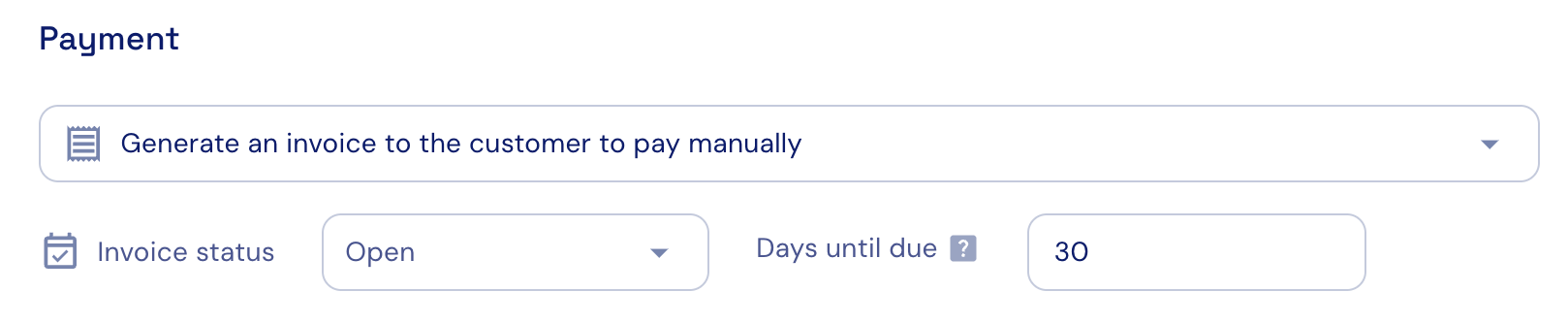
Under the "Payment" section, select ״Generate an invoice to the customer to pay manually".
Ensure that "Invoice status" is set to "Open".
Optionally, specify the number of days a customer has to pay invoices generated by this subscription.
 # Share the payment link with the customer
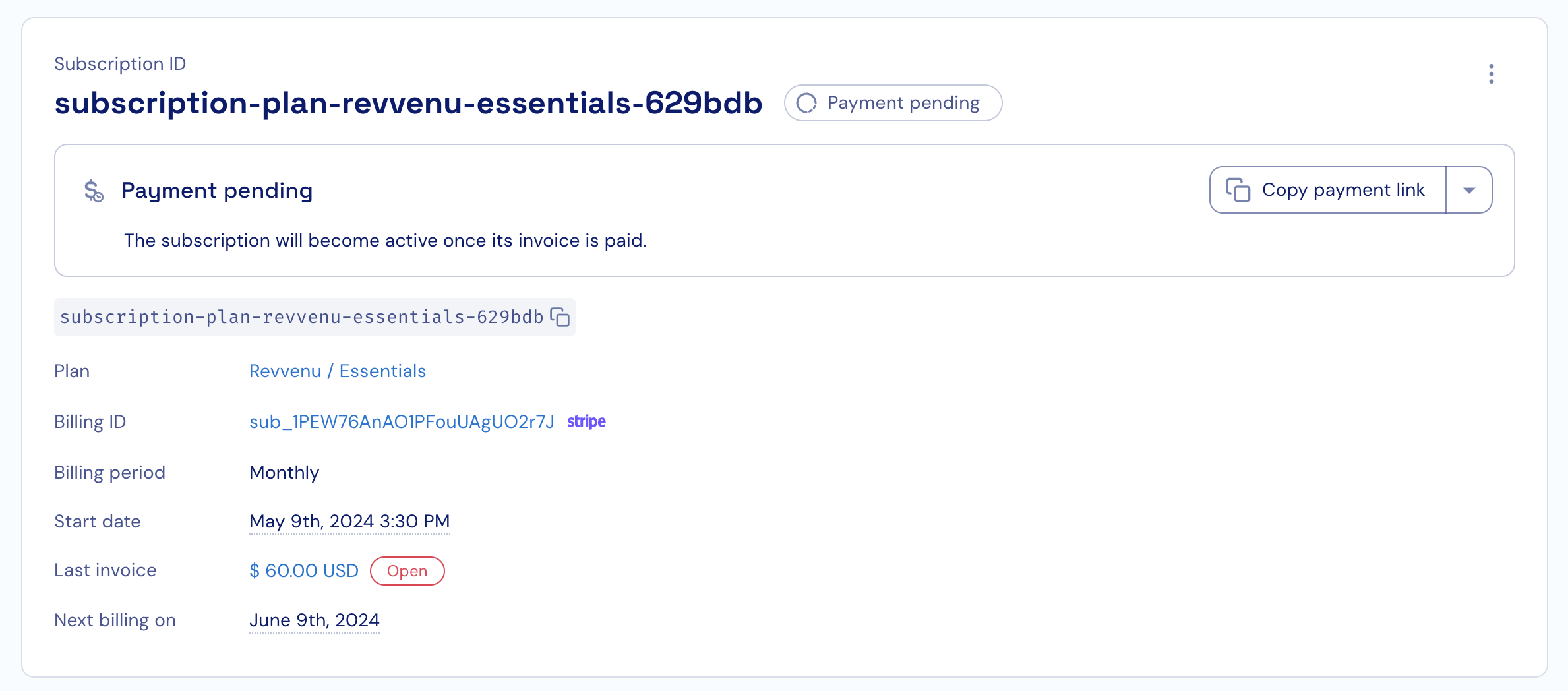
Under the subscription details, click on "Copy payment link".
Share the copied link with the customer.
# Share the payment link with the customer
Under the subscription details, click on "Copy payment link".
Share the copied link with the customer.
 # Payment
When the customer enters a payment method, the following takes place:
1. The entered payment method becomes the default payment method.
2. The subscription in Stigg becomes active and access to the the relevant entitlements is granted.
3. All subsequent subscription changes leverage the provided payment method; thus, allowing customers to make changes to subscriptions in a self-served manner, without needing to provide the payment method again.
By default, customers have 30 days to complete the payment before the link expires. When an open invoice is not paid within the allowed interval, the subscription in Stigg is automatically canceled.
# Payment
When the customer enters a payment method, the following takes place:
1. The entered payment method becomes the default payment method.
2. The subscription in Stigg becomes active and access to the the relevant entitlements is granted.
3. All subsequent subscription changes leverage the provided payment method; thus, allowing customers to make changes to subscriptions in a self-served manner, without needing to provide the payment method again.
By default, customers have 30 days to complete the payment before the link expires. When an open invoice is not paid within the allowed interval, the subscription in Stigg is automatically canceled.
 # Allowed payment methods
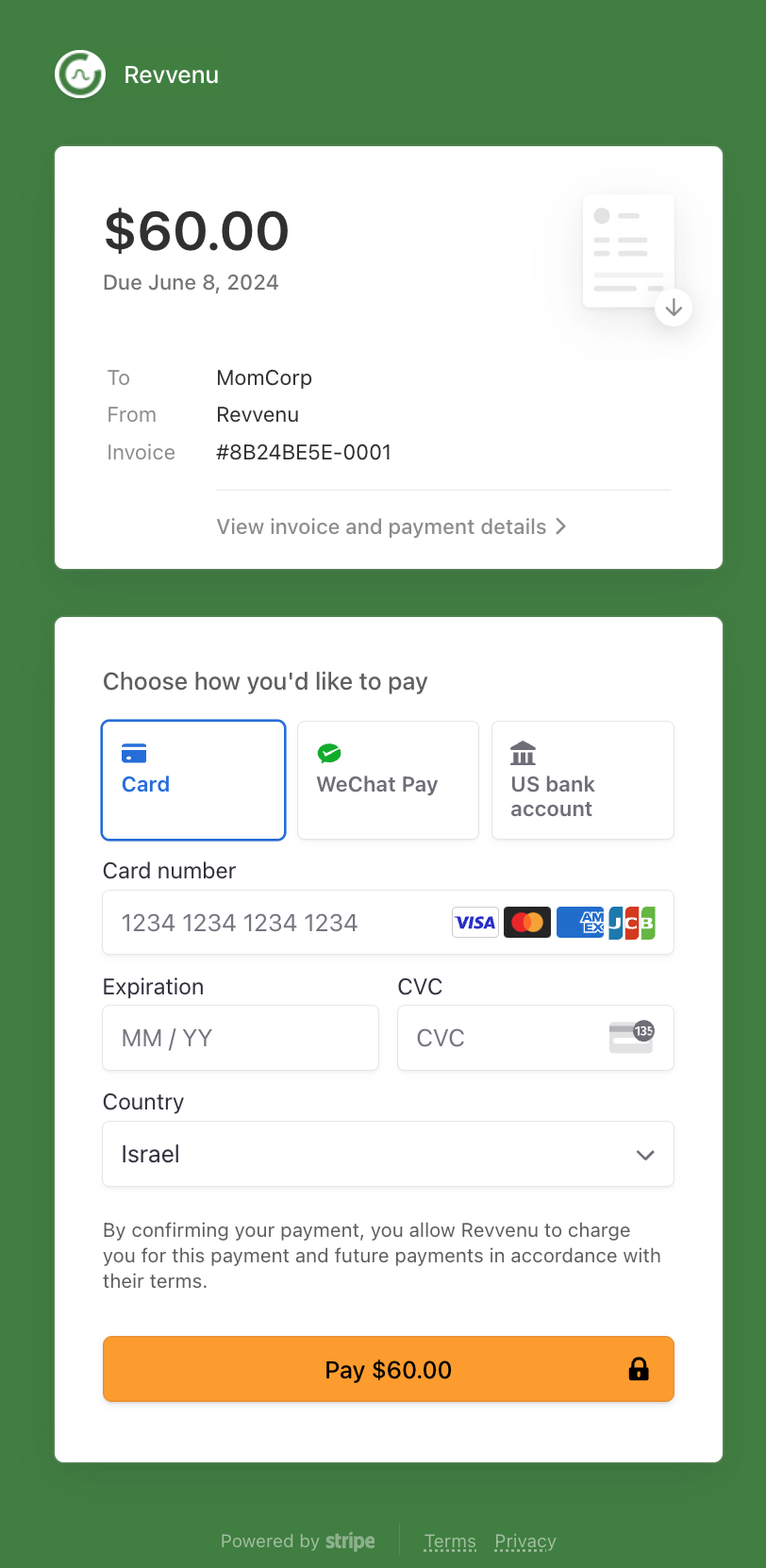
Customers can pay for subscriptions using credit cards, automated clearing house (ACH), and more.
You can configure the list of allowed payment methods in Stripe using no-code:
[Payment methods for invoices](https://docs.stripe.com/invoicing/payment-methods#configure-payment-methods)
[Stripe](https://docs.stripe.com/invoicing/payment-methods#configure-payment-methods)
# See it in action
# Allowed payment methods
Customers can pay for subscriptions using credit cards, automated clearing house (ACH), and more.
You can configure the list of allowed payment methods in Stripe using no-code:
[Payment methods for invoices](https://docs.stripe.com/invoicing/payment-methods#configure-payment-methods)
[Stripe](https://docs.stripe.com/invoicing/payment-methods#configure-payment-methods)
# See it in action