> ## Documentation Index
> Fetch the complete documentation index at: https://docs.stigg.io/llms.txt
> Use this file to discover all available pages before exploring further.
# Run a trial with add‑ons while keeping an active paid plan
# Overview
You can create a trial [subscription](/documentation/managing-customers-and-subscriptions/subscriptions/provisioning-subscriptions) in addition to an existing paid subscription. This is useful when you want to let a paying customer test new [add‑ons](/documentation/modeling-your-pricing-in-stigg/add-ons/overview) or a higher‑tier plan without interrupting their ongoing billing.
In this case, the customer will have two subscriptions for the same product:
* **Paid subscription (active) to a [plan](/documentation/modeling-your-pricing-in-stigg/plans/plans)**: the customer continues to be billed for this subscription.
* **Trial subscription to the same plan plus an add‑on**: the customer is granted the entitlements of this subscription (including the add‑on’s entitlements) but is not billed for it during the trial period.
This setup allows you to safely introduce add‑on trials while maintaining the customer’s existing paid subscription.
## How to provision via the Stigg app
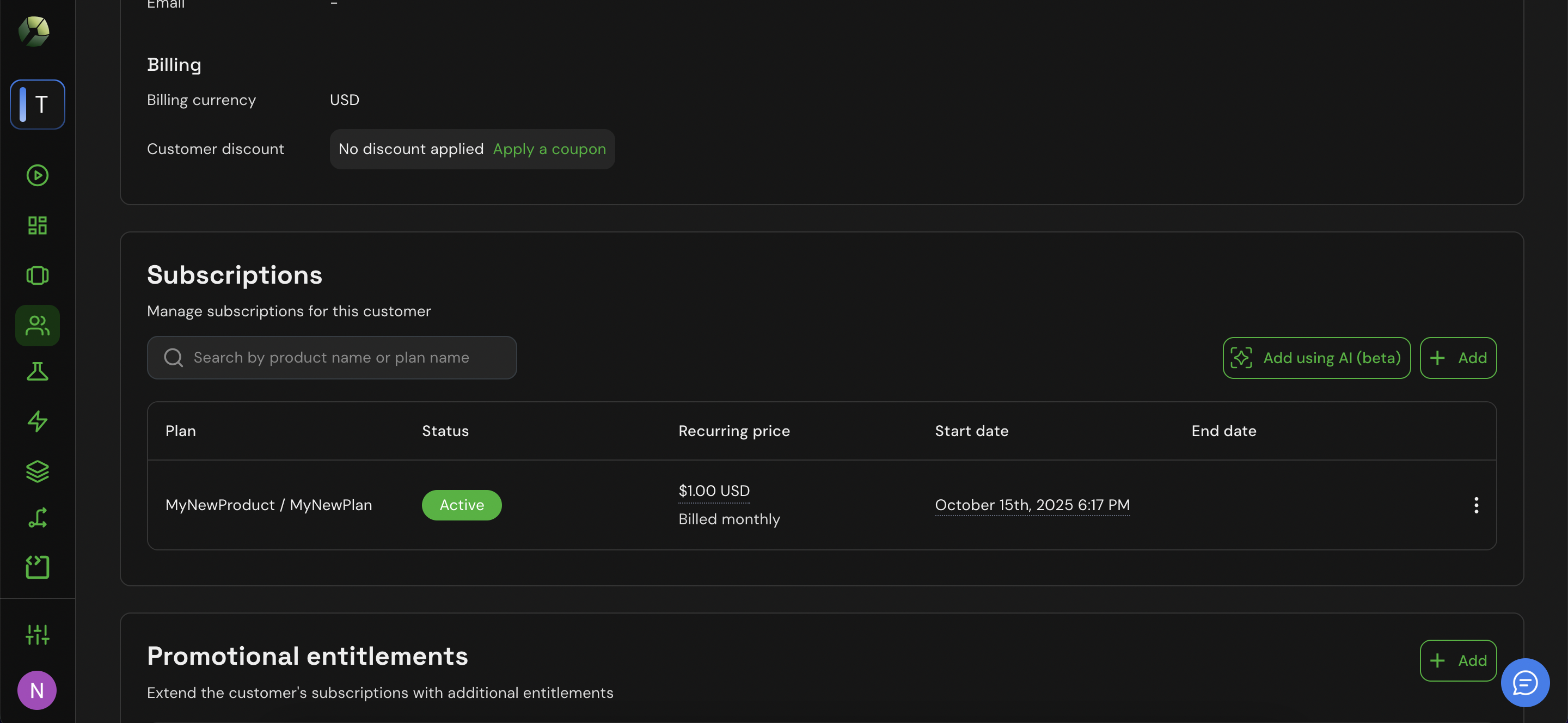
1. Go to **Customers → \[Select a customer]** to view their active subscriptions.
2. In the **Subscriptions** section, click **+Add**.
 3. Select the same plan as the customer’s active one.
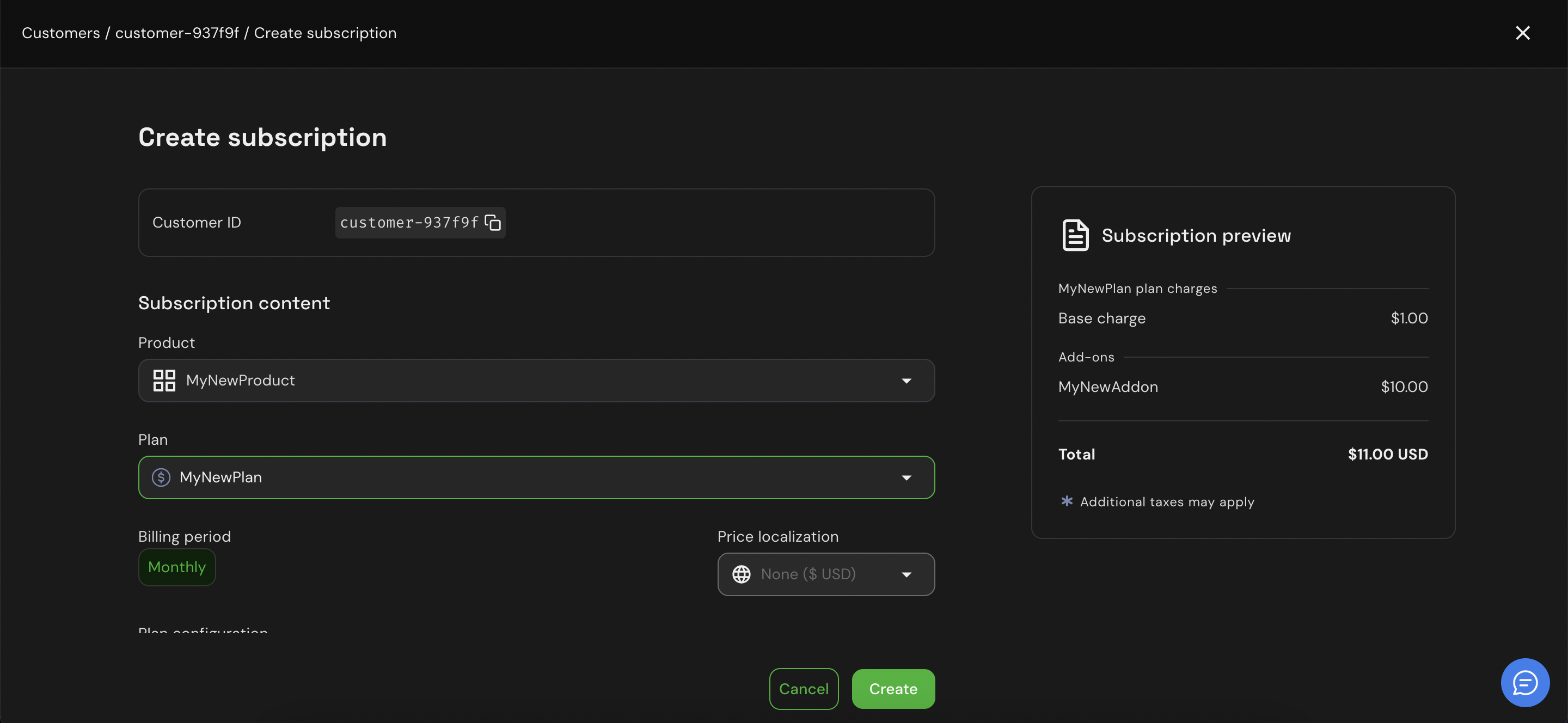 4. In the **Add‑ons** section, select the add-on configured for this plan.
5. Set the add-on quantity.
6. In the **Free trial** section, click **+Add**.
7. Define the trial period duration.
8. If required, set the spend limit for this trial.
4. In the **Add‑ons** section, select the add-on configured for this plan.
5. Set the add-on quantity.
6. In the **Free trial** section, click **+Add**.
7. Define the trial period duration.
8. If required, set the spend limit for this trial.
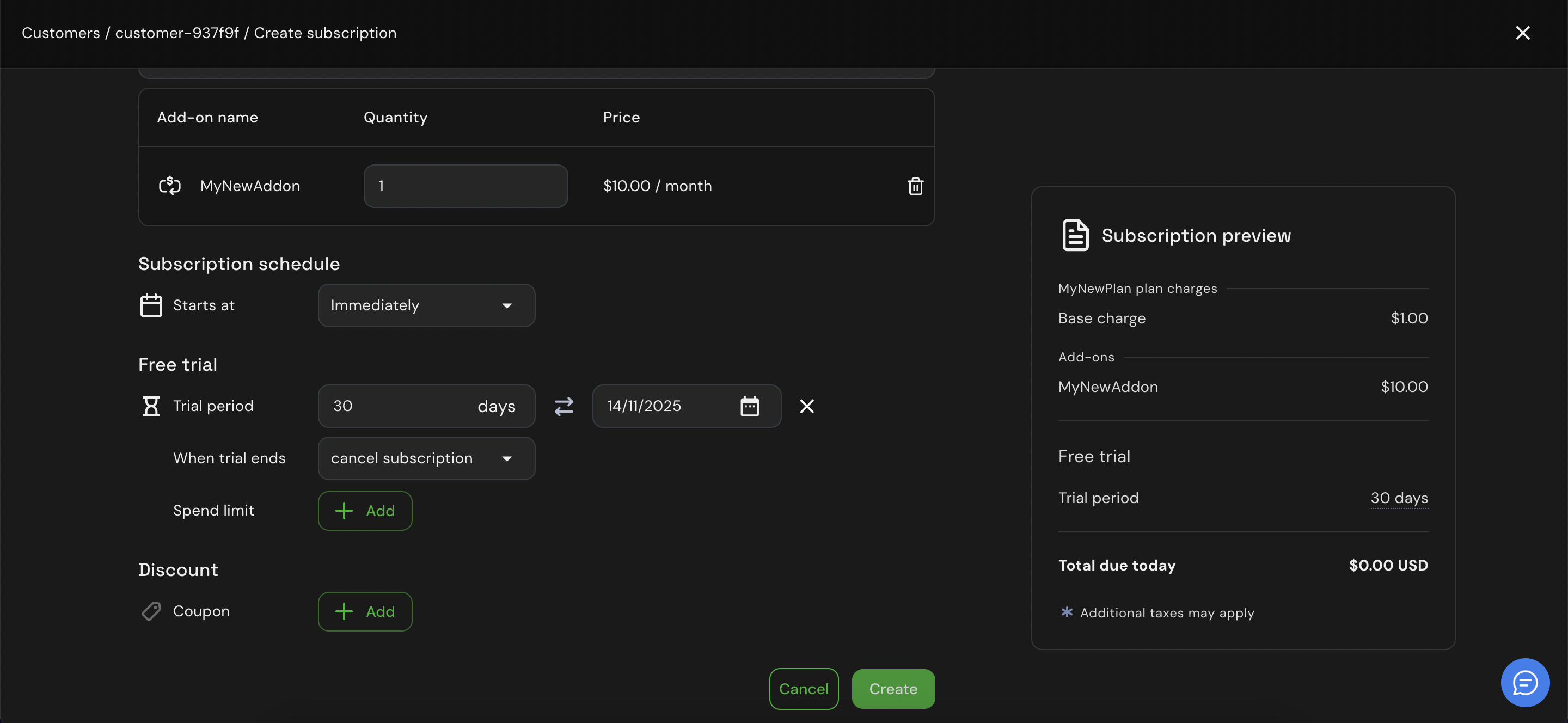 9. Click **Create**.
The system will provision a new trial subscription with the selected add‑ons. The customer now holds two subscriptions:
* Their paid plan (continues billing).
* Their trial plan (includes the add‑on entitlements, no billing during trial).
## What happens after the trial
When the trial period ends, you can:
* Convert the trial into a paid subscription (with or without add‑ons).
* Extend the trial period.
* Let it expire automatically if the customer doesn’t upgrade.
9. Click **Create**.
The system will provision a new trial subscription with the selected add‑ons. The customer now holds two subscriptions:
* Their paid plan (continues billing).
* Their trial plan (includes the add‑on entitlements, no billing during trial).
## What happens after the trial
When the trial period ends, you can:
* Convert the trial into a paid subscription (with or without add‑ons).
* Extend the trial period.
* Let it expire automatically if the customer doesn’t upgrade.