> ## Documentation Index
> Fetch the complete documentation index at: https://docs.stigg.io/llms.txt
> Use this file to discover all available pages before exploring further.
# No-code configuration in the Stigg app
## Overview
Rolling out price localization to your product can be achieved directly from the Stigg app using no-code after the initial integration with Stigg.
## Adding localized prices to plans and add-ons
To add price localization to plans and add-ons, open the relevant plan or add-on.
Edit the plan or add-on.
Navigate to the **Price** section.
Click on the **Edit** button.
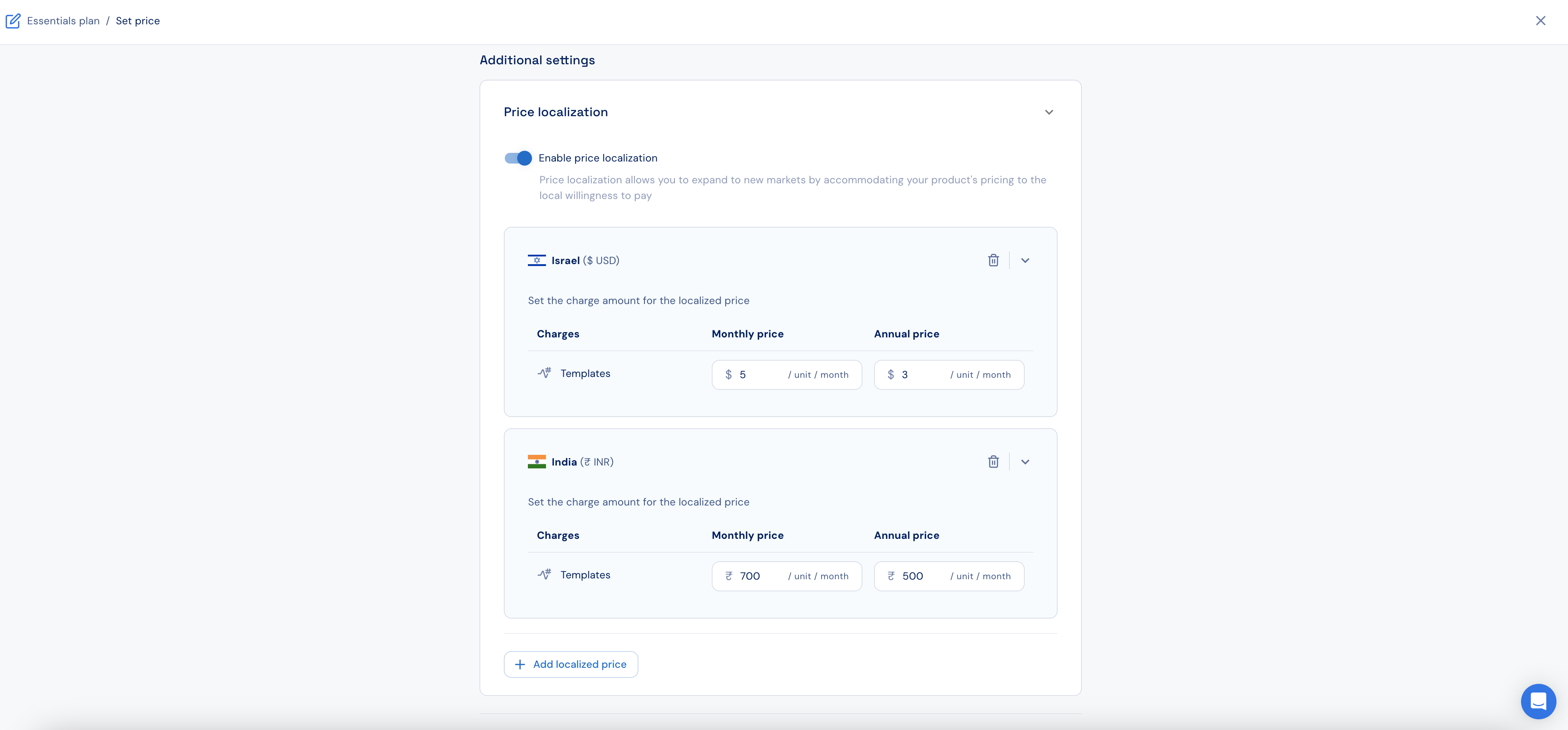
Scroll down to the **Price localization** section.
Enable price localization.
Select the relevant country that you'd like to apply price localization in.
Select the currency that should be used for pricing in that country.
Set the prices in that currency.
Click **Add**.
Click on **+ Add localized price** to add prices for additional countries.
Click **Save changes**.
Publish the plan or add-on version.
 ### Plans with compatible add-ons
In order to rollout price localization for plans with compatible add-on, first add and publish the localized prices for the add-on, and only then rollout the localized prices for the plan.
## Visibility for localized prices
### At the plan and add-on level
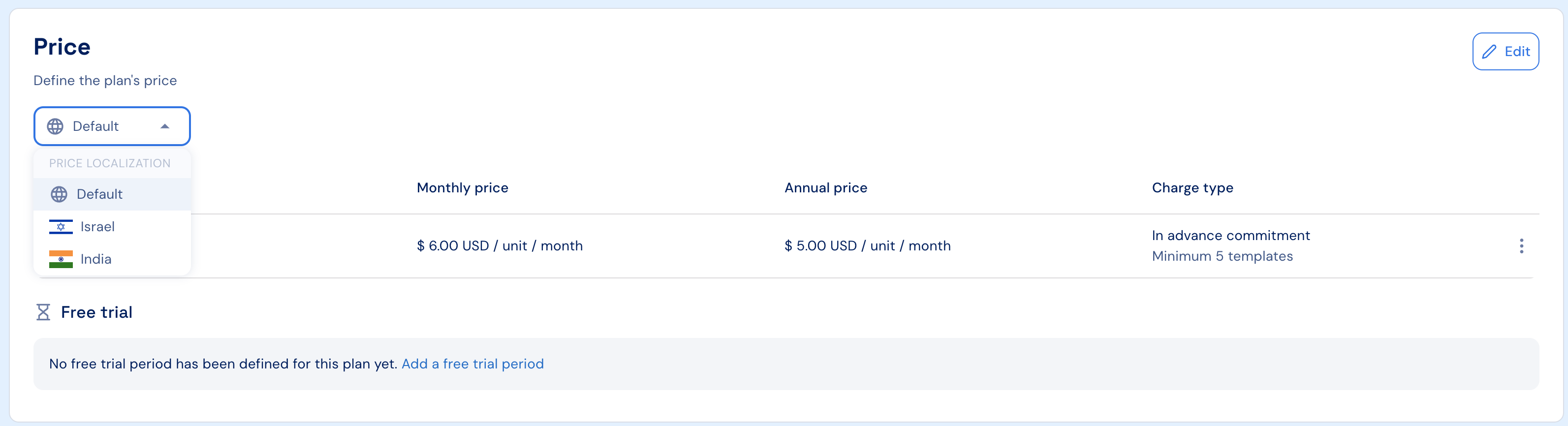
When price localization is defined for the plan or add-on, localized prices will appear under their **Price** section. Use the **Price localization** drop-down to view the price in each country.
### Plans with compatible add-ons
In order to rollout price localization for plans with compatible add-on, first add and publish the localized prices for the add-on, and only then rollout the localized prices for the plan.
## Visibility for localized prices
### At the plan and add-on level
When price localization is defined for the plan or add-on, localized prices will appear under their **Price** section. Use the **Price localization** drop-down to view the price in each country.
 ### At the product level
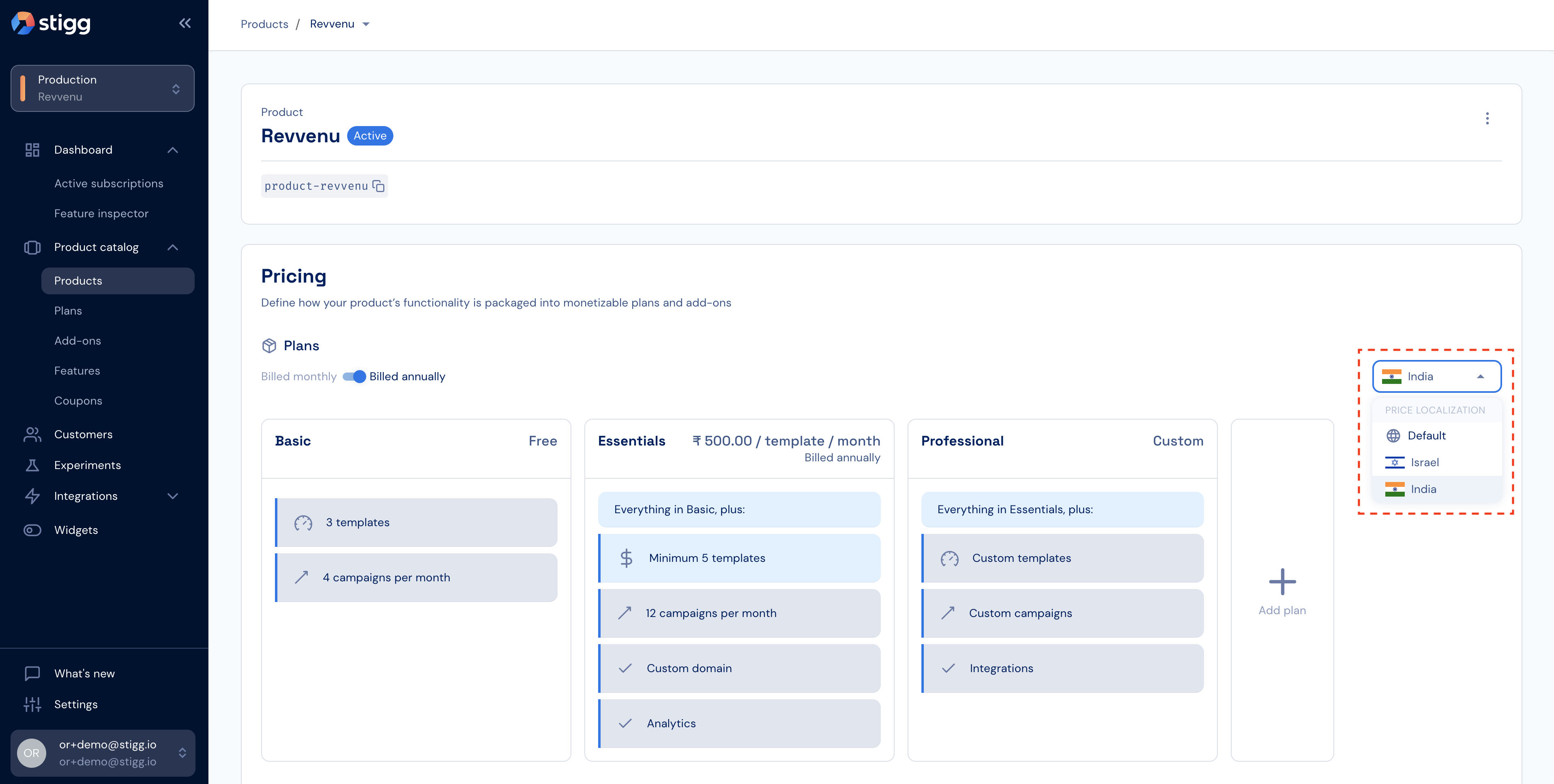
When price localization is defined for the product, under the **Product details** screen use the drop-down menu on the right to toggle between the default price and the different localized prices:
### At the product level
When price localization is defined for the product, under the **Product details** screen use the drop-down menu on the right to toggle between the default price and the different localized prices:
 ### In the widget designer
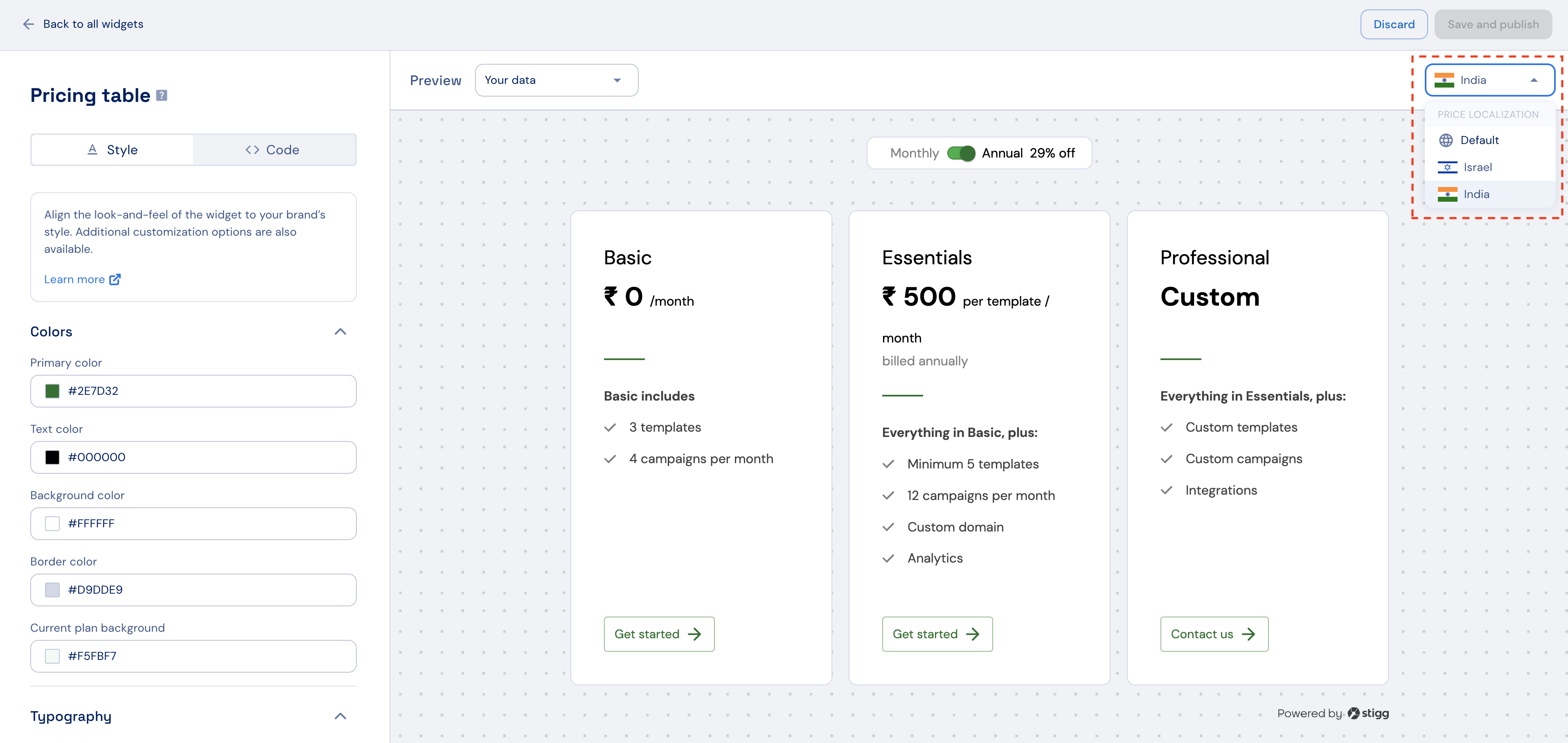
When price localization is defined for the product, when previewing **your data** under the **Pricing table** widget use the drop-down menu on the right to toggle between the default price and the different localized prices:
### In the widget designer
When price localization is defined for the product, when previewing **your data** under the **Pricing table** widget use the drop-down menu on the right to toggle between the default price and the different localized prices:
 ### At the customer level
After a customer has a subscription to a paid plan, the currency that they can be billed in will appear in the **Customer details** screen under the **Payment details** section:
### At the customer level
After a customer has a subscription to a paid plan, the currency that they can be billed in will appear in the **Customer details** screen under the **Payment details** section:
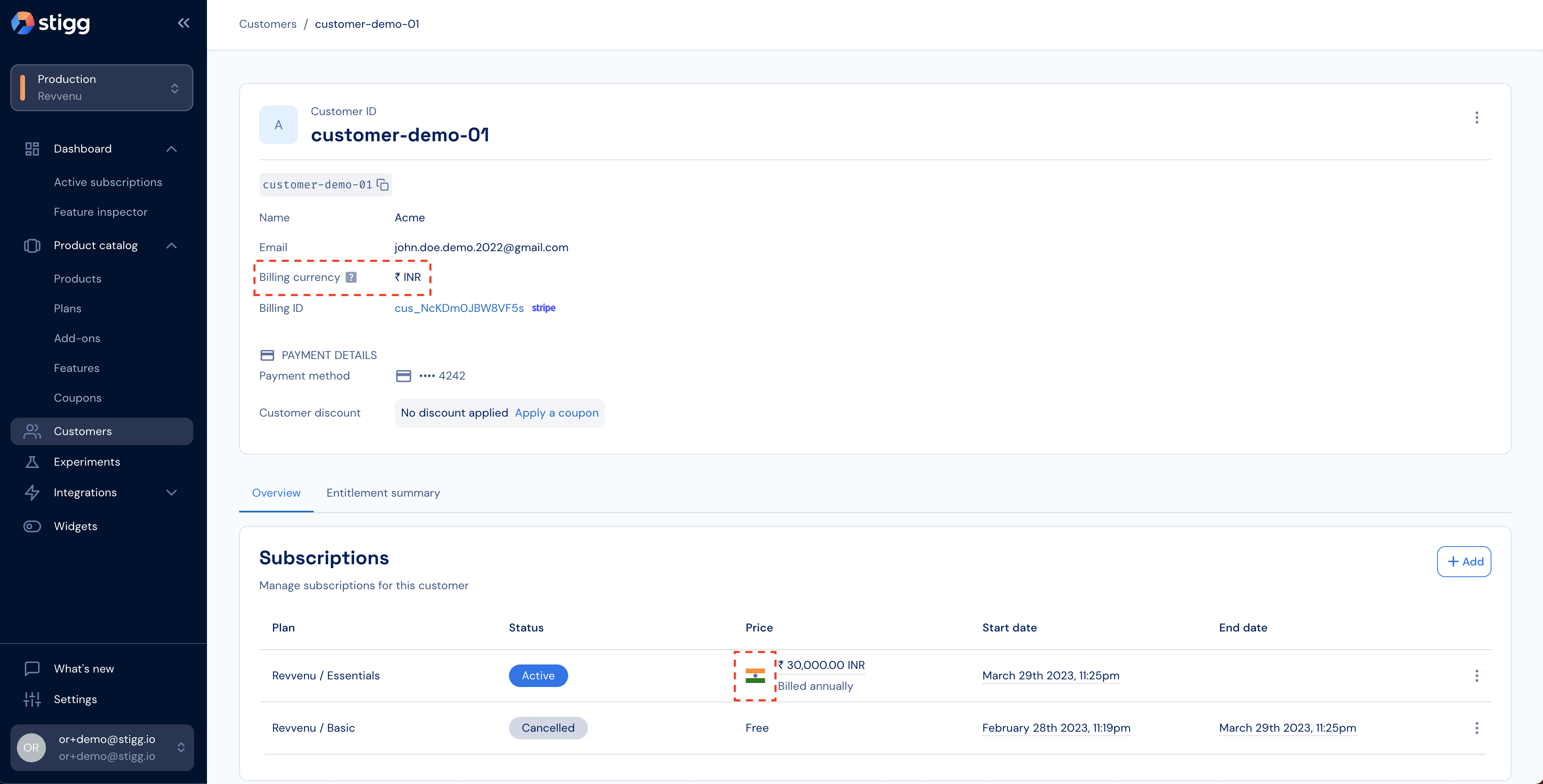 When a customer has a subscription to a localized price, a flag that indicates which localized price was used will appear next to the subscription price in the **Customer details** screen under the **Subscription** list:
 ### At the subscription level
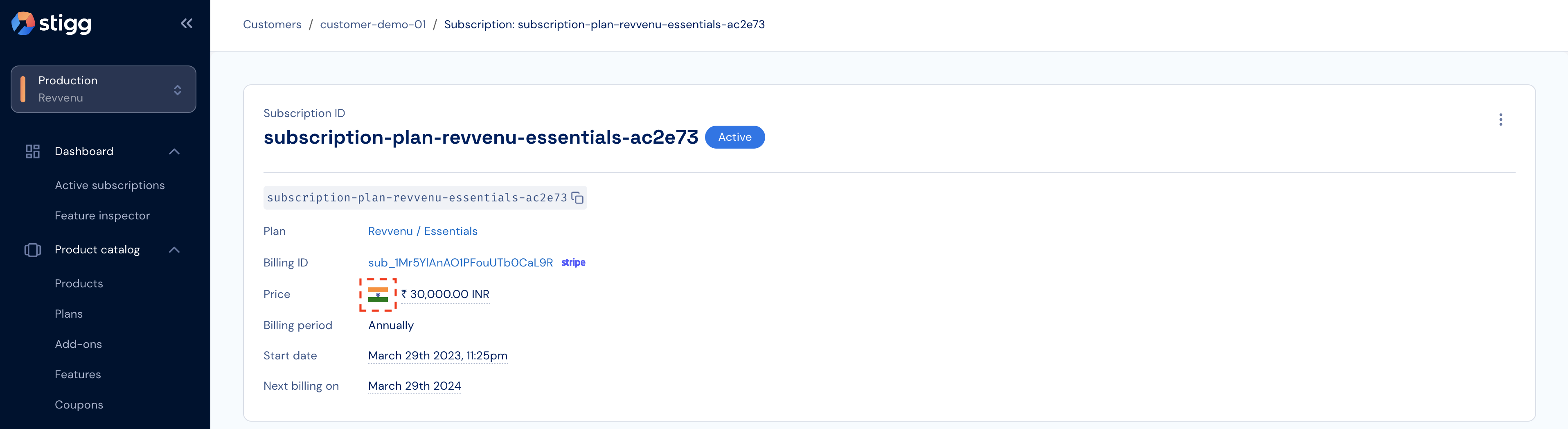
When the price of the subscription represents a localized price, a flag that indicates which localized price was used will appear next to the subscription price:
### At the subscription level
When the price of the subscription represents a localized price, a flag that indicates which localized price was used will appear next to the subscription price:
 ## Creating and updating subscriptions
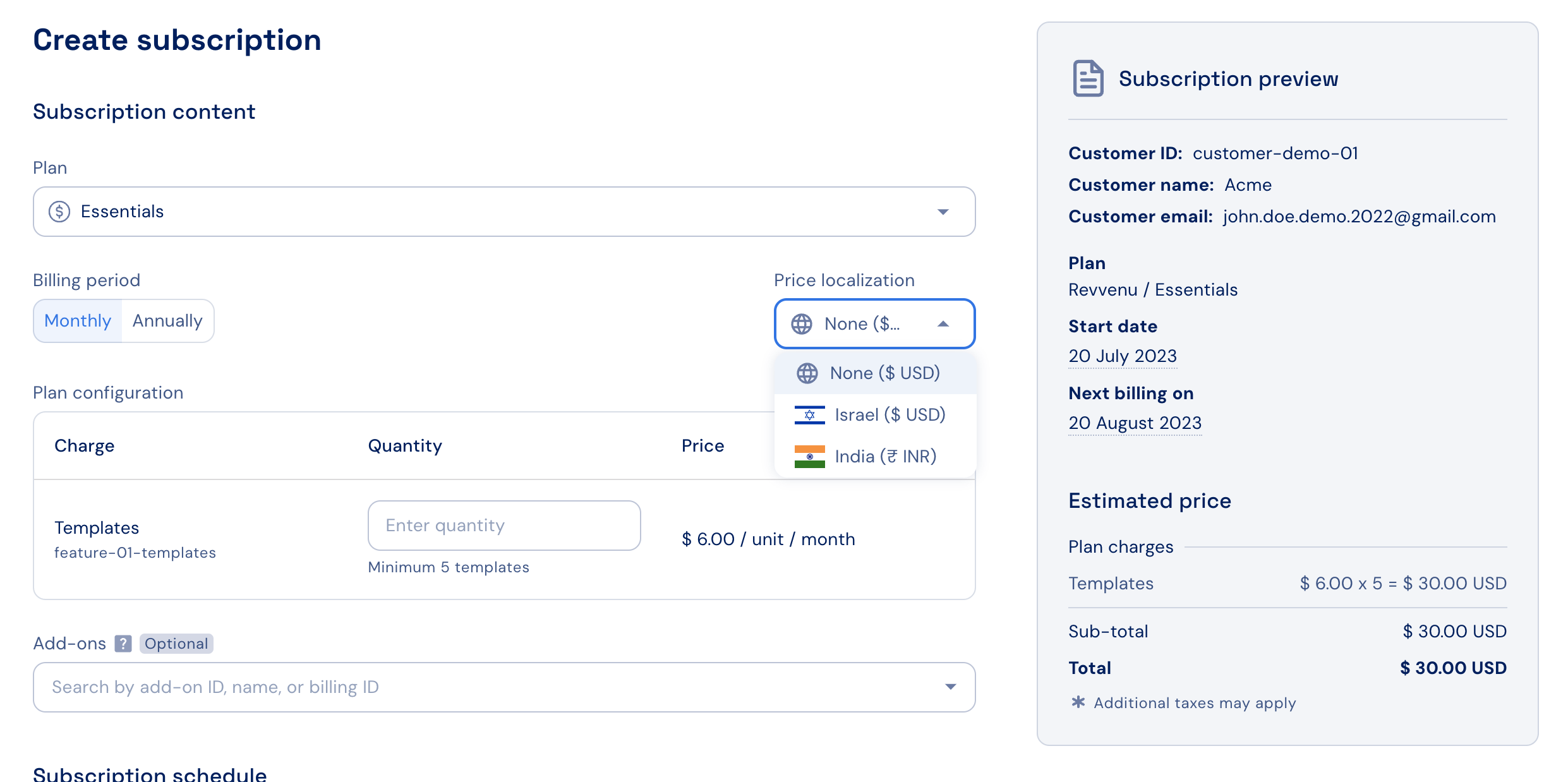
When a customer has never subscribed to a paid subscription, in the **Create subscription** screen after a paid plan is selected you can select the relevant price localization pricing:
## Creating and updating subscriptions
When a customer has never subscribed to a paid subscription, in the **Create subscription** screen after a paid plan is selected you can select the relevant price localization pricing:
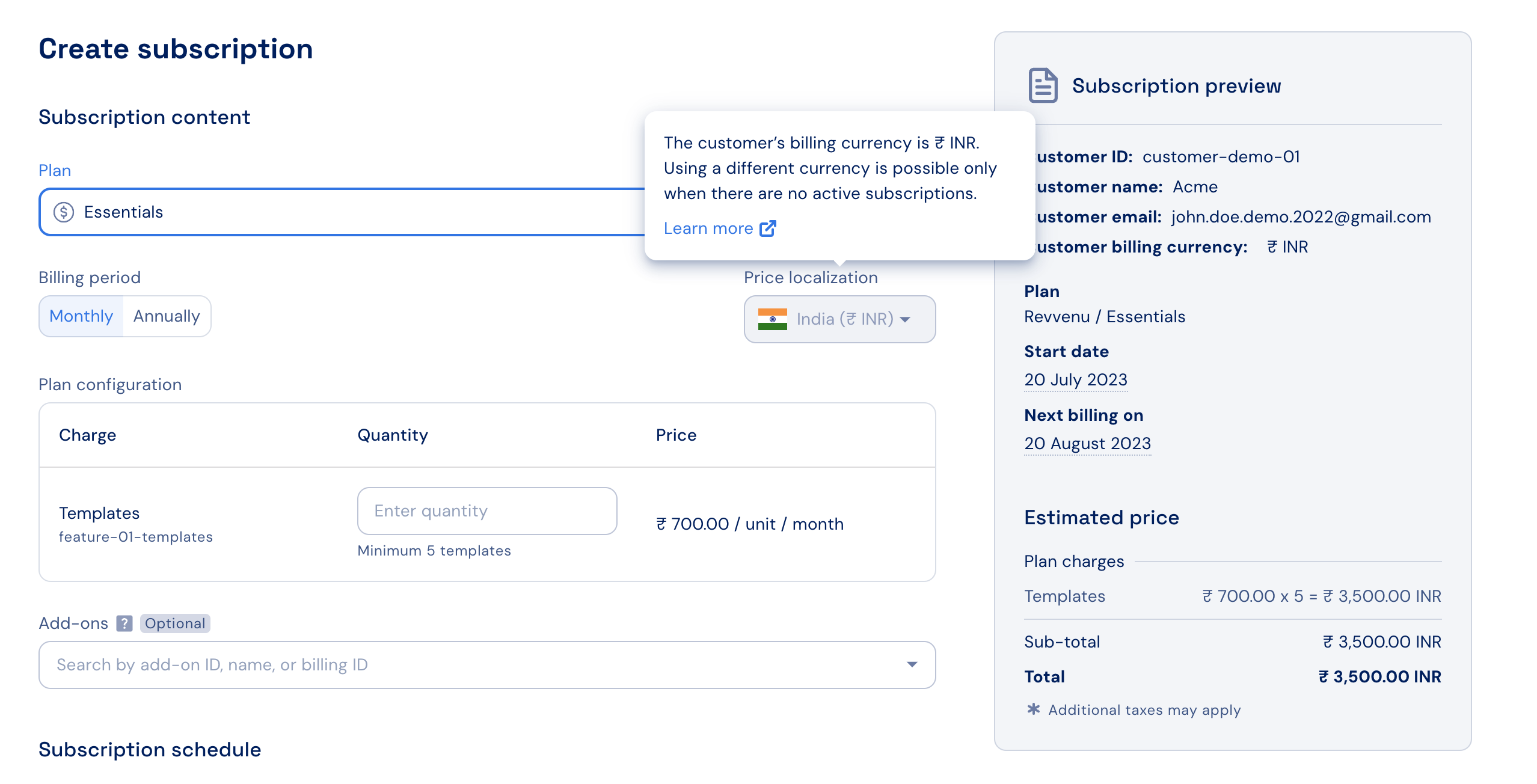
 When a customer had a previous subscription, due to [Stripe's limitation](https://support.stripe.com/questions/setting-a-customers-default-currency), it's only possible to select a price localization configuration with the same currency as the one of the currently active subscription.
In addition, when attempting to apply coupons with a fixed fee discount only coupons that have a defined discount in the same currency as the subscription's currency can be applied.
When a customer had a previous subscription, due to [Stripe's limitation](https://support.stripe.com/questions/setting-a-customers-default-currency), it's only possible to select a price localization configuration with the same currency as the one of the currently active subscription.
In addition, when attempting to apply coupons with a fixed fee discount only coupons that have a defined discount in the same currency as the subscription's currency can be applied.
 ## Removing localized prices
Localized prices of plans can be removed only if no subscription was created using these prices.
To remove a localized price, edit the plan or add-on.
Navigate to the **Pricing** section.
Click on the **Edit** button.
Scroll down to the **Price localization** section.
Click on the trash icon that appears in the row of the localized price that you'd like to remove.
Click **Save changes**.
Publish the plan or add-on version.
### Plans with compatible add-ons
In order to remove price localization from add-ons that are compatible with plans, first remove the localized price from the plan and publish the changes, and only then rollout the localized prices for the add-on.
## Removing localized prices
Localized prices of plans can be removed only if no subscription was created using these prices.
To remove a localized price, edit the plan or add-on.
Navigate to the **Pricing** section.
Click on the **Edit** button.
Scroll down to the **Price localization** section.
Click on the trash icon that appears in the row of the localized price that you'd like to remove.
Click **Save changes**.
Publish the plan or add-on version.
### Plans with compatible add-ons
In order to remove price localization from add-ons that are compatible with plans, first remove the localized price from the plan and publish the changes, and only then rollout the localized prices for the add-on.