> ## Documentation Index
> Fetch the complete documentation index at: https://docs.stigg.io/llms.txt
> Use this file to discover all available pages before exploring further.
# HubSpot
## Overview
[HubSpot](https://www.hubspot.com)’s CRM platform has all the tools and integrations you need for marketing, sales, content management, and customer service.
Stigg's native integration with HubSpot enables automatic propagation of changes from the Stigg platform to HubSpot, including: changes to the product catalog (product, plans and add-ons), customers and subscriptions.
Stigg's native integration with HubSpot is currently in beta for customers of the Growth and Scale plans. See Stigg's pricing for more details.
## Entity mapping
Stigg entities are mapped to HubSpot entities as follows:
| Stigg entity | HubSpot entity |
| ------------ | ---------------- |
| Feature | N/A |
| Product | N/A |
| Plan | Product |
| Add-on | Product |
| Coupon | N/A |
| Customer | Contact, Company |
| Subscription | Deal |
Additional details about the mapping of the properties and statuses of each entity can be found [here](./hubspot-entity-mapping).
### Entities that are not synced to HubSpot
| Stigg Entity | Not synced to HubSpot when... |
| ------------ | ----------------------------------------------------------------- |
| Plan | The HubSpot account is not on the Professional or Enterprise plan |
| | The plan is free |
| | The plan has a custom price |
| Add-on | The HubSpot account is not on the Professional or Enterprise plan |
| | The add-on has a custom price |
| Subscription | The subscription is for a free plan |
| | The subscription is for a plan with a custom price |
## Required permissions
Stigg's integration with HubSpot requires the following HubSpot permissions, which you'll be asked to grant when [setting up the integration](#setting-up-the-integration):
1. Manage and view your CRM data
1. View details about property settings for contacts.
2. Create, delete, or make changes to property settings for contacts.
3. View properties and other details about line items.
4. Create, delete, or make changes to line items.
5. View properties and other details about contacts.
6. Create, delete, or make changes to contacts.
7. View properties and other details about companies.
8. Create, delete, or make changes to companies.
9. View properties and other details about deals.
10. Create, delete, or make changes to deals.
2. Access to e-commerce
1. This includes access to e-commerce features - this permission is required for propagation of your pricing to the HubSpot product catalog.
3. Create or modify all your CRM data through bulk imports
1. This app can import records into your CRM - including creation of new records or modification of any of your existing records for all CRM data types (contacts, companies, deals, tickets, etc.). This doesn't include archiving or deleting any data.
## Setting up the integration
In the [Stigg app](https://app.stigg.io), under the **Settings > Integrations > Apps** section, select the HubSpot connector.
Click **Connect with HubSpot**.
You'll be redirected to HubSpot in order to complete the integration process.
If needed, sign in to HubSpot.
If you have access to multiple HubSpot accounts, select the account that will be integrated with Stigg.
When asked, grant Stigg the permissions in HubSpot that are required for the integration.
Once all of the integration steps on the HubSpot side are completed, you'll be redirected back to Stigg.
## Indication for synced entities
In the [Stigg app](#), entities that are synced from Stigg to HubSpot have a clickable **CRM ID** property with a HubSpot logo next to it and indication of their sync status (successful, failed, [will not be synced](#entities-that-are-not-synced-to-hubspot)).
When attempting to add or edit entities that are synced to HubSpot, there will be an indication that the change will also be reflected HubSpot.
## Accessing HubSpot entities from Stigg
In the [Stigg app](#), clicking on the link of the **CRM ID** property will open the relevant entity in HubSpot.
Due to the fact that HubSpot doesn't support direct deep-links to entities in the HubSpot product catalog, attempting to access synced **plans** and **add-ons** from the Stigg app will only open the HubSpot product catalog, and not the specific entity inside the product catalog.
## Accessing Stigg entities from HubSpot
### Plans and add-ons
Click on the **Settings** cog icon in the top-right corner.
 In the opened screen, click on **Data Management > Objects > Products**.
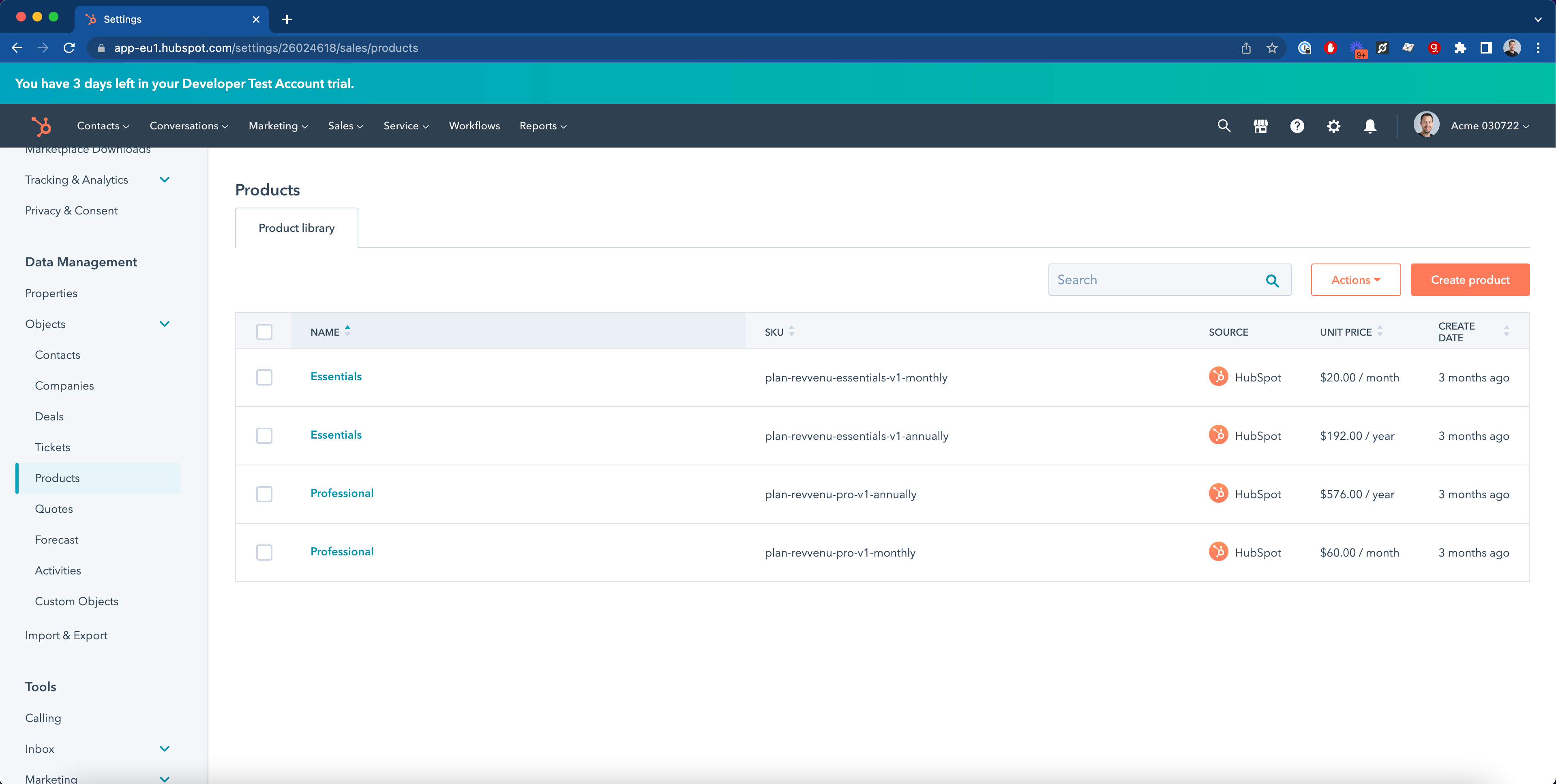 Select the relevant product.
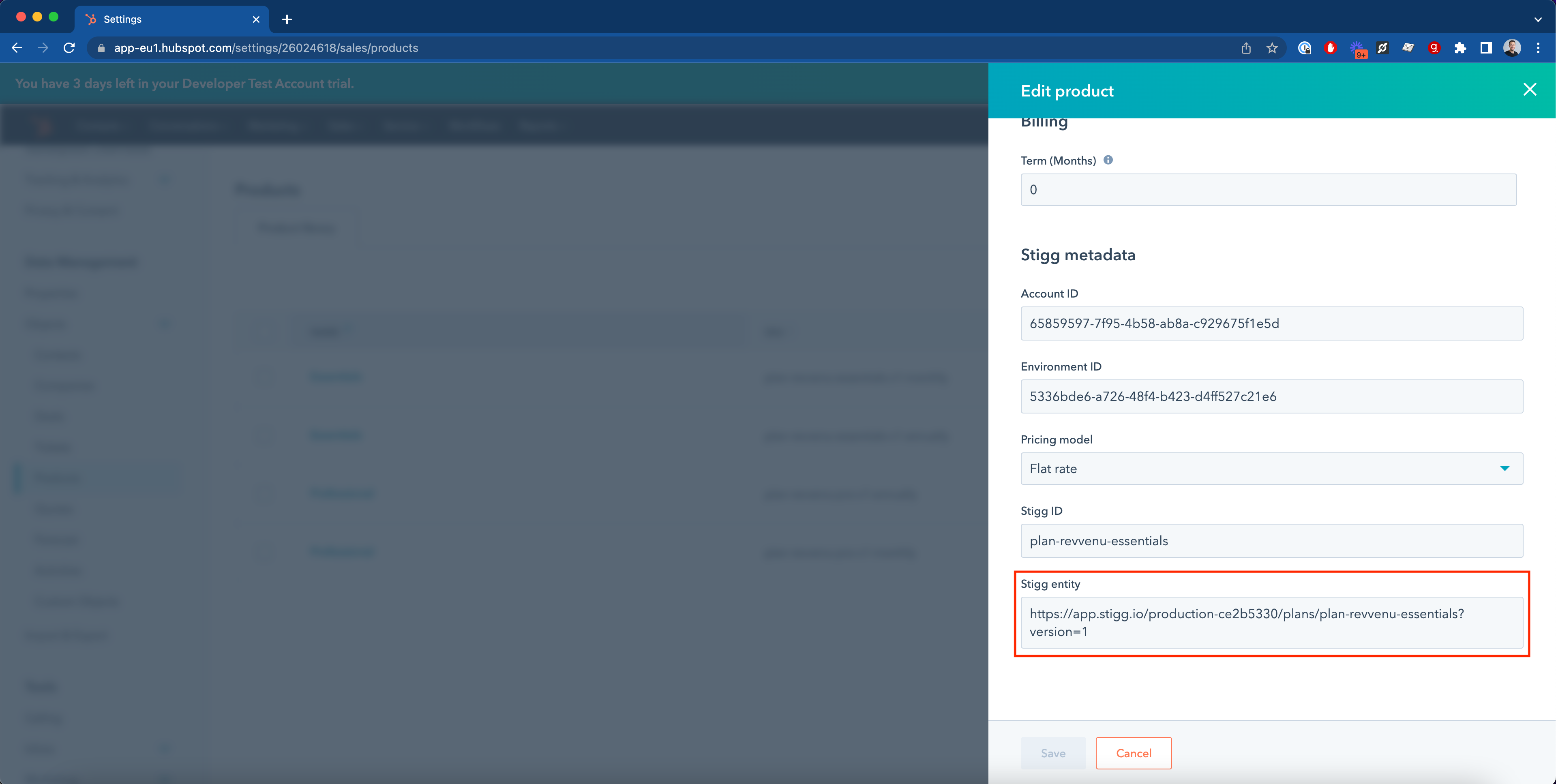
In the opened side-bar, scroll down to the **Stigg metadata** section.
Navigate to the URL that appears under the **Stigg entity** property.
Select the relevant product.
In the opened side-bar, scroll down to the **Stigg metadata** section.
Navigate to the URL that appears under the **Stigg entity** property.
 ### Customers
#### Add the Stigg metadata properties to your contact and company views
In HubSpot, open the **Contacts > Contacts** screen.
Select a contact for the list.
In the left details pane, under the **About this contact** section, scroll down until you see the **View all properties** button.
Scroll down to the **Stigg metadata** section.
Hover on the below entities and click on **Add to your view**:
1. Stigg ID
2. Stigg entity
Repeat the same process for entities under the **Contacts > Companies** screen.
#### Opening the Stigg entity from the contact view
In HubSpot, open the **Contacts > Contacts** screen.
Select a contact from the list.
In the left details pane, under the **About this contact** section, scroll down until you see the **Stigg entity** property.
Click on the link icon that appears when hovering on this property.
#### Opening the Stigg entity from the company view
In HubSpot, open the **Contacts > Companies** screen.
Select a contact for the list.
In the left details pane, under the **About this company** section, scroll down until you see the **Stigg entity** property.
Click on the link icon that appears when hovering on this property.
### Subscriptions
#### Add the Stigg metadata properties to your deal view
In HubSpot, open the **Sales > Deals** screen.
Select a deal from the list.
In the left details pane, under the **About this deal** section, scroll down until you see the **View all properties** button.
Scroll down to the **Stigg metadata** section.
Hover on the below entities and click on **Add to your view**:
1. Stigg ID
2. Stigg entity
3. Subscription status
4. Cancelation date
5. Trial end date
#### Opening the Stigg entity from the deal view
In HubSpot, open the **Sales > Deals** screen.
Select a deal from the list.
In the left details pane, under the **About this deal** section, scroll down until you see the **Stigg entity** property.
Click on the link icon that appears when hovering on this property.
## Removing the integration
To remove the integration, in the [Stigg app](https://app.stigg.io), under the **Settings > Integrations > Apps** section, select the HubSpot connector.
Click on the dotted menu icon and select the **Remove** action.
Confirm the action by clicking on the **Remove** button in the opened modal.
## Known limitations
1. The integration currently only supports propagation of data from Stigg to HubSpot, and not the other way around. Specifically, when a deal is closed in HubSpot, it's not currently possible to link it to a subscription in Stigg.
2. All deals are currently synced to the **default sales pipeline**.
3. When a plan's or add-on's price is updated in Stigg and the change is set to affect **existing customers**, the deal amount of existing customers in HubSpot is not automatically updated.
4. When customers are subscribed to a usage-based plan, the deal amount in HubSpot is **not** currently updated according to the customer usage and will remain at 0.
If any of the above mentioned limitations affect your use-case, [let us know](mailto:support@stigg.io) and we'd be happy to work together to lift them.
### Customers
#### Add the Stigg metadata properties to your contact and company views
In HubSpot, open the **Contacts > Contacts** screen.
Select a contact for the list.
In the left details pane, under the **About this contact** section, scroll down until you see the **View all properties** button.
Scroll down to the **Stigg metadata** section.
Hover on the below entities and click on **Add to your view**:
1. Stigg ID
2. Stigg entity
Repeat the same process for entities under the **Contacts > Companies** screen.
#### Opening the Stigg entity from the contact view
In HubSpot, open the **Contacts > Contacts** screen.
Select a contact from the list.
In the left details pane, under the **About this contact** section, scroll down until you see the **Stigg entity** property.
Click on the link icon that appears when hovering on this property.
#### Opening the Stigg entity from the company view
In HubSpot, open the **Contacts > Companies** screen.
Select a contact for the list.
In the left details pane, under the **About this company** section, scroll down until you see the **Stigg entity** property.
Click on the link icon that appears when hovering on this property.
### Subscriptions
#### Add the Stigg metadata properties to your deal view
In HubSpot, open the **Sales > Deals** screen.
Select a deal from the list.
In the left details pane, under the **About this deal** section, scroll down until you see the **View all properties** button.
Scroll down to the **Stigg metadata** section.
Hover on the below entities and click on **Add to your view**:
1. Stigg ID
2. Stigg entity
3. Subscription status
4. Cancelation date
5. Trial end date
#### Opening the Stigg entity from the deal view
In HubSpot, open the **Sales > Deals** screen.
Select a deal from the list.
In the left details pane, under the **About this deal** section, scroll down until you see the **Stigg entity** property.
Click on the link icon that appears when hovering on this property.
## Removing the integration
To remove the integration, in the [Stigg app](https://app.stigg.io), under the **Settings > Integrations > Apps** section, select the HubSpot connector.
Click on the dotted menu icon and select the **Remove** action.
Confirm the action by clicking on the **Remove** button in the opened modal.
## Known limitations
1. The integration currently only supports propagation of data from Stigg to HubSpot, and not the other way around. Specifically, when a deal is closed in HubSpot, it's not currently possible to link it to a subscription in Stigg.
2. All deals are currently synced to the **default sales pipeline**.
3. When a plan's or add-on's price is updated in Stigg and the change is set to affect **existing customers**, the deal amount of existing customers in HubSpot is not automatically updated.
4. When customers are subscribed to a usage-based plan, the deal amount in HubSpot is **not** currently updated according to the customer usage and will remain at 0.
If any of the above mentioned limitations affect your use-case, [let us know](mailto:support@stigg.io) and we'd be happy to work together to lift them.