> ## Documentation Index
> Fetch the complete documentation index at: https://docs.stigg.io/llms.txt
> Use this file to discover all available pages before exploring further.
# Integration with Zuora payment form
## Overview
To allow customers to add payment methods via the [Stigg Checkout widget](https://docs.stigg.io/documentation/snap-in-widgets/checkout), a Zuora Payment Form must be configured.
Follow the steps below to complete the setup.
All payment methods are stored directly in Zuora.
If no payment gateway is connected in Zuora, the Payment Form will still render but will only display invoice and currency options. Payment methods cannot be collected in this case.
## Setting up the payment form in Zuora
### Step 1 — Open Payments settings
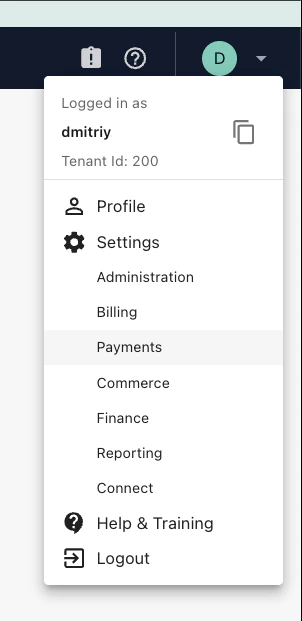
In Zuora, click your account avatar in the top-right corner and select **Payments** from the dropdown menu.
 ### Step 2 — Go to Setup Payment Forms and Payment Links
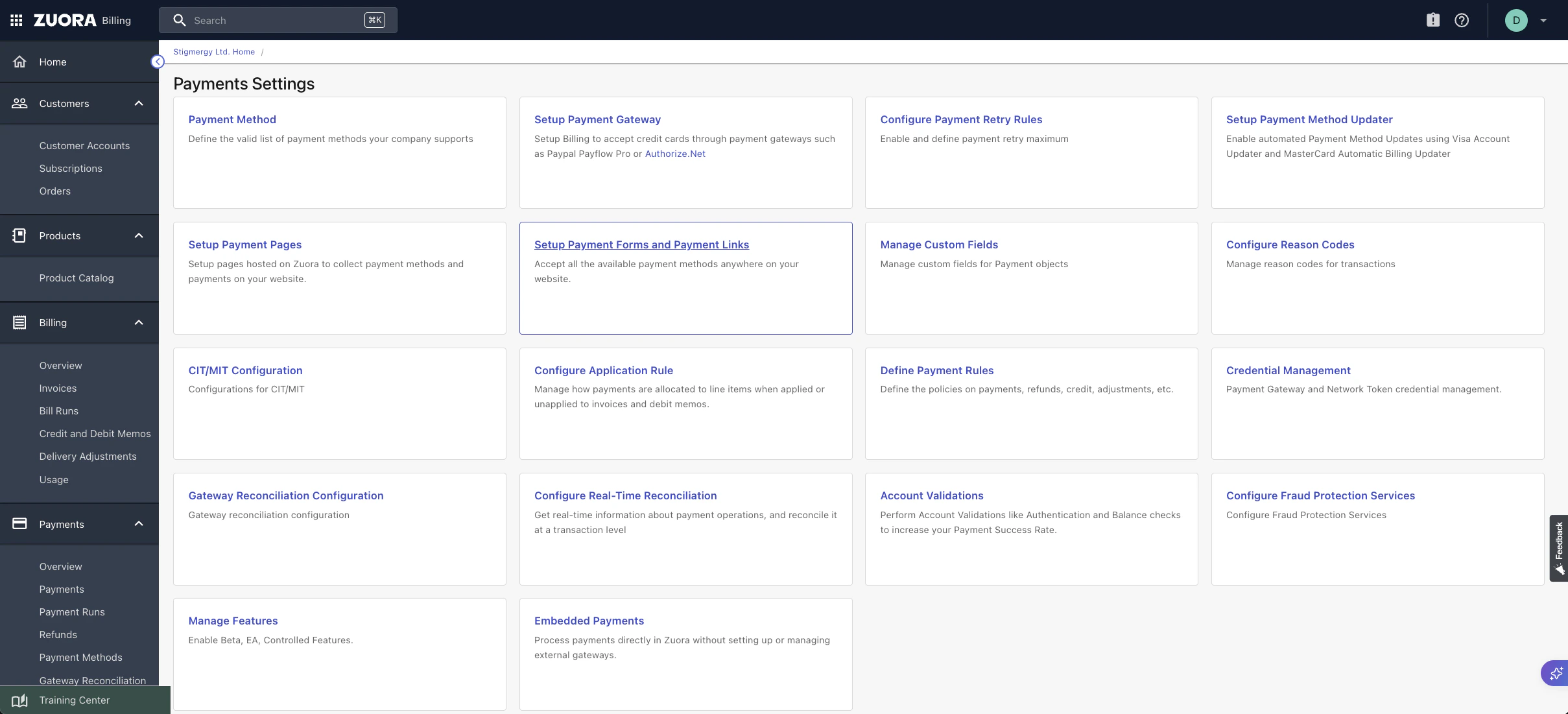
On the Payments Settings page, click **Setup Payment Forms and Payment Links**.
### Step 2 — Go to Setup Payment Forms and Payment Links
On the Payments Settings page, click **Setup Payment Forms and Payment Links**.
 ### Step 3 — Copy your publishable key
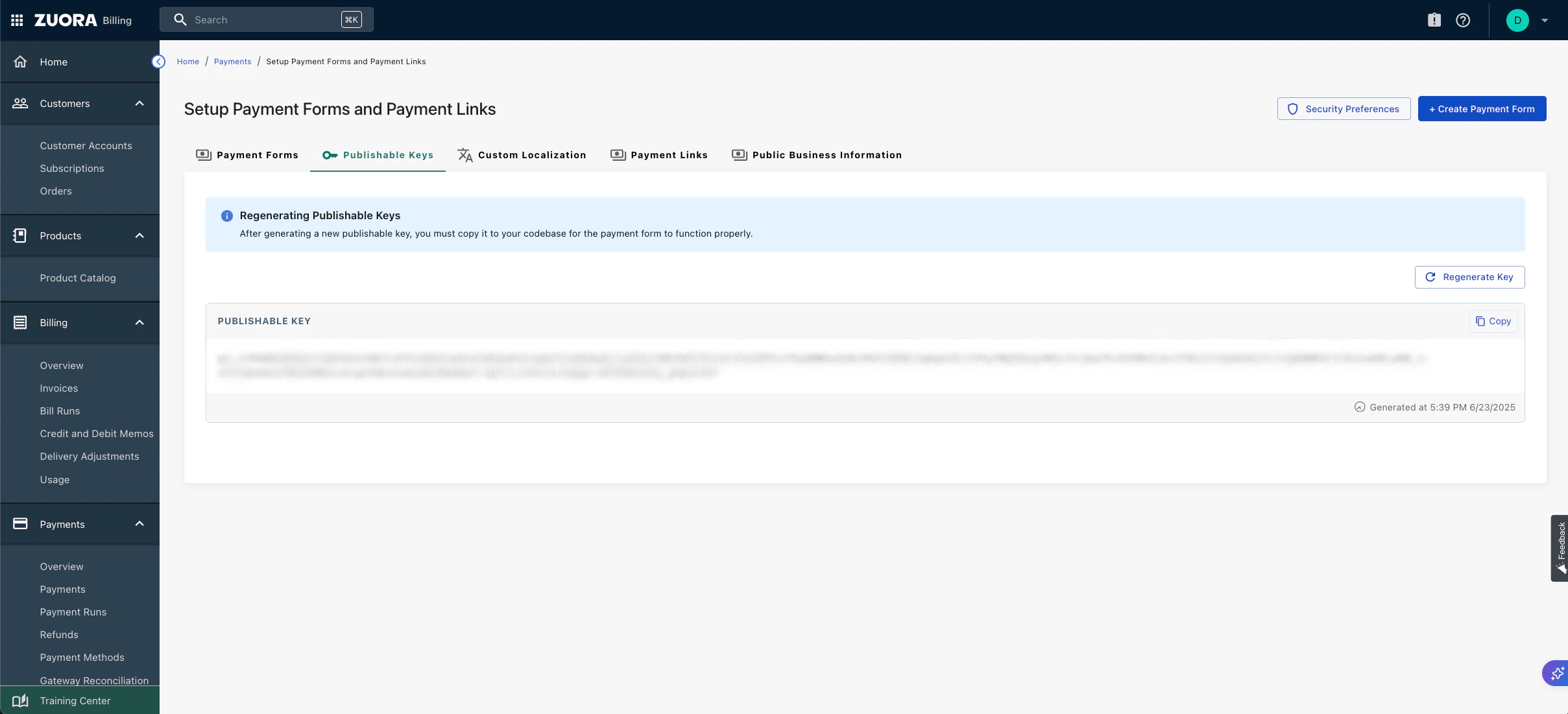
Navigate to the **Publishable Keys** tab. Copy the publishable key — you'll need it when configuring the Zuora integration in Stigg.
### Step 3 — Copy your publishable key
Navigate to the **Publishable Keys** tab. Copy the publishable key — you'll need it when configuring the Zuora integration in Stigg.
 ### Step 4 — Select your payment form for editing
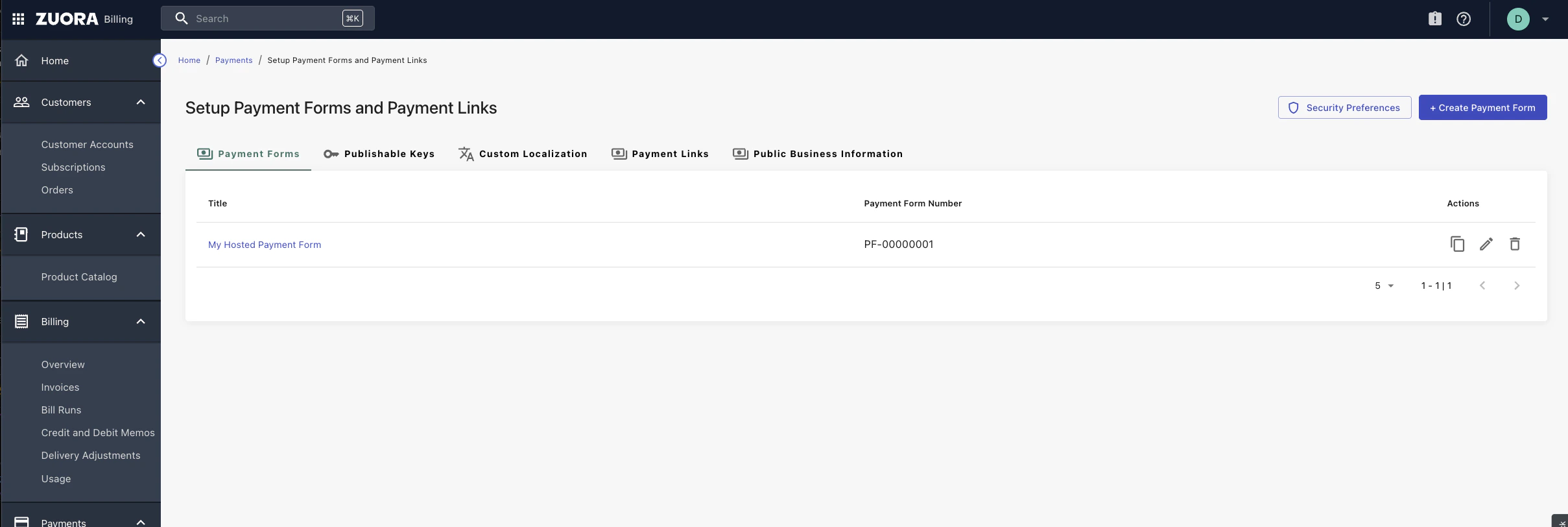
On the Payment Forms list, click the edit icon next to the payment form you want to use with Stigg.
### Step 4 — Select your payment form for editing
On the Payment Forms list, click the edit icon next to the payment form you want to use with Stigg.
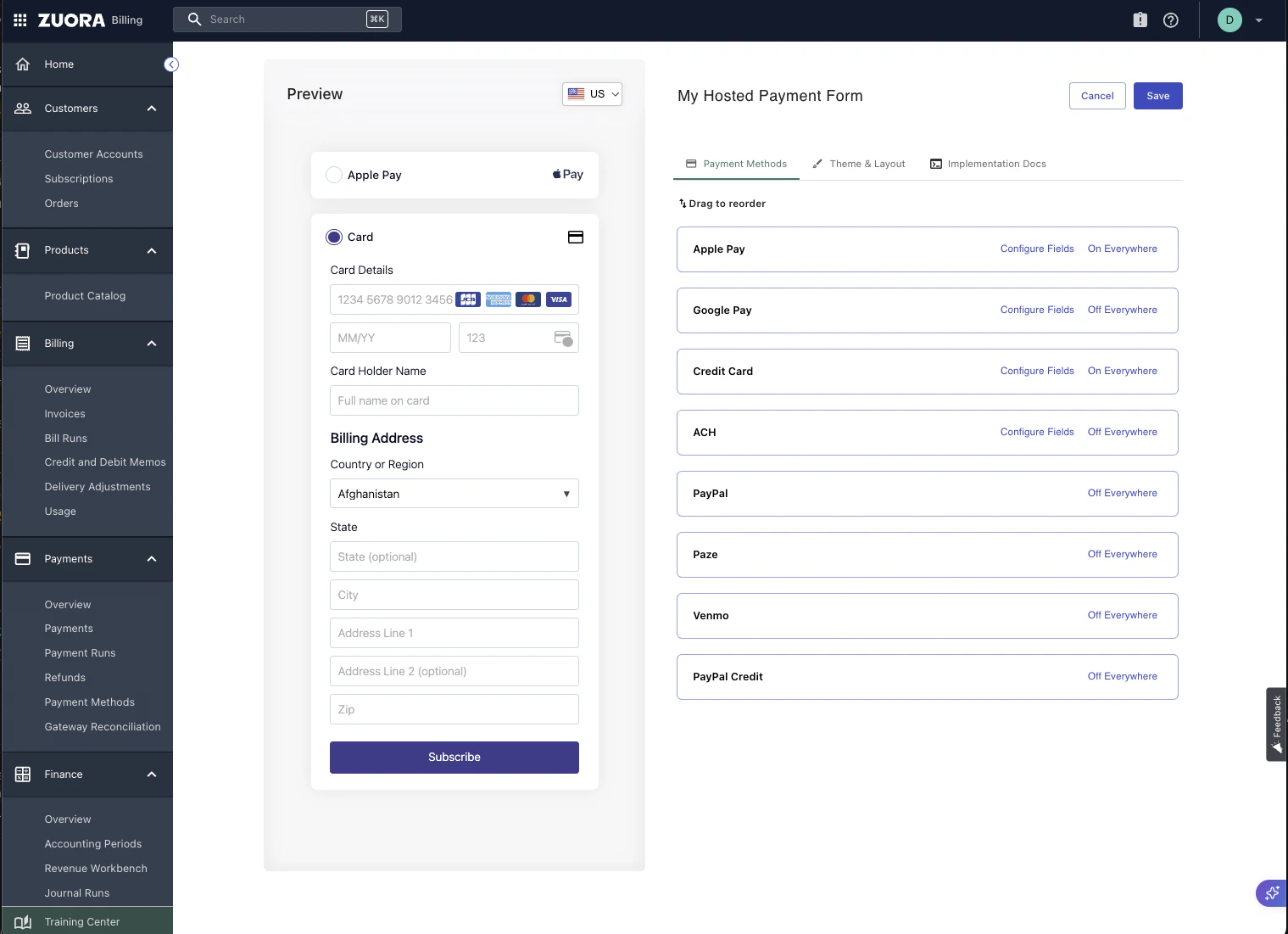
 ### Step 5 — Customize your payment form (optional)
Use the **Payment Methods**, **Theme & Layout**, and **Implementation Docs** tabs to configure which payment methods appear and how the form looks.
### Step 5 — Customize your payment form (optional)
Use the **Payment Methods**, **Theme & Layout**, and **Implementation Docs** tabs to configure which payment methods appear and how the form looks.
 ## Configuring the integration in Stigg
### Step 6 — Enter the publishable key in Stigg
In Stigg, go to **Integrations → Billing → Zuora**. In the integration details form, paste the publishable key you copied from Zuora into the **Publishable key** field, then click **Save changes**.
## Configuring the integration in Stigg
### Step 6 — Enter the publishable key in Stigg
In Stigg, go to **Integrations → Billing → Zuora**. In the integration details form, paste the publishable key you copied from Zuora into the **Publishable key** field, then click **Save changes**.
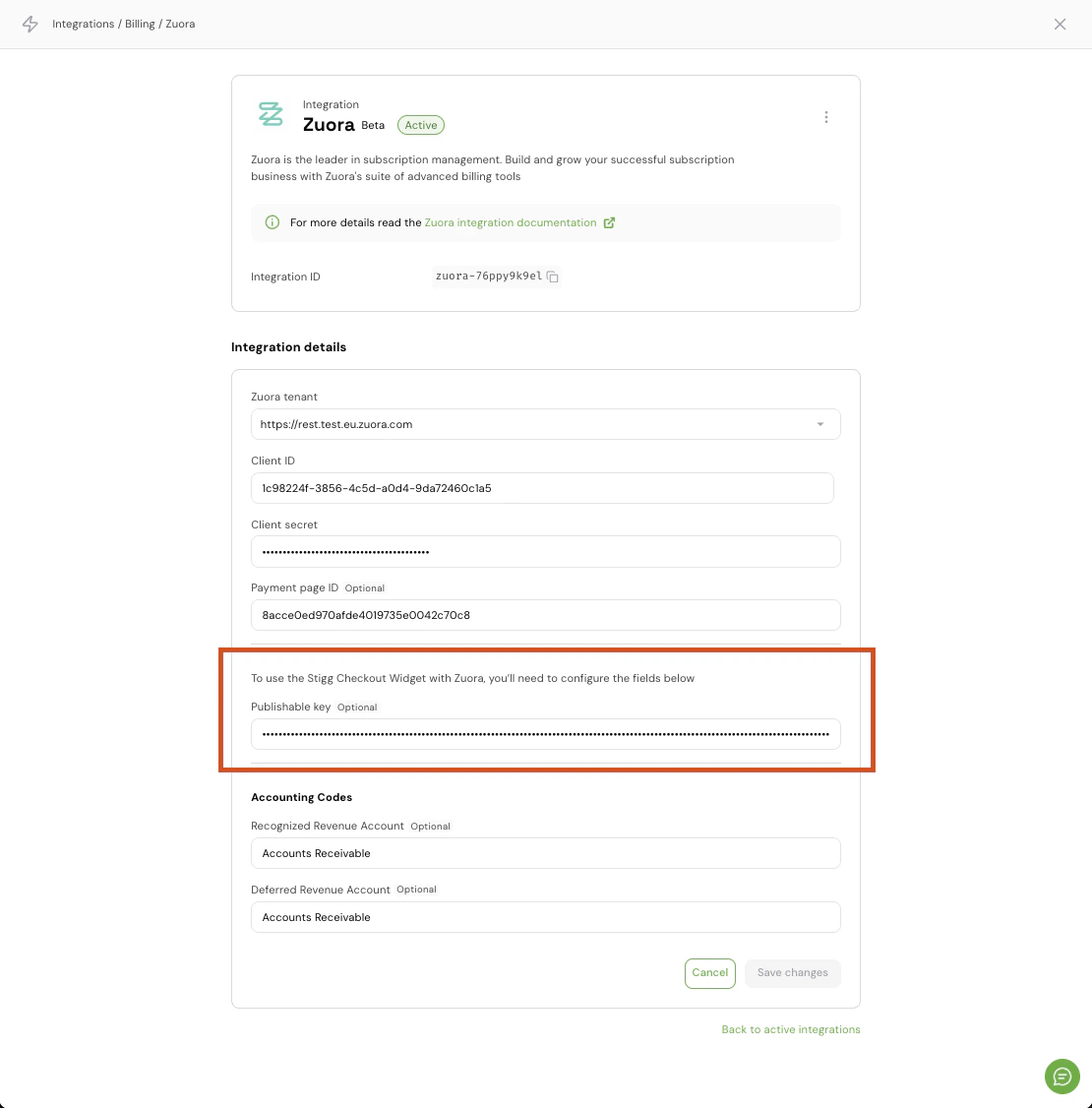 The **Publishable key** field is needed to enable the Stigg Checkout widget to render the Zuora-hosted payment form. Without it, payment method collection will not work.
## How it looks in Stigg
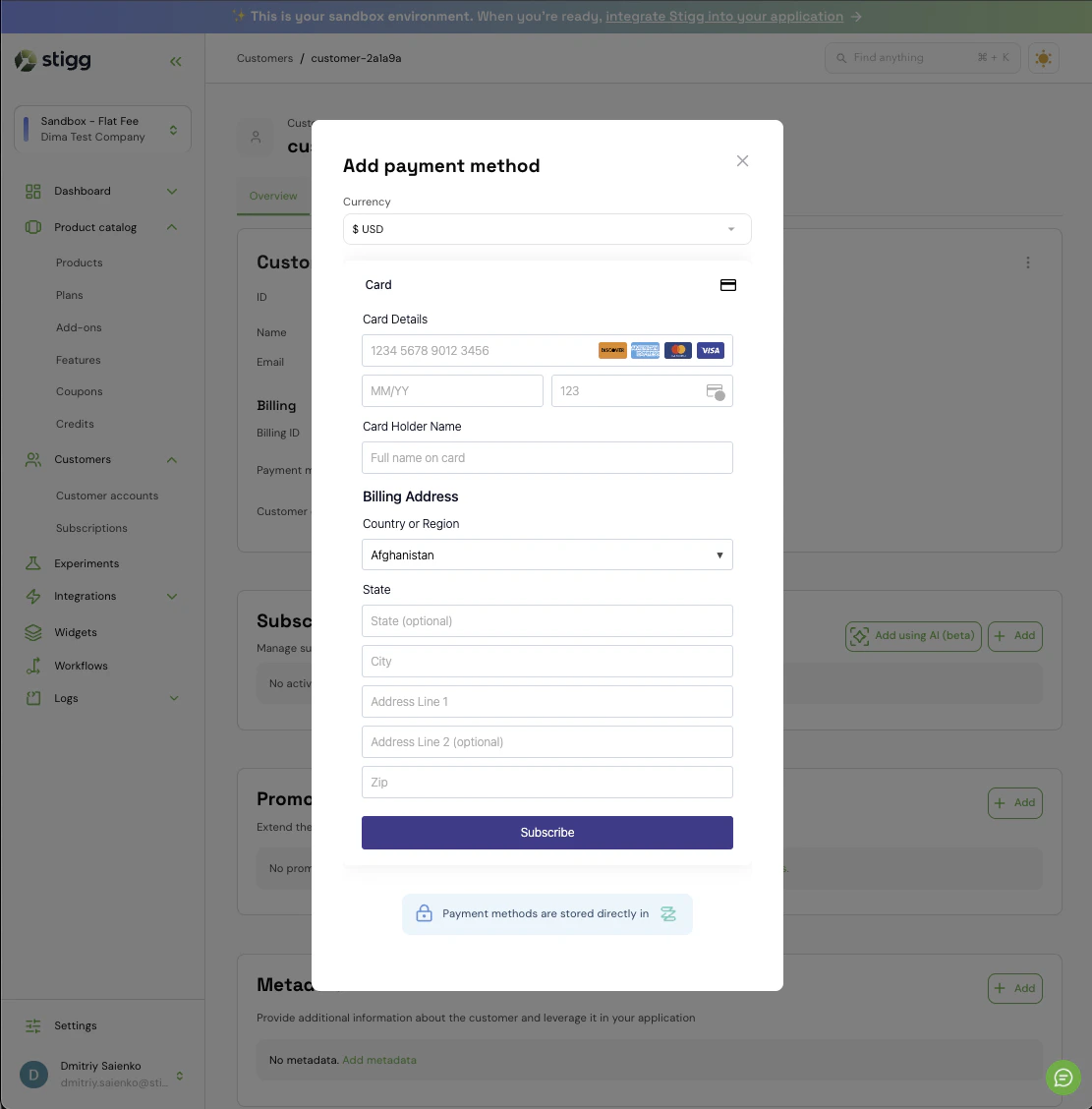
Once configured, customers can add their payment method directly through the Stigg Checkout widget, which renders the Zuora payment form seamlessly.
The **Publishable key** field is needed to enable the Stigg Checkout widget to render the Zuora-hosted payment form. Without it, payment method collection will not work.
## How it looks in Stigg
Once configured, customers can add their payment method directly through the Stigg Checkout widget, which renders the Zuora payment form seamlessly.
 ## Go live checklist
* [x] Confirm a valid Payment Gateway is connected in Zuora.
* [x] Verify the **Publishable key** is copied from the Zuora **Publishable Keys** tab and saved in the Stigg Zuora integration settings.
* [x] Test adding a payment method in a Zuora **sandbox tenant** with a configured test gateway.
* [x] Switch to production once validation is successful.
## Go live checklist
* [x] Confirm a valid Payment Gateway is connected in Zuora.
* [x] Verify the **Publishable key** is copied from the Zuora **Publishable Keys** tab and saved in the Stigg Zuora integration settings.
* [x] Test adding a payment method in a Zuora **sandbox tenant** with a configured test gateway.
* [x] Switch to production once validation is successful.