> ## Documentation Index
> Fetch the complete documentation index at: https://docs.stigg.io/llms.txt
> Use this file to discover all available pages before exploring further.
# Integration with multiple billing providers
## Overview
Each Stigg environment supports integration with **multiple** billing providers.
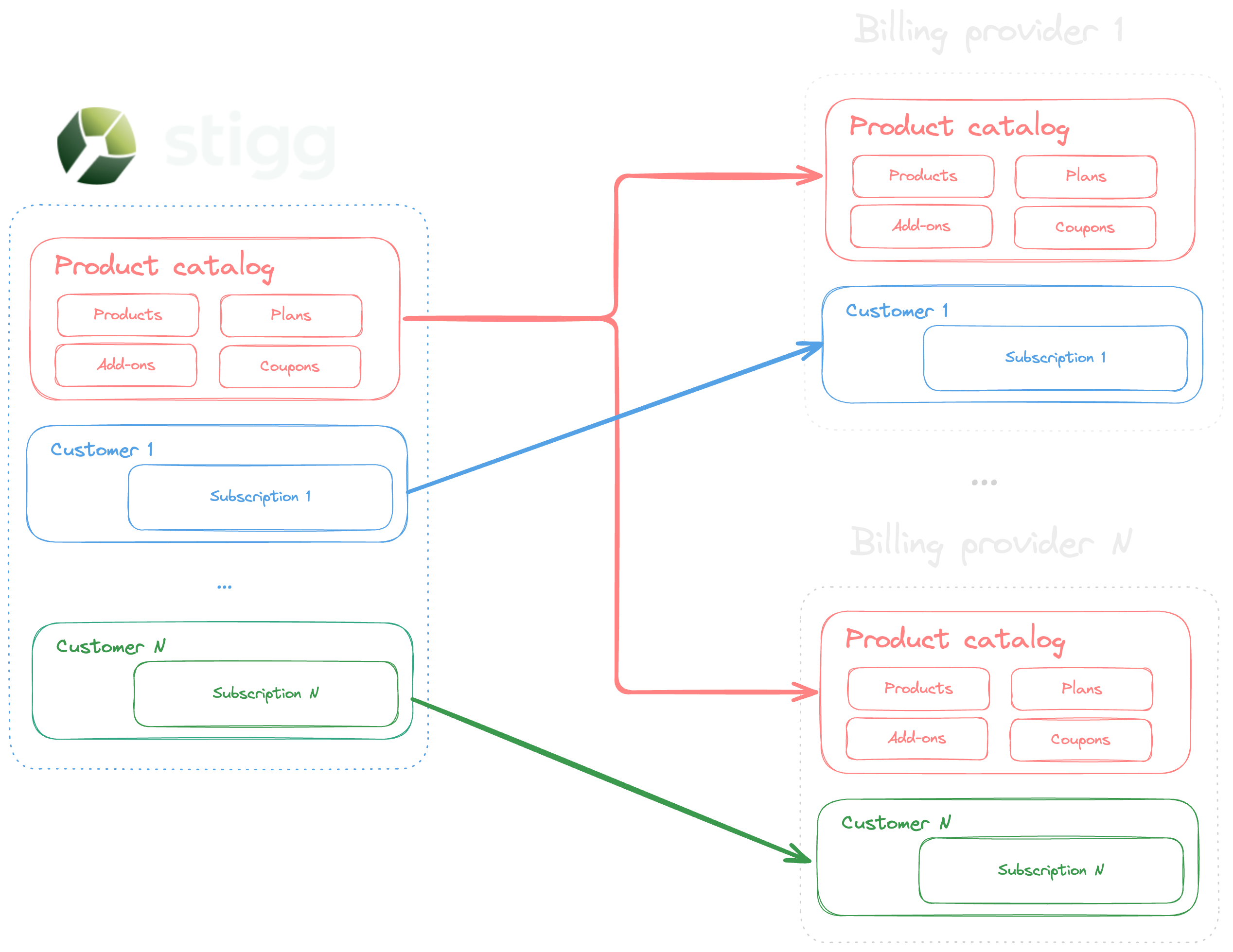
This enables vendors to use Stigg as the single source of truth for their product catalog, customers, and subscriptions, while still billing different customers through different billing systems as needed.
When multiple billing providers are connected, Stigg automatically syncs and replicates the product catalog across all of them.
However, customers and their subscriptions can only be synced to **one billing provider at a time**.
 ## Use-cases
There are two primary scenarios where integrating multiple billing providers with Stigg is especially valuable:
The first is when vendors need to bill customers through different legal entities for reasons such as revenue recognition, taxation, or regional compliance. For instance, a vendor might bill EU customers through an EU-based entity, APAC customers through a Japan-based entity, and the rest of the world through a US-based entity.
The second is when vendors operate with more than one billing provider, particularly in the context of mergers and acquisitions where each entity may retain its existing billing system. For example, a vendor that acquires another company may continue using both Stripe and Zuora to serve different customer segments.
## Default billing provider
When an environment is connected to one or more billing providers, one provider is always designated as the default. This default determines where new customers and subscriptions are synced, unless a different billing provider is explicitly specified during provisioning. You can change the default provider at any time.
### View the default provider
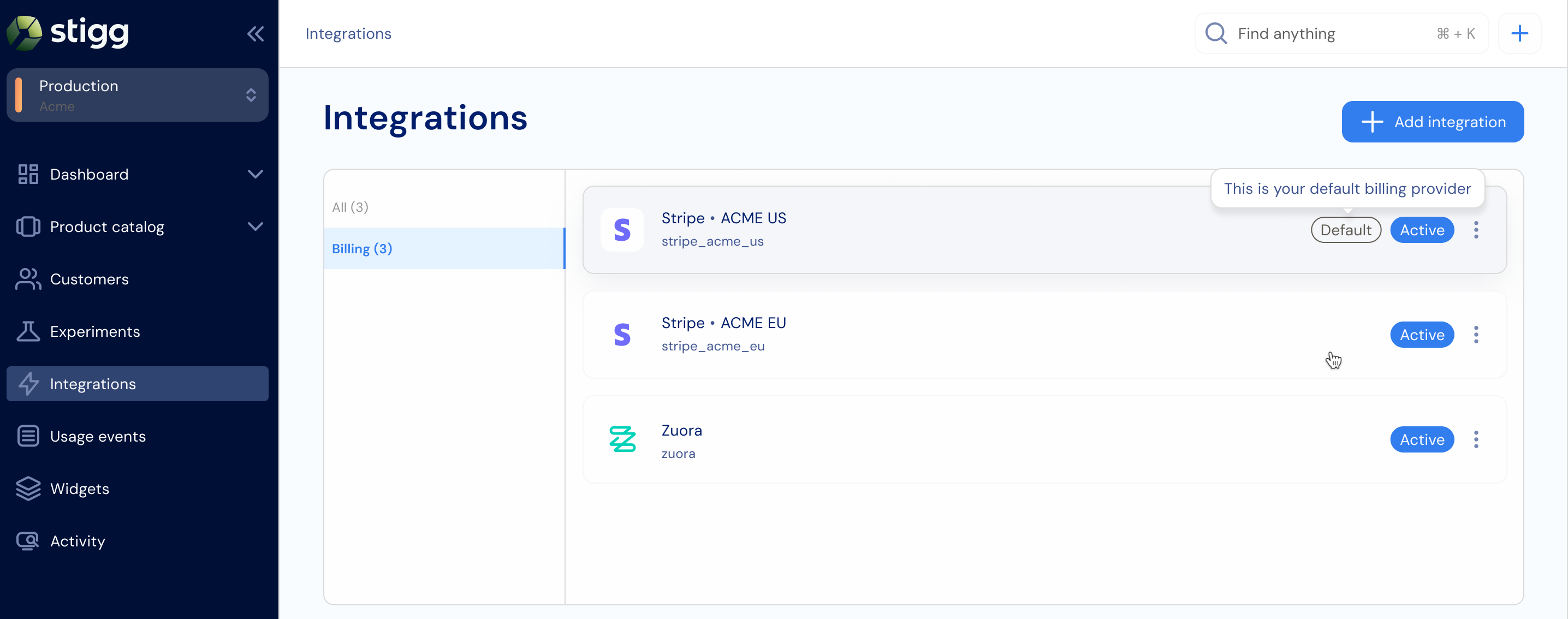
When multiple billing providers are connected, Stigg highlights the current default provider in the app:
1. Go to **Integrations > Apps > Billing**.
2. The default provider is visually marked in the billing integrations list with a **Default** badge.
## Use-cases
There are two primary scenarios where integrating multiple billing providers with Stigg is especially valuable:
The first is when vendors need to bill customers through different legal entities for reasons such as revenue recognition, taxation, or regional compliance. For instance, a vendor might bill EU customers through an EU-based entity, APAC customers through a Japan-based entity, and the rest of the world through a US-based entity.
The second is when vendors operate with more than one billing provider, particularly in the context of mergers and acquisitions where each entity may retain its existing billing system. For example, a vendor that acquires another company may continue using both Stripe and Zuora to serve different customer segments.
## Default billing provider
When an environment is connected to one or more billing providers, one provider is always designated as the default. This default determines where new customers and subscriptions are synced, unless a different billing provider is explicitly specified during provisioning. You can change the default provider at any time.
### View the default provider
When multiple billing providers are connected, Stigg highlights the current default provider in the app:
1. Go to **Integrations > Apps > Billing**.
2. The default provider is visually marked in the billing integrations list with a **Default** badge.
 ### Change the default provider
1. Go to **Integrations > Apps > Billing**.
2. Locate the billing provider you want to set as the default.
3. Click the three-dot menu next to it.
### Change the default provider
1. Go to **Integrations > Apps > Billing**.
2. Locate the billing provider you want to set as the default.
3. Click the three-dot menu next to it.
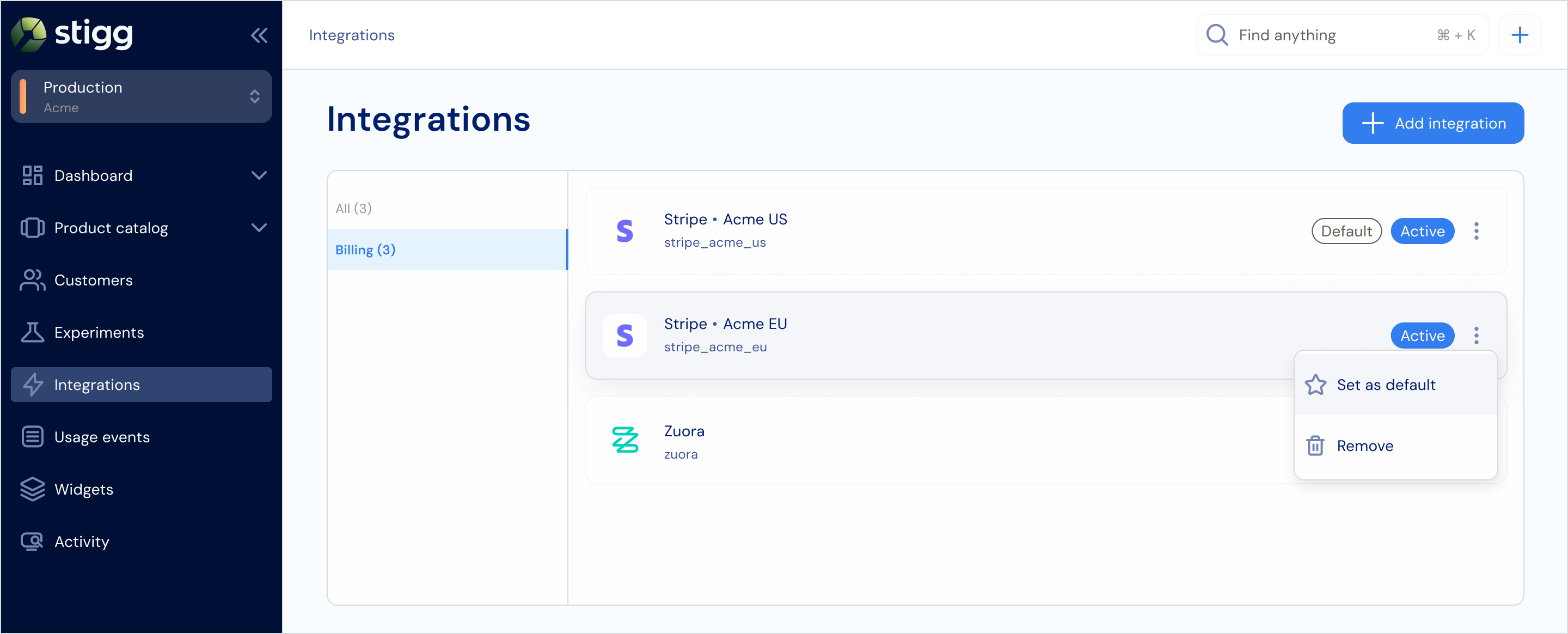 4. Select **Set as default**.
5. Confirm the action when prompted.
Before removing the default billing provider, you must first set another billing provider as the default.
## Integration ID
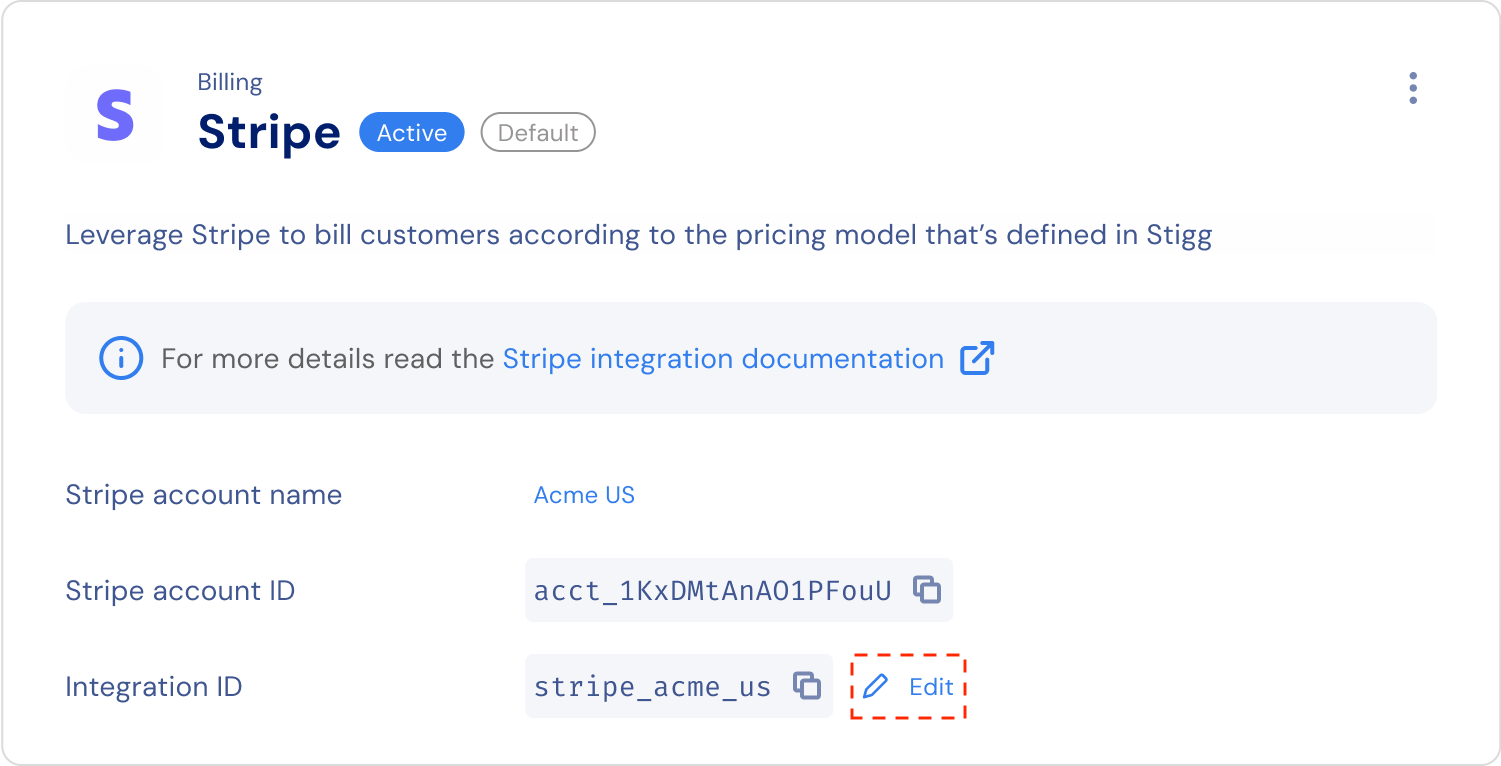
When multiple billing providers are connected, each provider is assigned a unique Integration ID, which appears in its details section.
To [explicitly route ](#routing-customers-and-subscriptions-to-the-correct-billing-provider)a customer or subscription to a specific billing provider, include this Integration ID when provisioning or updating via the Stigg API or SDKs.
4. Select **Set as default**.
5. Confirm the action when prompted.
Before removing the default billing provider, you must first set another billing provider as the default.
## Integration ID
When multiple billing providers are connected, each provider is assigned a unique Integration ID, which appears in its details section.
To [explicitly route ](#routing-customers-and-subscriptions-to-the-correct-billing-provider)a customer or subscription to a specific billing provider, include this Integration ID when provisioning or updating via the Stigg API or SDKs.
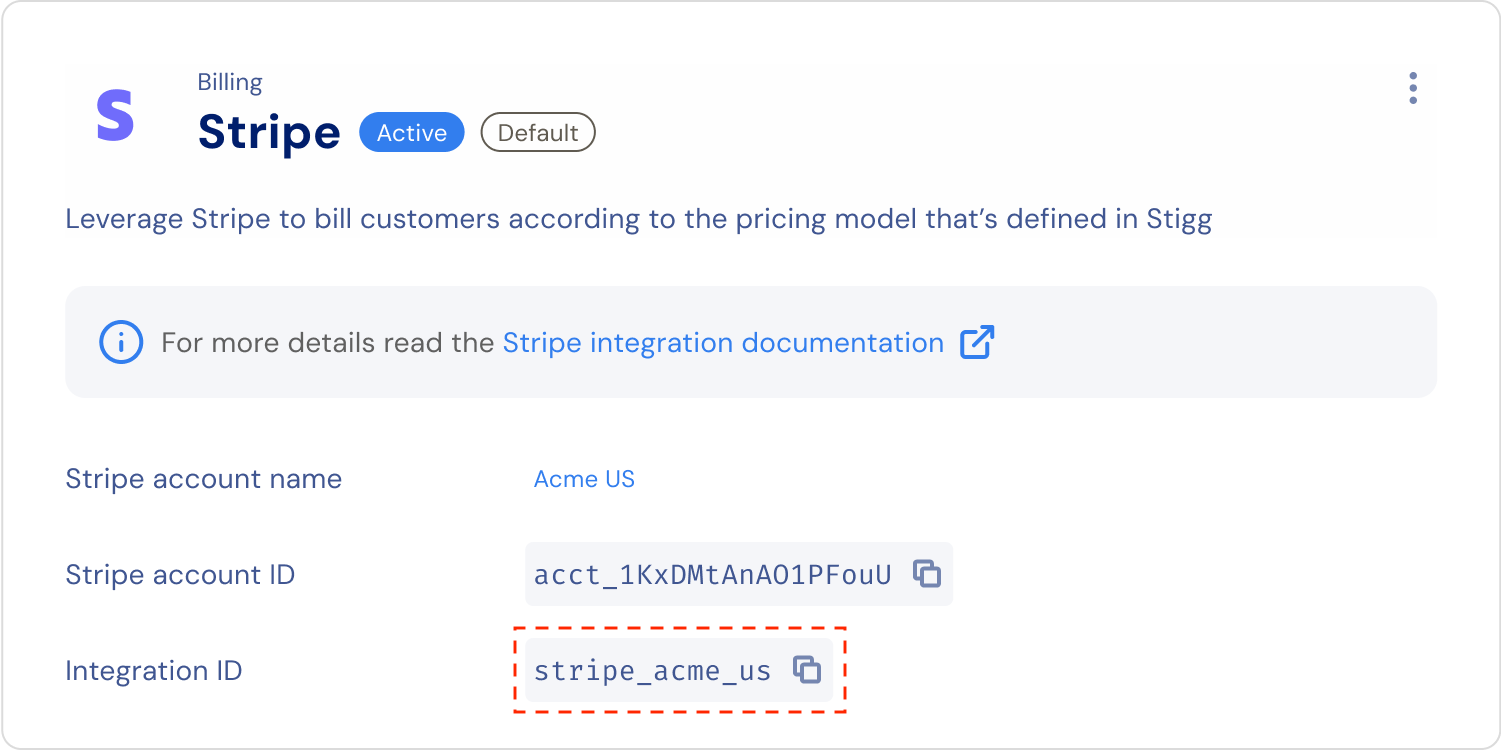 To change this ID, hover over it, click the **Edit** action, and confirm the change.
 For maximum flexibility, it's recommended to store the relevant integration IDs as environment variables.
## Setup
To set up multiple billing providers in the Stigg app:
1. Go to **Integrations > Apps**.
2. Add the integration with your first billing provider. This provider will be automatically set as the default.
3. Add the integration with your second billing provider.
Each time a new billing integration is added, Stigg automatically syncs the product catalog with it.
## Sync status
### Product catalog
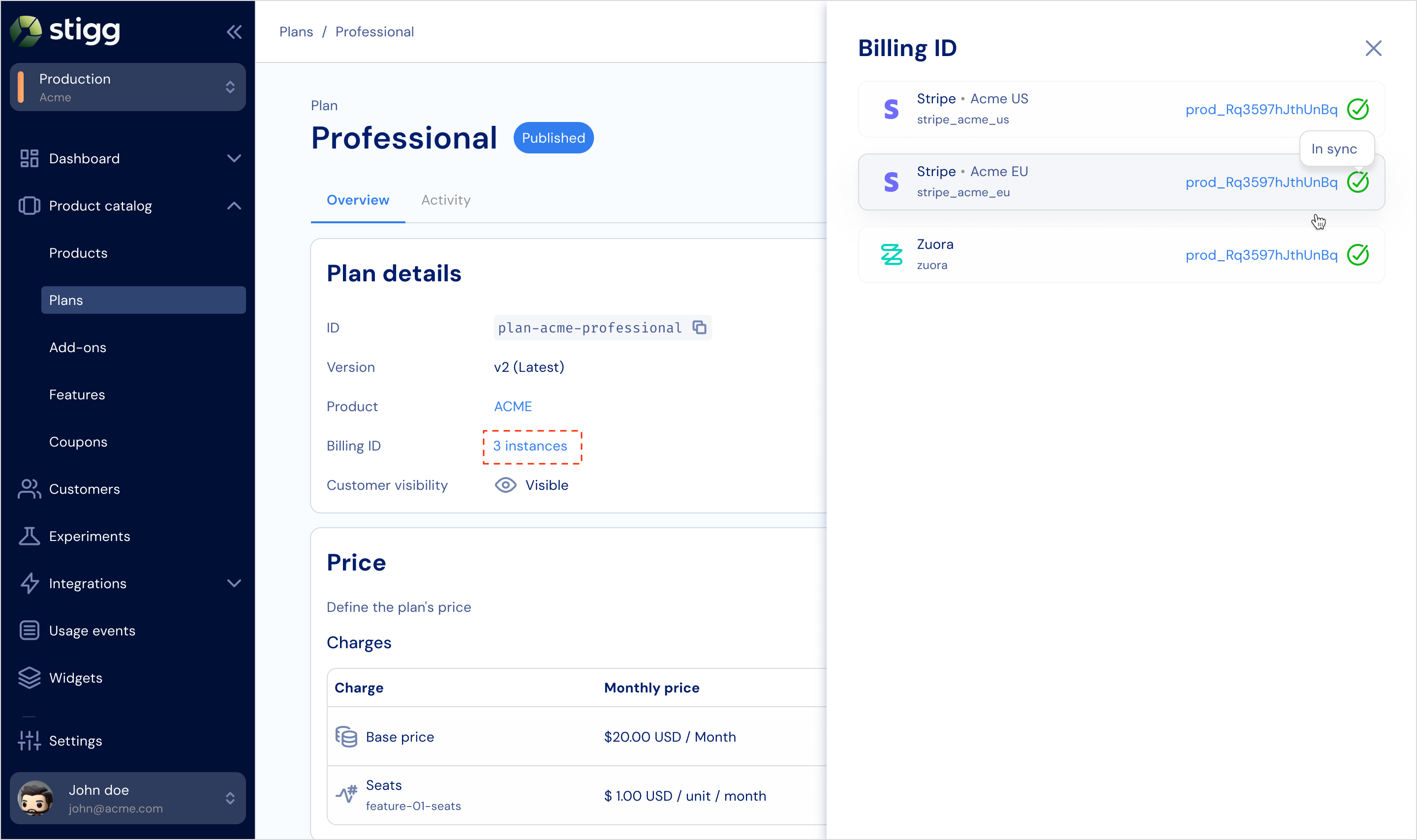
When multiple billing providers are integrated with Stigg, each product catalog entity displays the number of billing providers it is synced with, along with the sync status for each provider.
Clicking on the number of instances will open a side panel, in which users can view the sync status of the entity in each billing provider. Clicking on the billing ID also serves as a deep link to the entity in the relevant billing provider.
For maximum flexibility, it's recommended to store the relevant integration IDs as environment variables.
## Setup
To set up multiple billing providers in the Stigg app:
1. Go to **Integrations > Apps**.
2. Add the integration with your first billing provider. This provider will be automatically set as the default.
3. Add the integration with your second billing provider.
Each time a new billing integration is added, Stigg automatically syncs the product catalog with it.
## Sync status
### Product catalog
When multiple billing providers are integrated with Stigg, each product catalog entity displays the number of billing providers it is synced with, along with the sync status for each provider.
Clicking on the number of instances will open a side panel, in which users can view the sync status of the entity in each billing provider. Clicking on the billing ID also serves as a deep link to the entity in the relevant billing provider.
 ### Customers and subscriptions
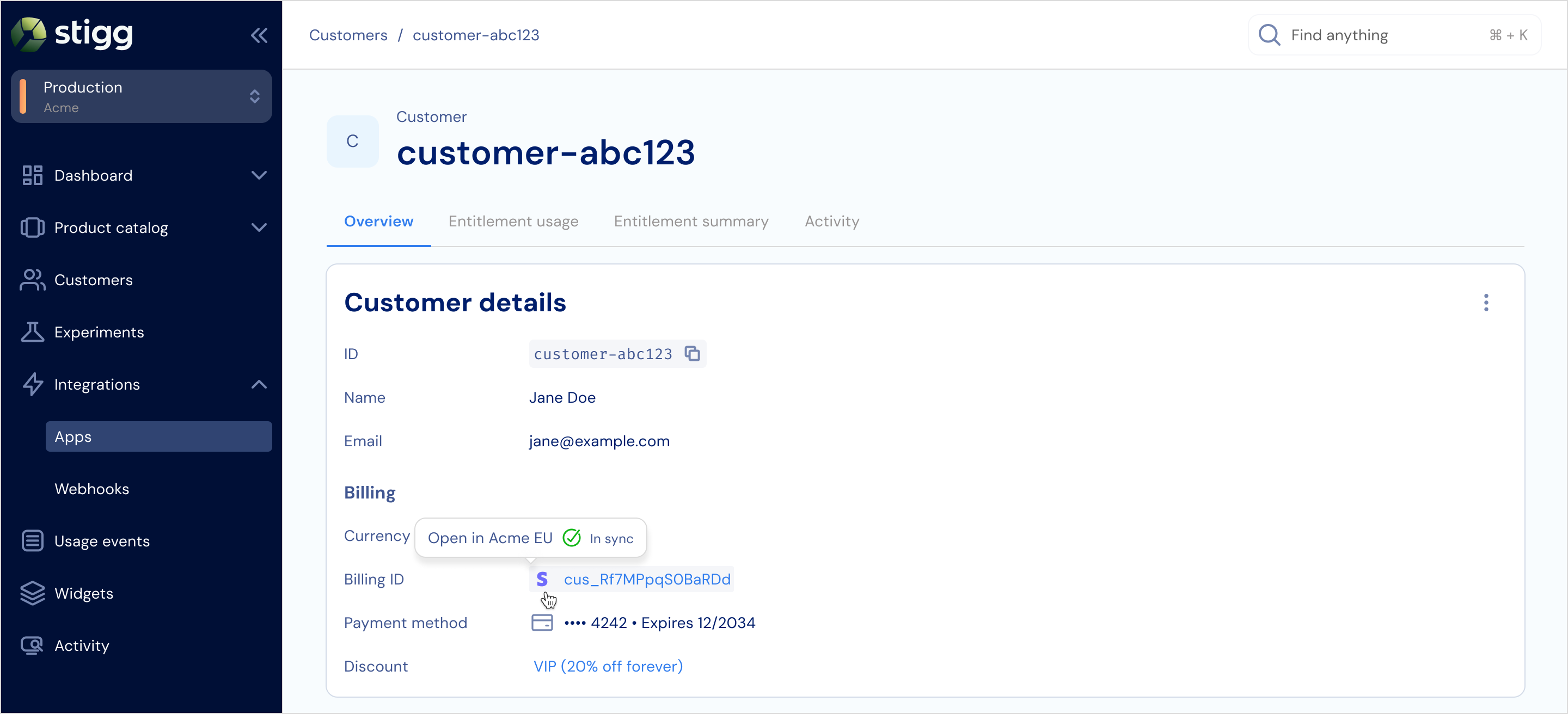
Since customers and subscriptions can only be synced to a single billing provider, the associated billing provider will be shown under the **Billing ID** field of the relevant entity:
### Customers and subscriptions
Since customers and subscriptions can only be synced to a single billing provider, the associated billing provider will be shown under the **Billing ID** field of the relevant entity:
 ## Routing customers and subscriptions to the correct billing provider
### Using the Stigg app
You can manage customer payment methods and route subscriptions to different billing providers directly from the Stigg user interface.
#### When adding a payment method for the customer
1. Go to **Customers**.
2. Select an existing customer.
## Routing customers and subscriptions to the correct billing provider
### Using the Stigg app
You can manage customer payment methods and route subscriptions to different billing providers directly from the Stigg user interface.
#### When adding a payment method for the customer
1. Go to **Customers**.
2. Select an existing customer.
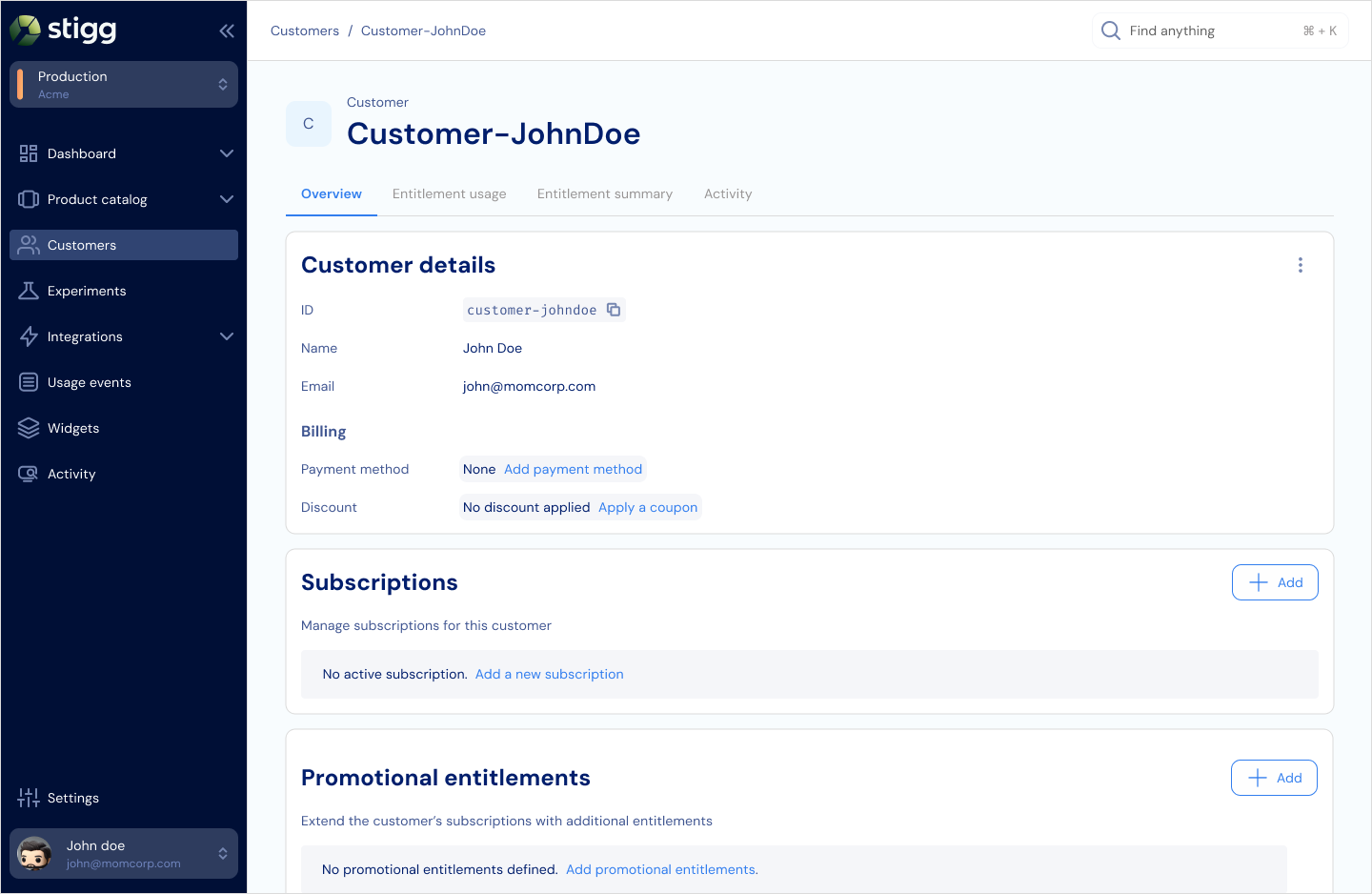 1. Click **Add payment method** in the **Customer details** section.
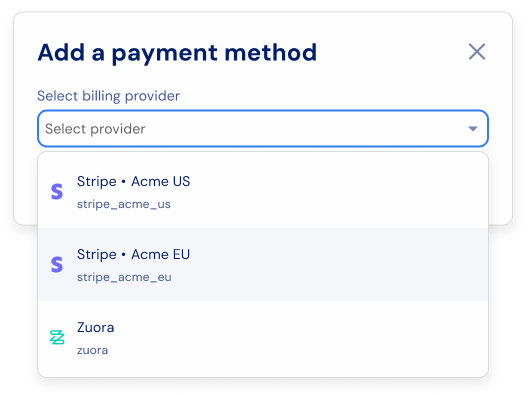
2. Select the billing provider that the payment will be added to.
1. Click **Add payment method** in the **Customer details** section.
2. Select the billing provider that the payment will be added to.
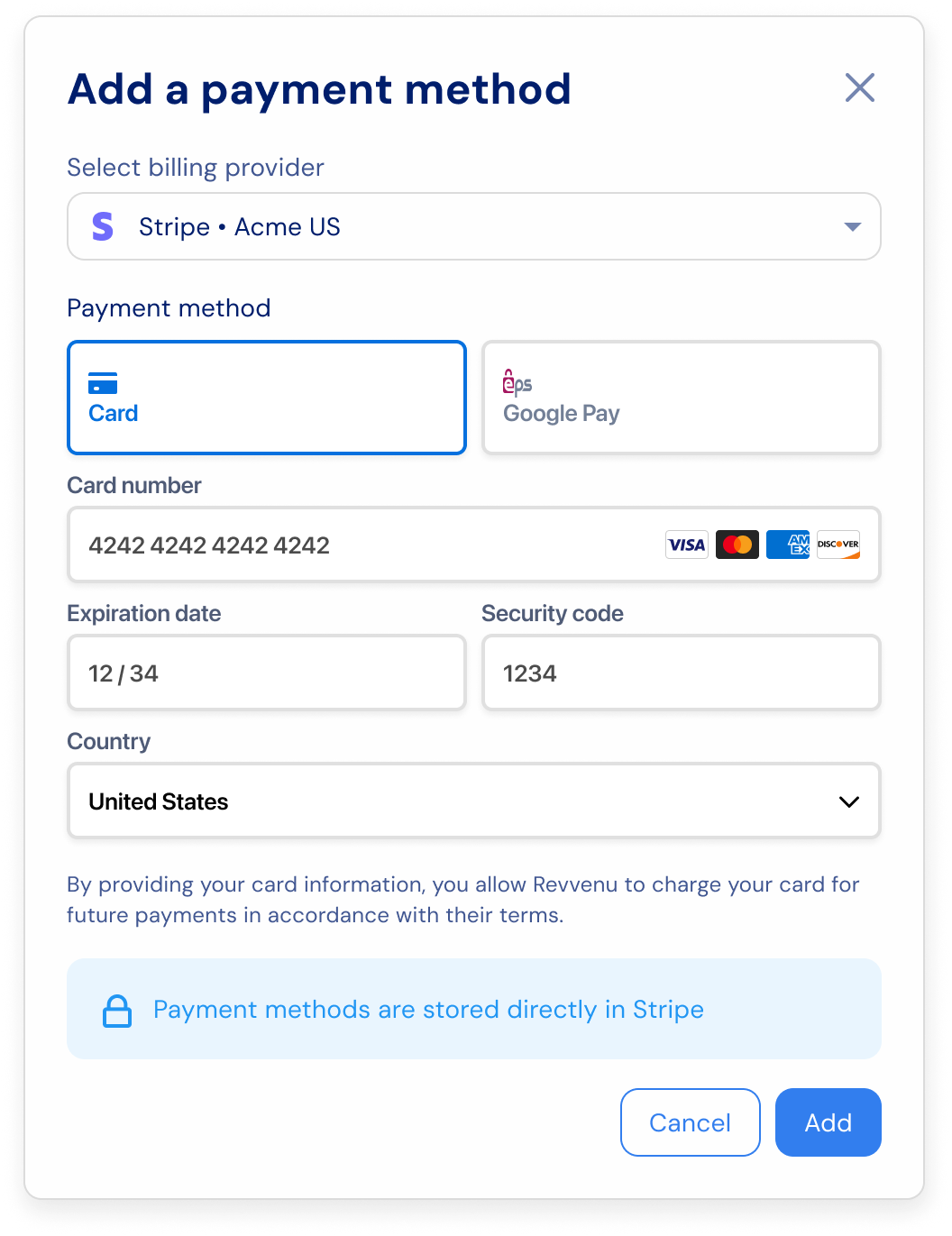
 3. Fill out the payment details and click **Add**.
 #### When creating a subscription
1. Go to **Customers**.
2. Select an existing customer.
3. Scroll down to the **Subscriptions** section.
4. Click **+Add**.
5. Enter the subscription details, for example: plan, add-ons, etc.
6. If the customer is already synced to a billing provider, the billing provider will be pre-selected. Otherwise, click the **Billing provider** dropdown menu.
#### When creating a subscription
1. Go to **Customers**.
2. Select an existing customer.
3. Scroll down to the **Subscriptions** section.
4. Click **+Add**.
5. Enter the subscription details, for example: plan, add-ons, etc.
6. If the customer is already synced to a billing provider, the billing provider will be pre-selected. Otherwise, click the **Billing provider** dropdown menu.
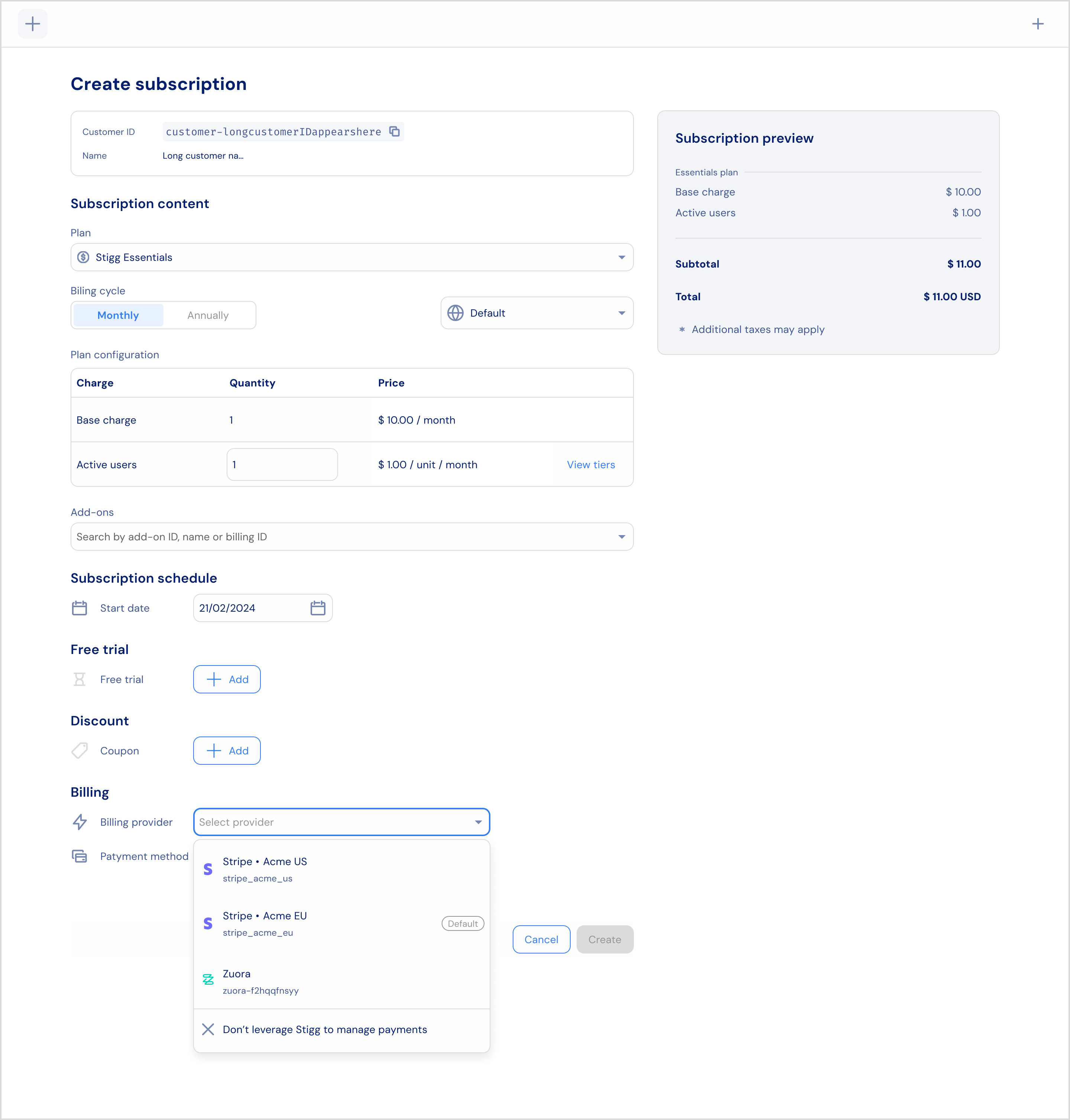 7. Select the desired billing provider.
8. If the payment method for this billing provider exists, click **Create**. Otherwise, fill out the payment details, click **Add** and click **Create**.
### Using the Stigg API and SDKs
#### When updating customers
To associate a specific billing provider with a customer, pass the [integration ID](#integration-id) as `billingInformation.integrationId` when calling `updateCustomer`.
```javascript Node.js theme={null}
const customer = await stiggClient.updateCustomer({
customerId: 'customer-test-id',
// To force sync with a specific billing provider, include integrationId
// AND additional required billing parameters (e.g., payment method, address)
billingInfo: {
integrationId: 'integration-id',
// Include required fields to complete billing sync
paymentMethod: { /* ... */ },
billingAddress: { /* ... */ }
},
})
```
```python Python (Sidecar) theme={null}
from stigg.generated import UpdateCustomerInput, BillingInfoInput
resp = await stigg.api.update_customer(UpdateCustomerInput(
customer_id='customer-test-id',
billing_info=BillingInfoInput(
integration_id='integration-id'
# Add required fields to force sync
)
))
```
```python Python theme={null}
from stigg.generated.models import UpdateCustomerInput, BillingInformationInput
data = await stigg.api.update_customer(UpdateCustomerInput(
ref_id="customer-test-id",
billing_information=BillingInformationInput(
integration_id="integration-id"
# Include other required fields here to force sync
)
))
```
```ruby Ruby theme={null}
resp = client.request(Stigg::Mutation::UpdateCustomer, {
input: {
customerId: "customer-test-id",
billingInformation: {
integrationId: "integration-id" # Include other required fields to force sync
}
}
})
```
```go Go theme={null}
result, err := client.UpdateCustomer(context.Background(), stigg.UpdateCustomerInput{
CustomerID: Ptr("customer-test-id"),
BillingInformation: &stigg.CustomerBillingInfo{
IntegrationID: Ptr("integration-id"),
// Include other required fields (e.g., payment method, billing address) to force sync
},
})
```
```java Java theme={null}
var response = stigg.mutation(
UpdateCustomerMutation.builder()
.input(UpdateCustomerInput.builder()
.customerId("customer-test-id")
.billingInformation(CustomerBillingInfo.builder()
.integrationId("integration-id") // Include other fields to force sync
// .paymentMethod(...), .billingAddress(...)
.build()
)
.build()
)
.build()
)
```
```csharp csharp theme={null}
var response = await stigg.UpdateCustomer.ExecuteAsync(new UpdateCustomerInput()
{
CustomerId = "customer-test-id",
BillingInformation = new CustomerBillingInfoInput()
{
IntegrationId = "integration-id"
// Include other required fields to force sync (e.g., payment method, billing address)
}
})
```
#### When provisioning subscriptions
To route the subscription to a specific billing provider, pass the [integration ID](#integration-id)of the relevant provider to `billingInformation.integrationId` when calling the [Provision Subscription](/api-and-sdks/api-reference/rest/subscriptions-create) endpoint.
```javascript Node.js theme={null}
const customer = await stiggClient.provisionSubscription({
customerId: 'customer-test-id',
planId: 'plan-id',
billingPeriod: 'MONTHLY',
// To force sync with a specific billing provider, include integrationId
// AND additional required billing parameters (e.g., payment method, billing address)
billingInfo: {
integrationId: 'integration-id',
paymentMethod: { /* ... */ },
billingAddress: { /* ... */ }
},
})
```
```python Python (Sidecar) theme={null}
from stigg.generated import ProvisionSubscriptionInput, BillingPeriod
resp = await stigg.api.provision_subscription(ProvisionSubscriptionInput(
customer_id='customer-test-id',
plan_id='plan-id',
billing_period=BillingPeriod.MONTHLY,
billing_information={
"integrationId": "integration-id",
# Include additional fields like payment_method and billing_address to force sync
}
))
```
```python Python theme={null}
from stigg.generated.models import ProvisionSubscriptionInput
resp = await stigg.api.provision_subscription(ProvisionSubscriptionInput(
customer_id="customer-test-id",
plan_id="plan-id",
billing_period="MONTHLY",
billing_information={
"integrationId": "integration-id",
# Include additional fields like payment_method and billing_address to force sync
}
))
```
```ruby Ruby theme={null}
resp = client.request(Stigg::Mutation::ProvisionSubscription, {
input: {
customerId: "customer-test-id",
planId: "plan-id",
billingPeriod: "MONTHLY",
billingInformation: {
integrationId: "integration-id", # Include additional fields to force sync (e.g., paymentMethod, billingAddress)
}
}
})
```
```java Java theme={null}
var resp = stigg.mutation(
ProvisionSubscriptionMutation.builder()
.input(ProvisionSubscriptionInput.builder()
.customerId("customer-test-id")
.planId("plan-id")
.billingPeriod(BillingPeriod.MONTHLY)
.billingInformation(CustomerBillingInfo.builder()
.integrationId("integration-id") // optional
.build())
.build())
.build()
)
```
```go Go theme={null}
const customer = await stiggClient.provisionSubscription({
customerId: 'customer-test-id',
planId: 'plan-id',
billingPeriod: 'MONTHLY',
billingInfo: {
integrationId: 'integration-id'
}
})
```
```csharp csharp theme={null}
var response = await stigg.ProvisionSubscription.ExecuteAsync(new ProvisionSubscriptionInput()
{
CustomerId = "customer-test-id",
PlanId = "plan-id",
BillingPeriod = BillingPeriod.Monthly,
BillingInformation = new CustomerBillingInfoInput()
{
IntegrationId = "integration-id" // optional
}
})
```
## Migrating customers and subscriptions between billing providers
Customers and subscriptions can currently only be synced to one billing provider at a time.
To migrate a customer and their subscriptions from Billing Provider A to Billing Provider B, follow the steps below:
Go to the **Customers** section and select the customer you want to migrate.
In the **Subscriptions** panel, cancel each active subscription by clicking the three-dot menu and selecting **Cancel subscription**.
Confirm when prompted.
In the **Customer details** panel, locate the existing payment method and click the bin icon.
Then click **Remove** to delete the billing configuration associated with Provider A.
Click **Add payment method**.
In the opened modal, select **Billing Provider B**.
Fill in the payment details.
Click **Add**.
Scroll down to the **Subscriptions** section and click **+Add**.
Select the original plan, set the **start date** to match the previously canceled subscription.
Choose **Billing Provider B** from the dropdown.
Click **Create** to finish.
This will create a backdated subscription in **Provider B**, ensuring that the customer is billed by **Provider B** starting from the next billing period.
The procedure can also be executed programmatically using the Stigg API and SDKs.
7. Select the desired billing provider.
8. If the payment method for this billing provider exists, click **Create**. Otherwise, fill out the payment details, click **Add** and click **Create**.
### Using the Stigg API and SDKs
#### When updating customers
To associate a specific billing provider with a customer, pass the [integration ID](#integration-id) as `billingInformation.integrationId` when calling `updateCustomer`.
```javascript Node.js theme={null}
const customer = await stiggClient.updateCustomer({
customerId: 'customer-test-id',
// To force sync with a specific billing provider, include integrationId
// AND additional required billing parameters (e.g., payment method, address)
billingInfo: {
integrationId: 'integration-id',
// Include required fields to complete billing sync
paymentMethod: { /* ... */ },
billingAddress: { /* ... */ }
},
})
```
```python Python (Sidecar) theme={null}
from stigg.generated import UpdateCustomerInput, BillingInfoInput
resp = await stigg.api.update_customer(UpdateCustomerInput(
customer_id='customer-test-id',
billing_info=BillingInfoInput(
integration_id='integration-id'
# Add required fields to force sync
)
))
```
```python Python theme={null}
from stigg.generated.models import UpdateCustomerInput, BillingInformationInput
data = await stigg.api.update_customer(UpdateCustomerInput(
ref_id="customer-test-id",
billing_information=BillingInformationInput(
integration_id="integration-id"
# Include other required fields here to force sync
)
))
```
```ruby Ruby theme={null}
resp = client.request(Stigg::Mutation::UpdateCustomer, {
input: {
customerId: "customer-test-id",
billingInformation: {
integrationId: "integration-id" # Include other required fields to force sync
}
}
})
```
```go Go theme={null}
result, err := client.UpdateCustomer(context.Background(), stigg.UpdateCustomerInput{
CustomerID: Ptr("customer-test-id"),
BillingInformation: &stigg.CustomerBillingInfo{
IntegrationID: Ptr("integration-id"),
// Include other required fields (e.g., payment method, billing address) to force sync
},
})
```
```java Java theme={null}
var response = stigg.mutation(
UpdateCustomerMutation.builder()
.input(UpdateCustomerInput.builder()
.customerId("customer-test-id")
.billingInformation(CustomerBillingInfo.builder()
.integrationId("integration-id") // Include other fields to force sync
// .paymentMethod(...), .billingAddress(...)
.build()
)
.build()
)
.build()
)
```
```csharp csharp theme={null}
var response = await stigg.UpdateCustomer.ExecuteAsync(new UpdateCustomerInput()
{
CustomerId = "customer-test-id",
BillingInformation = new CustomerBillingInfoInput()
{
IntegrationId = "integration-id"
// Include other required fields to force sync (e.g., payment method, billing address)
}
})
```
#### When provisioning subscriptions
To route the subscription to a specific billing provider, pass the [integration ID](#integration-id)of the relevant provider to `billingInformation.integrationId` when calling the [Provision Subscription](/api-and-sdks/api-reference/rest/subscriptions-create) endpoint.
```javascript Node.js theme={null}
const customer = await stiggClient.provisionSubscription({
customerId: 'customer-test-id',
planId: 'plan-id',
billingPeriod: 'MONTHLY',
// To force sync with a specific billing provider, include integrationId
// AND additional required billing parameters (e.g., payment method, billing address)
billingInfo: {
integrationId: 'integration-id',
paymentMethod: { /* ... */ },
billingAddress: { /* ... */ }
},
})
```
```python Python (Sidecar) theme={null}
from stigg.generated import ProvisionSubscriptionInput, BillingPeriod
resp = await stigg.api.provision_subscription(ProvisionSubscriptionInput(
customer_id='customer-test-id',
plan_id='plan-id',
billing_period=BillingPeriod.MONTHLY,
billing_information={
"integrationId": "integration-id",
# Include additional fields like payment_method and billing_address to force sync
}
))
```
```python Python theme={null}
from stigg.generated.models import ProvisionSubscriptionInput
resp = await stigg.api.provision_subscription(ProvisionSubscriptionInput(
customer_id="customer-test-id",
plan_id="plan-id",
billing_period="MONTHLY",
billing_information={
"integrationId": "integration-id",
# Include additional fields like payment_method and billing_address to force sync
}
))
```
```ruby Ruby theme={null}
resp = client.request(Stigg::Mutation::ProvisionSubscription, {
input: {
customerId: "customer-test-id",
planId: "plan-id",
billingPeriod: "MONTHLY",
billingInformation: {
integrationId: "integration-id", # Include additional fields to force sync (e.g., paymentMethod, billingAddress)
}
}
})
```
```java Java theme={null}
var resp = stigg.mutation(
ProvisionSubscriptionMutation.builder()
.input(ProvisionSubscriptionInput.builder()
.customerId("customer-test-id")
.planId("plan-id")
.billingPeriod(BillingPeriod.MONTHLY)
.billingInformation(CustomerBillingInfo.builder()
.integrationId("integration-id") // optional
.build())
.build())
.build()
)
```
```go Go theme={null}
const customer = await stiggClient.provisionSubscription({
customerId: 'customer-test-id',
planId: 'plan-id',
billingPeriod: 'MONTHLY',
billingInfo: {
integrationId: 'integration-id'
}
})
```
```csharp csharp theme={null}
var response = await stigg.ProvisionSubscription.ExecuteAsync(new ProvisionSubscriptionInput()
{
CustomerId = "customer-test-id",
PlanId = "plan-id",
BillingPeriod = BillingPeriod.Monthly,
BillingInformation = new CustomerBillingInfoInput()
{
IntegrationId = "integration-id" // optional
}
})
```
## Migrating customers and subscriptions between billing providers
Customers and subscriptions can currently only be synced to one billing provider at a time.
To migrate a customer and their subscriptions from Billing Provider A to Billing Provider B, follow the steps below:
Go to the **Customers** section and select the customer you want to migrate.
In the **Subscriptions** panel, cancel each active subscription by clicking the three-dot menu and selecting **Cancel subscription**.
Confirm when prompted.
In the **Customer details** panel, locate the existing payment method and click the bin icon.
Then click **Remove** to delete the billing configuration associated with Provider A.
Click **Add payment method**.
In the opened modal, select **Billing Provider B**.
Fill in the payment details.
Click **Add**.
Scroll down to the **Subscriptions** section and click **+Add**.
Select the original plan, set the **start date** to match the previously canceled subscription.
Choose **Billing Provider B** from the dropdown.
Click **Create** to finish.
This will create a backdated subscription in **Provider B**, ensuring that the customer is billed by **Provider B** starting from the next billing period.
The procedure can also be executed programmatically using the Stigg API and SDKs.