> ## Documentation Index
> Fetch the complete documentation index at: https://docs.stigg.io/llms.txt
> Use this file to discover all available pages before exploring further.
# Archiving products
Products in Stigg can be archived and restored without being permanently deleted. Archiving is useful when a product should no longer be available for new subscriptions, while keeping historical record intact.
## Archiving a product
### Prerequisite
You cannot archive a product that has active customer subscriptions. Remove all active subscriptions first.
### Steps
1. Go to **Product Catalog → Products**.
2. Locate the product you want to archive.
3. Click the three-dot menu in the top-right corner of the product card.
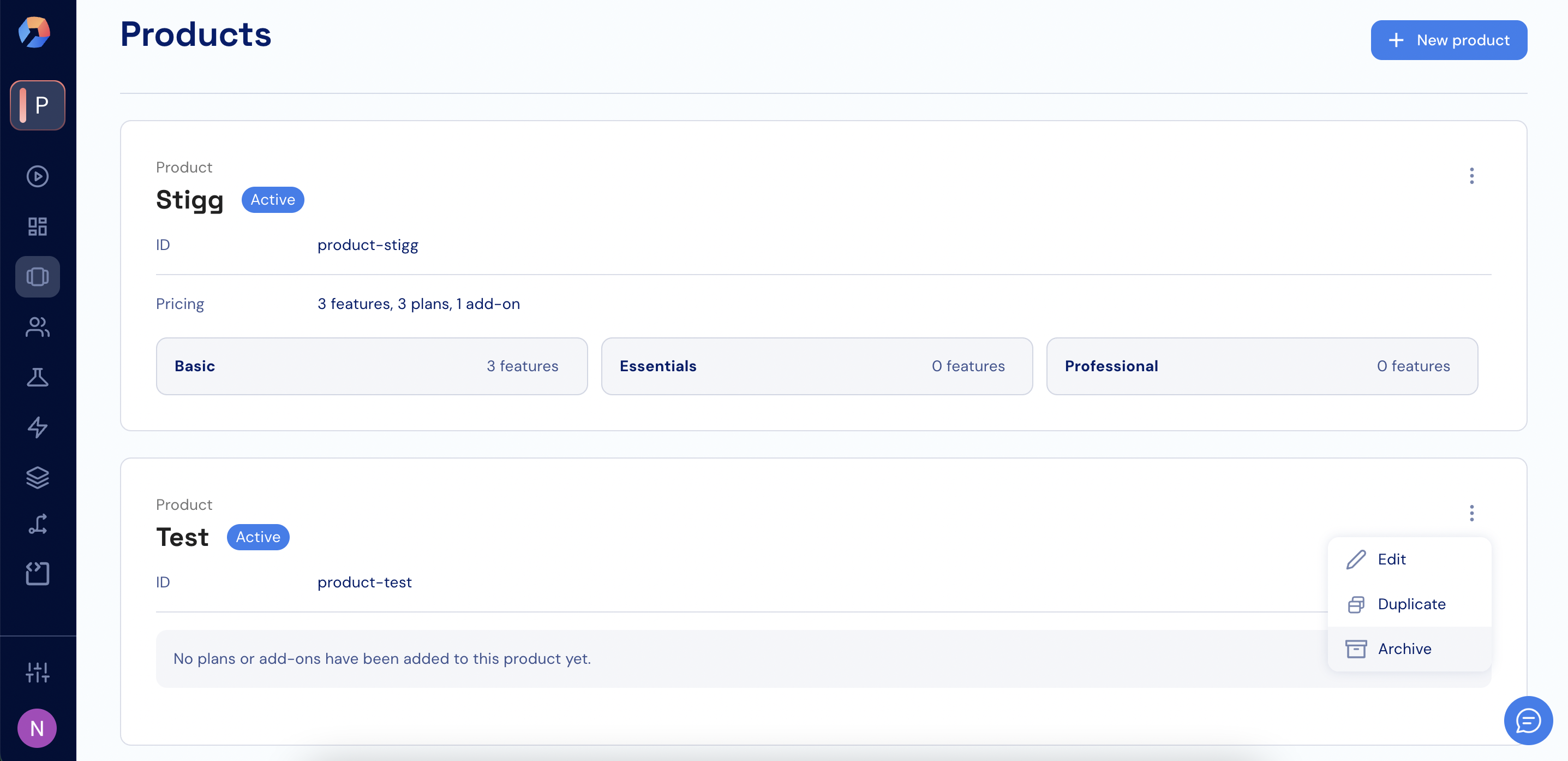 4. Select **Archive**.
5. To confirm, type the product’s name and click **Confirm**.
### What happens after archiving
* All plans and add-ons associated with the product are archived.
* New subscriptions to this product are no longer allowed.
* Existing customer subscriptions are **not affected**.
* Once completed, the product is marked as **Archived**.
## Restoring (unarchiving) a product
1. Go to **Product Catalog → Products**.
2. Use the filter at the top to show archived products.
3. Locate the archived product and click the three-dot menu.
4. Select **Archive**.
5. To confirm, type the product’s name and click **Confirm**.
### What happens after archiving
* All plans and add-ons associated with the product are archived.
* New subscriptions to this product are no longer allowed.
* Existing customer subscriptions are **not affected**.
* Once completed, the product is marked as **Archived**.
## Restoring (unarchiving) a product
1. Go to **Product Catalog → Products**.
2. Use the filter at the top to show archived products.
3. Locate the archived product and click the three-dot menu.
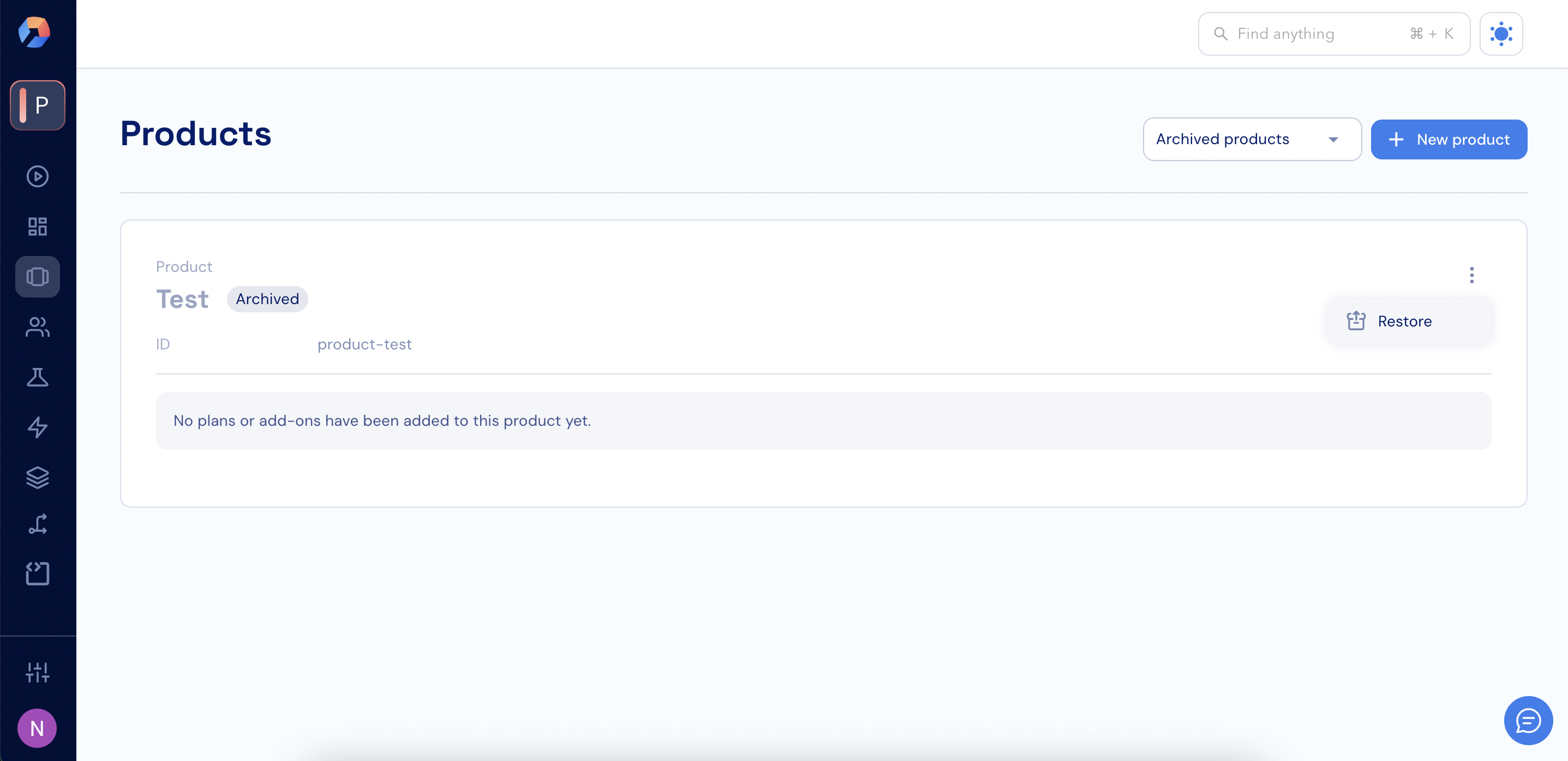 4. Select **Restore** and confirm the action.
### Using the API
To restore a product programmatically:
```
POST /api/v1/products/{id}/unarchive
```
### Important note
Restoring a product does not automatically restore its plans, packages, or add-ons. You must manually unarchive the relevant packages and propagate them back to the plans.
## Visibility of archived products
1. Go to **Product Catalog → Products**.
2. Open the status filter at the top of the page (for example, **Active products**).
4. Select **Restore** and confirm the action.
### Using the API
To restore a product programmatically:
```
POST /api/v1/products/{id}/unarchive
```
### Important note
Restoring a product does not automatically restore its plans, packages, or add-ons. You must manually unarchive the relevant packages and propagate them back to the plans.
## Visibility of archived products
1. Go to **Product Catalog → Products**.
2. Open the status filter at the top of the page (for example, **Active products**).
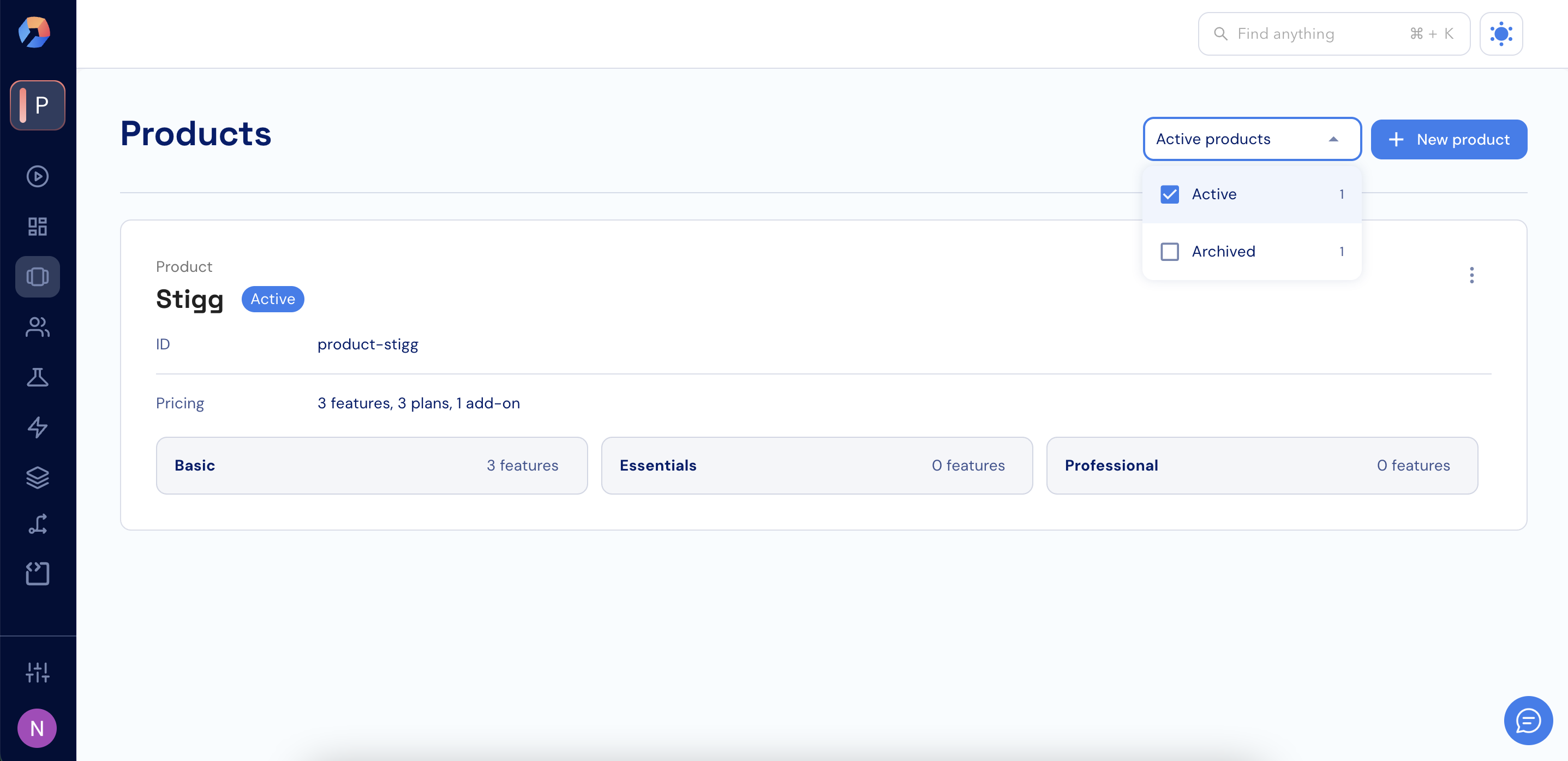 3. Select which products to display:
* **Active** to show only active products
* **Archived** to show only archived products
* **Active** + **Archived** to show both
4. If you select both, archived products appear in the list with an **Archived** label.
Archived products are not visible when viewing:
* Specific subscriptions
* Plans
* Add-ons
3. Select which products to display:
* **Active** to show only active products
* **Archived** to show only archived products
* **Active** + **Archived** to show both
4. If you select both, archived products appear in the list with an **Archived** label.
Archived products are not visible when viewing:
* Specific subscriptions
* Plans
* Add-ons