> ## Documentation Index
> Fetch the complete documentation index at: https://docs.stigg.io/llms.txt
> Use this file to discover all available pages before exploring further.
# Publishing plans
After defining the basic details, entitlements, and pricing for draft plans, click **Publish** to make the plan available to all customers.
## Editing published plans
Stigg enables product managers and growth teams to make frequent and rapid updates to plans **without requiring engineering involvement**.
Changes can be applied to:
* **Both existing and new customers** (e.g., when adding or removing an entitlement).
* **Only new customers** (e.g., when changing a plan’s price).
Stigg uses a **versioning mechanism** to support this flexibility. Every time a plan is edited, a **new version** is created.\
You can then choose to **publish** or **discard** those changes.
To edit a plan:
1. Click the dotted-menu icon next to the relevant plan.
2. Select **Edit**.
3. Apply the necessary changes.
Some properties (e.g., the plan **ID**) cannot be modified after a plan is created.
Plans with unpublished changes are clearly indicated in the [Product Offering](../products/modeling-pricing) and [Plan List](./viewing-plans-list) screens.
### Reviewing changes
To review changes made since the last published version, click **Review changes** or **Review & publish** in the plan header.
In the review modal:
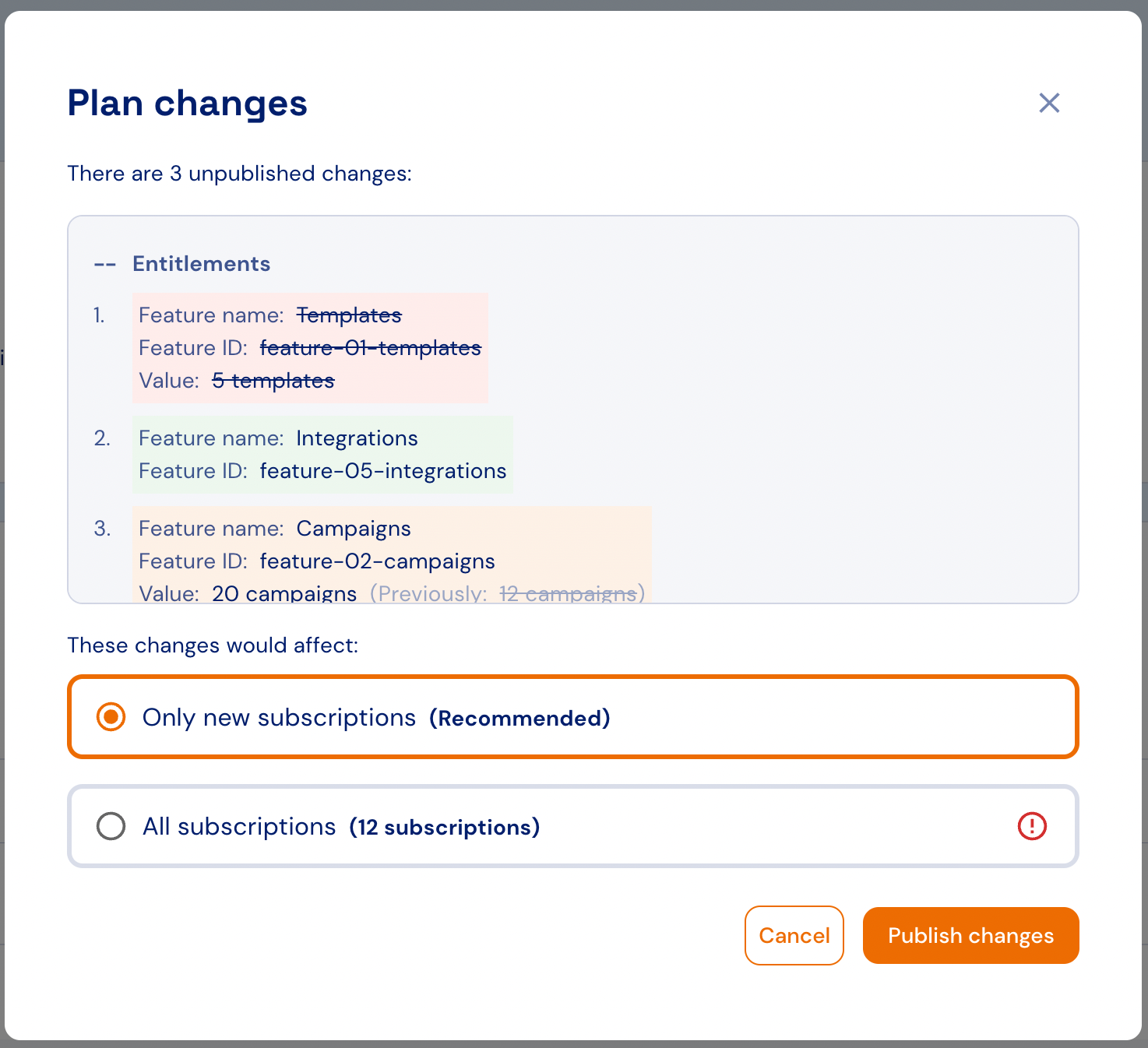
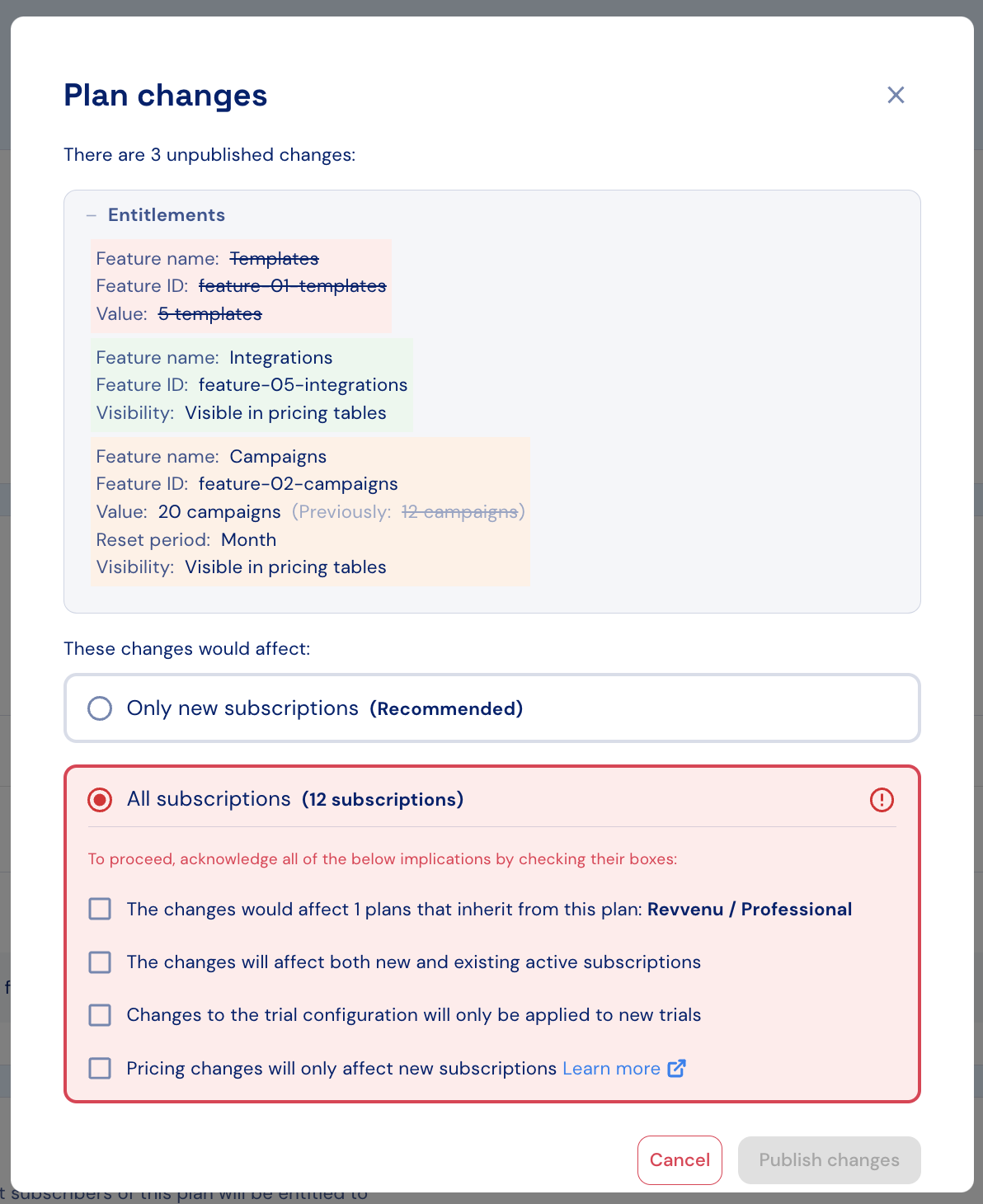
1. **Green** highlights indicate items that were **added**.
2. **Orange** highlights indicate items that were **updated**.
3. **Red** highlights indicate items that were **removed**.
### Publishing changes
All changes must be reviewed before they can be published.
To publish changes:
1. In the change review modal, select the target audience for the update:
* **New subscriptions**: Only affects subscriptions created after the new plan version is published.
* **Both existing and new subscriptions**: Also migrates existing active subscriptions to the new plan version.
2. When applying changes to existing subscriptions, you’ll be prompted to acknowledge a series of disclaimers.
Pricing changes are automatically published only to new subscriptions. Existing subscriptions can be migrated to the latest price [manually using the Stigg UI](../../managing-customers-and-subscriptions/subscriptions/migrating-subscriptions) or [programmatically via the GraphQL API (legacy)](/api-and-sdks/integration/backend/graphql#migrating-subscriptions-to-the-latest-plan-and-add-on-version).
 ### Discarding changes
To discard pending changes:
1. Click **Discard changes** in the plan header.
2. Confirm the action in the dialog that appears.
### Discarding changes
To discard pending changes:
1. Click **Discard changes** in the plan header.
2. Confirm the action in the dialog that appears.