> ## Documentation Index
> Fetch the complete documentation index at: https://docs.stigg.io/llms.txt
> Use this file to discover all available pages before exploring further.
# Adding entitlements to plans
The functionality included in each plan is defined by a combination of features and their configurations, referred to in Stigg as [**entitlements**](../../managing-customers-and-subscriptions/entitlements/overview).
Plans support two types of entitlements:
* **Feature entitlements** - grant access or usage limits for [boolean](#boolean-features), [configuration](#configuration-features), or [metered](#metered-features) features.
* **[Credit entitlements](#credit-entitlements)** - grant a recurring amount of credits to customers on a set cadence (monthly or yearly).
 ## Inheriting entitlements from other plans
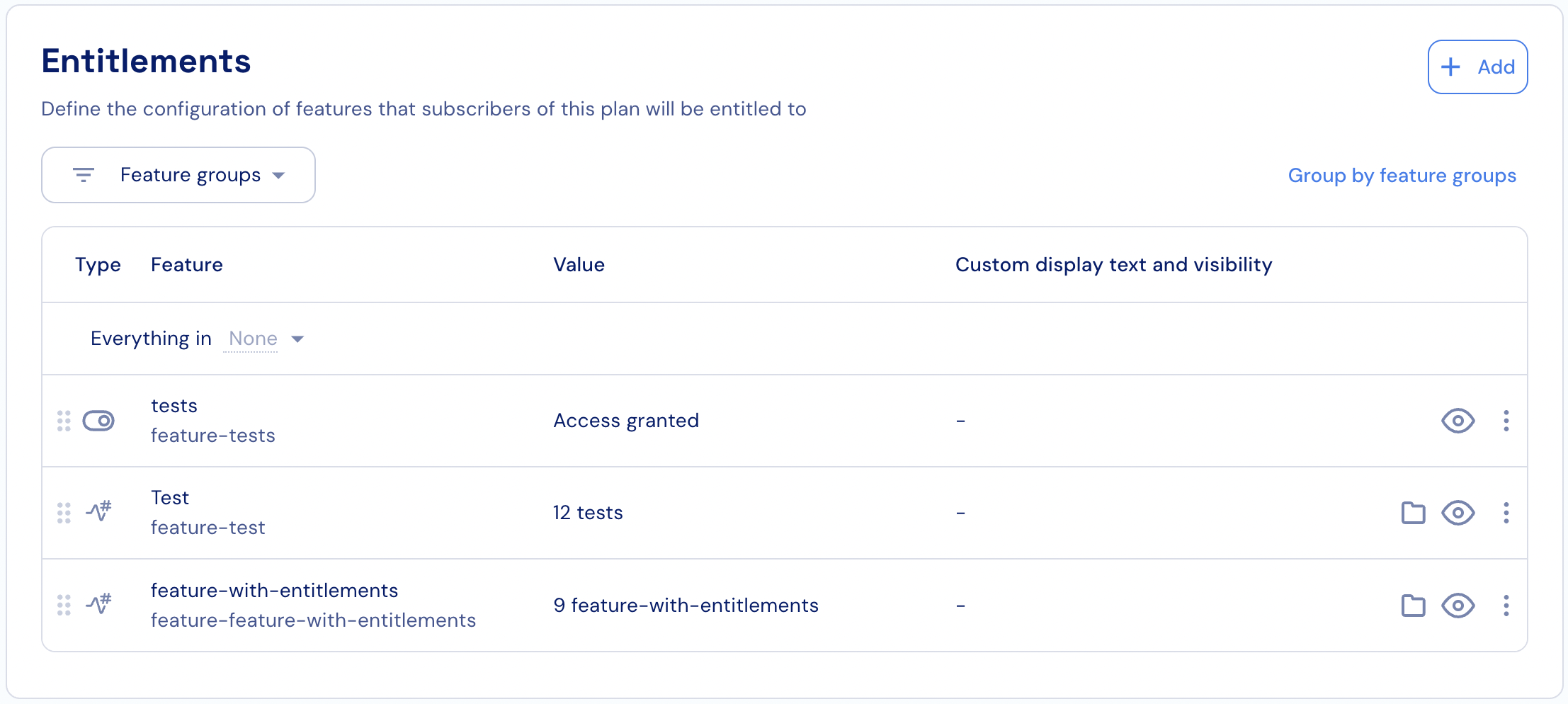
Stigg allows admins to define inheritance between plans. When inheritance is configured, all entitlements from the **base plan** are automatically included in the **child plan**.
This ensures that when entitlements are added or updated in the base plan, they’re automatically reflected in the child plan, supporting a **good-better-best** model and removing the need for manual updates across plans.
To inherit entitlements from a base plan:
1. In the **Entitlements** section of the selected plan, find the **Everything included in** control.
2. Select the relevant **base plan** to inherit from.
## Adding entitlements to a plan
To add entitlements to a plan:
1. Click **+ Add** under the **Entitlements** section of the selected plan.
2. Search for the features you want to assign and select them from the list.
3. Apply the relevant configuration for each selected feature (see below).
4. Click **Add** to confirm.
### Boolean features
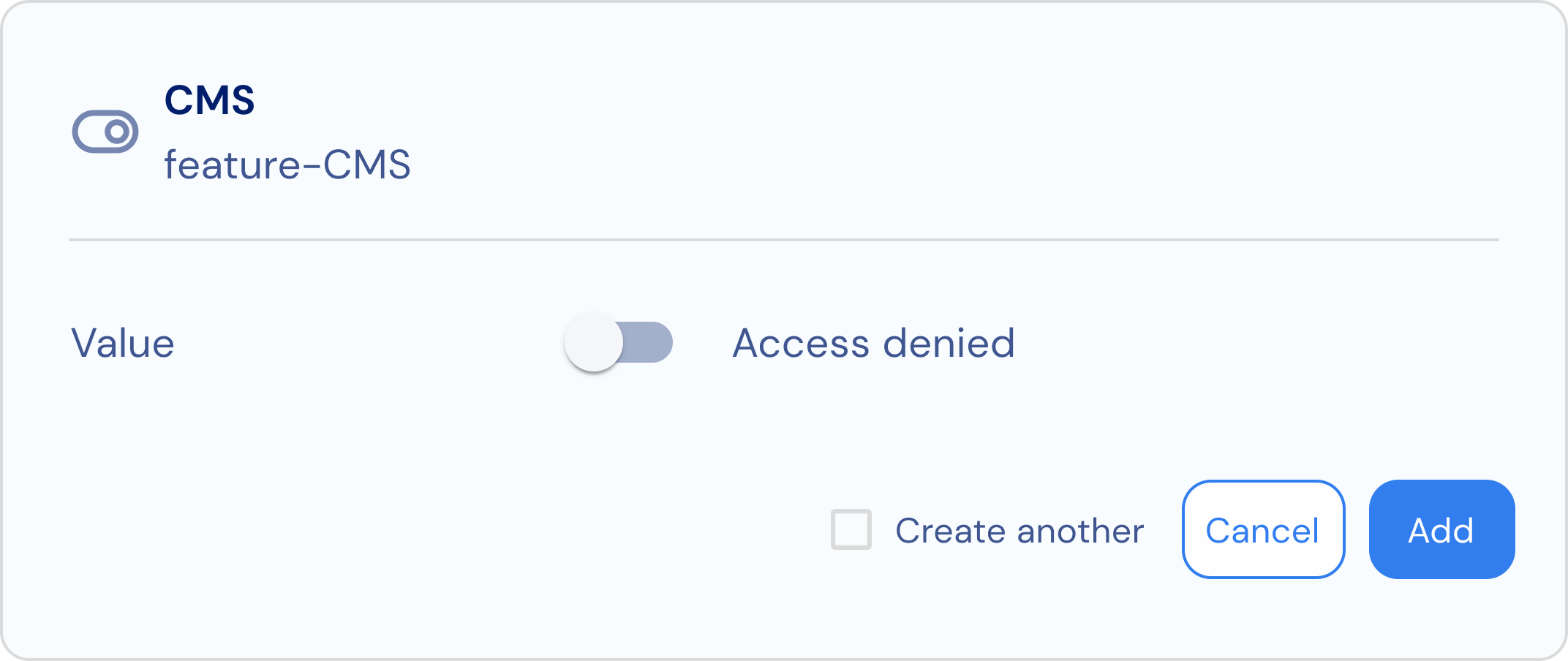
Boolean features work with an on/off toggle. When the toggle is on, access is granted; when the toggle is off, access is denied. No additional configuration is required, simply adding a Boolean feature will automatically control access for subscribed customers.
## Inheriting entitlements from other plans
Stigg allows admins to define inheritance between plans. When inheritance is configured, all entitlements from the **base plan** are automatically included in the **child plan**.
This ensures that when entitlements are added or updated in the base plan, they’re automatically reflected in the child plan, supporting a **good-better-best** model and removing the need for manual updates across plans.
To inherit entitlements from a base plan:
1. In the **Entitlements** section of the selected plan, find the **Everything included in** control.
2. Select the relevant **base plan** to inherit from.
## Adding entitlements to a plan
To add entitlements to a plan:
1. Click **+ Add** under the **Entitlements** section of the selected plan.
2. Search for the features you want to assign and select them from the list.
3. Apply the relevant configuration for each selected feature (see below).
4. Click **Add** to confirm.
### Boolean features
Boolean features work with an on/off toggle. When the toggle is on, access is granted; when the toggle is off, access is denied. No additional configuration is required, simply adding a Boolean feature will automatically control access for subscribed customers.
 ### Configuration features
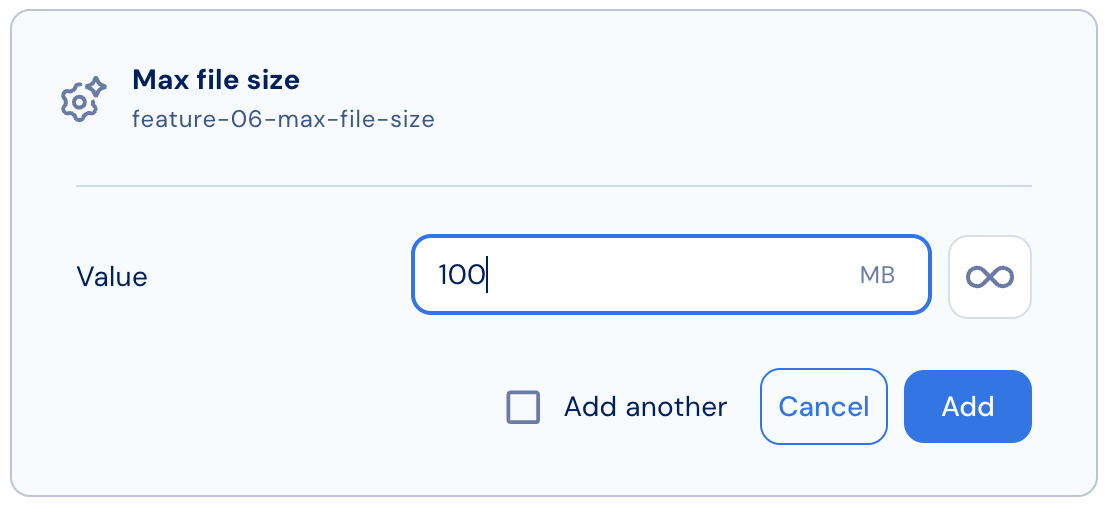
**Configuration features** must be defined with a numeric configuration value.
### Configuration features
**Configuration features** must be defined with a numeric configuration value.
 ### Metered features
#### Usage limits
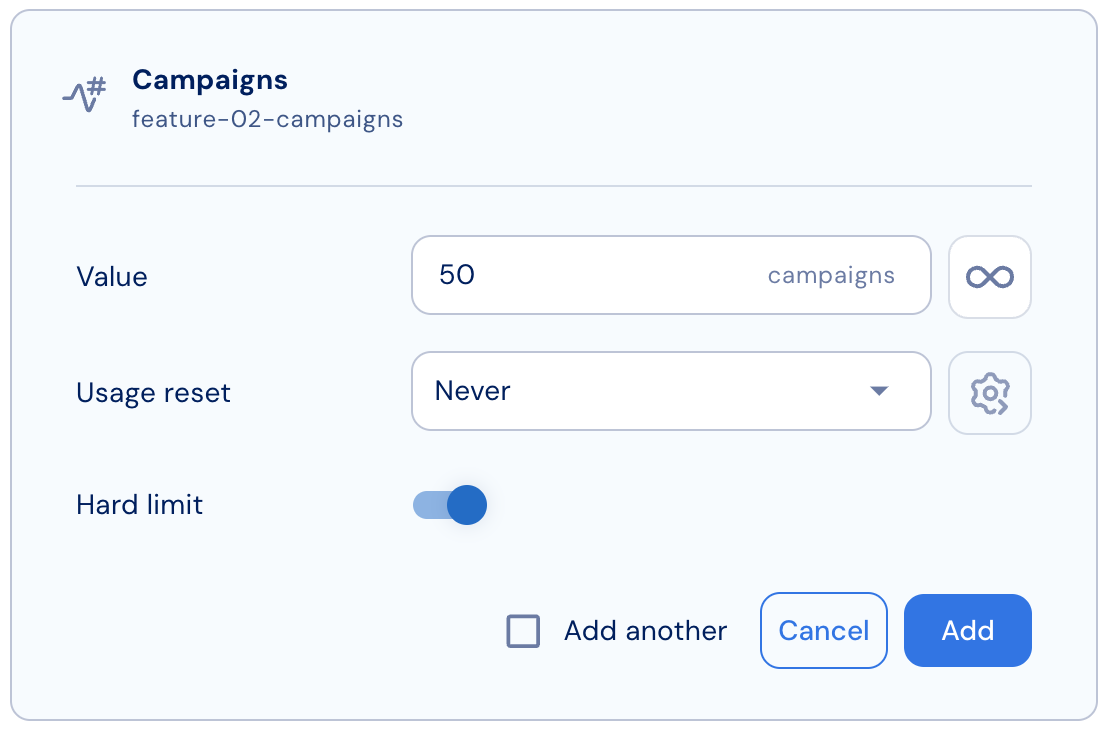
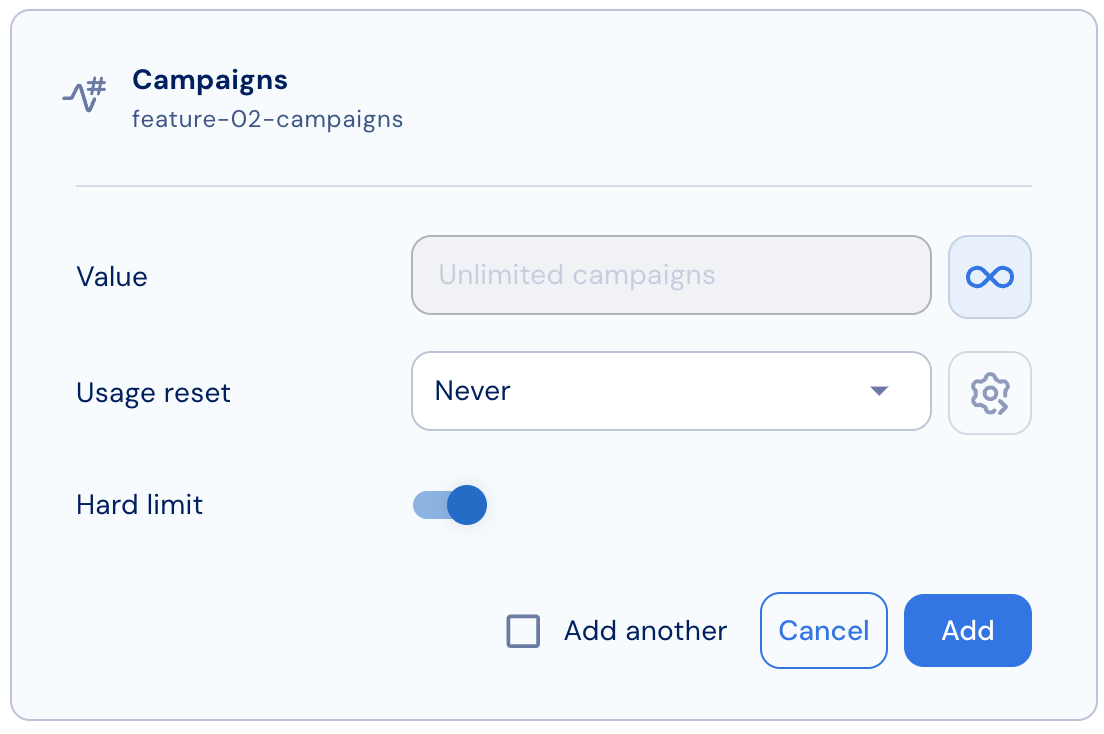
**Metered features** can be defined with or without usage limits (unlimited).
### Metered features
#### Usage limits
**Metered features** can be defined with or without usage limits (unlimited).
 #### Limit enforcement
When a limit is set, Stigg can enforce or ignore access restrictions when customers reach their usage limit.
* If **enforced**, Stigg denies further access once the limit is reached (**hard limit**).\
This is the default configuration for all Stigg entitlements.
* If **not enforced**, Stigg continues allowing access even after the limit is exceeded (**soft limit**).
| | **Hard limits** | **Soft limits** |
| -------------------------------------- | ----------------------------------------------------------------------------------- | ---------------------------------------------------------------------------------------------------------------------------------------------------------------------------------------------------------------------------------------------------------------------------------------------------------------------------------------------------------- |
| Customers can exceed the defined limit | ❌ | ✅ |
| Useful for | 1. Enforcing access in free plans. 2. Driving conversions, upsells, and expansions. | 1. Enterprise plans: prevents disruption to customers' business. Excess usage can be discussed with Sales or CS for plan upgrades. 2. Smart upgrade flows: automatically upgrading users to higher tiers instead of charging overages. 3. Gradual rollouts: allows initial soft-limit integrations with enforcement activated later, without code changes. |
#### Limit enforcement
When a limit is set, Stigg can enforce or ignore access restrictions when customers reach their usage limit.
* If **enforced**, Stigg denies further access once the limit is reached (**hard limit**).\
This is the default configuration for all Stigg entitlements.
* If **not enforced**, Stigg continues allowing access even after the limit is exceeded (**soft limit**).
| | **Hard limits** | **Soft limits** |
| -------------------------------------- | ----------------------------------------------------------------------------------- | ---------------------------------------------------------------------------------------------------------------------------------------------------------------------------------------------------------------------------------------------------------------------------------------------------------------------------------------------------------- |
| Customers can exceed the defined limit | ❌ | ✅ |
| Useful for | 1. Enforcing access in free plans. 2. Driving conversions, upsells, and expansions. | 1. Enterprise plans: prevents disruption to customers' business. Excess usage can be discussed with Sales or CS for plan upgrades. 2. Smart upgrade flows: automatically upgrading users to higher tiers instead of charging overages. 3. Gradual rollouts: allows initial soft-limit integrations with enforcement activated later, without code changes. |
 #### Usage reset
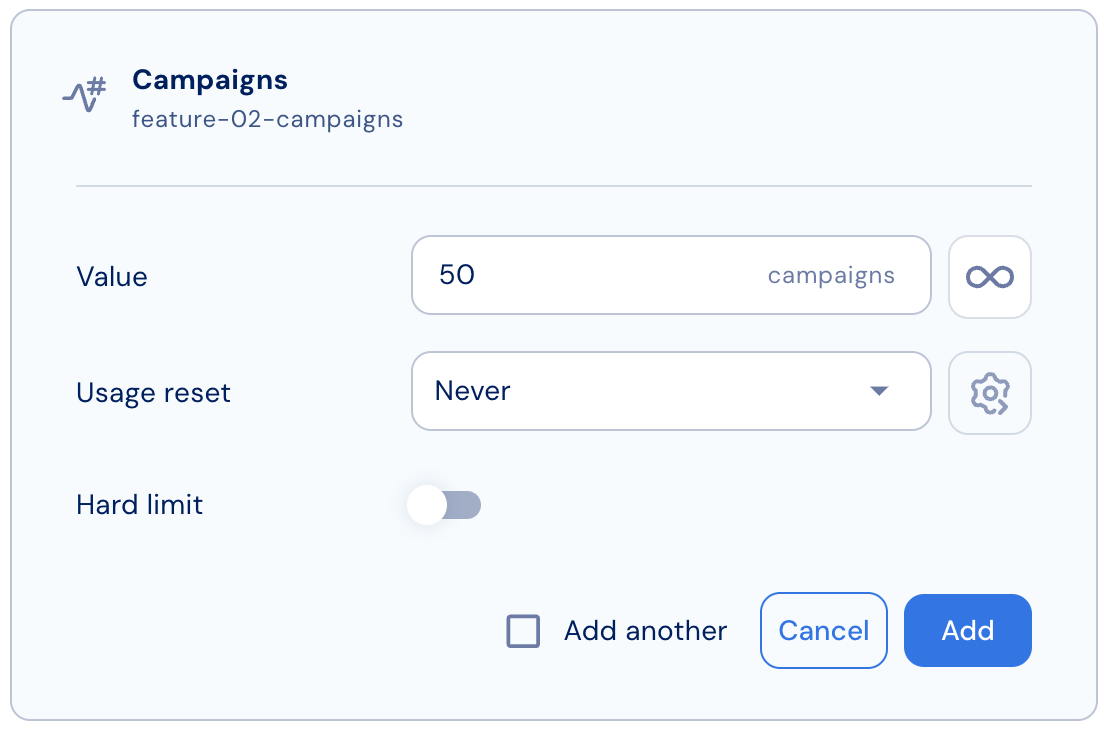
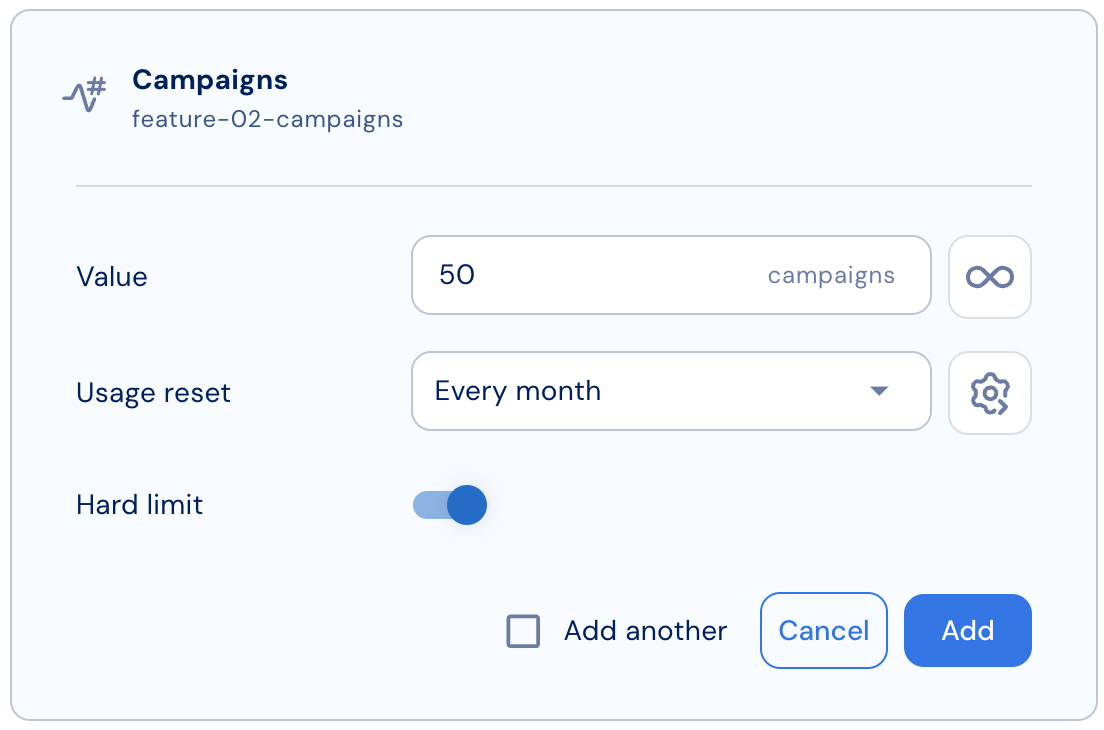
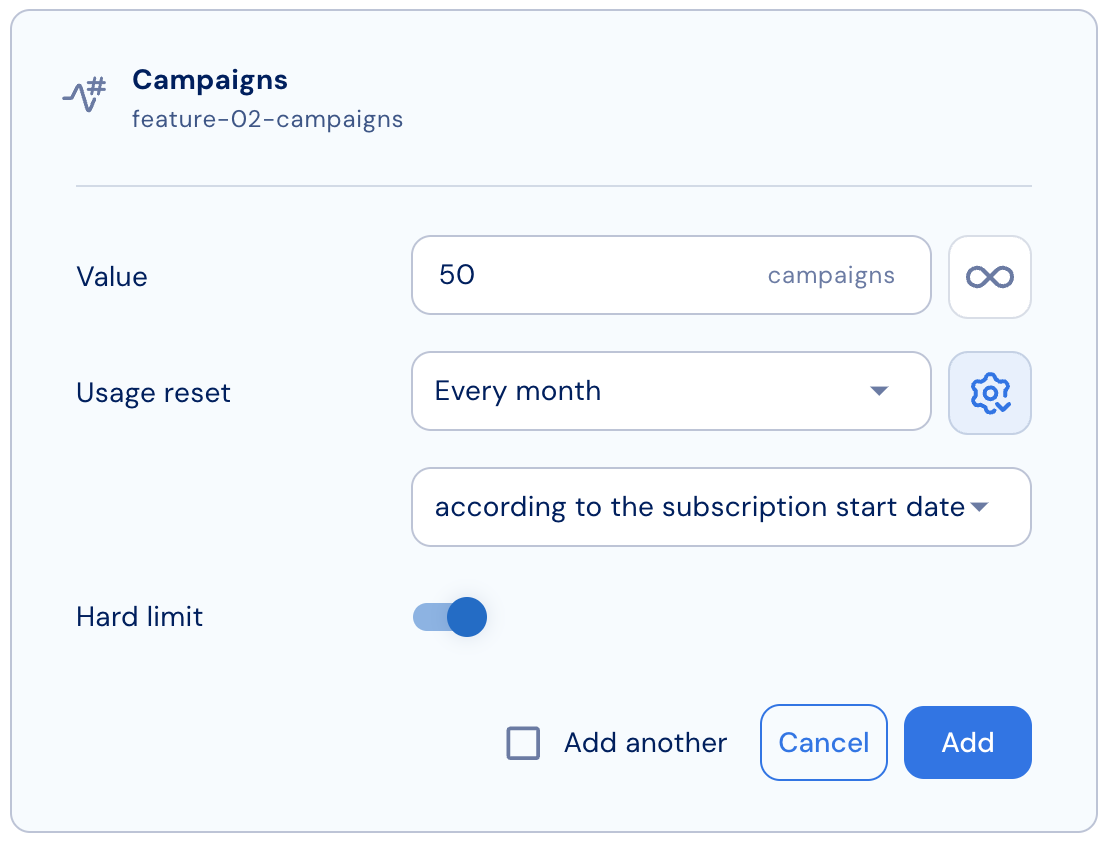
Stigg can automatically reset measured usage at predefined intervals: yearly, monthly, weekly, daily, or hourly.\
This is especially useful for features like the number of API calls per month.
#### Usage reset
Stigg can automatically reset measured usage at predefined intervals: yearly, monthly, weekly, daily, or hourly.\
This is especially useful for features like the number of API calls per month.
 ## Overriding entitlements from other plans
When a plan inherits entitlements from a base plan, adding entitlements to the child plan **overrides** the corresponding base configuration.
For example, if the base plan allows **10 seats** and the child plan defines **50 seats**, the child plan’s entitlement will override the inherited one.
To override an entitlement in the **child plan**:
1. Scroll to the **Entitlements** section.
2. Expand the **Everything in...** row to view inherited entitlements.
3. In the relevant entitlement row, open the dotted-menu and select **Override entitlement**.
4. Enter the new value for the override.
5. Click **Override** to confirm.
Entitlements for boolean features cannot be overridden.
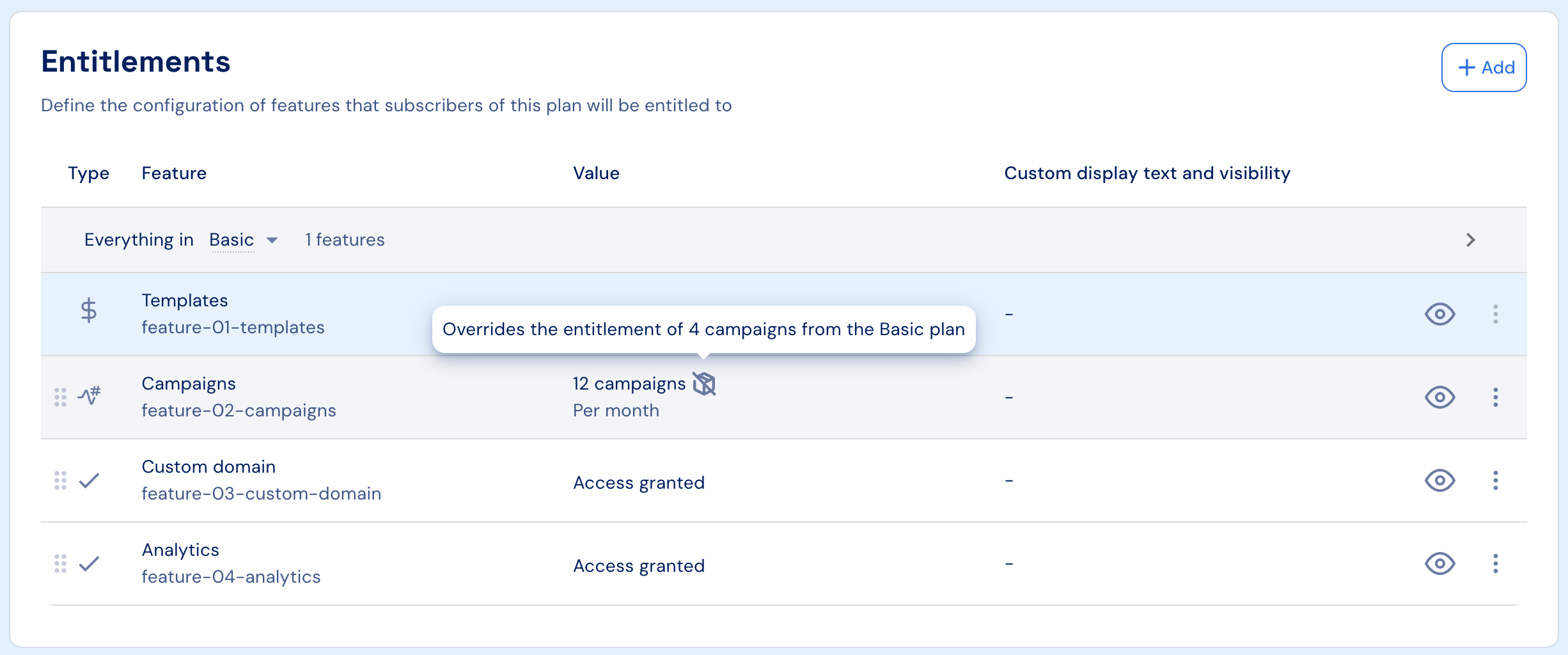
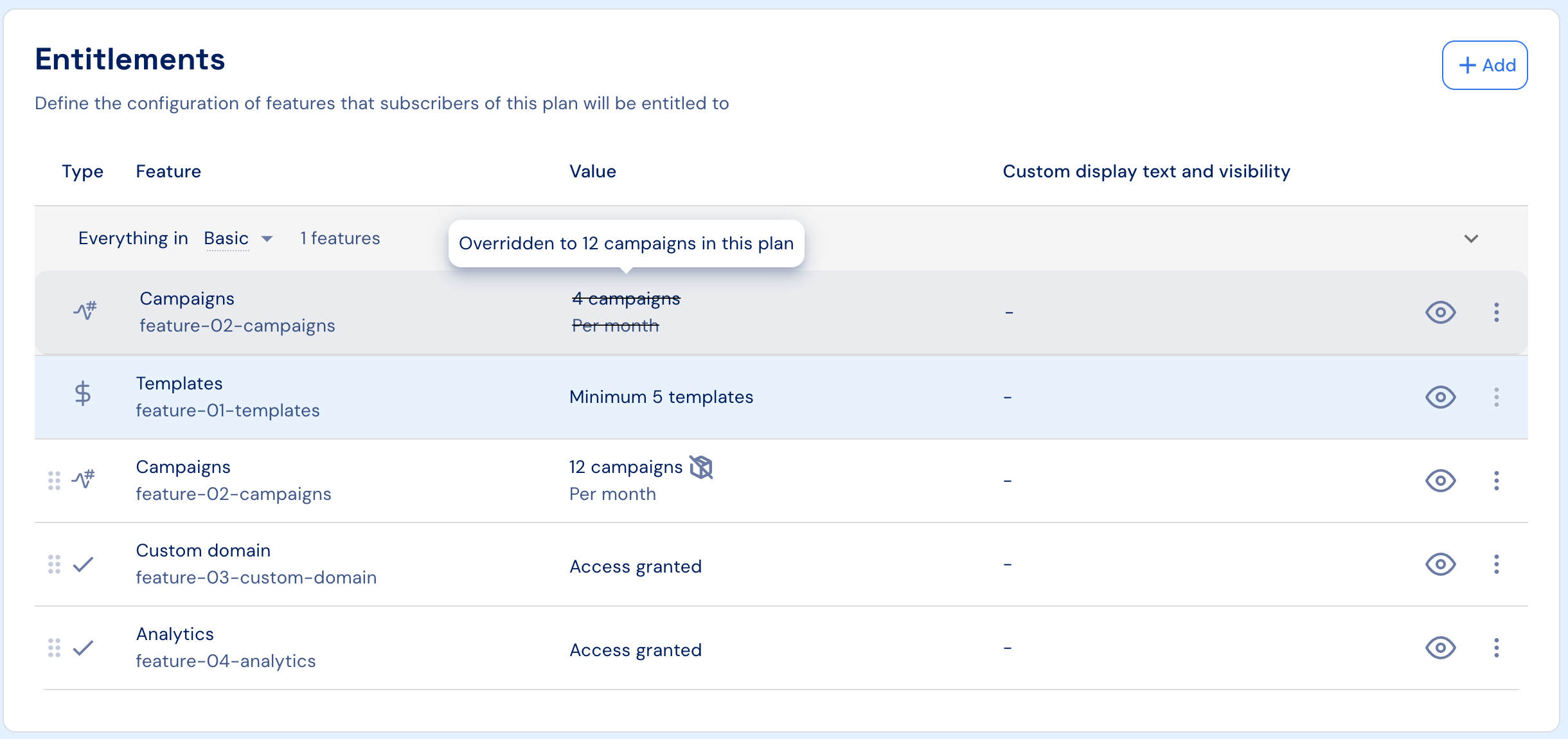
Overridden entitlements are marked with an icon next to their value.
## Overriding entitlements from other plans
When a plan inherits entitlements from a base plan, adding entitlements to the child plan **overrides** the corresponding base configuration.
For example, if the base plan allows **10 seats** and the child plan defines **50 seats**, the child plan’s entitlement will override the inherited one.
To override an entitlement in the **child plan**:
1. Scroll to the **Entitlements** section.
2. Expand the **Everything in...** row to view inherited entitlements.
3. In the relevant entitlement row, open the dotted-menu and select **Override entitlement**.
4. Enter the new value for the override.
5. Click **Override** to confirm.
Entitlements for boolean features cannot be overridden.
Overridden entitlements are marked with an icon next to their value.
 The original (overridden) value will appear crossed out.
 ## Defining entitlement order
By default, entitlements appear in pricing tables (rendered using [Stigg’s pricing table widget](/documentation/snap-in-widgets/pricing-table) or custom widgets) in the order they were added.
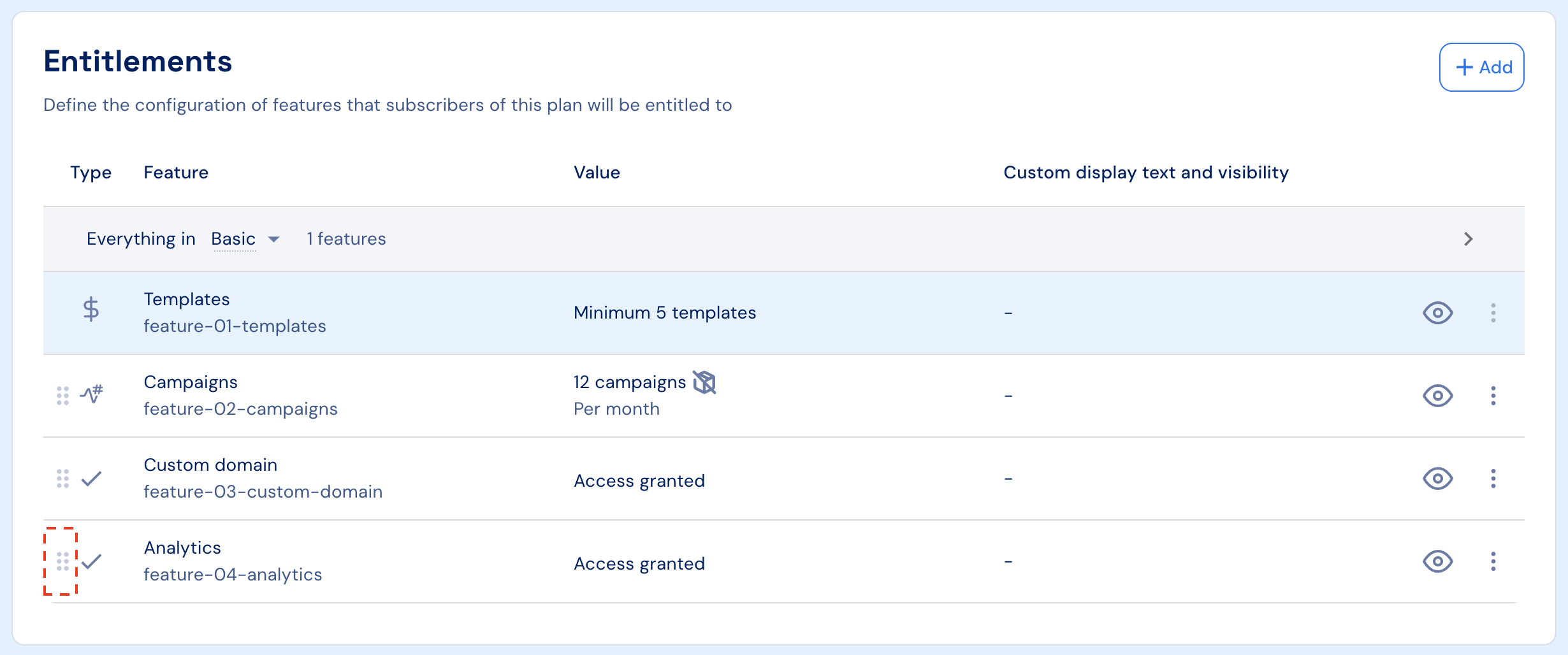
You can reorder entitlements using drag-and-drop by grabbing the **drag handle** on the left side of each entitlement row.
## Defining entitlement order
By default, entitlements appear in pricing tables (rendered using [Stigg’s pricing table widget](/documentation/snap-in-widgets/pricing-table) or custom widgets) in the order they were added.
You can reorder entitlements using drag-and-drop by grabbing the **drag handle** on the left side of each entitlement row.
 ## Controlling entitlement visibility
By default, all entitlements are visible to customers in pricing tables rendered through Stigg widgets or SDKs.
To change entitlement visibility:
1. Click the dotted-menu icon in the entitlement row.
2. Select **Customize display text and visibility**.
3. Update the visibility settings.
4. Click **Save changes**.
## Customizing entitlement display text
By default, entitlements appear in pricing tables as:\
` `
for example: *10 seats*, *unlimited campaigns*, or *100 API calls per month.*
To customize this text:
1. Click the dotted-menu icon for the entitlement.
2. Select **Customize display text and visibility**.
3. Enter your custom display text.
* The default text remains visible for reference.
4. To revert, simply remove the custom text.
5. Click **Save changes** to confirm.
## Controlling entitlement visibility
By default, all entitlements are visible to customers in pricing tables rendered through Stigg widgets or SDKs.
To change entitlement visibility:
1. Click the dotted-menu icon in the entitlement row.
2. Select **Customize display text and visibility**.
3. Update the visibility settings.
4. Click **Save changes**.
## Customizing entitlement display text
By default, entitlements appear in pricing tables as:\
` `
for example: *10 seats*, *unlimited campaigns*, or *100 API calls per month.*
To customize this text:
1. Click the dotted-menu icon for the entitlement.
2. Select **Customize display text and visibility**.
3. Enter your custom display text.
* The default text remains visible for reference.
4. To revert, simply remove the custom text.
5. Click **Save changes** to confirm.
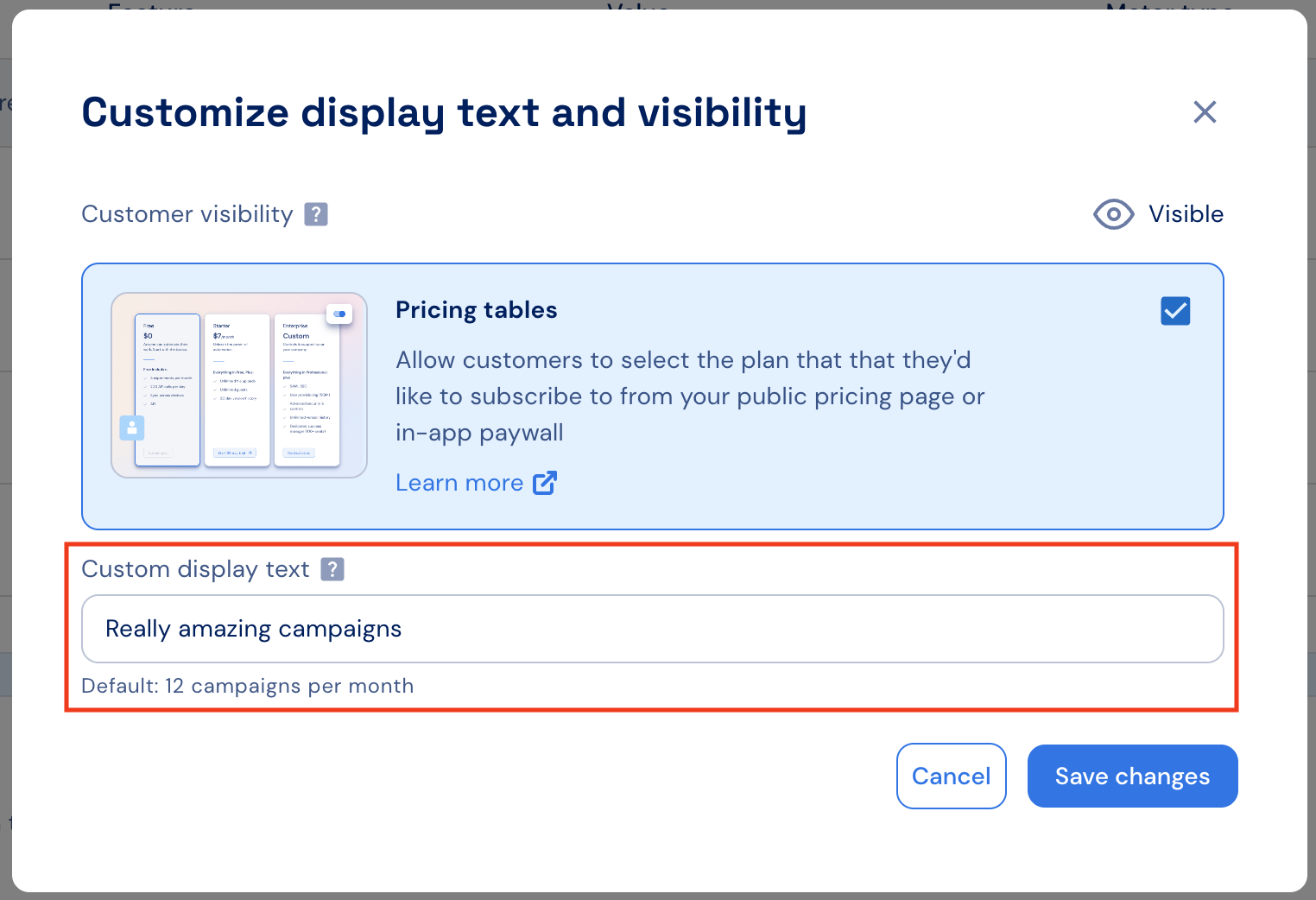 Any overridden display text will also be indicated under **Products > Pricing**.
## Credit entitlements
Credit entitlements grant customers a recurring amount of credits on a set cadence (monthly or yearly) as part of their plan subscription. This allows you to include credits directly in any plan type - free, paid, or custom - without requiring a separate billing charge for the credits.
Currently, **monthly** and **yearly** recurring grants without rollover are supported.
### Adding a credit entitlement
1. Click **+ Add** under the **Entitlements** section of the selected plan.
2. Select the credit type from the list (e.g., *AI Credits*).
3. Enter the **grant amount** of credits to grant per cadence (e.g., `5,000`).
4. Select the **cadence**: **Monthly** or **Yearly**.
5. Click **Add** to confirm.
Once a customer subscribes to the plan, the credits are automatically granted and reset according to the defined cadence.
To map which metered features consume these credits, configure **Credit consumption** in the plan's pricing section. See [Prepaid credits](../credits/prepaid-credits) and [Recurring credits](../credits/recurring-credits) for details.
### Use cases
* ****Included credits** in a subscription**: e.g., "5,000 AI credits included per month on the Pro Plan".
* **Free plan credits**: Grant a monthly credit allowance on a free plan without any billing charge.
* **Annual plan credits**: Grant a yearly credit amount as part of an annual plan.
Credit entitlements work alongside other credit mechanisms such as one-time top-ups and prepaid credit purchases, allowing customers to supplement their recurring grants with additional credits as needed.
## Removing entitlements from a plan
To remove an entitlement:
1. Click the dotted-menu icon in the entitlement row.
2. Select **Remove**.
3. Confirm by clicking **Remove** again.
Any overridden display text will also be indicated under **Products > Pricing**.
## Credit entitlements
Credit entitlements grant customers a recurring amount of credits on a set cadence (monthly or yearly) as part of their plan subscription. This allows you to include credits directly in any plan type - free, paid, or custom - without requiring a separate billing charge for the credits.
Currently, **monthly** and **yearly** recurring grants without rollover are supported.
### Adding a credit entitlement
1. Click **+ Add** under the **Entitlements** section of the selected plan.
2. Select the credit type from the list (e.g., *AI Credits*).
3. Enter the **grant amount** of credits to grant per cadence (e.g., `5,000`).
4. Select the **cadence**: **Monthly** or **Yearly**.
5. Click **Add** to confirm.
Once a customer subscribes to the plan, the credits are automatically granted and reset according to the defined cadence.
To map which metered features consume these credits, configure **Credit consumption** in the plan's pricing section. See [Prepaid credits](../credits/prepaid-credits) and [Recurring credits](../credits/recurring-credits) for details.
### Use cases
* ****Included credits** in a subscription**: e.g., "5,000 AI credits included per month on the Pro Plan".
* **Free plan credits**: Grant a monthly credit allowance on a free plan without any billing charge.
* **Annual plan credits**: Grant a yearly credit amount as part of an annual plan.
Credit entitlements work alongside other credit mechanisms such as one-time top-ups and prepaid credit purchases, allowing customers to supplement their recurring grants with additional credits as needed.
## Removing entitlements from a plan
To remove an entitlement:
1. Click the dotted-menu icon in the entitlement row.
2. Select **Remove**.
3. Confirm by clicking **Remove** again.