> ## Documentation Index
> Fetch the complete documentation index at: https://docs.stigg.io/llms.txt
> Use this file to discover all available pages before exploring further.
# Metered features
Metered features track usage over time. Use them when you need to monitor how much of something a customer is consuming, for example, the number of API calls, seats, or active users.
There are two type of metered features:
* **Reported usage** ([Usage meters](#usage-meters))\
Use this option when your application calculates usage and reports it directly to Stigg.\
This is commonly used for features such as **seats**.
* **Raw events** ([Event meters](#event-meters))\
Use this option when your application emits raw events that Stigg aggregates to calculate usage.\
This is commonly used for features such as **monthly active users (MAUs)**.
For more details about Stigg’s metering and aggregation capabilities, see:
## Usage meters
To create a metered feature based on usage:
1. Open the **Product catalog** in the Stigg app.
2. Navigate to the **Features** section.
3. Click **+ New feature**.
4. In the modal that opens, provide the following details:
1. **Name**: The display name of the feature.
2. **Description (optional)**: A short explanation of what the feature enables.
3. **ID**: Automatically generated by Stigg and used to reference the feature in your application.
You can override this value by clicking **Edit** and linking an existing feature.
4. **Feature type**: Choose **Meter**.
5. **Meter type**: Choose **Calculated usage**.
6. If required, edit the singular and plural unit names, for example, *day* and *days*.
7. If you report usage in a higher granularity (for example, **bytes**) but want to present it to customers in a lower granularity (for example, **GB**), enable the **Feature is sold in different units** toggle. For details on configuring unit conversion and rounding behavior, see [Reporting usage in one unit and presenting it in another](#reporting-usage-in-one-unit-and-presenting-it-in-another).
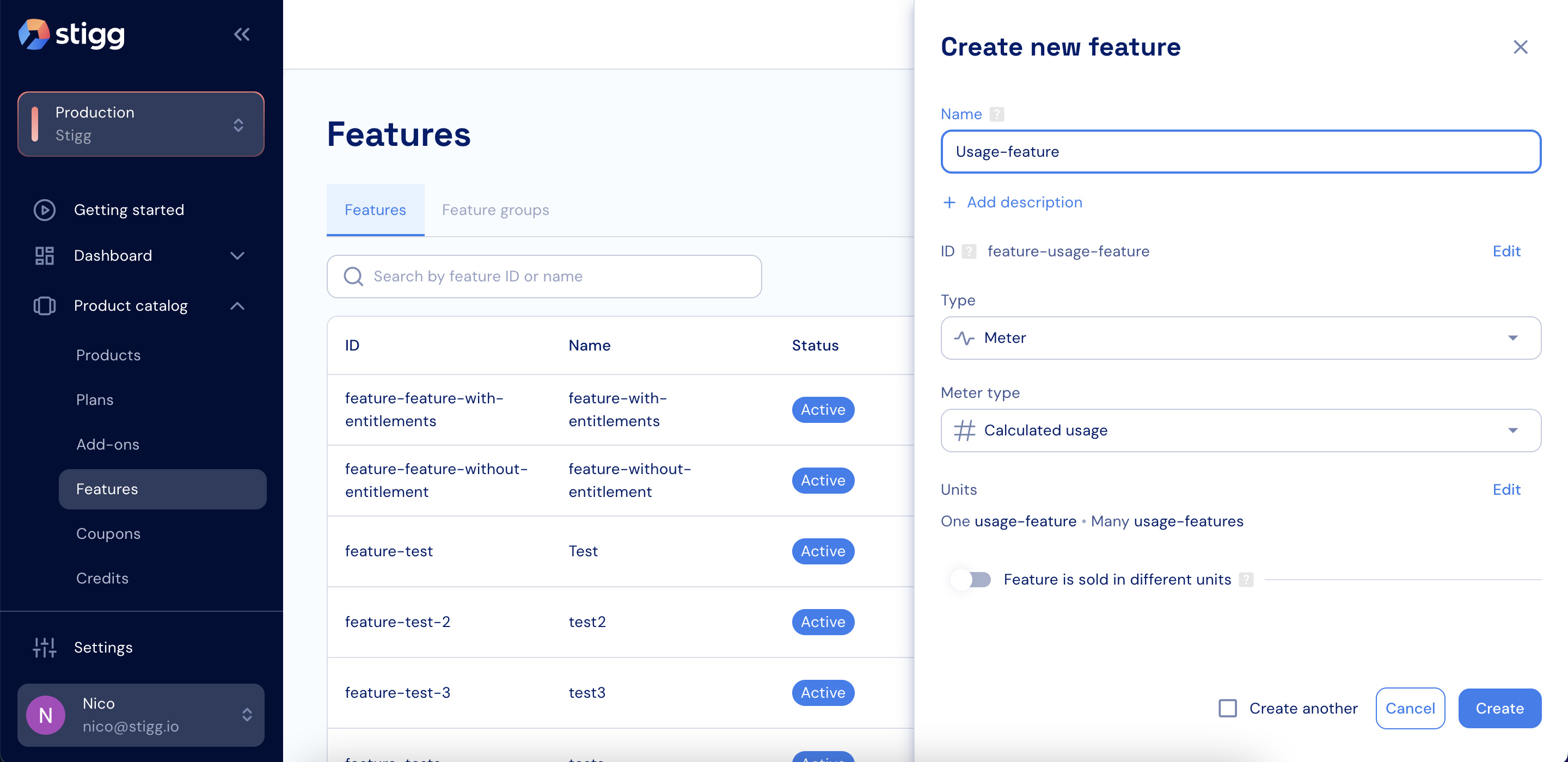 Changing the conversion rate is only possible when there are no active subscriptions that use this feature.
5. Click **Create** to save the feature.
## Event meters
To create a metered feature based on raw events:
1. Open the **Product catalog** in the Stigg app.
2. Navigate to the **Features** section.
3. Click **+ New feature**.
4. In the modal that opens, provide the following details:
1. **Name**: The display name of the feature.
2. **Description (optional)**: A short explanation of what the feature enables.
3. **ID**: Automatically generated by Stigg and used to reference the feature in your application.
You can override this value by clicking **Edit** and linking an existing feature.
4. **Feature type**: Choose **Meter**.
5. **Meter type**: Choose **Raw events**.
Changing the conversion rate is only possible when there are no active subscriptions that use this feature.
5. Click **Create** to save the feature.
## Event meters
To create a metered feature based on raw events:
1. Open the **Product catalog** in the Stigg app.
2. Navigate to the **Features** section.
3. Click **+ New feature**.
4. In the modal that opens, provide the following details:
1. **Name**: The display name of the feature.
2. **Description (optional)**: A short explanation of what the feature enables.
3. **ID**: Automatically generated by Stigg and used to reference the feature in your application.
You can override this value by clicking **Edit** and linking an existing feature.
4. **Feature type**: Choose **Meter**.
5. **Meter type**: Choose **Raw events**.
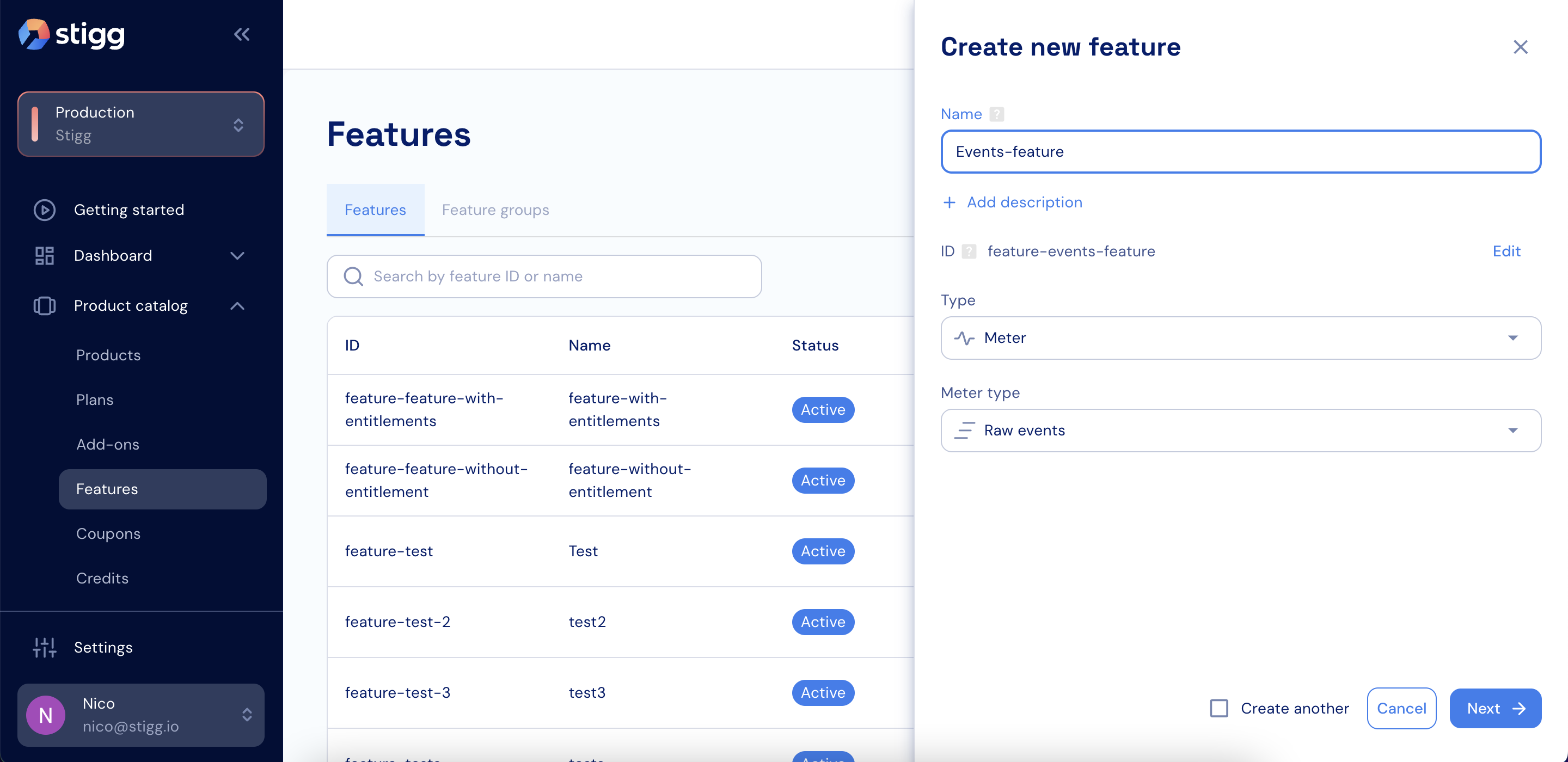 5. Click **Next**.
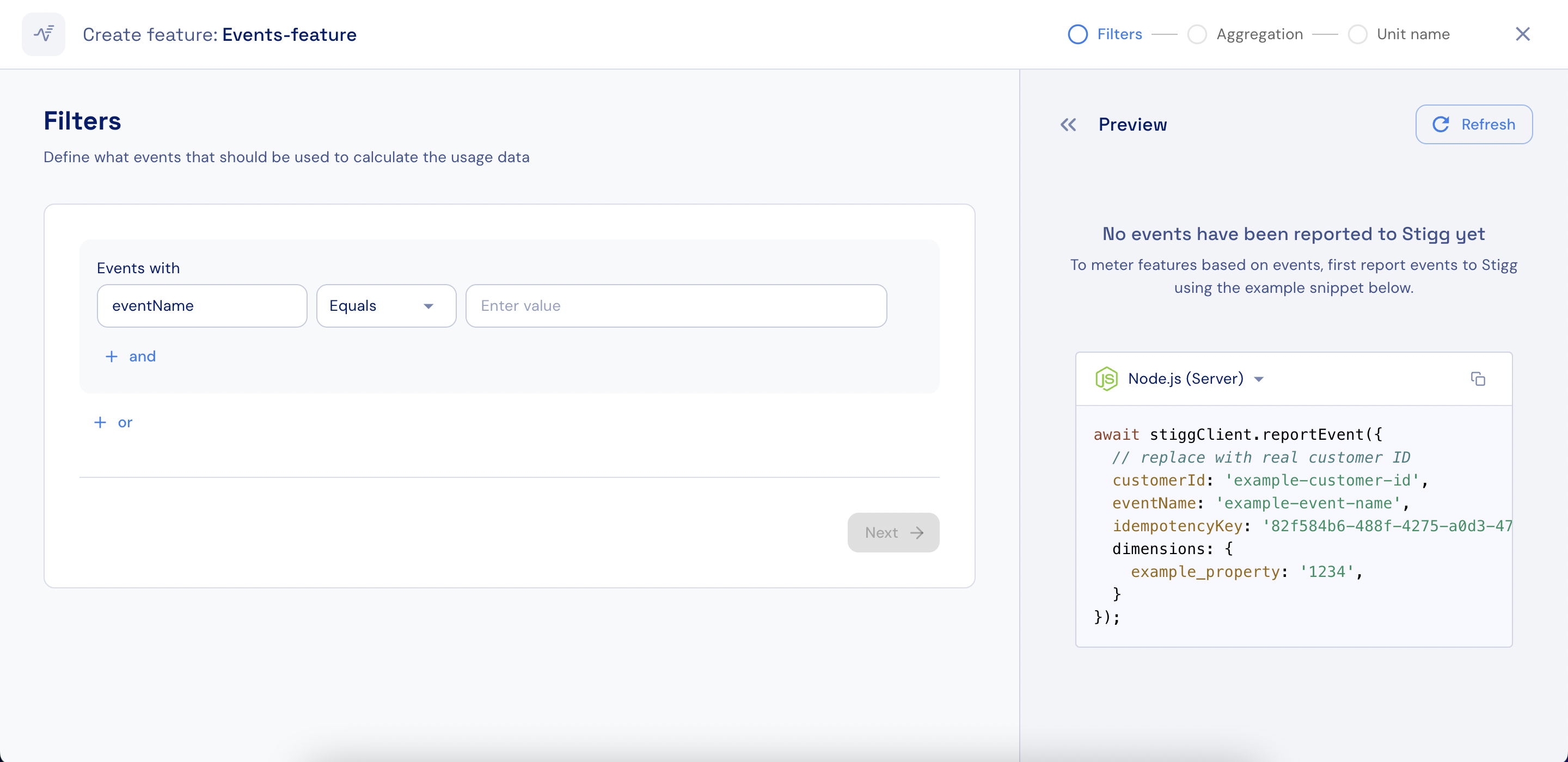
6. Define the event filters:
* Set the primary filter based on the reported **event name**.
* Add additional conditions to exclude unwanted events.
5. Click **Next**.
6. Define the event filters:
* Set the primary filter based on the reported **event name**.
* Add additional conditions to exclude unwanted events.
 7. Select the aggregation method that Stigg will use to calculate each customer’s usage:
* **Count**
* **Count unique**
* **Sum**
* **Max**
* **Min**
* **Average**
7. Select the aggregation method that Stigg will use to calculate each customer’s usage:
* **Count**
* **Count unique**
* **Sum**
* **Max**
* **Min**
* **Average**
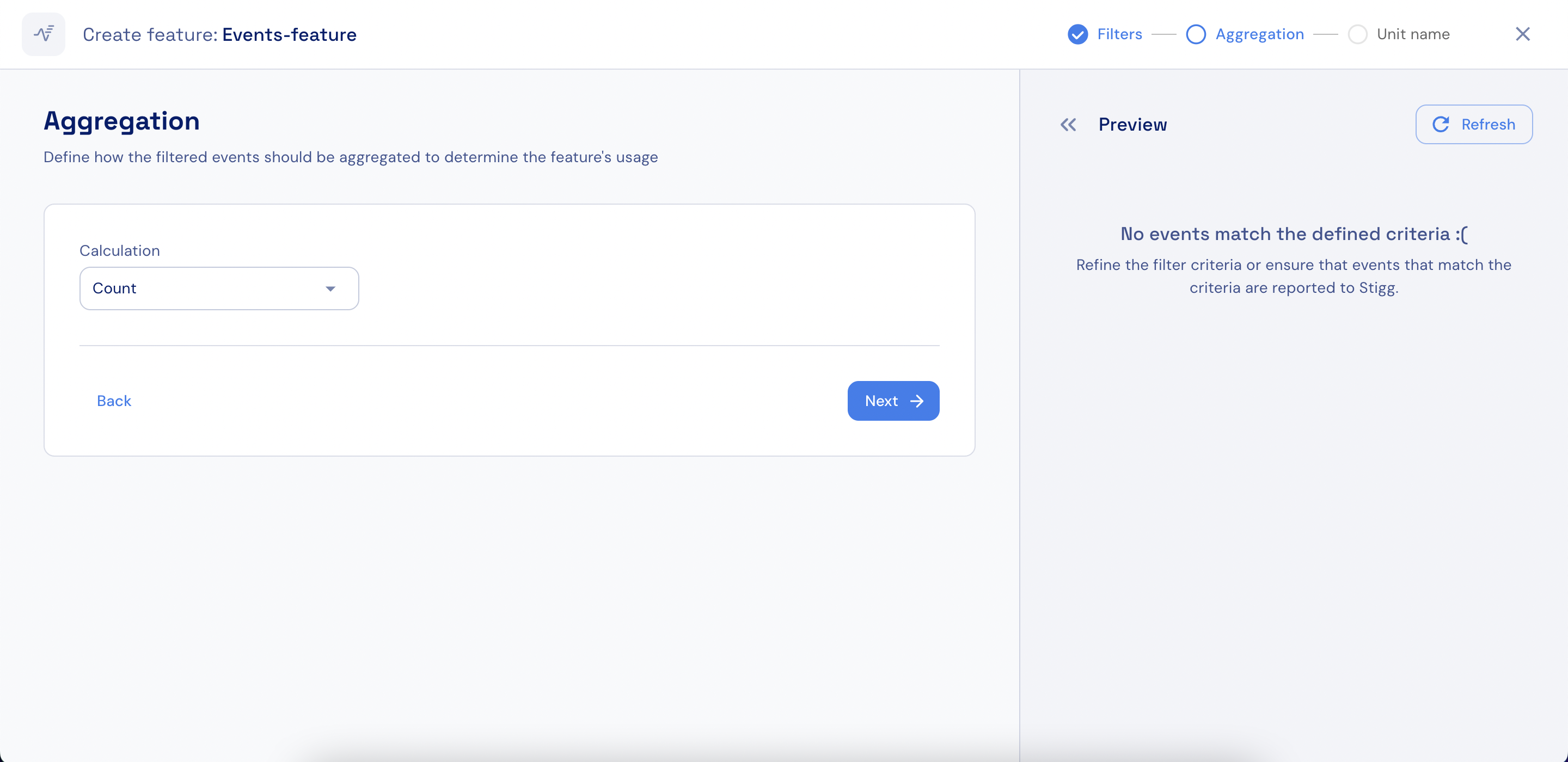 All aggregation methods except **Count** require specifying an event property that will be used for the aggregation. For example, when calculating a **Sum**, you must select which property should be summed.
8. Click **Next**.
9. If required, edit the singular and plural unit names, for example: "seat" and "seats".
All aggregation methods except **Count** require specifying an event property that will be used for the aggregation. For example, when calculating a **Sum**, you must select which property should be summed.
8. Click **Next**.
9. If required, edit the singular and plural unit names, for example: "seat" and "seats".
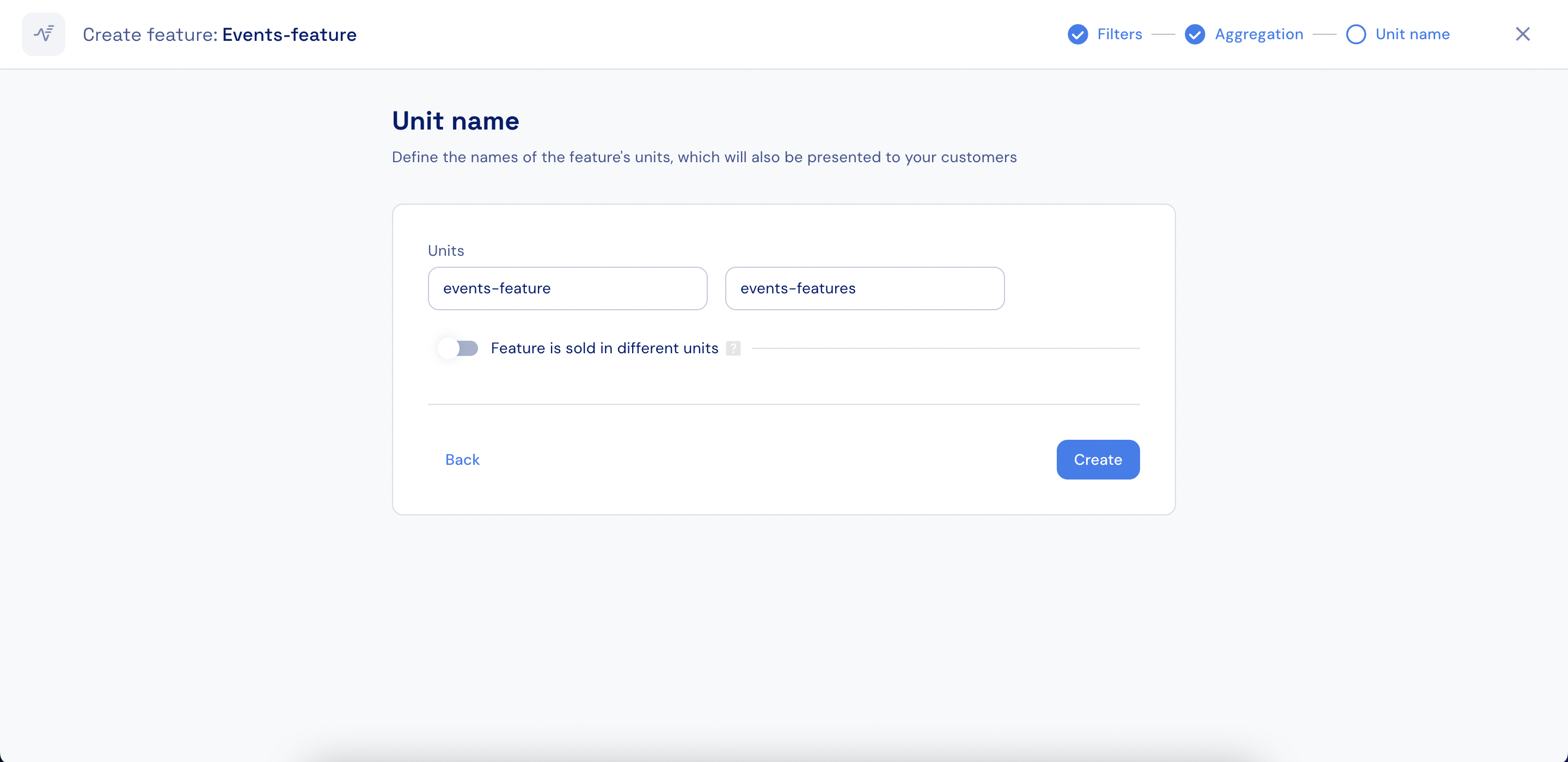 10. If you report usage in a higher granularity (for example, **bytes**) but want to present it to customers in a lower granularity (for example, **GB**), enable the **Feature is sold in different units** toggle. For details on configuring unit conversion and rounding behavior, see [Reporting usage in one unit and presenting it in another](#reporting-usage-in-one-unit-and-presenting-it-in-another).
Changing the conversion rate is only possible when there are no active subscriptions that use this feature.
11. Click **Create**.
## Reporting usage in one unit and presenting it in another
Stigg allows you to report usage in a high-granularity unit (for example, bytes) while presenting and charging customers in a lower-granularity unit (for example, GB).
When this configuration is enabled:
* Usage is reported to Stigg in the original (high-granularity) unit, such as bytes.
* Throughout the Stigg app and SDKs, usage values are returned in the presented (lower-granularity) unit, such as GB.
* When integrated with a billing provider, usage in the presented unit is rounded up to the nearest integer.
For example, if a customer is billed per GB and uses `0.02 GB`, they will be billed for `1 GB`.
### Enable unit conversion for a feature
To enable this behavior for a feature:
1. Open the feature configuration.
2. Toggle on **Feature is sold in different units**.
3. Enter the name of the unit that will be presented to customers (for example, `GB`).
4. Define the conversion rate between the reporting unit and the presented unit\
(for example: `1 GB = 1,000,000,000 bytes`).
5. Save the feature.
### Using the feature in plans
Once this configuration is enabled:
* Any plan that includes this feature will display usage in the presented unit.
* Usage reported in the original unit will automatically be converted and shown consistently across the Stigg UI, SDKs, and billing flows.
10. If you report usage in a higher granularity (for example, **bytes**) but want to present it to customers in a lower granularity (for example, **GB**), enable the **Feature is sold in different units** toggle. For details on configuring unit conversion and rounding behavior, see [Reporting usage in one unit and presenting it in another](#reporting-usage-in-one-unit-and-presenting-it-in-another).
Changing the conversion rate is only possible when there are no active subscriptions that use this feature.
11. Click **Create**.
## Reporting usage in one unit and presenting it in another
Stigg allows you to report usage in a high-granularity unit (for example, bytes) while presenting and charging customers in a lower-granularity unit (for example, GB).
When this configuration is enabled:
* Usage is reported to Stigg in the original (high-granularity) unit, such as bytes.
* Throughout the Stigg app and SDKs, usage values are returned in the presented (lower-granularity) unit, such as GB.
* When integrated with a billing provider, usage in the presented unit is rounded up to the nearest integer.
For example, if a customer is billed per GB and uses `0.02 GB`, they will be billed for `1 GB`.
### Enable unit conversion for a feature
To enable this behavior for a feature:
1. Open the feature configuration.
2. Toggle on **Feature is sold in different units**.
3. Enter the name of the unit that will be presented to customers (for example, `GB`).
4. Define the conversion rate between the reporting unit and the presented unit\
(for example: `1 GB = 1,000,000,000 bytes`).
5. Save the feature.
### Using the feature in plans
Once this configuration is enabled:
* Any plan that includes this feature will display usage in the presented unit.
* Usage reported in the original unit will automatically be converted and shown consistently across the Stigg UI, SDKs, and billing flows.