> ## Documentation Index
> Fetch the complete documentation index at: https://docs.stigg.io/llms.txt
> Use this file to discover all available pages before exploring further.
# Authorized domain
## Overview
The Authorized Domain login method allows users with specific email domains (for example, a company domain) to automatically join your Stigg account without requiring an invitation.
You can also [explicitly invite](./team-members#inviting-team-members) users if they belong to other domains.
Automatic team member joining using authorized domains is available as part of Stigg's Scale plan. See [Stigg's pricing](https://www.stigg.io/pricing) for more details.
## Configuring authorized domain access
Follow these steps to enable and configure authorized domains for your account:
1. Navigate to the [Account Settings > Login options](https://app.stigg.io/account/settings?tab=login+options) tab.
2. Under **Access method**, select **Authorized domains**.
3. In the **Authorized domains** section, enter one or more domains you want to authorize.
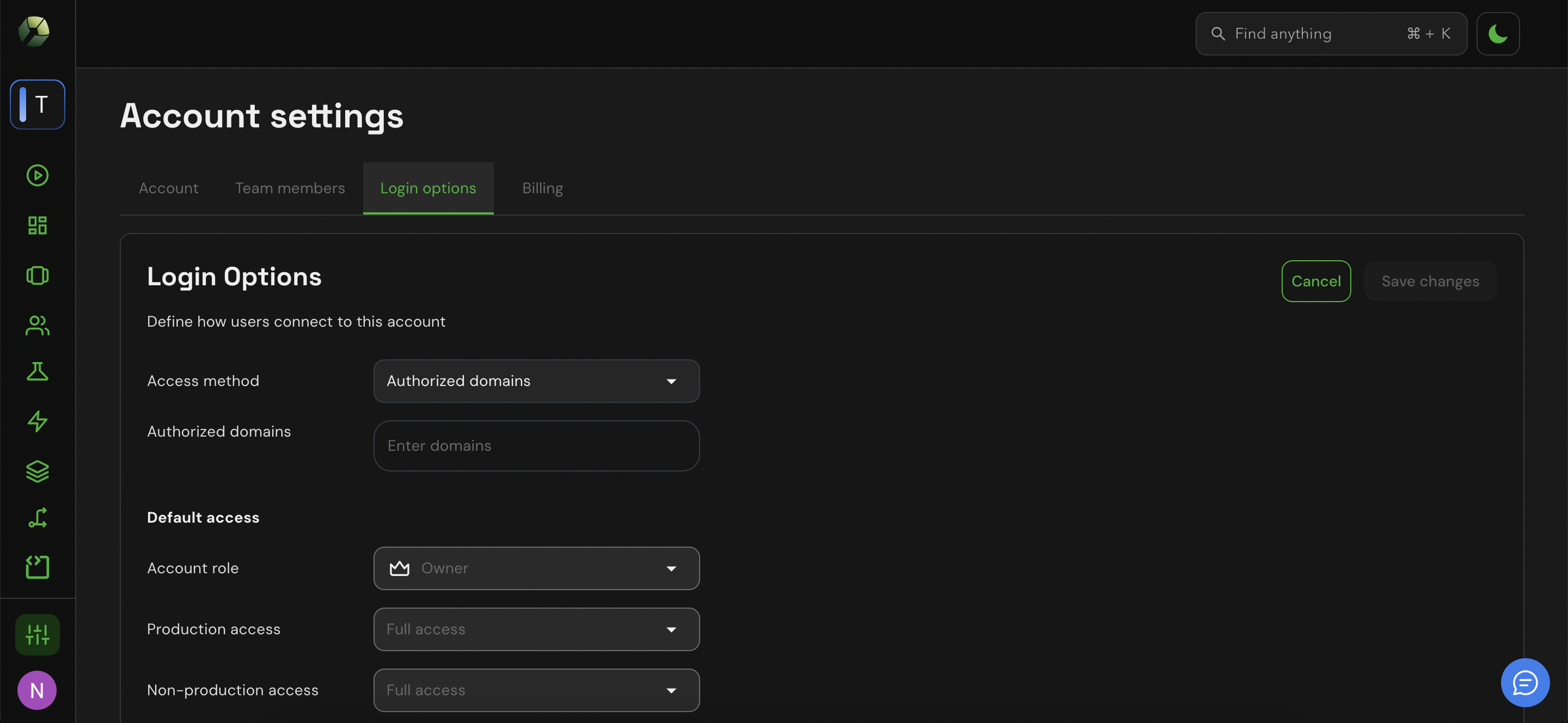 4. Click **Save changes** to apply your configuration.
## Defining the default environment access level
Authorized domain access integrates with Stigg’s [role-based access control (RBAC)](./rbac) system. When a new user joins via an authorized domain, they are automatically assigned a default [role](././rbac#roles) and a default level of [environment access](././rbac#environment-access).
To update these defaults:
1. Navigate to [Account Settings > Login options](https://app.stigg.io/account/settings?tab=login+options).
2. Set the default team member role.
3. Set the default level of access for **production** environments.
4. Set the default level of access for **non-production** environments.
5. Confirm the action by clicking on the **Save changes** button.
4. Click **Save changes** to apply your configuration.
## Defining the default environment access level
Authorized domain access integrates with Stigg’s [role-based access control (RBAC)](./rbac) system. When a new user joins via an authorized domain, they are automatically assigned a default [role](././rbac#roles) and a default level of [environment access](././rbac#environment-access).
To update these defaults:
1. Navigate to [Account Settings > Login options](https://app.stigg.io/account/settings?tab=login+options).
2. Set the default team member role.
3. Set the default level of access for **production** environments.
4. Set the default level of access for **non-production** environments.
5. Confirm the action by clicking on the **Save changes** button.
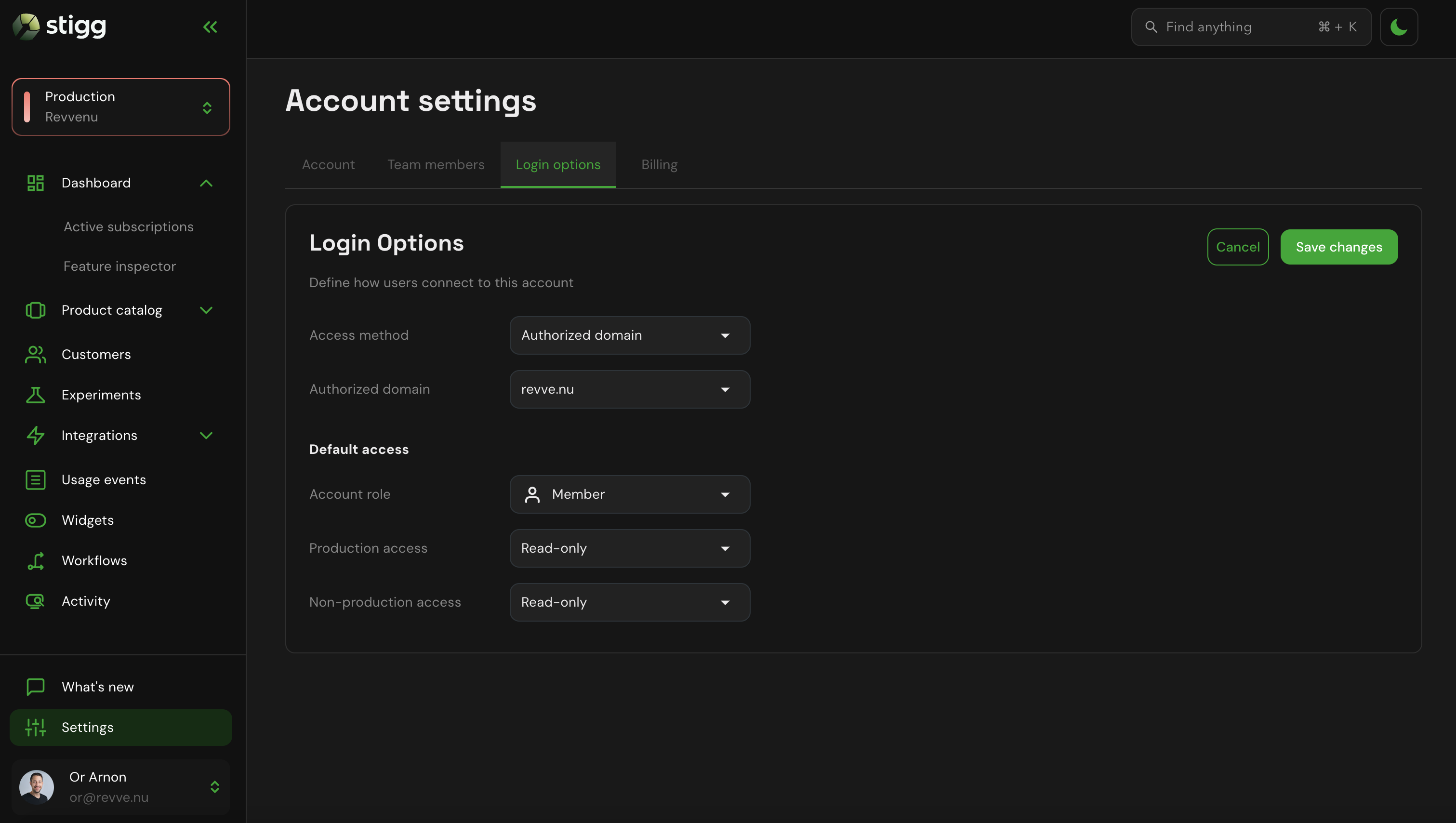 Account [owners](#roles) can override the default configuration by explicitly [inviting](./team-members#inviting-team-members) users to the account, as well as by [updating their details](https://docs.stigg.io/docs/team-members#updating-team-member-details) after they joined the account.