> ## Documentation Index
> Fetch the complete documentation index at: https://docs.stigg.io/llms.txt
> Use this file to discover all available pages before exploring further.
# Viewing the list of subscriptions of a specific customer
To view and manage a customer’s subscriptions:
1. Select **Customers > Subscriptions** in the left navigation pane to see the complete subscriptions list.
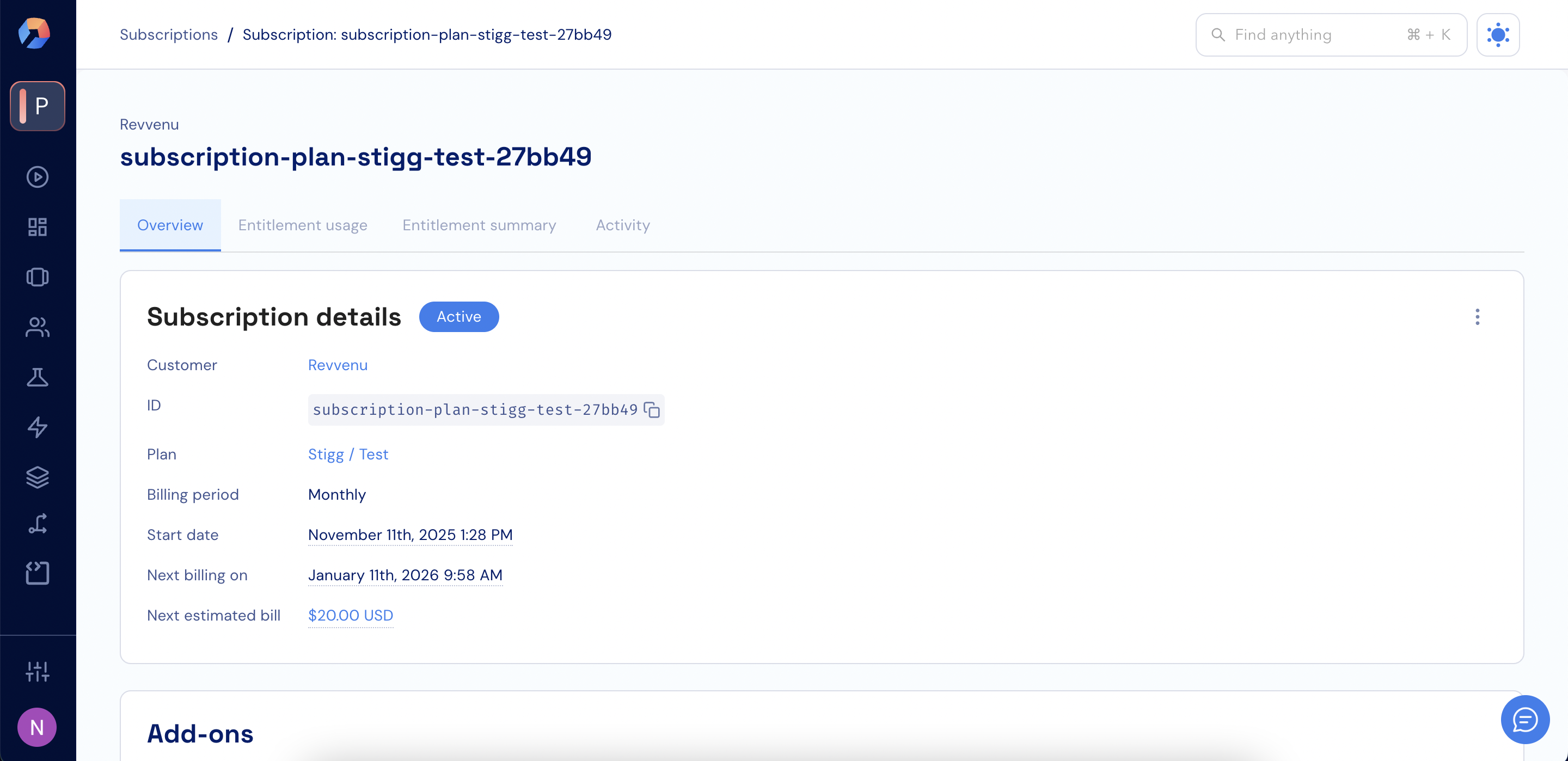
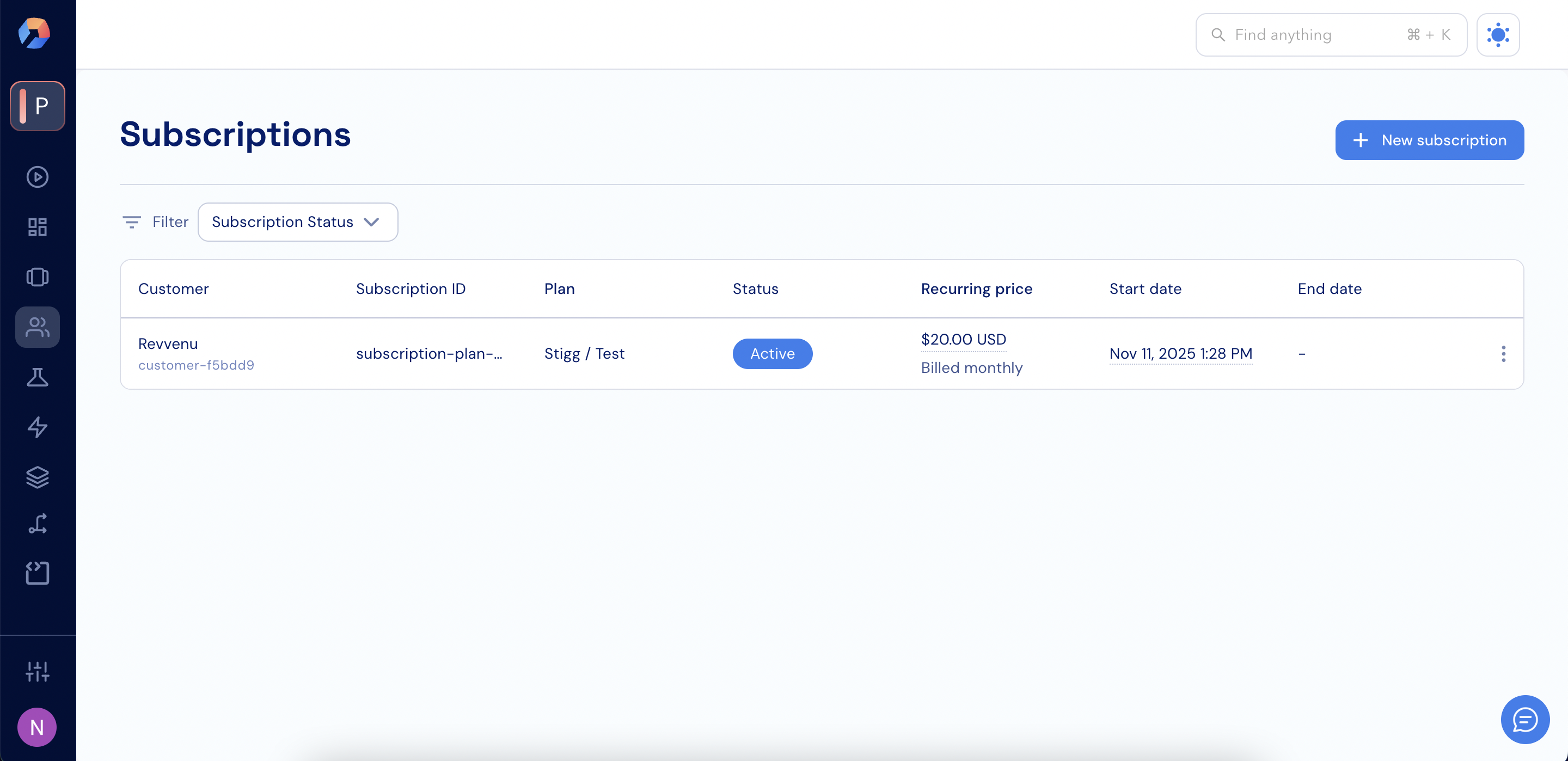 2. Click a subscription in the lift to see its details.
 You can narrow down the subscriptions list using flexible filters to quickly find specific subscriptions:
1. Click **Filter** at the top of the **Subscriptions** page.
2. Select a field to filter by. Available fields include:
* **Subscription Status**
* **Subscription ID**
* **Subscription Billing ID**
* **Subscription Salesforce ID**
* **Plan ID**
* **Plan Name**
* **Pricing Type**
* **Customer ID**
* **Customer Name**
* **Customer Email**
* **Customer Billing ID**
* **Customer Salesforce ID**
* **Resource ID**
3. Choose an operator:
* **is any of**
* **is not any of**
4. Select values from the dropdown or enter a value, depending on the selected field.
5. Click **Apply** to update the list.
You can narrow down the subscriptions list using flexible filters to quickly find specific subscriptions:
1. Click **Filter** at the top of the **Subscriptions** page.
2. Select a field to filter by. Available fields include:
* **Subscription Status**
* **Subscription ID**
* **Subscription Billing ID**
* **Subscription Salesforce ID**
* **Plan ID**
* **Plan Name**
* **Pricing Type**
* **Customer ID**
* **Customer Name**
* **Customer Email**
* **Customer Billing ID**
* **Customer Salesforce ID**
* **Resource ID**
3. Choose an operator:
* **is any of**
* **is not any of**
4. Select values from the dropdown or enter a value, depending on the selected field.
5. Click **Apply** to update the list.